Web analytics tools
In this section, you will learn how to easily integrate CodeTwo Email Signatures 365 with different web analytics tools. Doing so will let you track the results of your email signatures marketing campaigns and measure the web traffic you get from them.
Follow the links below to learn more about web analytics tools and why you should consider using them with CodeTwo Email Signatures 365:
- What are web analytics tools?
- What is URL tagging and why use it?
- Examples of web analytics tools providers
- Why integrate CodeTwo Email Signatures 365 with web analytics tools?
- Sample integration
- Limitations
What are web analytics tools?
Web analytics tools let you measure the performance of your website, including:
- acquisition – where your visitors came from (e.g. if they found your website through a search engine, like Google, or clicked a link to it on another website);
- behavior – what are the most popular pages, how much time users spend on them, what other actions users perform (e.g. click a link or use a search box);
- conversions – what are the results of users’ visits on your website. Have they purchased your products? Have they downloaded a free report, or registered to your service?
What is URL tagging and why use it?
To provide you with actionable insights, web analytics tools need to identify sources of traffic to your website. In most cases, it can be done correctly automatically (i.e. using the HTTP referrer field). However, there are scenarios in which identifying the traffic source automatically is not possible, for example:
- When web traffic comes from emails. If a recipient receives your newsletter and clicks a link to your website, web analytics tools will register it as a direct visit, because there is no referrer field present.
- When web traffic comes from banners (or paid links) placed on other websites. Web analytics tools register this type of traffic as referral traffic because they have no way of differentiating the paid links from non-paid ones.
If you want to correctly identify traffic sources in the scenarios mentioned above (e.g. to assess the profitability of your marketing activities), you need to annotate these types of links with special tags - this is called URL tagging. In the case of Google Analytics, one of the most popular web analytics tools, there are multiple URL tags that you can add to your links. These tags, also known as UTM parameters, include:
- utm_campaign (required) – to identify your campaign or product. This is the only required UTM parameter.
- utm_source (optional) – to determine the source of traffic (email banner, search engine, newsletter).
- utm_medium (optional) – to identify the advertising medium, like email, blog, or a message board.
- utm_content (optional) – used for A/B testing of ads. With this tag, you will know precisely which element was clicked to reach your website.
- utm_term (optional) – to note the keywords for a paid ad.
To find out more about Google Analytics URL tags, please refer to Google’s documentation.
Examples of web analytics tools providers
Follow the links below to learn how to integrate CodeTwo Email Signatures 365 with:
Why integrate CodeTwo Email Signatures 365 with web analytics tools?
CodeTwo Email Signatures 365 is an online service designed to let you easily add and control email signatures for all users in your Microsoft 365 organization. It can also be used to add marketing banners or promotional links to your emails, making it a powerful and cost-effective medium for marketing communication with both prospects and existing customers. With the URL tags in place, you can effortlessly track your email signatures marketing campaigns. There are many ways to introduce tracking to your email signatures, and they highly depend on your marketing campaigns. Below, you can find a sample integration with step-by-step instructions on how to set it up.
Sample analytics tool integration
Imagine you want to run a spring sale and promote it in emails, for one week. You could use CodeTwo Email Signatures 365 to automatically add a promotional banner to emails by using the following email signatures rules settings:
- Create a new signature rule and enter a name for it (Fig. 1.).
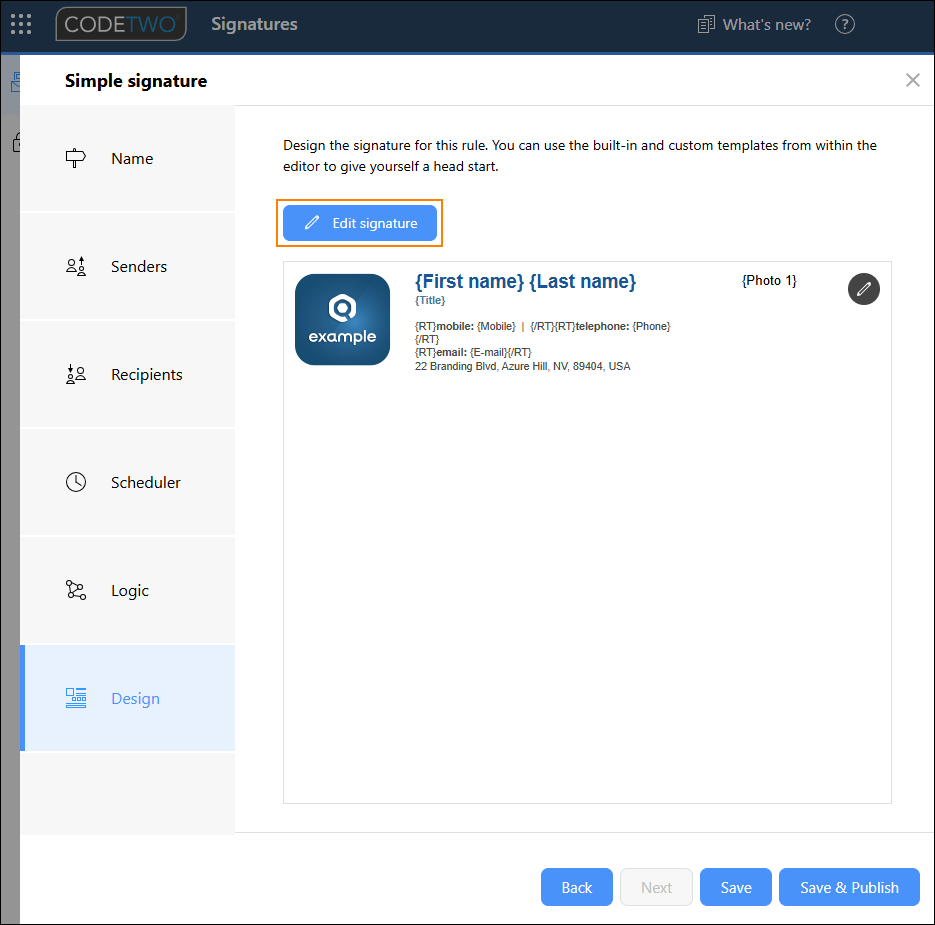
Fig. 1. Creating a new signature rule.
- In the Senders step, you need to add users that belong to the sales department (Fig. 2.). In this way, the banner will be added only to emails sent by the members of this department. You can skip this step if you wish to add marketing banners to all outgoing emails.
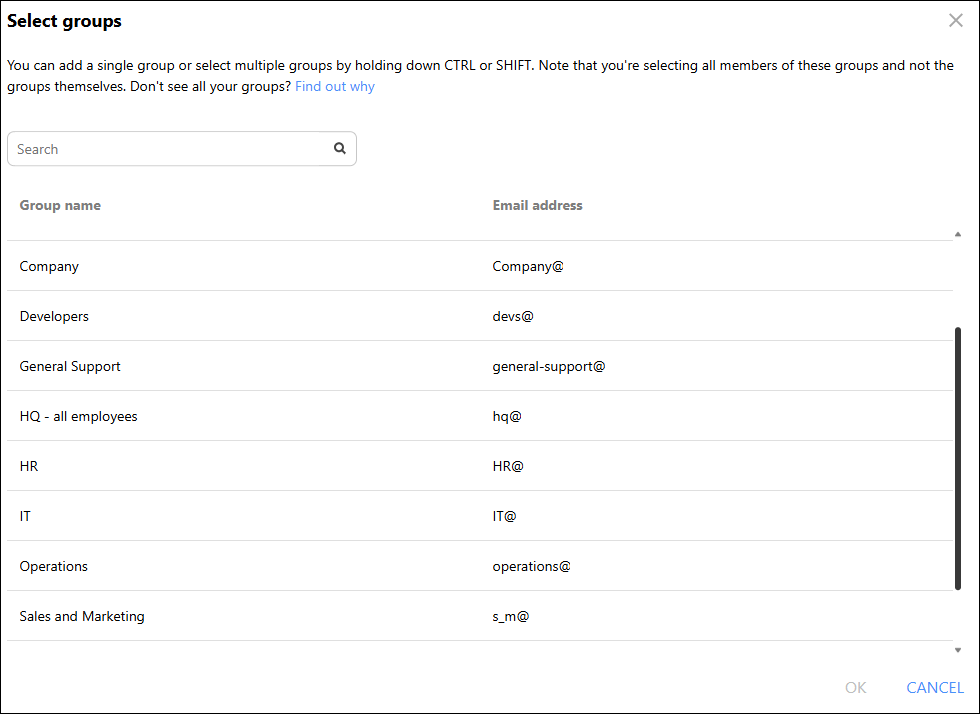
Fig. 2. Specifying the scope of senders.
- In the Recipients step, select which recipients will receive this banner (Fig. 3.). In this example, only those outside your organization.
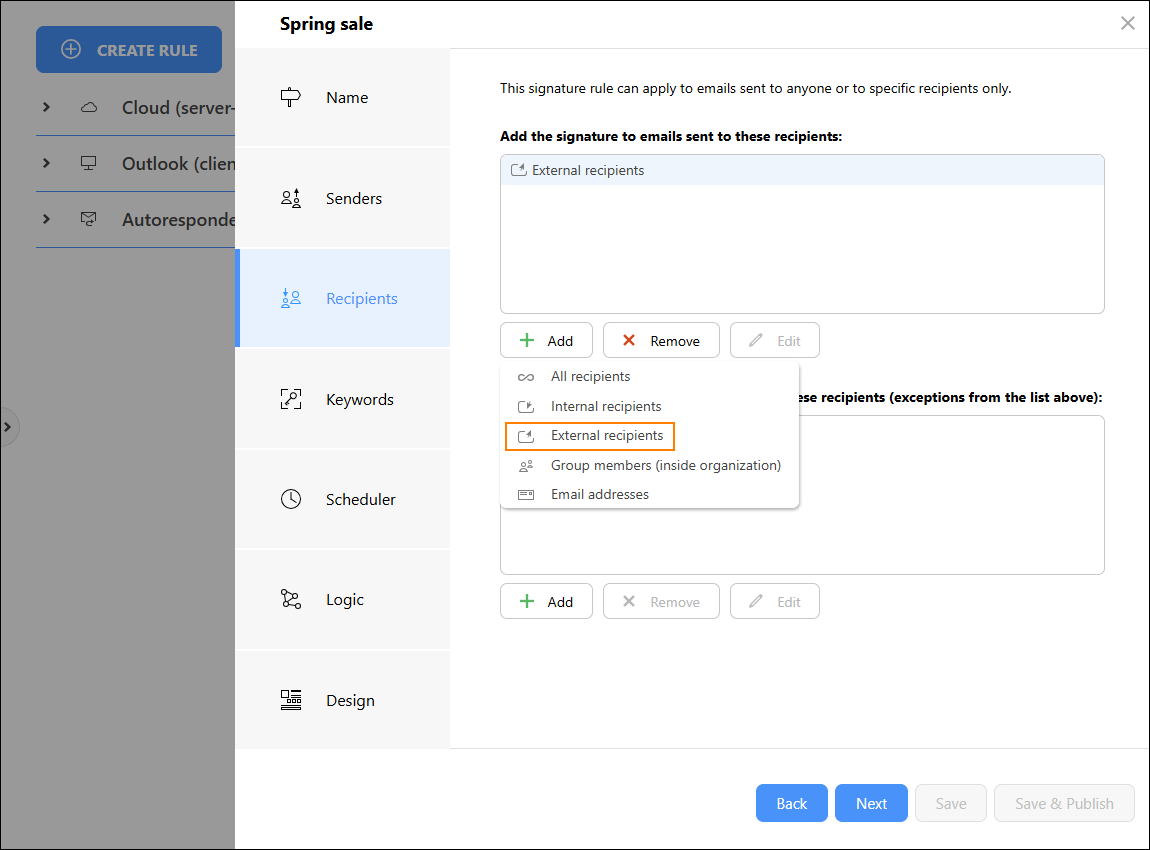
Fig. 3. Applying the rule to emails sent outside your organization.
- Go to the Scheduler step and configure the feature, so that the rule you are creating will be active for one week, starting from a specific date (Fig. 4.).
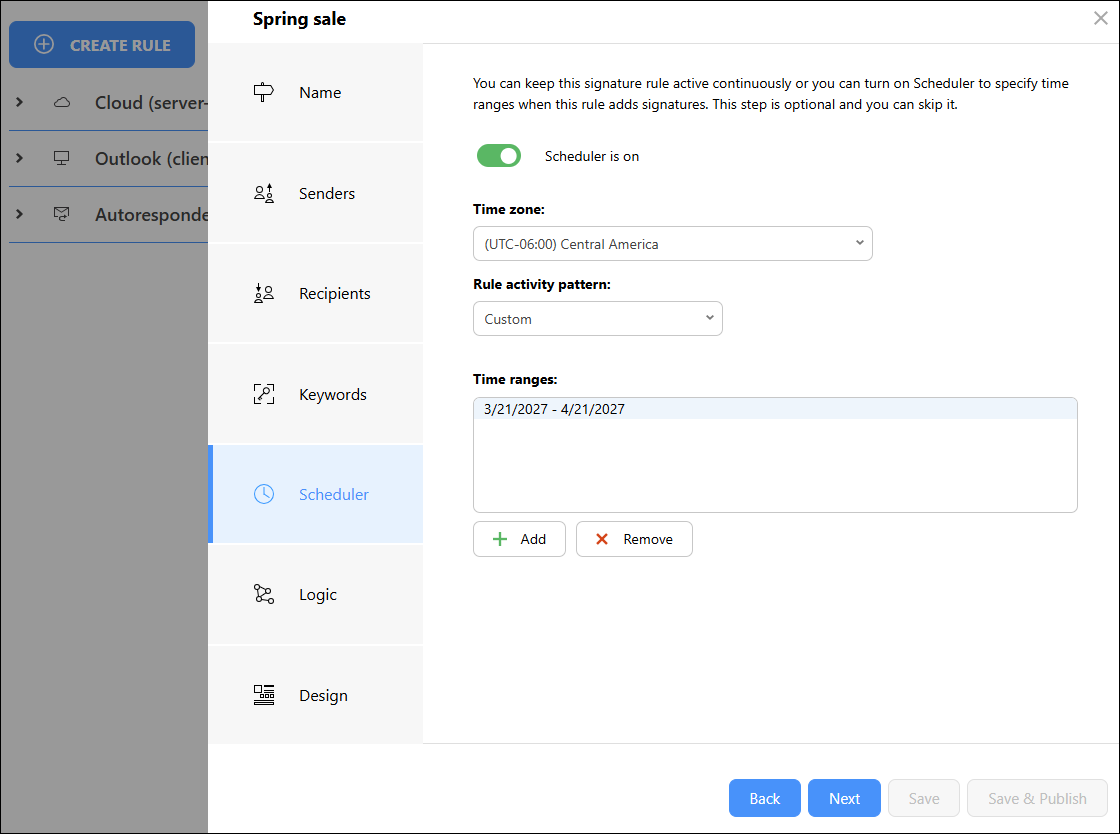
Fig. 4. Configuring the time range for the rule to be effective.
To properly track results of this campaign in, for example, Google Analytics, you could tag the banner link like this:
utm_source: Newsletter
utm_medium: Email
utm_campaign: Spring_sale
The URL tagged with these UTM parameters would look like this: https://www.example.com/?utm_source=Newsletter&utm_medium=Email&utm_campaign=Spring_sale
Once you configure appropriate rules in CodeTwo Email Signatures 365, you can launch your campaign. Adding the UTM parameters to the links inserted into your email signature allows you to track the performance of your email signature campaigns. You can learn how many recipients click your banners and other links. Thanks to this information, you can determine which signatures work best and make some changes if the results are not satisfactory.
Limitations
It’s important to note that an analytics tool needs to be set up on your website or app. Once configured, it enables you to see the source of incoming traffic. There are, however, some limitations to what you can track.
By default, you can track all traffic that goes directly to your website or app. If your visitors go to your website after clicking a link which includes URL tags, you will get information on the source of traffic in your web analytics tool.
As a result, by default, you won’t be able to track any traffic to your social media profiles or any website on which the analytics tool has not been set up. To track clicks on social media icons in your email signature, you can set up a redirect. This means that a person who clicks a social media icon will first go to your website, where the visit source will be registered, and then be redirected to the target social media profile.
In this article