Integration with Woopra
This article describes how to integrate CodeTwo Email Signatures 365 with the web analytics tool Woopra, allowing you to easily track the results of your organization’s marketing campaigns using web traffic statistics.
You can get detailed data on your email signature marketing campaigns by using dedicated URL tags in your links. Woopra supports two different kinds of URL tags for these purposes:
- UTM parameters native to Google Analytics. You can use a single set of UTM parameters to see results on both platforms. Learn how to set up UTM parameters for your email signature links
- Woopra’s URL tags that you can add to links inserted into your email signatures:
- woo_campaign (required) – this tag specifies the name of the product promotion or campaign. Example: spring_sale.
- woo_source (required) – used to identify where the traffic comes from, for example, email signature, search engine, or a particular domain. Example: footer.
- woo_medium (optional) – this tag represents the medium, such as email or cost-per-click. Example: email.
- woo_content (optional) – used for A/B testing of ads. Use the woo_content parameter to differentiate ads or links that point to the same URL. Examples: logolink or textlink.
- woo_term (optional) – used mostly for paid search to identify the keywords used in a specific ad. Example: spring+collection.
To learn more about tracking the results of marketing campaigns by means of URL tags, refer to Woopra’s documentation.
How to tag links in email signatures with Woopra tracking parameters
You can use CodeTwo Email Signatures 365 to add tagged links to your email signatures. This way, the process of tracking web traffic from your email signatures will become easier.
- Open the signature editor by clicking Edit signature in the Design step (Fig. 1.).
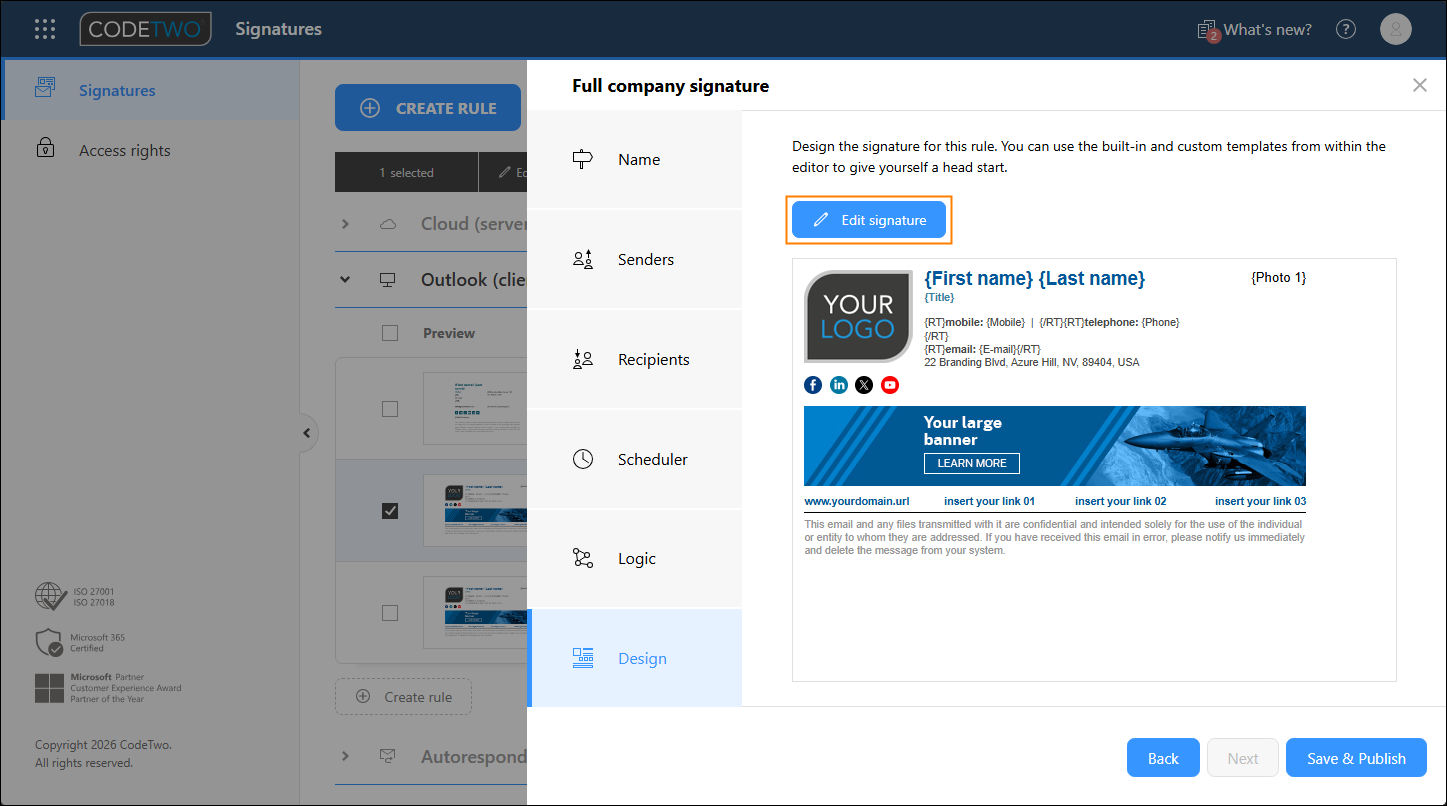
Fig. 1. Editing a signature template.
- To insert a link to your website, choose a banner or text in the email signature editor and click the Link button on the ribbon (Fig. 2.). If you want to edit an existing link, right-click it and select Edit link from the context menu.
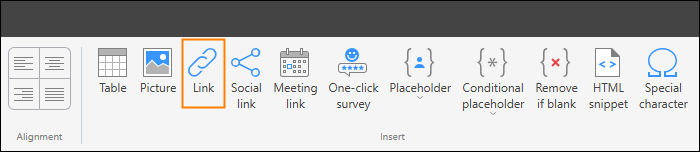
Fig. 2. Inserting a link in the signature template editor.
- In the Insert link (or Edit link) window (Fig. 3.), specify link details and click Show email tracking parameters to see the URL tagging section.
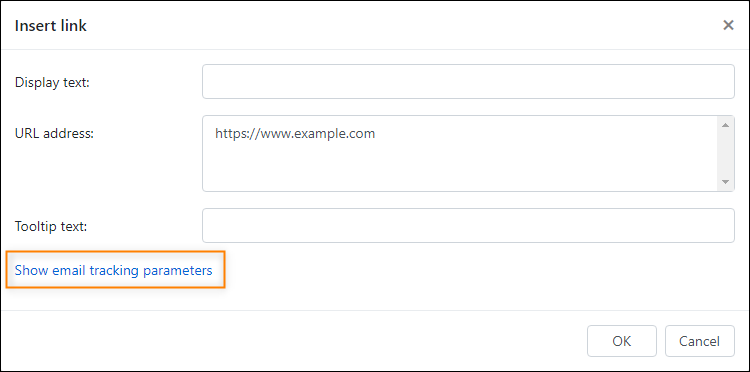
Fig. 3. Showing email tracking parameters in the Insert link window.
- Choose Woopra from the Tracking tool drop-down list. Next, define the values for your URL tracking parameters (Fig. 4.) and click the OK button to save your changes.
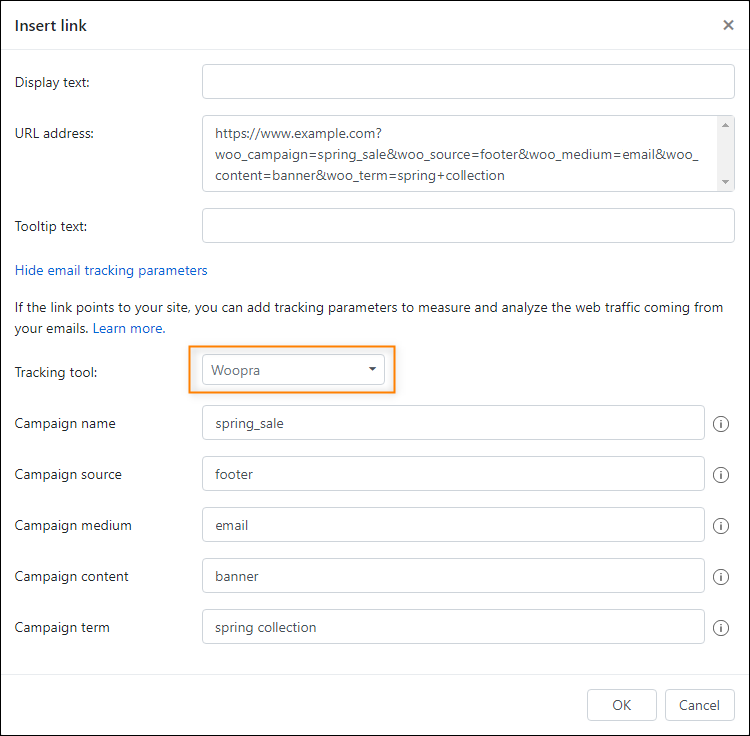
Fig. 4. Inserting the email tracking parameters.
View the results of your campaigns in Woopra
If you tagged your links properly, you will be able to see the results of your email signature marketing campaign in various Woopra reports. To learn more about analyzing traffic in Woopra, please refer to Woopra’s documentation.
Note:
By default, you won’t be able to track traffic from your email signature to your social media profiles. To learn more, see web analytics tools’ limitations.
In this article