How to add an upcoming out-of-office note to email signatures
Learn how to use CodeTwo Email Signatures 365 to automatically add an upcoming out-of-office (OoO) note to emails and email signatures in your organization (Fig. 1.). This will let you inform recipients in advance about dates when specific people will be unavailable or when your organization will be closed (e.g., for holidays).
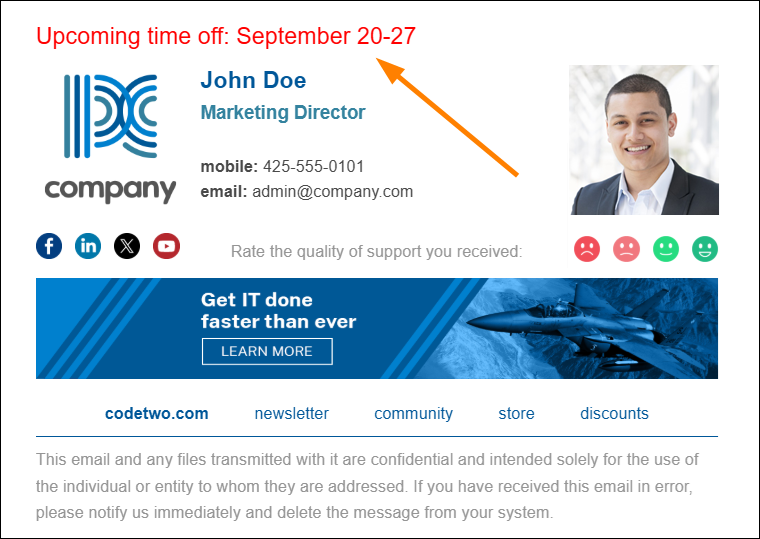
Fig. 1. A sample signature with an upcoming out of office note.
New to CodeTwo?
Learn more about signature modes our solution can work in. See how to set up your first signature rule and design an email signature template.
In this scenario, you will create a CodeTwo custom attribute that your users can quickly update. If they enter their planned absence dates into this attribute, an upcoming out-of-office note will appear in their email signatures. Follow these steps to set it up in your organization:
- Create a custom attribute
- Update existing signature templates to include the upcoming OoO note
- Provide instructions for end users to add their OoO dates to email signatures
Create a custom attribute
- Sign in at attributes.codetwo.com using your organization’s Microsoft 365 global admin credentials.
- On the Attribute visibility page, click Add to create a new custom attribute (Fig. 2.).
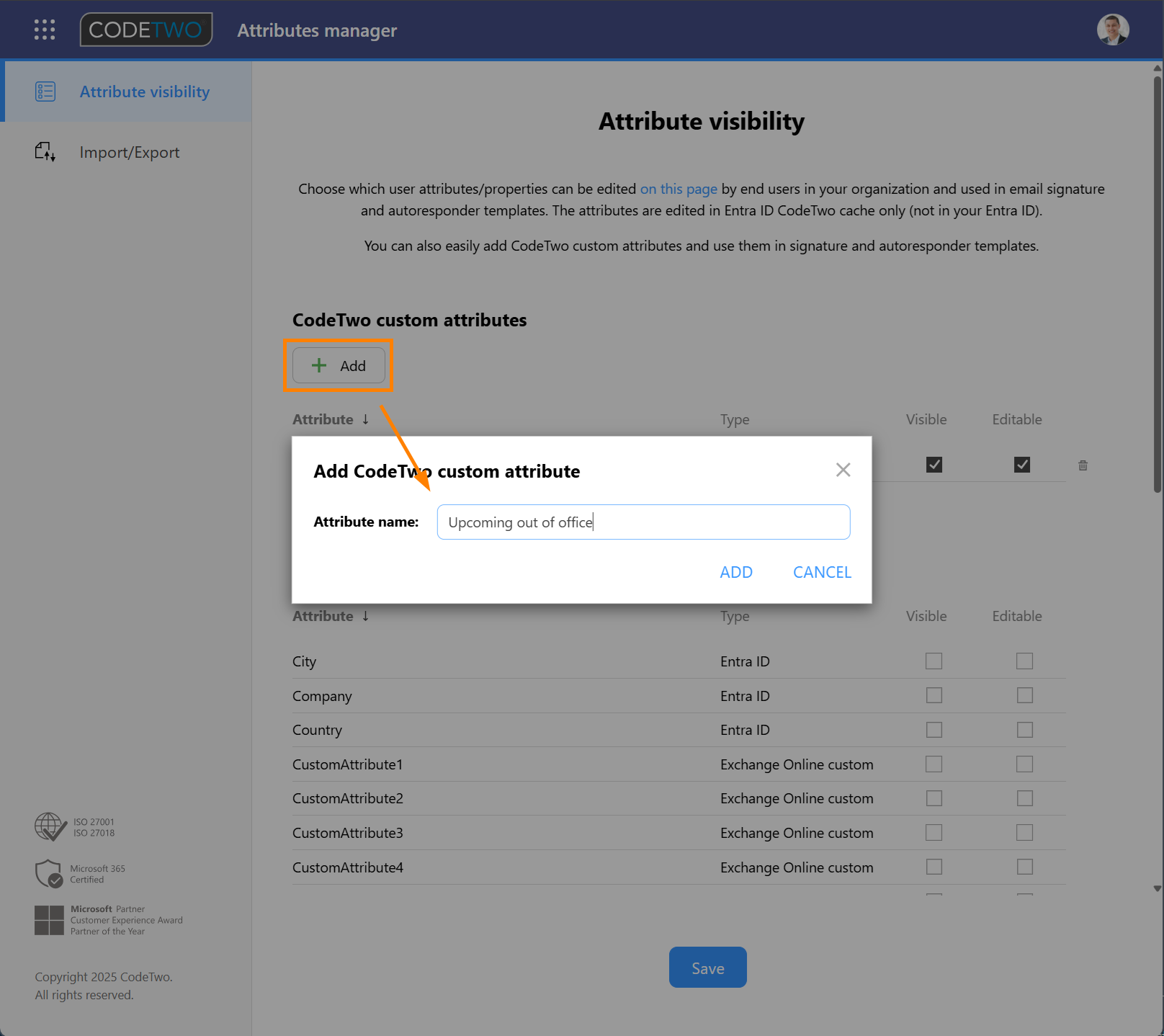
Fig. 2. Adding a new CodeTwo custom attribute.
- Name the new custom attribute, e.g. Upcoming out of office, and click ADD to create the attribute (see Fig. 2.). Be sure the Visible and Editable checkboxes are selected next to the new attribute, otherwise your users won't be able to edit it.
- Click Save to apply your changes.
Update existing signature templates to include the upcoming OoO note
Now, you need to update your email signature templates to include the upcoming out-of-office note for users who fill in the custom attribute you set up earlier.
Don’t worry – this won’t affect your existing email signatures. If a user doesn’t fill in the attribute value, the note will not appear in their signature.
Proceed as follows:
- Sign in to the Signatures app.
- Choose the email signature you want to update and open it for editing (e.g., by hovering the mouse over its preview and clicking Edit signature, as shown in Fig. 3.).
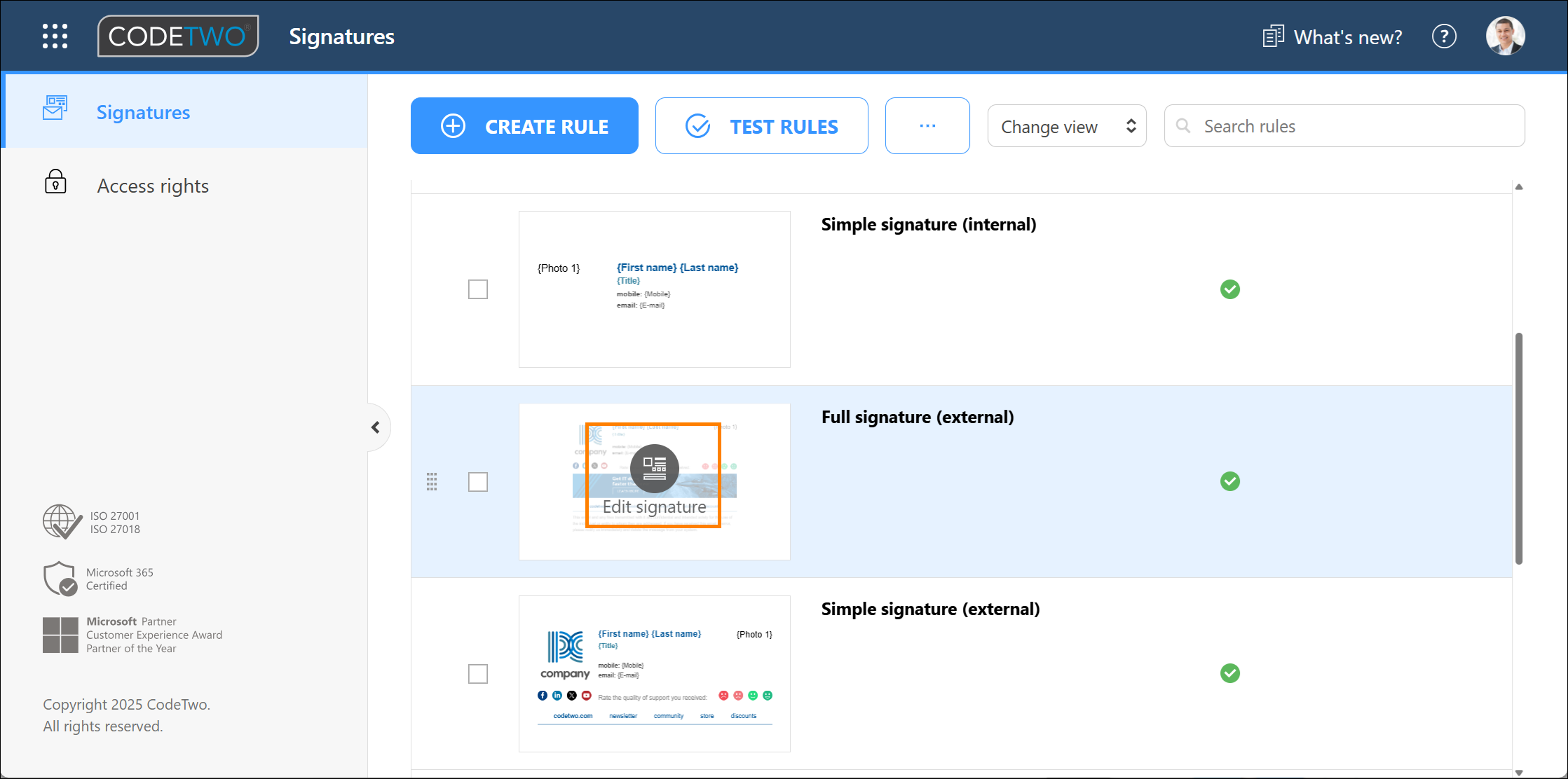
Fig. 3. Opening a signature template in the editor.
- In the editor, add the OoO note text, e.g., Upcoming time off:, to your template (see Fig. 4.). You can customize the text (e.g., change font size or color) for better visibility.
- Add a space after the text and go to Placeholder > Message Sender > Additional attributes to insert the placeholder for the custom attribute you configured earlier (in this example, Upcoming out of office), as shown in Fig. 4.

Fig. 4. Adding the custom attribute that will be replaced with actual OoO dates provided by end users.
- Highlight the OoO note text together with the placeholder, then click Remove if blank. This adds RT tags before and after the note (Fig. 5.). Thanks to that, if the custom attribute is not filled in by an end user, the upcoming OoO note will be removed from the signature, ensuring its layout remains unaffected and no empty spaces are left. Learn more about using RT tags
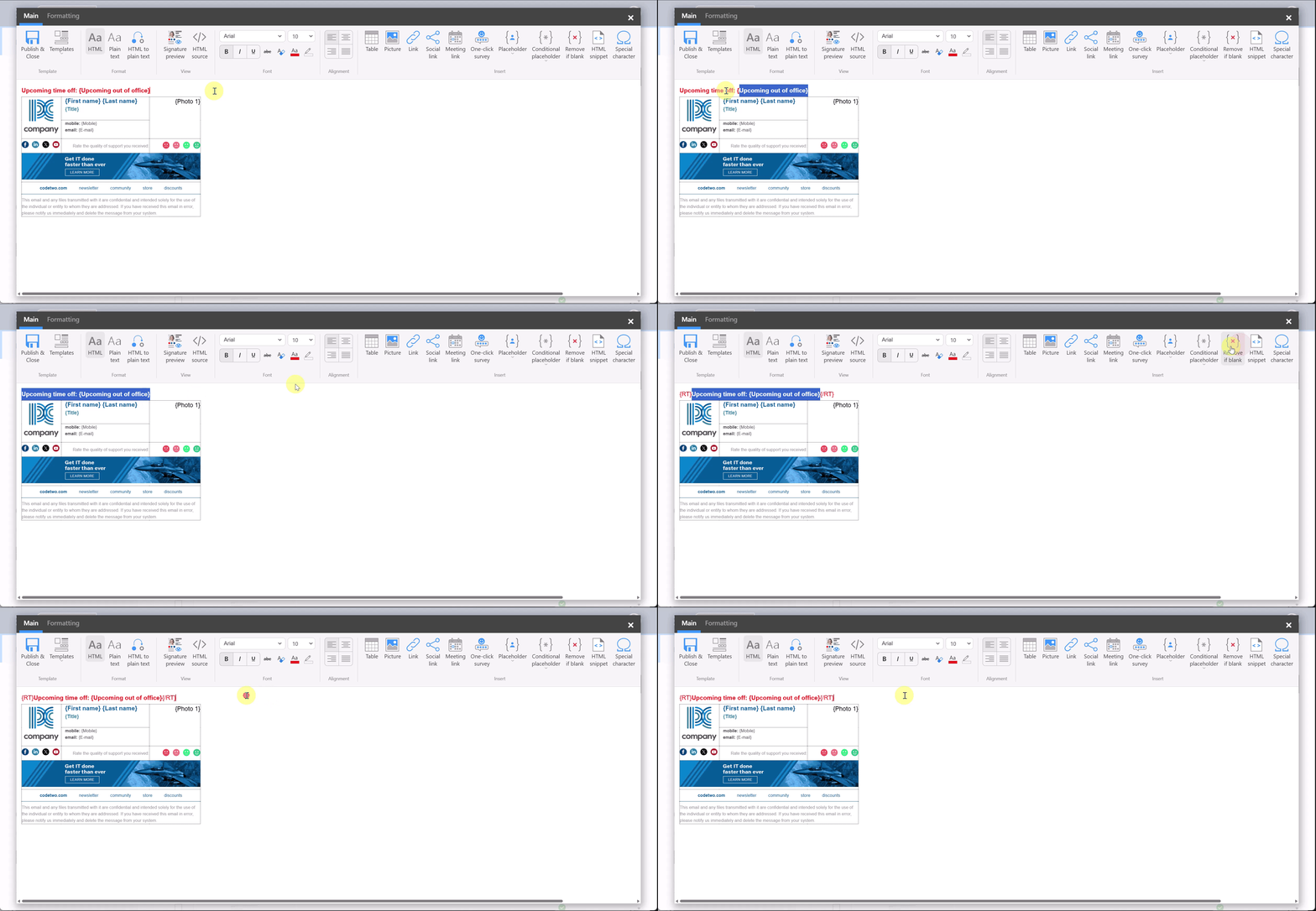
Fig. 5. Adding RT tags to prevent the OoO note from appearing in signatures if the custom attribute is not filled in.
- Copy the entire OoO note (including the placeholder and RT tags), switch to Plain text, and paste the note into your plain text signature template (Fig. 6.).
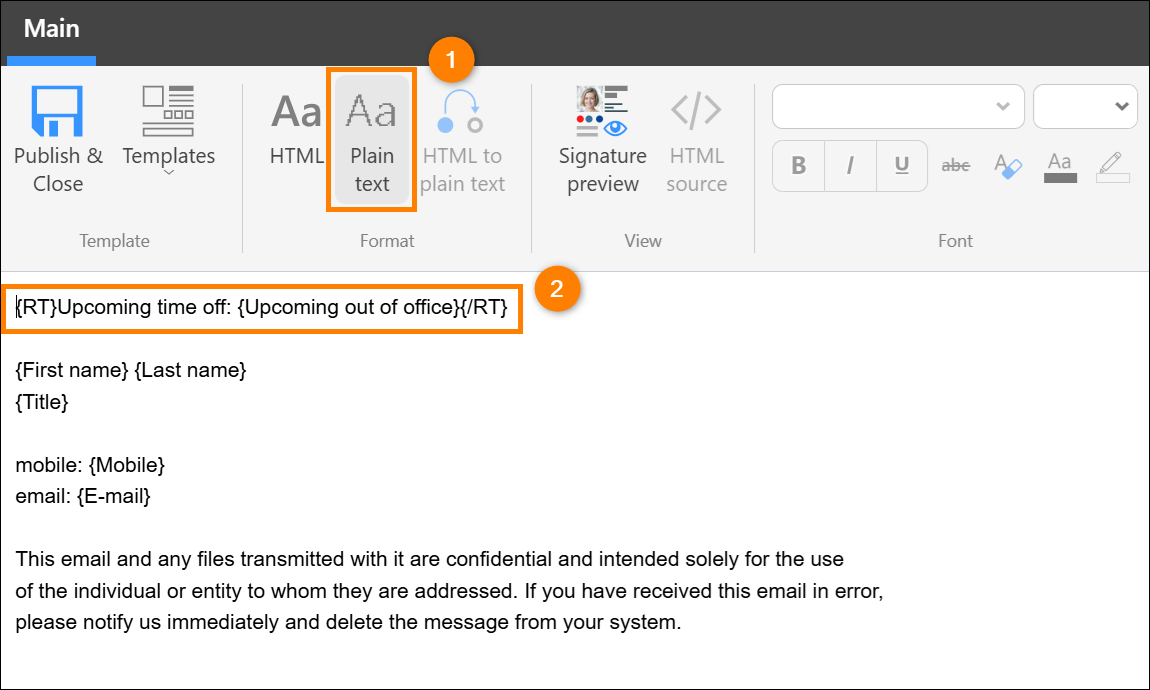
Fig. 6. Adding the OoO note to the plain text signature template.
- Click Publish & Close in the editor to save your changes to the signature template.
Repeat these steps for other email signatures to ensure consistency.
Add out-of-office dates to email signatures – instructions for end users
- Sign in at user.codetwo.com with your Microsoft 365 credentials.
- In the Upcoming out of office field, enter the date(s) of your planned absence (Fig. 7.).

Fig. 7. Entering the upcoming out-of-office dates.
- Click Save & update. The changes are applied immediately, and the upcoming OoO dates will now appear in your email signature.
Once your absence period has ended, repeat the same steps to remove the dates. Just clear the Upcoming out of office field (Fig. 7.) and save your changes.
See also
How to set up consistent & branded out of office replies - see how to make sure your OOF replies are not only informative, but also help you promote your brand among external recipients.
In this article