


With CodeTwo Email Signatures 365, you can customize your festive email communications in multiple ways: from promoting winter sales campaigns, through using a special Christmas or Hanukkah email signature (with an out-of-office note), to collecting customer feedback with holiday-themed customer satisfaction surveys. All that with just a few clicks!
As the season is upon us, let’s have a look at the best ideas to boost your emails, the holiday way.
Go 100% festive mode – set up a holiday email signature
You don’t need to set up a holiday email signature from scratch or tamper with your standard signature’s design and conditions just to show everyone that Christmas is all around. CodeTwo Email Signatures 365 lets you easily clone an existing signature rule and prepare its holiday-themed version. For instance, if you prefer to stick to your organization’s branding & colors, you can:
- Change only selected elements of your standard signature template (e.g., the banner or user photo),
- Add an extra element, for example, a one-click customer satisfaction (CSAT) survey to rate your holiday sales campaign.
Click here to learn how to clone and manage signature rules
But if you want to go 100% festive mode and prepare a completely new signature with a holiday-themed template, feel free to use one of the sparkling templates from the catalog at mail-signatures.com. Next, create a new email signature rule in CodeTwo Email Signatures 365 and use the steps from this article to transfer the selected holiday template to our tool and apply it to all people in your organization (or, alternatively, only to employees in front office departments like Sales or Marketing, as shown in this article).
Tip: You can automatically enable and disable your seasonal signature with the Scheduler feature, as described later in the article.
Either way, take a look at our sample holiday-themed signature created in CodeTwo Email Signatures 365 and read on for a couple of ideas on how to spruce up your email signature in a similar way.
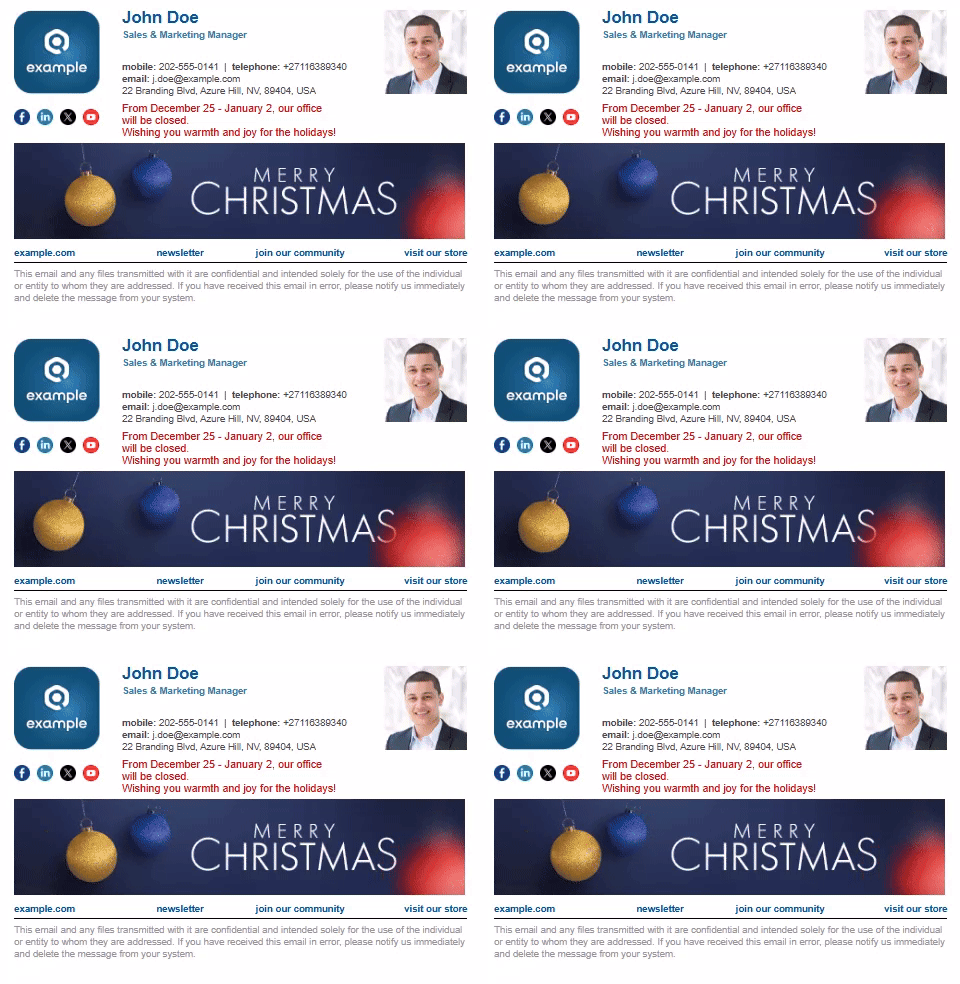
All I want for Christmas is… a banner
This is usually the first-choice seasonal update of an email signature, and changing a banner in CodeTwo Email Signatures 365 is really simple, too. While editing your signature’s design in the template editor, select the banner you want to replace, then go to the Picture tab, and use the options available there to select a different banner.
Tip: See the free bundle of holiday-themed banners at mail-signatures.com and choose one for your email signature!
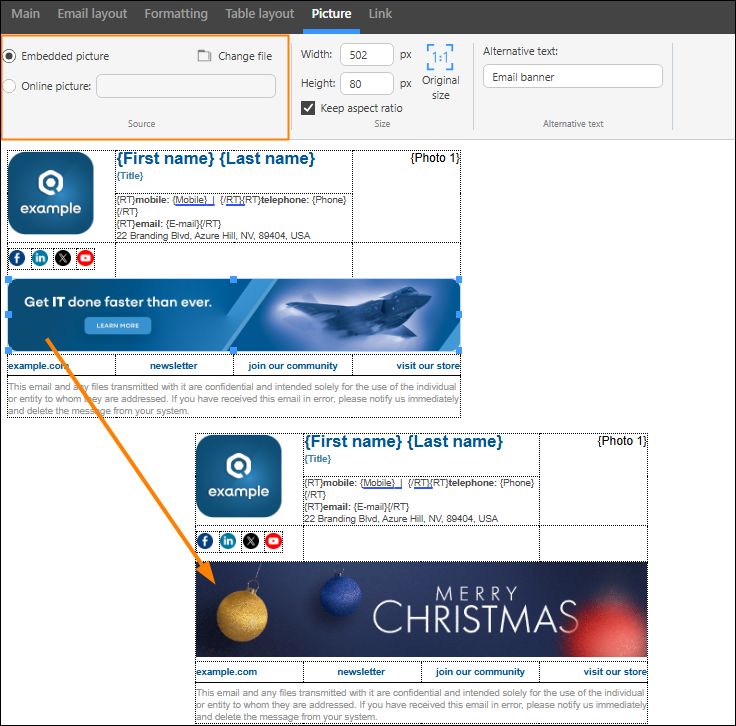
Don’t forget to save your changes in the editor by clicking Apply & Close.
Tip: To learn more about adding banners and other content to signature templates in CodeTwo Email Signatures 365, see this article.
Holiday analytics – track your winter season campaign results
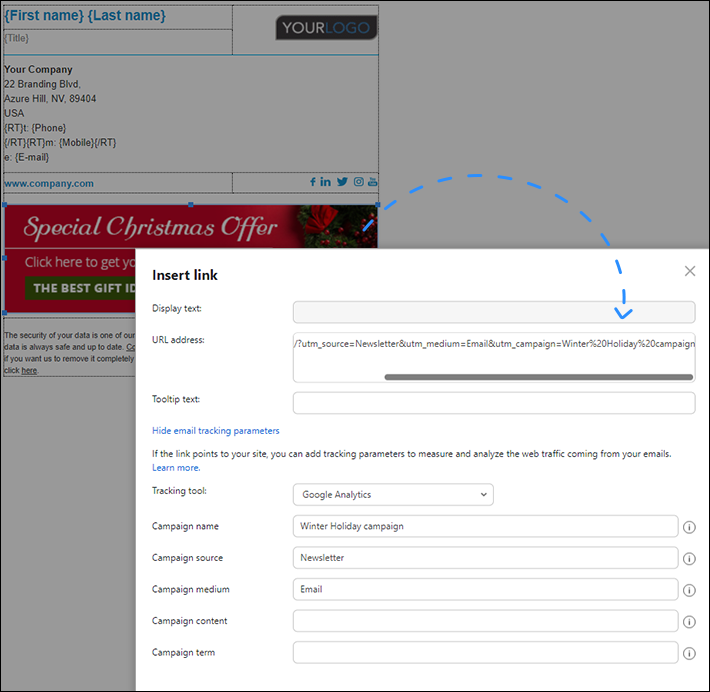
If your banner includes a link (URL) to your exclusive holiday offer, you can use these instructions to tag the banner’s URL for analytics purposes. Next, use one of the available solutions (e.g., Google Analytics) to track your campaign results.
There’s no holiday from feedback – let customers rate your campaigns
If you run a holiday season sales campaign, you might be interested in discovering your customers’ opinions about it. Simply activate the CodeTwo One-click surveys feature, create a new CSAT survey, and add it to your email signature, for example, below the banner. See this article to learn how to do it.
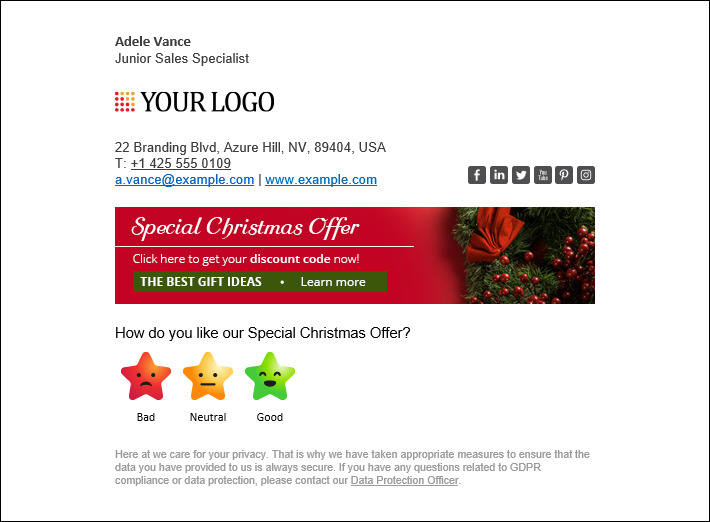
Using one-click surveys is not limited to adding a CSAT to your email signature. The surveys also let you collect comments from your customers and analyze all the data with the powerful CodeTwo Insights analytics dashboard.
Watch this video for a quick tour of CodeTwo One-click surveys
Holiday-themed CSAT? Why not!
While CodeTwo One-click surveys come with a number of predefined rating icons, you might not find the ones that 100% match your Christmas holiday email signature design. Fortunately, there’s a solution to that – simply follow these steps to add any custom icons/smileys you want to your survey.
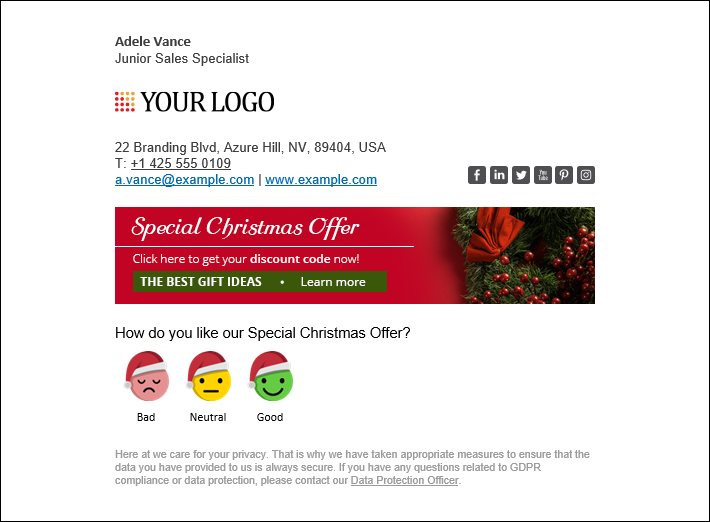
And if you’ve just become a fan of the custom survey icons shown in the picture above, download them with the link below:
Download custom Xmas-themed one-click survey icons
Christmas-themed user photos
Want to refine your holiday season email signature? Ask your graphic designers to add that Santa Claus hat to each user photo and then get help from CodeTwo User Photos for Office 365.
With this freeware solution, uploading multiple photos to your Microsoft 365 organization is no longer rocket science. All you need to do is to install the tool, sign in with appropriate permissions (learn more), and follow these instructions. Then, just wait for Microsoft 365 to process the new photos. Once done, they will automatically update in you users’ email signatures!
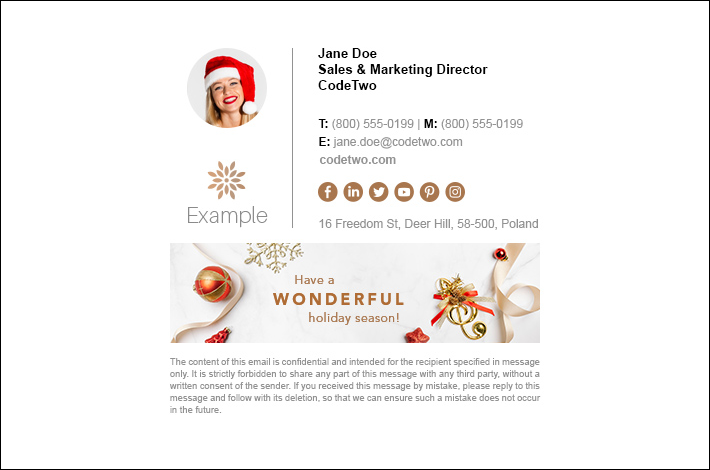
After the festive period ends, you can use CodeTwo User Photos for Office 365 to quickly & easily re-upload the standard user photos to Microsoft 365.
Tip: If you don’t have user photos in your email signatures yet, see this guide to learn how to add them quickly.
Let users choose their holiday email signature
With CodeTwo Email Signatures 365, you can let your users decide which signature version will actually be used in their emails. This can be helpful, for instance, if you want to prepare various festive signatures to promote diversity and inclusion in your workplace, or if the holiday signatures should only be applied optionally, according to your users’ preferences.
Here’s how to do it depending on the type of signatures you use:
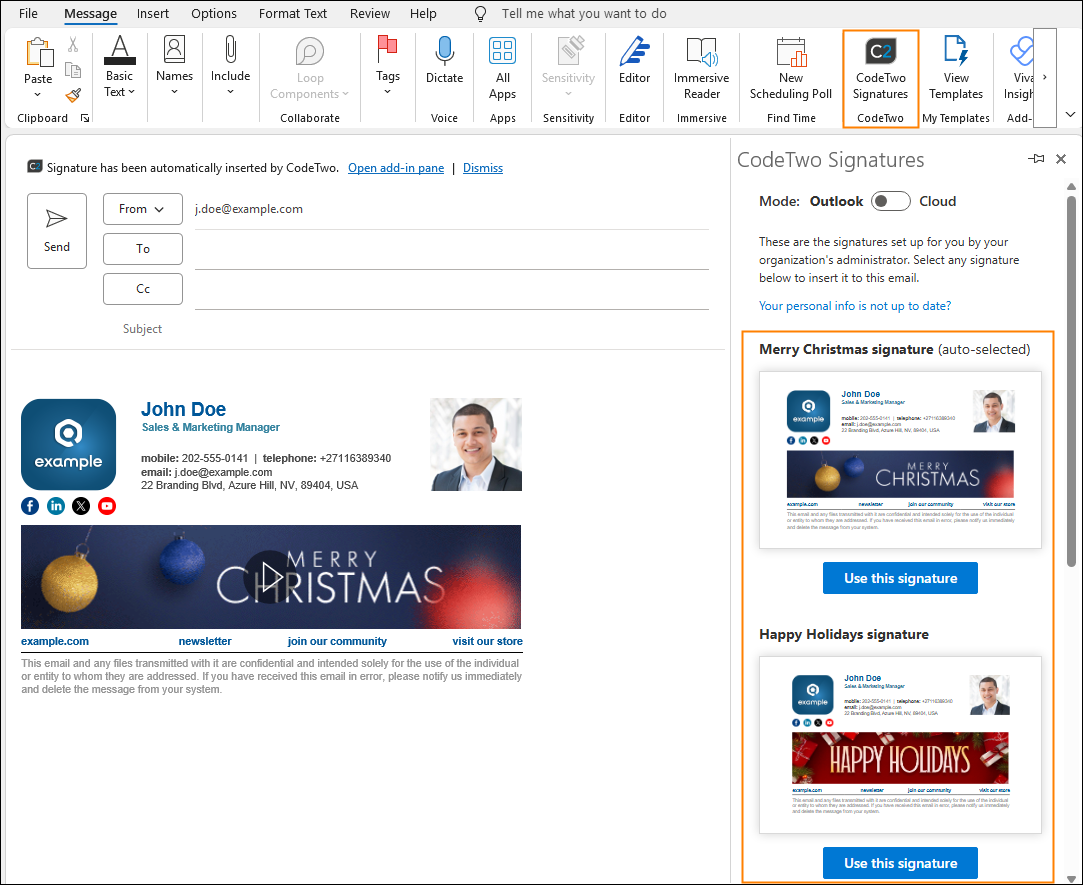
Outlook (client-side) signatures
- Create separate Outlook (client-side) signature rules for each version of your holiday-themed signature in the Signatures app. As I mentioned before, you can simply clone existing signature rules and only change certain template elements, such as the banner.
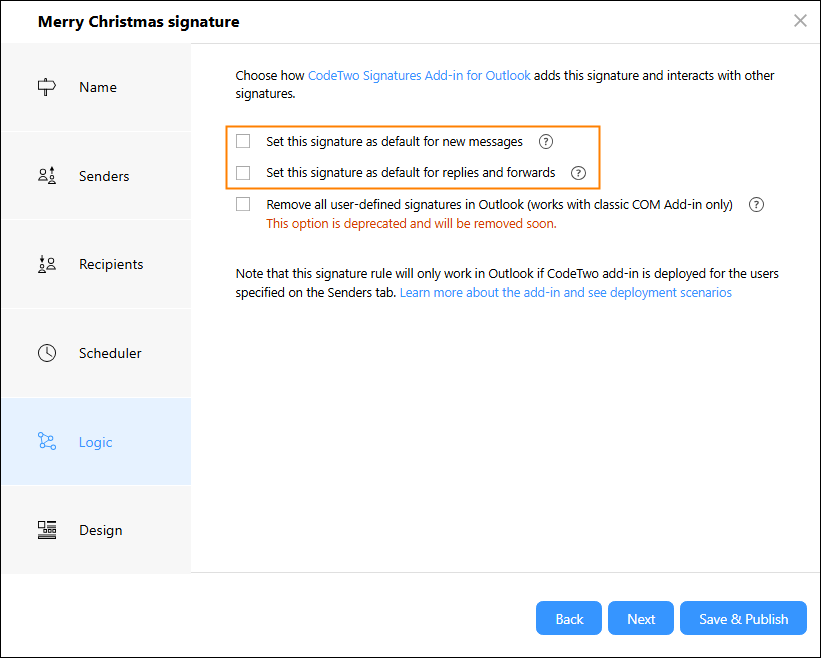
- Before going live with the new signatures, choose whether you want to use them as default ones for new messages and for replies and forwards. To do so, adjust the settings in the Logic step of the signature rule configuration wizard. If you don’t want the holiday templates to be inserted automatically, simply clear the two Set this signature as default… checkboxes. Learn more about these settings
- Instruct your users on how to change their signatures using the CodeTwo add-in pane. Check this article for details.
Cloud (server-side) signatures
- Create separate cloud (server-side) signature rules for each version of your holiday-themed signature in the Signatures app. As I mentioned before, you can simply clone existing signature rules and only change certain template elements, such as the banner.
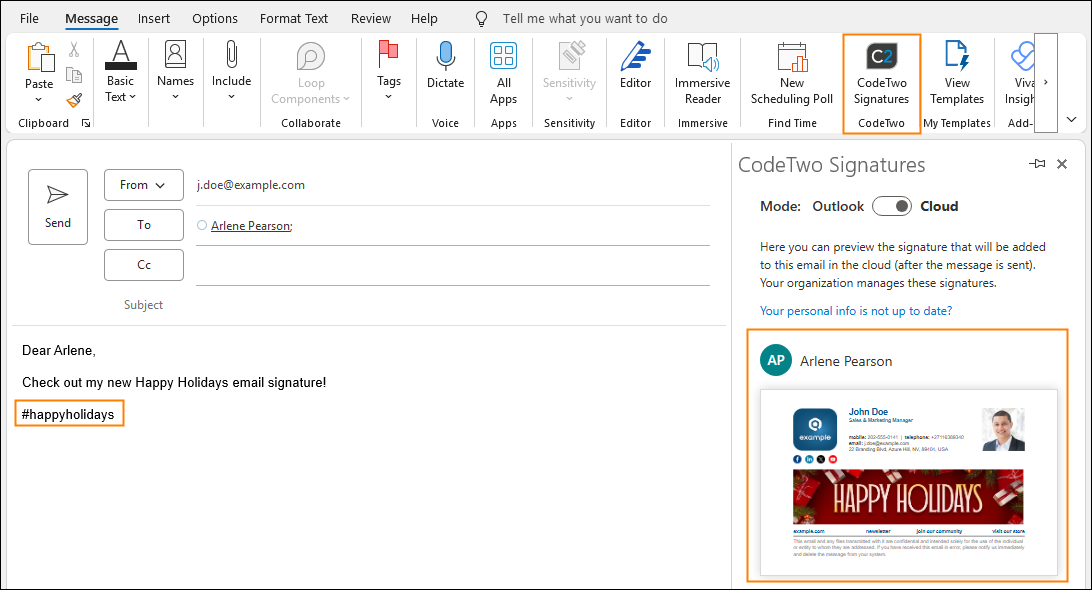
- For each of the holiday signature rules, define a keyword that your users will need to type in the message body or subject to trigger a specific rule and insert an appropriate signature. For instance, to trigger a signature with a ‘Happy Holidays’ banner, you can use the #happyholidays hashtag as your keyword. Once used, all keywords can be automatically removed so they are not visible after the email is sent. Click here to learn more about using keywords
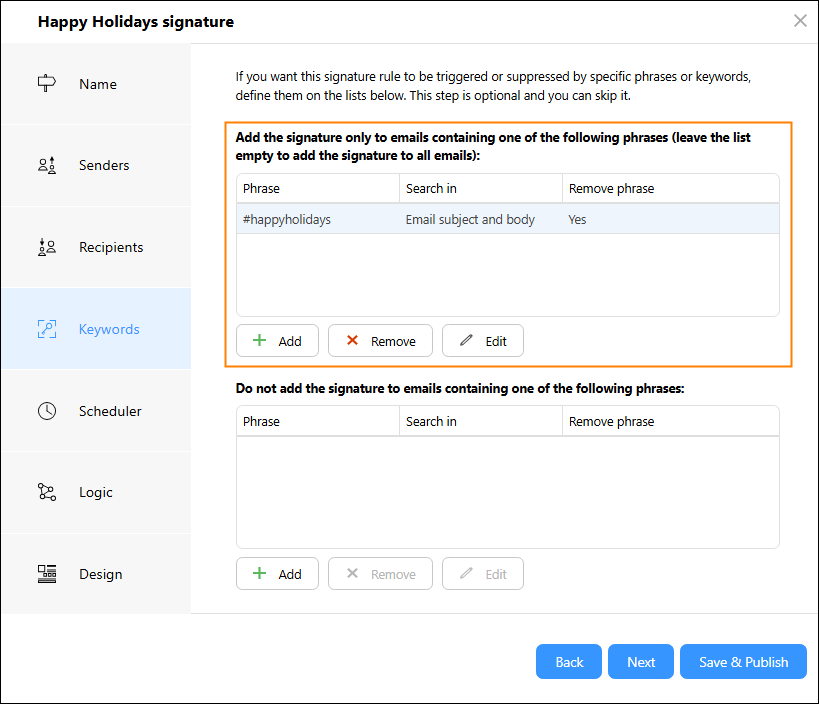
- Send your users the list of keywords that they can type to change the signature according to their preferences.
Tip: If you deploy the CodeTwo add-in for Outlook, you can let your users preview the signature that will be added to their email in the add-in pane, as shown in the screenshot below. Check out the following articles to learn how to:
‘Closed for the holidays’ – don’t forget about your out-of-office replies
As the time of celebration with the closest ones is approaching, you might want to keep your customers and partners informed about your non-standard working hours or let them know that your offices will simply be closed. With CodeTwo Email Signatures 365, it’s possible as well. Even better, we’ve got a complete guide for you on how to add an upcoming out of office period to email signatures.
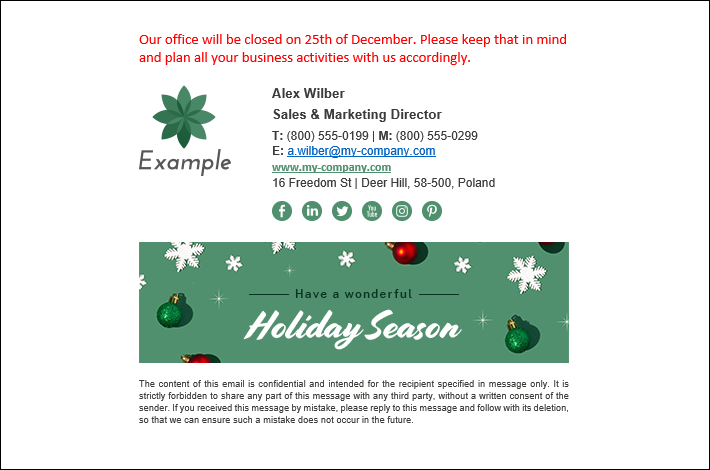
Holiday-themed OoO automatic replies
If your customers or partners somehow overlook your upcoming out-of-office note, there’s also the last-resort option that you can have as a CodeTwo Email Signatures 365 user – out-of-office auto replies to set up right before you leave to celebrate:
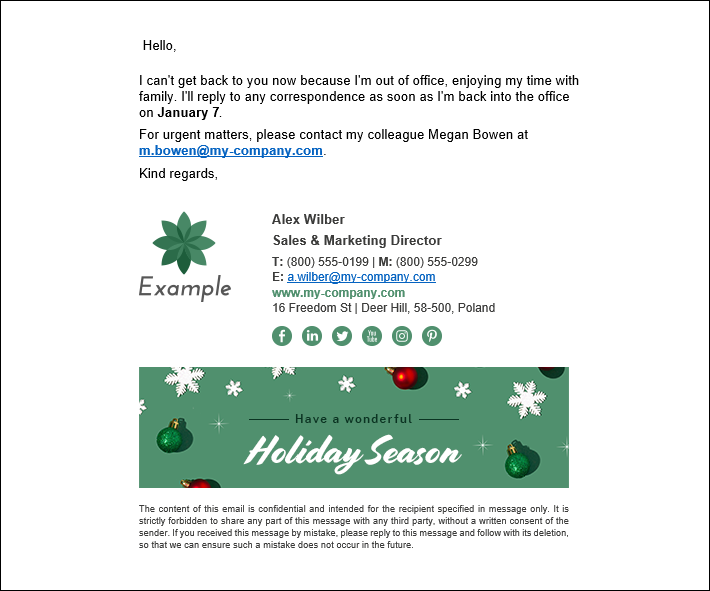
In contrast to the native auto replies in Outlook, the ones from CodeTwo can be fully branded and look similar to your holiday-themed email signature. They can also be centrally managed – so even if your users forget to set them up, you can do it for them in a matter of just a few minutes:
- See how to centrally configure a holiday auto reply for all users (the last-moment option)
- Learn how to let your users enable festive autoresponder (the in-advance option)
Scheduler to rule them all (during the holiday season)
As the new year finally settles in, you may want to (reluctantly) undo the festive tweaks to your email signatures. Thanks to the Scheduler feature in CodeTwo Email Signatures 365, you can plan for that in advance and undo the changes automatically once the holiday season is over.
All you need to do when you configure your festive email signature or auto reply is to enable the Scheduler and specify your custom date range. On the first day outside the range, your holiday signature or auto reply will automatically be disabled. It’s a simple and super-useful option for the forgetful people out there.
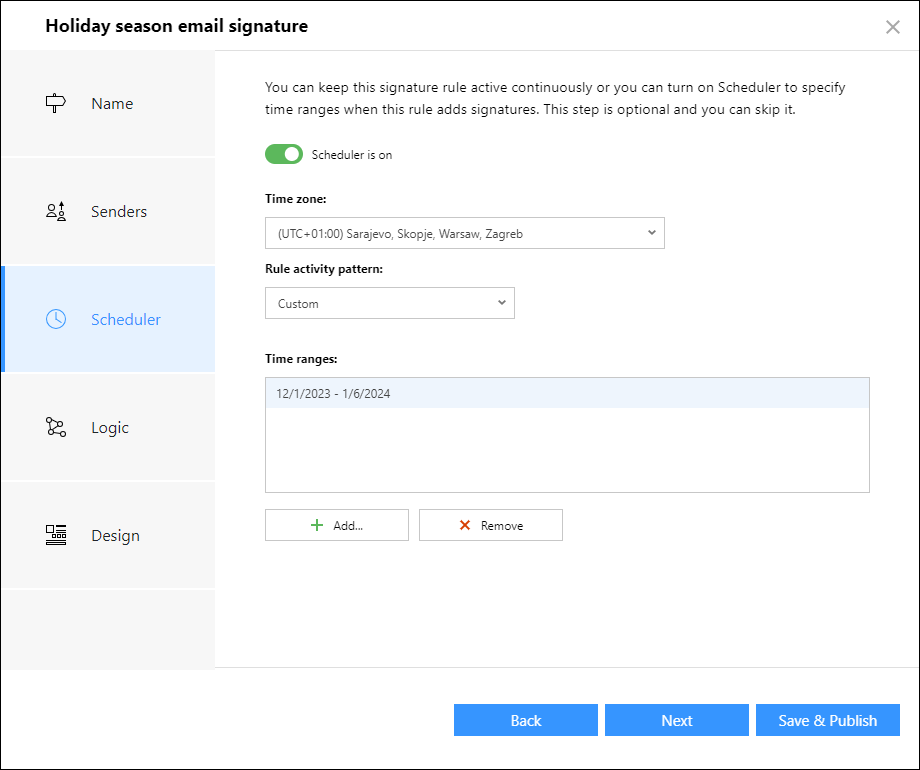
A tip for next year’s holiday season (or virtually any festive period): use the Scheduler to activate/deactivate your special versions of CodeTwo email signatures & automatic replies in advance. When the start/end date comes, the Scheduler will automatically enable or disable your signature/autoresponder rule(s) in CodeTwo Email Signatures 365.
CodeTwo Email Signatures 365 for perfect holiday email communications
If you haven’t used CodeTwo Email Signatures 365 yet, but want to boost your winter season emails, sign up for a free 14-day trial to start testing the tool without any limits. For a quick start (or if you’re already a CodeTwo user and need a refresher), you can also watch this series of CodeTwo tutorials.
Enjoy the holiday season!
CodeTwo Email Signatures 365 is the only fully Microsoft 365 Certified email signature solution (the entire infrastructure reviewed & pen-tested by Microsoft). It's an Azure-based cloud service that supports all devices and email apps. Co-engineered and awarded by Microsoft, it also holds the highest user satisfaction ratings. With ISO 27001 & 27018 certification and a proprietary 4-layer security system, it's the most secure signature manager on the market. Watch a short product video
CodeTwo offers solutions for organization-wide email signature management, data backup and migration for Microsoft 365 & Exchange Server, developed since 2007 and used by over 140k organizations worldwide, including Facebook, Samsung and UNICEF.
Recommended articles

CodeTwo sp. z o.o. sp. k. is a controller of your personal data.
See our Privacy Policy to learn more.