



There are many ways to create a great email signature for your personal or business email. In this article, I’ll show you the best free tool for designing and setting up your email signatures, regardless of the email app or platform you’re using. I’ll also show you a service that lets you create any Microsoft 365 email signature and centrally manage email signatures within your Microsoft 365 tenant.
Email signature management – when free tools are not enough
This article features our free email signature generator – the best online signature creator available. It’s easy to use and lets you create professional business and personal email signatures in no time. So, if you need to design a great HTML email signature template for your business or personal mailbox, the generator is your go-to tool.
Skip ahead to learn how to use the generator and create your email signature in 5 easy steps.
However, if you need a scalable solution that unifies email signatures across tens or hundreds or thousands of users, the generator won’t do. In this case, you need a business email signature manager from CodeTwo. Why? In a nutshell, here’s what you get when you manage corporate signatures using this advanced tool:
- A single person can create and deploy signatures for all employees, saving the company hours of time that would otherwise be required for a manual setup.
- Each employee gets a personalized professional email signature automatically in all email apps, across all devices.
- You can make sure that your employees have all the required disclaimers and legal notes added to their signatures.
- Every company email becomes a marketing and branding opportunity.
- You gain extra abilities that are not necessarily linked to signatures themselves – for instance, you can manage automatic replies, out of office messages, auto-forwards, gain customer feedback directly from emails, and much more.
- You get 24h support from an award-winning Customer Success team. You won’t run into any bots, only real professional who are there to help you.
See top 10 reasons why over 60,000 companies chose CodeTwo for their email signature management needs:
5 easy steps to create your email signature in the free email signature generator
To create your own email signature, start by going to the free email signature generator. Keep in mind that the steps below are presented in the default order but are not set in stone. You can go back and forth between each step.
Step 1: Choose email platform
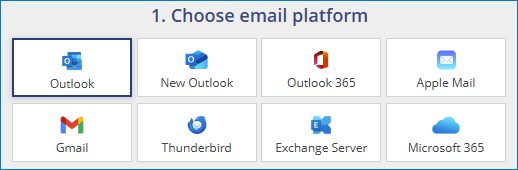
First, choose your email platform or app. While the email signature generator lets you choose one of the 8 most popular email platforms, it supports many more. If you can’t see your app, you should leave the default option – Outlook – and use the generated email signature in the email app of your choice.
Step 2: Choose signature template

Second, choose the starting design. If you’re not sure what kind of signature you want to create, this step is the best to get inspired! Remember that it’s just the starting point – you will personalize the signature template in the next step.
Choosing the right template is half the success, but you should also think about:
- Available signature elements (social media icons, logo, banner and photo) – you can easily remove an element that is included in the template, but adding a new element is a whole different story. You will have to tinker in the template outside the generator.
- The general layout – browse through the available designs and either pick one of the compact, minimalistic designs or a full-blown marketing design.
- The social media icon style – while it is possible to replace social media icons after adding the signature into your email app, it’s much easier to start with the right set from the beginning.
Step 3: Personalize it
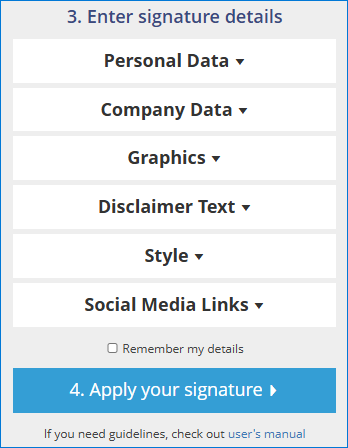
The third step is all about making the signature your own. Personalize it section by section.
- Personal Data lets you add your name, title and contact details. If you leave a field empty, it will be removed from the email signature.
- Company Data lets you modify your company name, website and address. Especially useful for business email signatures.
- Graphics is where you replace the placeholder images with your own. You will need to use a ‘hosted image’ and paste its ‘direct URL’. If those notions don’t ring a bell, check out this article, which is a step-by-step guide on how to handle hosted images in email signatures.
- Disclaimer Text is where you can add a legal disclaimer.
- Style lets you modify fonts in the design. Change the font-family if you need to, and modify the default colors. Learn all there is to know about fonts in email signatures
- Social Media Links is where you choose which social media icons to add to your design. You can choose up to 6, but 2-3 are quite all right.
- Remember my details uses cookies to store all the information you’ve entered in the email signature generator. So, the next time you want to create your email signature using the same browser, you won’t have to start over.
Step 4: Apply the signature
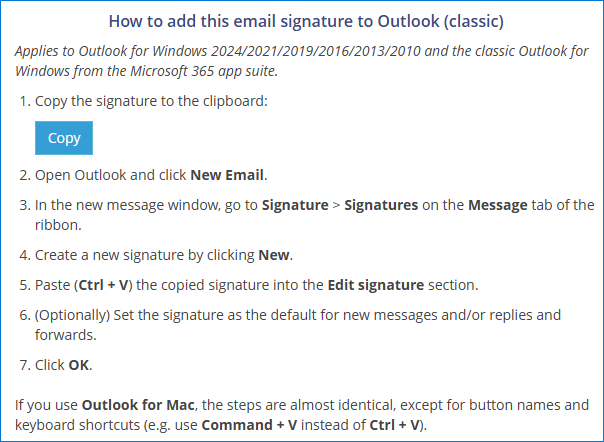
The fourth step lets you set the signature your created in your email app. After you click the Apply your signature button, you will get setup instructions for the email app you chose in step 1. If you want to create a signature for an email app that is not listed in the generator, no sweat – you can do that too. Usually, pasting the Outlook version of the signature into your app’s signature settings does the trick.

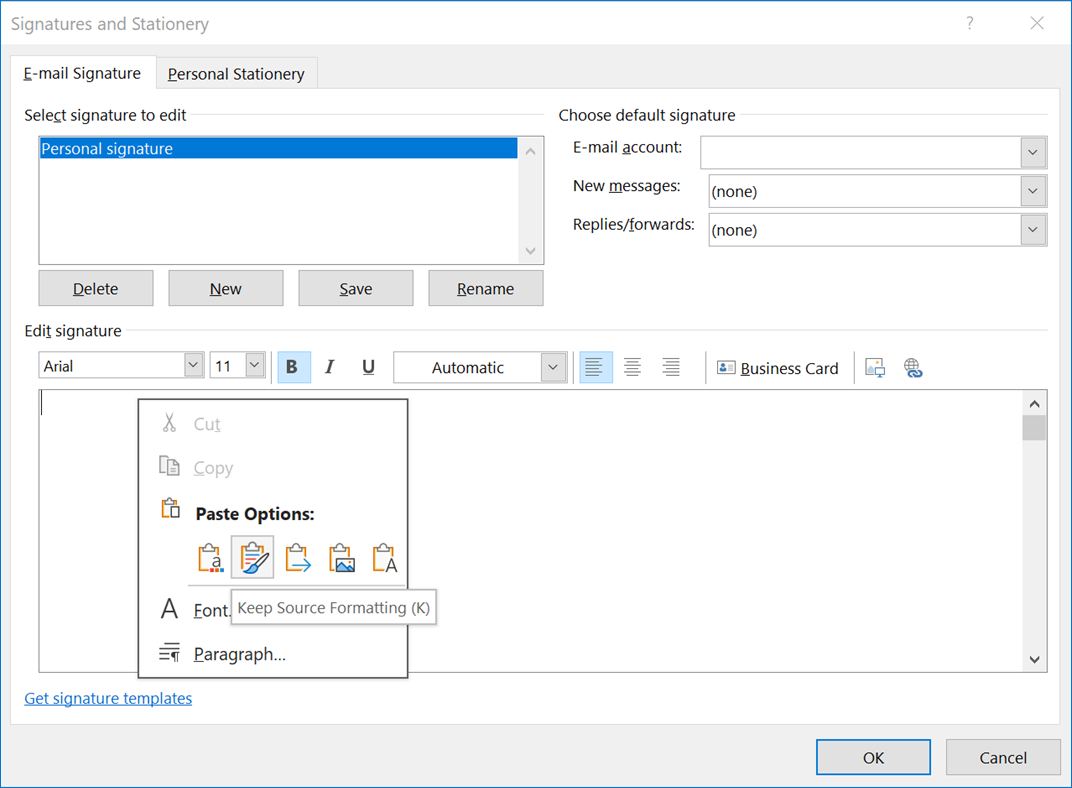
Quick tip: If the email signature looks different from its preview in the signature generator, try to drag and drop it from the generator to your settings. Alternatively, right-click and use the Keep Source Formatting paste option instead of pressing CTRL + V (if possible).
Step 5 (optional): Apply custom changes
After creating the email signature and adding it to your email app, you can refine it. For example, replace the social media icons with another set, add a meeting scheduling link, list your pronouns or include other custom elements.
Struggling to create your email signature? See the detailed signature manual or give us a shout in the comment section.
Create an email signature for mobile
The free email signature generator works great with mobile email apps, too, as long as they support HTML email signatures.
For most mobile email clients, setup instructions could be simplified to the following steps:
- Create your email signature in the generator (follow steps 1-4 above).
- Paste the signature into an email.
- Send the email to your mobile.
- Copy the signature on the mobile.
- Paste it into your email signature settings.
Need a detailed guide? Here are some examples:
Create Microsoft 365 email signatures
A Microsoft 365 email signature is quite different from a standard email signature. You can set it up in mail flow, so that it is automatically personalized and added to emails. The trick is to create the right HTML code and add Entra ID placeholders instead of contact details.
The free email signature generator can help you create a Microsoft 365 email signature and add the right placeholders into it. Here’s a video guide that explains how exactly you can do it:
Create Exchange Server SE email signatures
The generator can help you create a global email signature template for Exchange Server’s SE transport (mail flow) rules.
Simply choose Exchange Server as your email platform and you’ll get an optimized HTML code for your mail flow rules. The generator can automatically add relevant Active Directory placeholders (macros) that will personalize email signatures for each mailbox.
However, if Exchange Server SE’s mail flow signature limitations are a no-go for you, there’s a better way:
Manage your email signatures and mail flow with CodeTwo Email Signatures On-prem.
Why the generator?
There are many other ways to create a personal email signature. Here’s why using the free email signature generator is the best method of all the free methods.
- Time. You can go from no email signature to a professional one in minutes. Designing from scratch and cross-platform testing can take hours. Believe me, I’ve been there.
- Simplicity. Pick a template and personalize it. You don’t need to know anything about HTML, but the resulting HTML signature will work just fine.
- It works. Unjoy using well-crafted HTML email signatures, tested in most email signature apps and clients.
- It’s free for personal and commercial use. Even if you wanted to pay for using the generator, there’s no way. You don’t even have to create an account, and we won’t pester you with any newsletters in the future.
Alternative ways to create an email signature
The free email signature generator is one of the best ways to create an email signature for a single person. But it’s not the only one. Here are some free alternatives:
- Your email app’s default signature editor. While it’s a valid way to create an email signature, it will take more time to craft a well-designed email signature. Take a moment to test if the signature behaves the way you meant it to.
- A graphics editor like Photoshop, Canva or even Paint will let you design a beautiful email signature. However, for those signatures to work right in your email app, you’ll need to translate them to HTML.
- Design a proper HTML email signature from scratch. If you know what you’re doing, you’ll be able to come up with some original designs. It is easier said than done, though, since email apps can be peculiar when it comes to parsing HTML.
- Download and edit an email signature template, for example, from this email signature library, and adjust its HTML code. While it does require some basic HTML knowledge, you’re making changes to a well-designed and tested signature template instead of starting from square one.
- Word processors. While using them may sound like a good idea, when you copy a design from, for example, Microsoft Word, some specific hidden formatting information carries over. Finding out why a signature looks fine in Outlook for Windows but breaks in Gmail and any iOS app is fun only if you’re a troubleshooting maniac.
But the best alternative isn’t free. CodeTwo email signatures management tools include an email signature editor made specifically for email signature creating purposes. It’s user friendly and lets you design virtually any signature template you imagine. It’s easy to use and optimized to create HTML signature code that works. Even if you have no HTML knowledge whatsoever, you’ll be able to craft professional email signatures with it. What’s more, it’s supported by a stellar customer service team.
CodeTwo Email Signatures 365 is the only fully Microsoft 365 Certified email signature solution (the entire infrastructure reviewed & pen-tested by Microsoft). It's an Azure-based cloud service that supports all devices and email apps. Co-engineered and awarded by Microsoft, it also holds the highest user satisfaction ratings. With ISO 27001 & 27018 certification and a proprietary 4-layer security system, it's the most secure signature manager on the market. Watch a short product video
CodeTwo offers solutions for organization-wide email signature management, data backup and migration for Microsoft 365 & Exchange Server, developed since 2007 and used by over 140k organizations worldwide, including Facebook, Samsung and UNICEF.
Recommended articles


A very practical guide, especially the distinction between creating a signature for one mailbox and centrally managing signatures across Microsoft 365. The notes about hosted images, choosing the right template structure, and using “Keep Source Formatting” when a signature changes after pasting are particularly useful.