CodeTwo signatures are not added to emails on an Exchange server – Troubleshooting
Problem:
Signatures are not added by CodeTwo Email Signatures On-prem or older CodeTwo email signature software for on-premises Exchange Server.
Important
If you use CodeTwo Email Signatures 365 and experience a signature-related problem, go to this article instead.
Solution:
There may be several reasons for this behavior. The most likely causes and solutions are described below.
- Missing component in a multi-server Exchange configuration
- Insufficient licensing in a multi-server environment
- Unsaved program changes
- Missing signatures in RTF and plain text format
- CodeTwo transport agent is not installed
- Long list of rules
- The license limit has been exceeded
- Subscription has expired (CodeTwo Email Signatures On-prem)
- Complex rule conditions
- Rule options stop the execution of other rules
- Changes made to AD objects defined in the program are not refreshed
- Other reasons. Log file diagnostics
Missing component in a multi-server Exchange configuration
If you work in an environment with more than one Exchange server, make sure that the appropriate CodeTwo component is installed on all the servers with the following roles:
- Exchange Server SE, 2019, 2016 and 2013 – on all Mailbox role servers,
- Exchange Server 2010 and 2007 – on all Hub Transport role servers.
Depending on the CodeTwo program you’re using, the required component is:
- Email Signatures On-prem Services – for CodeTwo Email Signatures On-prem,
- Exchange Rules (Pro) Service – for CodeTwo Exchange Rules (Pro) – discontinued.
Detailed installation instructions are available in the user's manual of your CodeTwo software:
CodeTwo Email Signatures On-prem | CodeTwo Exchange Rules Pro | CodeTwo Exchange Rules.
Emails processed by servers without the Email Signatures On-prem Services or Exchange Rules (Pro) Service will not be stamped with signatures.
Tip
To list all your machines with Microsoft Exchange Server and their roles, follow the instructions from this Knowledge Base article.
Insufficient licensing in a multi-server environment
If many Exchange Servers are handling your mail flow, you need to enter a license key for your CodeTwo software on each server with the Mailbox role (in the case of Exchange Server SE, 2019, 2016 and 2013) or Hub Transport role (Exchange Server 2010 and 2007) in your environment. Otherwise, your CodeTwo program will process only those emails that pass through the licensed servers.
You will receive a separate license key for every server. Detailed instructions on how to activate the program are available in the user's manual of your CodeTwo software:
CodeTwo Email Signatures On-prem | CodeTwo Exchange Rules Pro | CodeTwo Exchange Rules.
Tip
You can check which servers are licensed by clicking the Server Monitor button on the program’s toolbar (Fig. 1.).
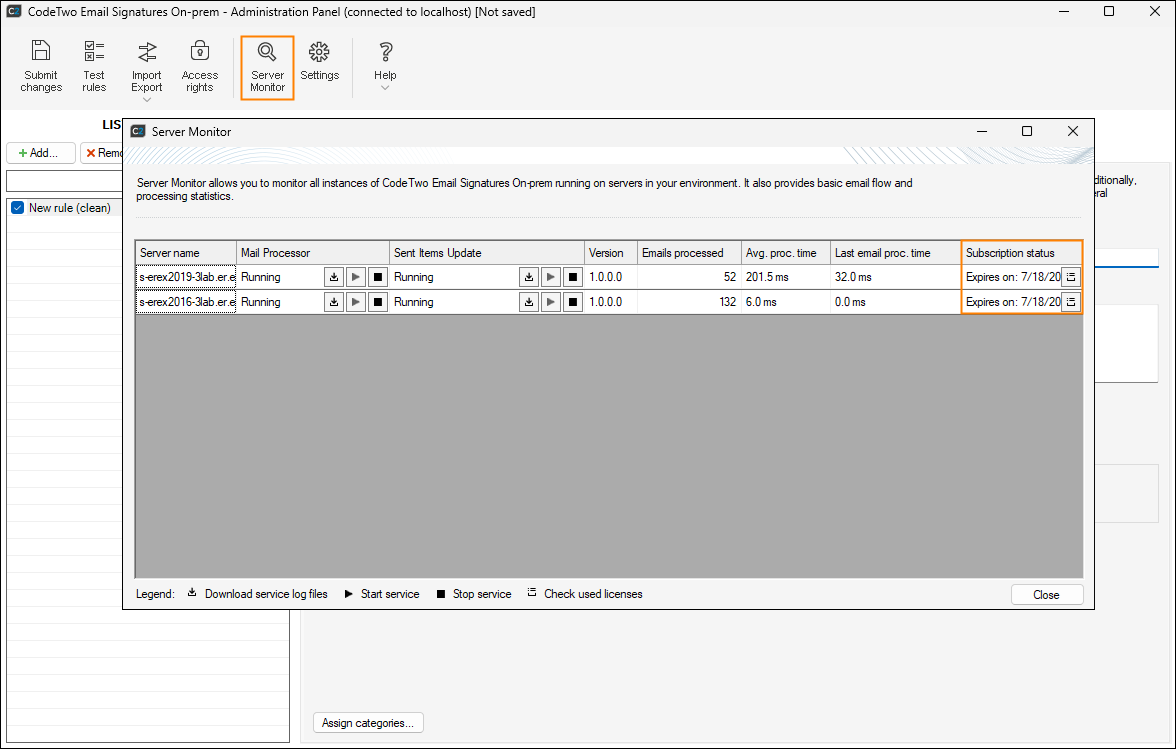
Fig. 1. Checking if all Exchange servers are licensed.
Unsaved program changes
Each time you finish configuring rules in your program, you have to save the changes or the rules will not be applied. This is not done automatically to prevent you from making unwanted modifications. You have to click the Submit changes button every time you want to apply the settings to all of your servers.
Missing signatures in RTF and plain text format
By default, the editor opens with an HTML tab that allows you to design a signature for most of email clients. However, some messages are sent in the RTF format (e.g., meeting requests) or as plain text (especially from mobile devices). Ensure that you have configured your signatures in all these formats. All CodeTwo email signature software for on-prem Exchange has the Convert button available in the editor for easy conversion between formats.
CodeTwo transport agent is not installed
Tip
The transport agent’s name depends on the CodeTwo program you’re using:
- in CodeTwo Email Signatures On-prem, it is CodeTwo Exchange Transport Agent,
- in CodeTwo Exchange Rules (Pro), it is CodeTwo Exchange Rules.
The transport agent is a part of the Email Signatures On-prem Services or Exchange Rules (Pro) Service component and is responsible for processing all your messages. It may happen that although you selected the component when installing the program, the transport agent has not been installed together with other component services.
To check if the CodeTwo transport agent has been installed on your machine, open Exchange Management Shell and execute the following command:
Get-TransportAgent
Look for the CodeTwo Exchange Transport Agent or CodeTwo Exchange Rules entry. If it is not displayed, install the agent manually.
Long list of rules
If you have many rules and aren't sure whether messages sent by a specific user should get a signature, check if the user is included in any rule conditions or excluded on the Exceptions tab. The easiest way to verify it is to create a new, separate rule only for that user and move it to the top of the list of rules. It will allow the program to process the newly created rule as the first one, so that you can be sure that the rule is executed for this particular user.
This is not a solution itself, but a diagnostic step that allows you to verify if emails sent by this user are processed by the software at all. If it turns out that the rule adds signatures correctly for the user, you need to carefully check all of the other rules' conditions, exceptions and options, to find where the signature processing might be interrupted. If the signature is still not applied, consider checking the other reasons mentioned in this article.
The license limit has been exceeded
The licensing mechanism assigns a license to each SMTP email address for which a rule is applied at least once by the software. Once the number of the licenses you purchased has been exceeded, any new SMTP email addresses will not be processed by the software (signatures will not be added to the corresponding messages). What is more, even if a user with a corresponding SMTP email address is no longer active in your AD, this person might still be assigned a license. Resetting the licensing counter is the easiest way to restart counting the license consumption, omitting the inactive users.
Subscription has expired (CodeTwo Email Signatures On-prem)
Subscription to CodeTwo Email Signatures On-prem is valid for 12 months from activation. If the subscription expires, all rules configured in the program stop working and signatures are no longer added to messages.
To continue using the program in your organization, you need to renew the subscription by going to the order form and selecting License renewal (yearly subscription).
Complex rule conditions
Another reason signatures might not be added may be related to complex conditions defined for a particular rule. If you are adding several conditions, the logical operators between them are extremely important and have to be properly selected. By default, each consecutive condition is added with the AND operator. Always make sure that this is the right operator, as sometimes you may need the OR logical relationship between certain conditions. In the graphical view, it may not always be that obvious of what to expect, so please always double-check the result with the mathematical notation appearing automatically at the bottom of the window, in the status area (Fig. 2.).
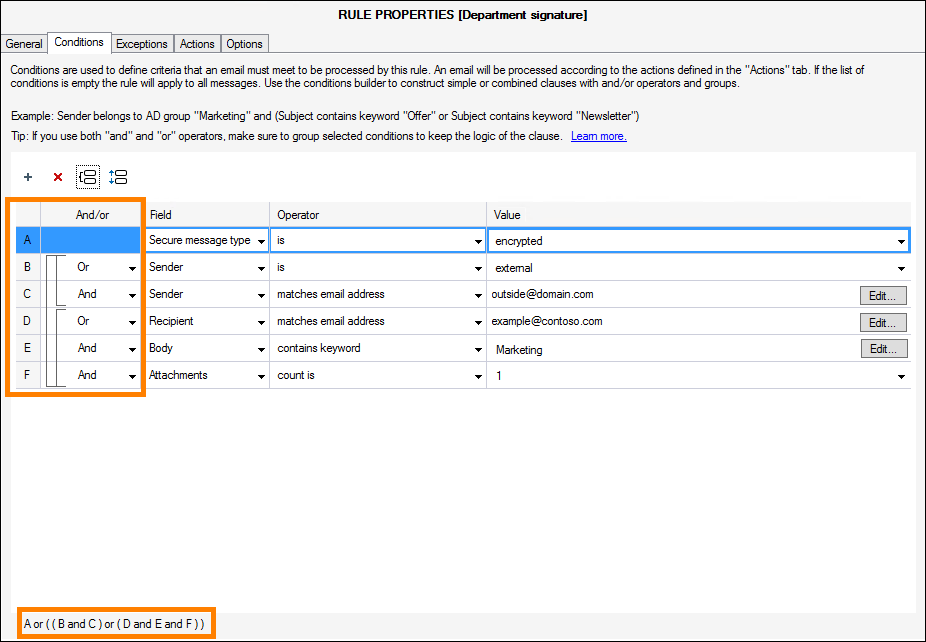
Fig. 2. Conditions matrix.
Rule options stop the execution of other rules
Double check if some of the rules' options do not stop the email processing flow unexpectedly (Fig. 3.). Incorrect settings in this section may prevent consecutive rules from being executed. You may decide whether subsequent rules should be processed or not depending on the processing result of a rule positioned higher on the list of rules. It might sometimes happen that one of the defined rules is accidentally set to stop the program from processing any subsequent rules regardless of the rule's processing result (i.e., whether the rule is applied or not, the subsequent rules will not be executed at all).
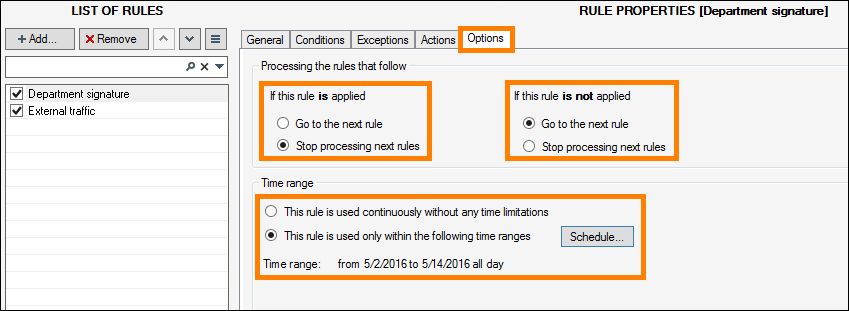
Fig. 3. Rule options.
Changes made to AD objects defined in the program are not refreshed
If, for example, you add a user to an AD group and this group is defined inside a rule's condition, it may not be detected instantly by CodeTwo software. The reason is simple – by default, any changes to AD are refreshed once every hour. You may, however, manually enforce immediate refresh or adjust this mechanism to suit your needs, following the guidelines described in this article.
Other reasons. Log file diagnostics
Carefully check all the conditions, exceptions and options of a rule that is not applied and send a test message that overlaps with the rule's criteria. Give it a unique subject, like “test_message01” to be able to trace it inside the program logs. If the signature is not appended, you can open the program logs and easily search for the test message by providing the message subject. Once you find it, you may verify the conditions' statuses inside the log file; these statuses explain why and at which point the signature processing was stopped.
Detailed instructions on how to access log files are available in the user’s manual of your CodeTwo software:
CodeTwo Email Signatures On-prem | CodeTwo Exchange Rules Pro | CodeTwo Exchange Rules.
| Related products: | CodeTwo Email Signatures On-prem, CodeTwo Exchange Rules 2007 2.x, 3.x, 4.x, CodeTwo Exchange Rules 2010 1.x, 2.x, 3.x, CodeTwo Exchange Rules 2013 1.x, 2.x, CodeTwo Exchange Rules 2016 1.x, CodeTwo Exchange Rules 2019 1.x, CodeTwo Exchange Rules Pro 1.x, 2.x |
| Categories: | Troubleshooting |
| Last modified: | September 1, 2025 |
| Created: | May 4, 2016 |
| ID: | 551 |






