Activation
Before activating CodeTwo Email Signatures On-prem, you need to install the trial version first. Once the trial is installed, you need to use the license key you received after finalizing your purchase order (you can purchase a 1-year subscription to the program on this page) to activate the product to the full version.
Important
Make sure the server where CodeTwo Email Signatures On-prem is installed has an active Internet connection. Activation cannot be completed without Internet access. Once the program is activated, it can continue to operate offline if needed.
In a multi-server environment with limited Internet access, only the domain controller needs to have an active Internet connection to activate the program across all relevant servers.
Use the links below for detailed activation guidelines:
- Activation on an Exchange server
- Activation after expanding the number of licenses or renewing your subscription
- Activation on an Exchange server with the Server Core version of Windows Server
- Troubleshooting
Activation on an Exchange server
To activate CodeTwo Email Signatures On-prem installed on your Exchange Server machine, run Email Signatures On-prem Licensing from the Start menu in Windows (or click Help > Licensing in the program’s Administration Panel, as shown in Fig. 1.).
Important
The licensing program requires the Email Signatures On-prem Services to be installed. This is why you cannot activate the program on client machines.
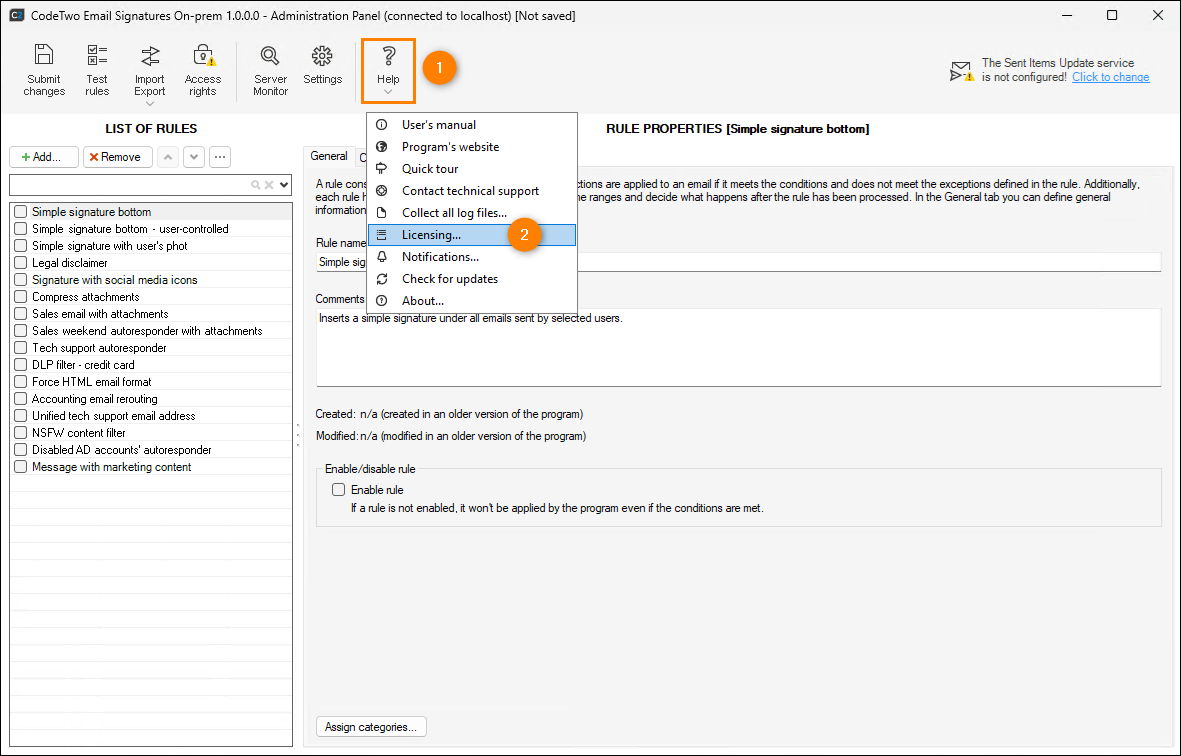
Fig. 1. Launching the Licensing program.
Either way, the Licensing window will open. To activate the program, click Activate, provide your license key (you will find it in the email summarizing your purchase order), and click Activate again (Fig. 2.).
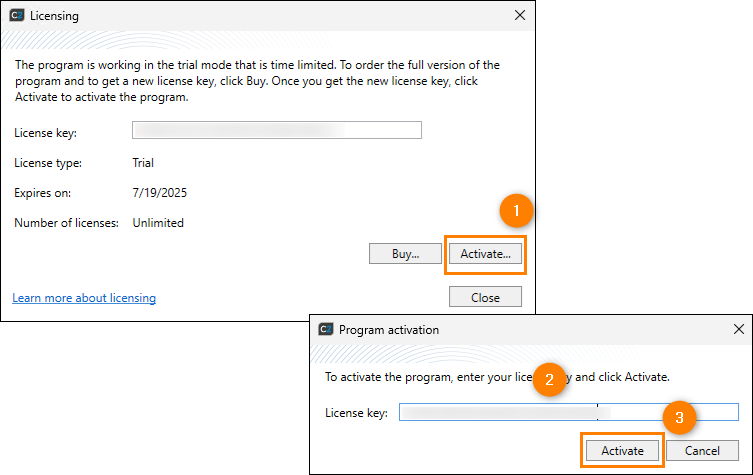
Fig. 2. Activating CodeTwo Email Signatures On-prem.
Once activation is successful, the License type will change to Full in the Licensing window (Fig. 3.). You’ll also see the subscription expiry date and the number of licenses assigned to your license key.
Tip
You can check how many licenses are in use by opening Server Monitor.
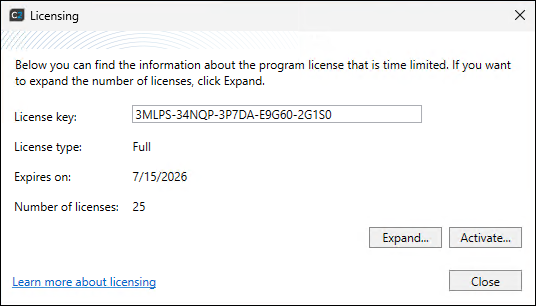
Fig. 3. Activated program.
You can now close the Licensing window. CodeTwo Email Signatures On-prem will work for 12 months from the activation date. All your rules and settings remain intact.
If you have problems with activation, refer to the Troubleshooting section.
Activation after expanding the number of licenses or renewing your subscription
If you’ve purchased additional licenses or renewed your subscription, there’s no need to reactivate the program manually. The information about your subscription will be refreshed automatically within 24 hours.
However, you can speed up the update by following the same steps as described above. The License key field (see Fig. 2.) will already contain your current license key, so simply click the Activate button twice to connect to our licensing system and refresh your license information.
Activation on an Exchange server with the Server Core version of Windows Server
If you installed CodeTwo Email Signatures On-prem on an Exchange server that runs the Server Core version of Windows Server, the activation is performed differently because your machine does not have a graphical user interface (GUI / Desktop Experience).
To activate the program on Server Core, open the Command Prompt (cmd.exe) and run CodeTwo.ER.Licensing.Console.exe with the following parameter:
/activate <LIC_KEY>
This parameter activates the program with the license key (<LIC_KEY>) you provided.
Important
Make sure the license key consists of digits and capital letters in the following format: XXXXX-XXXXX-XXXXX-XXXXX-XXXXX.
Example command line:
CodeTwo.ER.Licensing.Console.exe /activate ABCD1-EFGH2-IJKL3-MNOP4-QRST5
The application tells you when the activation is finished, and then restarts the Email Signatures On-prem Services to complete the process. After a successful activation, a license summary is displayed (Fig. 4.).

Fig. 4. A successful activation on Server Core.
Tip
To display information about the current license on your Server Core machine, run the following command in the Command Prompt: CodeTwo.ER.Licensing.Console.exe /info
Troubleshooting
If you can’t activate the program, first check whether the server where CodeTwo Email Signatures On-prem is installed has an active Internet connection. In a multi-server environment, it is enough for only the domain controller to have Internet access.
If the connection is active, make sure your firewall or similar security tool isn’t blocking port 443. You may also need to whitelist the following URL:
https://licensing2.codetwo.com/public
Once the activation is completed (as described here), you can block the port and URL again. The program will no longer require Internet access to work (unless you purchase additional licenses or renew your subscription – in that case, you’ll need to repeat these steps).
Restarting the Email Signatures On-prem Services
If you are asked to restart one of the CodeTwo Email Signatures On-prem services, follow these steps:
- Press Windows Key + R, type services.msc, and click OK.
- In the list of services, find the service in question, right-click it, and select Restart.
In this article