Installation process
CodeTwo Email Signatures On-prem was designed for organizations that use Microsoft Exchange Server Subscription Edition for mail processing.
Use the links below to learn about the software installation, installation management, migrating from CodeTwo Exchange Rules (Pro), and more.
- General guidelines (read before installing)
- Installation process step by step
- Managing the installation
- Migrating from CodeTwo Exchange Rules (Pro)
- Impact of the software on your IT infrastructure
General guidelines (read this before installing)
The software is built around two main components: the Email Signatures On-prem Services (a set of services responsible for the processing of rules and settings in an Exchange environment) and the Administration Panel (a console used to manage rules and settings):
- The Email Signatures On-prem Services must be installed only on Microsoft Exchange servers with the Mailbox role installed. We do not recommend installing them on a shared or mapped drive, or any other disk that can be unmounted. The services must remain active at all times, as they are essential to the email flow on your Exchange server. For this reason, they should be installed on a local drive. See requirements
- The Administration Panel can be installed on any machine, including servers and client workstations. See requirements
- Install multiple instances of the Administration Panel only if necessary. For example, when other departments (such as Marketing) need access to manage rules.
- Changes made in one instance of the Administration Panel are replicated across other instances. However, for those changes to become visible:
- Restart the panel (for rule configuration updates).
- Reopen the Settings window (for other preferences, such as message splitting).
- The installation needs to be performed manually on each machine. Installing via Group Policy Object (GPO) is not supported.
Learn more about the program’s architecture
Installation in multi-server environments
If you want to use CodeTwo Email Signatures On-prem in a multiple-server environment, you must install the Email Signatures On-prem Services individually on each Exchange server that processes mail (servers with the Mailbox role installed). Otherwise, some message traffic may bypass the software, and signature rules will not be applied to all emails in your organization.
The number of servers in your organization does not impact the program’s licensing – you can use a single product license key to activate the program on multiple servers within the same Active Directory forest. Just remember to activate the program separately on each machine.
If you want to use the program on multiple forests, contact CodeTwo Support to receive a separate license key.
Important
If you are migrating from CodeTwo Exchange Rules (Pro), make sure to run the CodeTwo Email Signatures On-prem installer on each server where the previous software is installed.
Learn about licensing in multi-server environments
Installation in hybrid environments
Installation process for hybrid environments is the same as in standard Exchange environments (see the General guidelines section). Successful deployment depends on how the hybrid is configured. The main principle is that the inbound and outbound mail flow should always be routed through the servers with CodeTwo software installed. Learn more in this article.
Installation on the Server Core version of Windows Server
CodeTwo Email Signatures On-prem can be successfully deployed on the Server Core version of Windows Server. Server Core has no graphical user interface (GUI / Desktop Experience), so the standard installation process does not apply in this case. Instead, you need to follow the instructions provided in this article.
On Server Core, it is only possible to install the Email Signatures On-prem Services. In order to manage email rules or access other features of the program, you still need to use the Administration Panel of CodeTwo Email Signatures On-prem. Since the Administration Panel is operated through a GUI, it needs to be installed on a non-Core client machine – see this section for installation instructions.
Installation process step by step
The installation of CodeTwo Email Signatures On-prem is straightforward and takes about 60 seconds.
First, download the program and run the installer.
Required .NET Framework
.NET Framework 4.6.2 is required to install the Administration Panel of CodeTwo Email Signatures On-prem. If the required version of .NET Framework is not installed on your machine, the setup will prompt you to install it:
- If you click Yes, the setup will download and install .NET Framework 4.6.2.
- On a sever machine: If you click No, the setup will continue, but only the Email Signatures On-prem Services will be available for installation.
- On a client machine: If you click No, the setup will close.
After the setup wizard starts, you’ll be prompted to accept the license agreement. Next, choose the installation path. The default path is: C:\Program Files\CodeTwo\CodeTwo Email Signatures On-prem, but you can change it if necessary. Remember that the software must be installed on a local drive.
In the next step of the wizard, choose the components to install. By default, if the installation is performed on a server with the Mailbox role, both the Administration Panel and Email Signatures On-prem Services are available to be installed (Fig. 1.). If you are installing the program on a non-server machine (such as a desktop client), only the Administration Panel can be selected. You can select or deselect components according to your preferences.
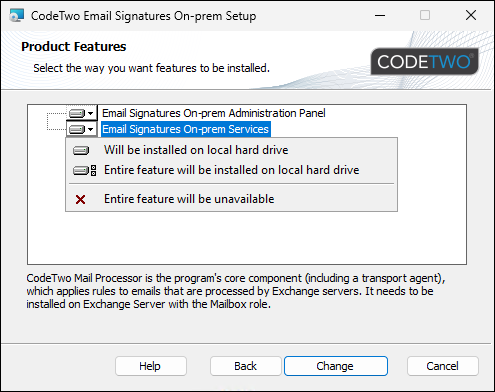
Fig. 1. Choosing which components of the program will be installed.
When you click Install, the wizard copies data files to your system and installs any required components. After the installation is complete, the program starts automatically. Some additional configuration might be required when launching the program for the first time. Learn more
Managing the installation
You can install the program’s components, repair the installation or uninstall the program any time: go to Control Panel in Windows and open Programs and Features. Right-click CodeTwo Email Signatures On-prem on the list and select Change from the shortcut menu. The setup wizard (Fig. 2.) helps you change the installed components, repair the installation, or remove it.
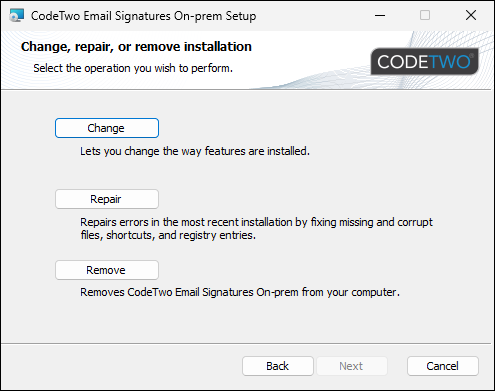
Fig. 2. Managing the program’s components.
Migrating from CodeTwo Exchange Rules (Pro)
Before you migrate
- This section applies to CodeTwo Exchange Rules 2016, 2019, and Pro. If you are migrating from an older version, contact CodeTwo Customer Support first.
- Your CodeTwo Exchange Rules (Pro) license key will stop working 90 days after you receive a new license key for CodeTwo Email Signatures On-prem.
- You can migrate to CodeTwo Email Signatures On-prem before migrating your mail server to Exchange Server Subscription Edition (SE). The program will work with Exchange 2019 or 2016.
To migrate to CodeTwo Email Signatures On-prem from CodeTwo Exchange Rules (Pro), follow the steps below:
- Go to the order form and select Migration from CodeTwo Exchange Rules 2016/2019/Pro to transfer your current license to a 1-year subscription to CodeTwo Email Signatures On-prem. You can choose the same number of licenses or a different number (higher or lower) – just make use it corresponds to the number of mailboxes for which the new program will be used in your Exchange organization.
- Download CodeTwo Email Signatures On-prem.
- Run the installer on the server machine where CodeTwo Exchange Rules (Pro) is currently installed. The setup will detect the old program. Click Yes to continue:
- CodeTwo Exchange Rules (Pro) will be uninstalled.
- The CodeTwo Email Signatures On-prem setup wizard will launch (see Fig. 1.). During installation, all your current rules and settings will be automatically imported to the new program.
- If you are also installing the Administration Panel, your custom templates (email signature and automatic reply templates) will be migrated as well.
Important
If you install the program (the Administration Panel) on a client machine first, it will not work, as it will not be able to connect to the Email Signatures On-prem Services (which are only installed on server machines and handle mail flow processing).
- After the migration, CodeTwo Email Signatures On-prem will launch in fully functional 14-day trial mode. Make sure to activate it before the trial ends, or the product will stop working. Learn more about activation
Important
Remember to activate the program with the new license key you received for CodeTwo Email Signatures On-prem. Your CodeTwo Exchange Rules license key won’t work.
- Repeat steps 3 and 4 on any other machines where CodeTwo Exchange Rules (Pro) is currently installed. If you’ve installed CodeTwo Email Signatures On-prem on multiple servers that process mail in your organization, follow the migration steps on each server. Otherwise, some messages may not be processed by the new program after migration. See this section for more information about installation in a multi-server environment.
Important
If you installed CodeTwo Email Signatures On-prem by mistake, you can still return to using CodeTwo Exchange Rules (Pro). Simply reinstall the old product – all your previous settings will be retained.
Impact of the software on your IT infrastructure
During the installation and configuration of the program, CodeTwo Email Signatures On-prem makes the following changes to your system:
Changes to operating system
The program lets you install .NET Framework 4.6.2 (required to run the Administration Panel), if it’s not already installed.
Changes to on-premises Exchange server
The MSExchangeTransport service is stopped while the program is being installed.
The Sent Items Update service grants impersonation permissions over all users in an organization and makes changes directly in users’ mailboxes (updates the Sent Items folder according to your email rules).
See next
- First start and initial configuration – see what needs to be configured when you launch the program for the first time.
- Access Rights Management – learn how to customize permissions to use the software.
- Sent Items Update – configure the program to add signatures to messages in the user’s Sent Items folders.
- Hybrid environments – learn how to use the program in hybrid environments.
In this article