Server Monitor
CodeTwo Email Signatures On-prem is designed to work in a wide variety of scenarios, including multi-server environments. That is why it is equipped with the Server Monitor tool that enables you to view all instances of the program's services in one place in order to track and manage their operation status and performance. To open the tool, click Server Monitor on the program's toolbar (Fig. 1.).
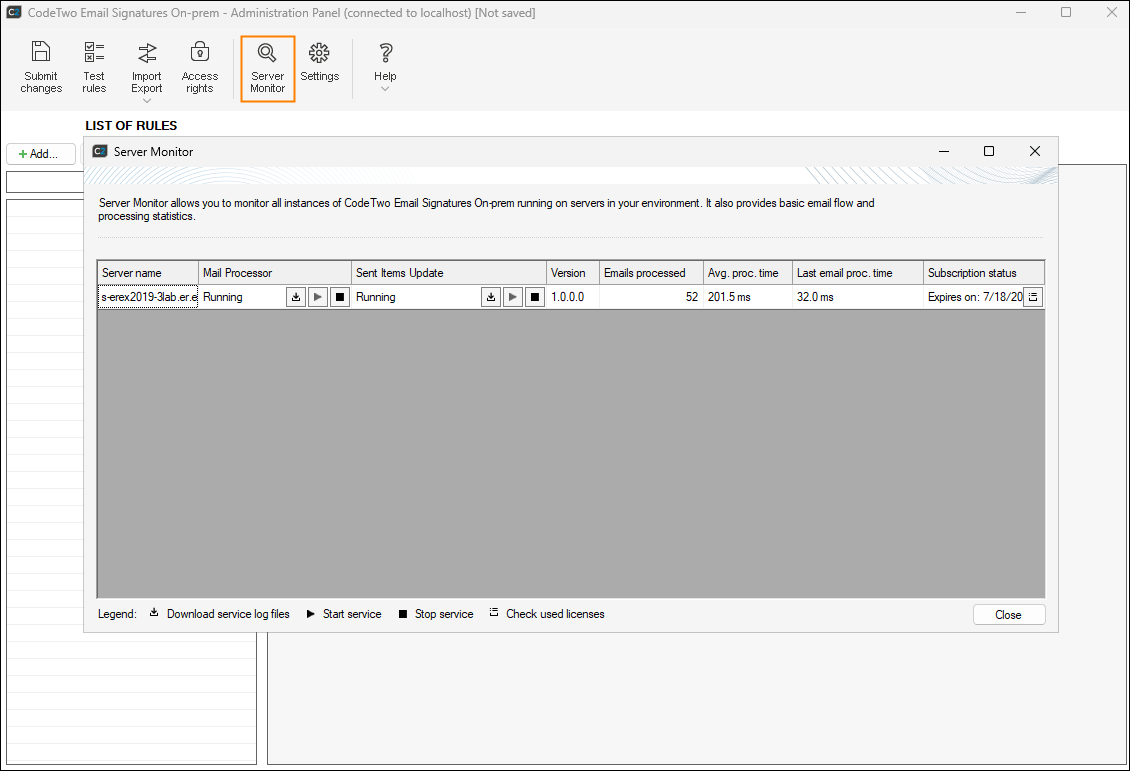
Fig. 1. Opening the Server Monitor.
The Server Monitor window is divided into the following sections:
Info
Each line (row) corresponds to one server (with the CodeTwo Mail Processor installed) in the organization.
Services and log files
The first section (Fig. 2.) shows information on the status of services including the CodeTwo Mail Processor and the Sent Items Update service. The exact version number of these services is also displayed. You can Start or Stop the services and check their diagnostic files (separately for the CodeTwo Mail Processor and the Sent Items Update) if there are any problems with their functioning.
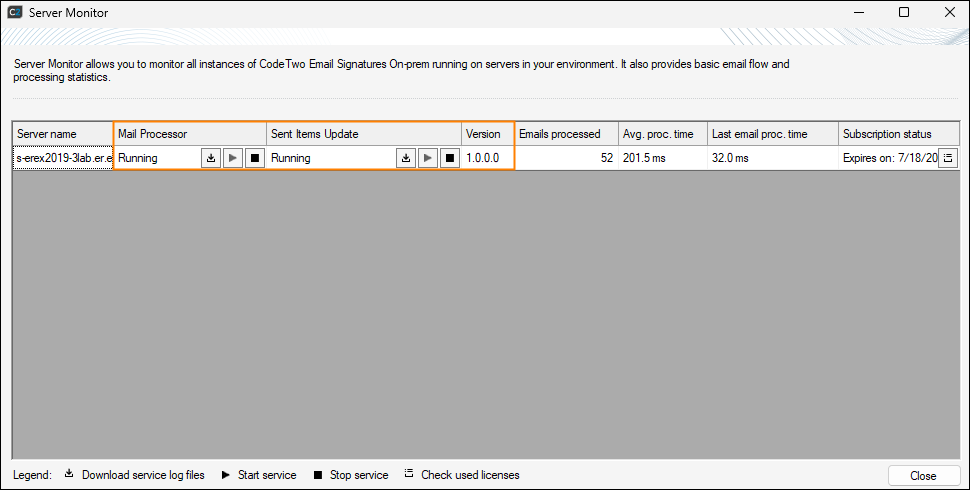
Fig. 2. The services and log files section.
Executed operations
The second section (Fig. 3.) shows basic statistics concerning email processing, including the number of messages processed, average message processing time and last email processing time.
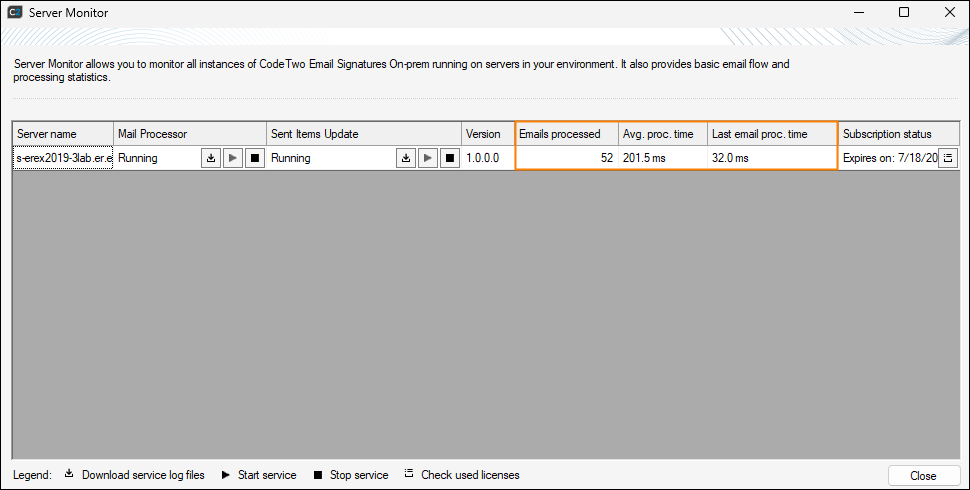
Fig. 3. The email processing section.
Info
Please note that the processing of the first email always takes more time than the processing of the messages that follow. That is why the average processing time will decrease as the number of messages processed by the program increases.
Subscription status
The last section (Fig. 4.) shows the status of your subscription and the number of licenses currently used per server, helping you to avoid losing access to the program or exceeding your license limit.
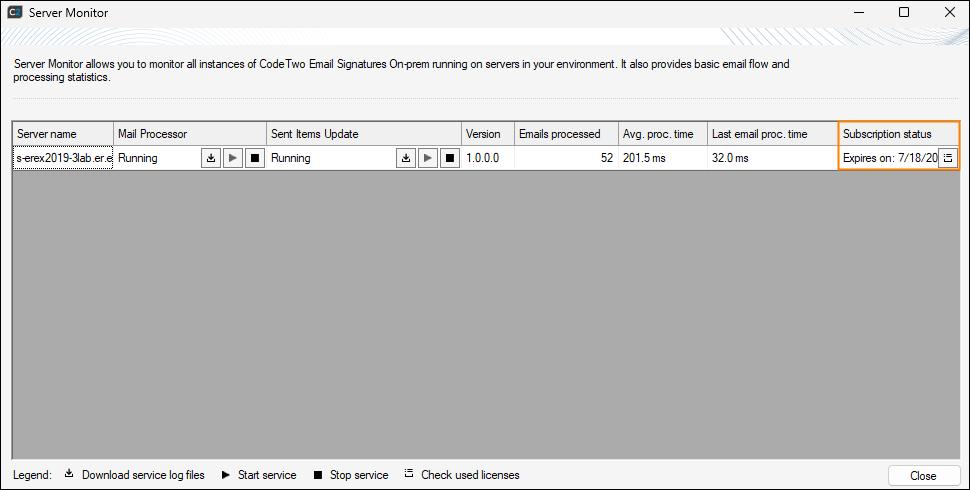
Fig. 4. Subscription status.
Clicking the Check used licenses ( ) button in this section opens the overview of assigned licenses (Fig. 5.).
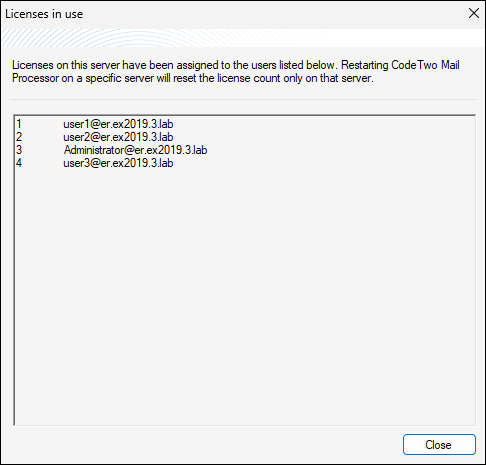
Fig. 5. Overview of the currently used licenses.
Legend
At the bottom of the window, there is a legend describing each available option (Fig. 6.).
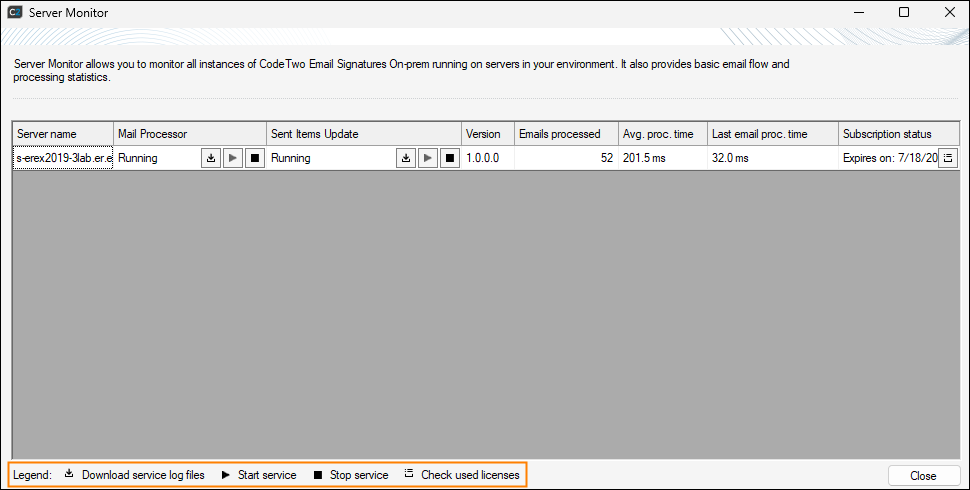
Fig. 6. The Server Monitor's legend.
See next
Advanced features and options - this section describes advanced features and options that boost the program's functionalities and significantly improve its operation.
See also
Email Signatures On-prem Services - this article contains information about the services responsible for processing rules and settings defined in the Administration Panel and applying them to messages traveling through the Exchange Server.
Sent Items Update - this article describes how to configure the program to update the processed messages with signatures / disclaimers in the Sent Items folders of particular mailboxes.
Activation - this article describes the activation procedure of the program.
In this article