Sent Items Update
Since signatures/disclaimers are added directly on the Exchange server after an email is sent, they are not visible to the senders. To let end users see their signatures in the Sent Items folder of their email clients, CodeTwo Email Signatures On‑prem comes with the Sent Items Update (SIU) feature. The SIU service updates the sent emails after they have been processed by the program.
By default, the Sent Items Update service is disabled after a fresh installation and needs to be configured to start updating sent emails.
Overview
The Sent Items Update feature works as a separate Windows service that is installed together with the program. It accesses user mailboxes and updates them according to your rules (for example, adds signatures). The update process usually takes a few seconds.
Important
The Sent Items Update service accesses mailboxes of original senders to update emails they sent. Therefore, if a message is sent by a distribution group or any other object that does not have a mailbox, it cannot be updated.
Requirements for using the SIU service
The Sent Items Update service runs under the Local System account and works independently of other CodeTwo services, using the Windows Communication Foundation (WCF) to communicate with them.
The SIU service can be used both in on‑premises Exchange environments and in hybrid environments that integrate on‑premises Exchange Server with Exchange Online. The table below shows how the service accesses and updates mailboxes in each environment.
| Environment | Mailbox access |
|---|---|
| On‑premises Exchange Server | All mailboxes are accessed and updated via Exchange Web Services (EWS). |
| Hybrid (Exchange Server + Exchange Online) |
On‑premises Exchange Server mailboxes are accessed and updated via Exchange Web Services (EWS). Exchange Online mailboxes are accessed and updated via the Microsoft Graph API. |
In order for the software to authenticate with EWS and Microsoft Graph, certain requirements need to be fulfilled.
Using the SIU service in an on‑premises Exchange server
The SIU service requires user account credentials to access mailboxes on an on‑premises Exchange server. The organization's admins can:
- provide any existing, active user account credentials (e.g. if they have a dedicated service account to be used with third-party software or they want to use the administrator's credentials for that purpose); or
- create a new account for the service; or
- allow the software to create a new, dedicated user account automatically.
The account to be used by the Sent Items Update service:
- must have a valid User Principal Name (UPN) assigned,
- must be a member of the Domain Users group,
- must be granted impersonation rights (see our Knowledge Base article on how to set impersonation rights manually),
- should be in a working condition (it cannot be disabled, needs to have a valid password, etc.).
If you choose the Sent Items Update configuration wizard to create a dedicated service account automatically, this account will fulfill all the above requirements. If you select an existing user account manually, the software will verify it and, if necessary, add the required impersonation rights to that account.
Important
To configure the Sent Items Update service correctly, you need to be logged in to the system with an account that is a member of the Domain Admins group. This is required because the software that runs under your account will attempt to assign impersonation rights or create a new user, depending what option you choose. For either of these two actions, the Domain Admin permissions are required.
Using the SIU service in a hybrid environment
To use the SIU service in a hybrid environment, you need to fulfill the requirements for on‑premises Exchange servers (listed above).
In addition, the service connects to your Microsoft 365 (Office 365) tenant using a secure OAuth 2.0 authorization protocol. To allow the service to access Exchange Online mailboxes, you need to register the CodeTwo application in Microsoft Entra ID (Azure Active Directory) of the tenant configured for your hybrid Exchange deployment. The application needs to be assigned the Mail-Advanced.ReadWrite.All permissions so that in can use the Graph API with full access to all Exchange Online mailboxes.
The application can be registered:
- automatically, when configuring the SIU service for a hybrid environment;
- manually in Entra ID, by following the instructions provided in this article.
If you choose the SIU service to register our application automatically, you will be asked to log in to your tenant using the credentials of a user with the Global Administrator or Privileged Role Administrator role on a dedicated Microsoft 365 sign-in page.
Configuration of the SIU service
To open the Sent Items Update configuration wizard, click Settings on the program's toolbar, go to the Sent Items Update tab and click Configure (Fig. 1.). If the SIU service has not been configured yet, you can also access the wizard by clicking the Click to change link in the upper-right corner of the Administration Panel (Fig. 1.).
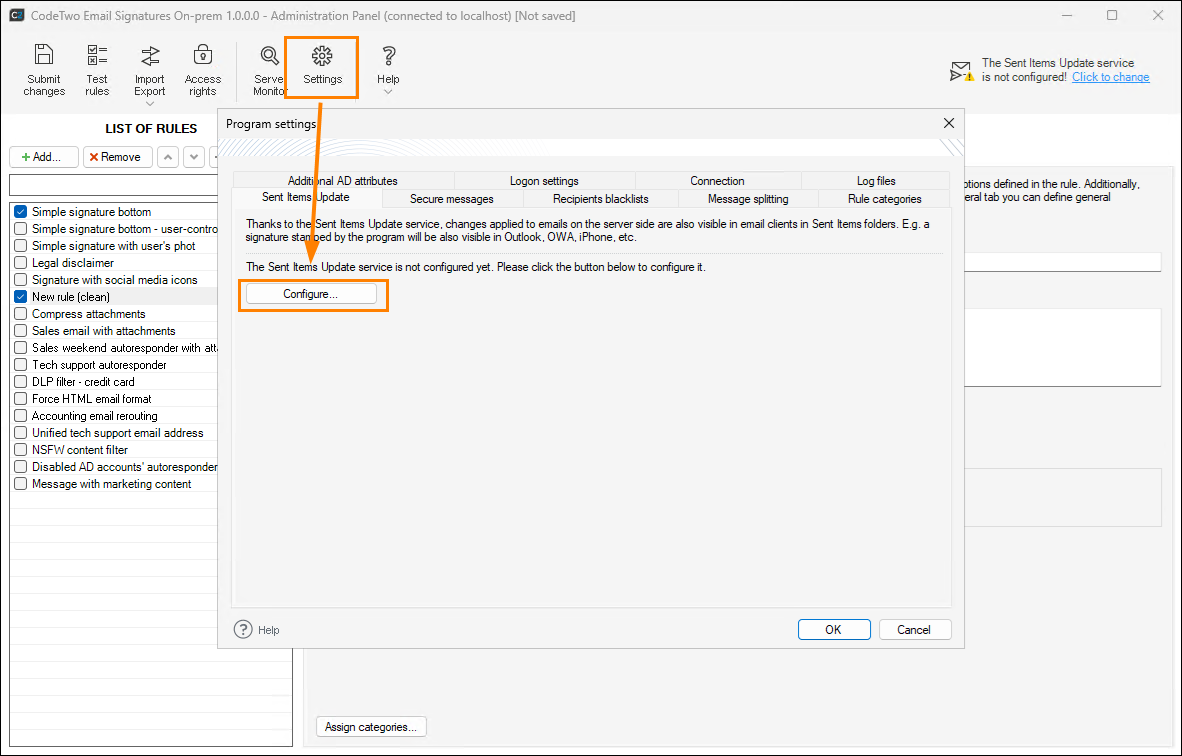
Fig. 1. Opening the Sent Items Update configuration wizard.
SIU reconfiguration for hybrid environments
If you previously configured the Sent Items Update service to work in a hybrid environment and then updated CodeTwo Email Signatures On‑prem to version 1.1.0.x or higher, you need to reconfigure the SIU service to continue using it. This is required to allow the service to use the Microsoft Graph API instead of Exchange Web Services to access and update mailboxes.
Important: After you reconfigure SIU, if CodeTwo Email Signatures On-prem is installed on other servers in your organization, make sure to update the program on each of these servers as well. You don’t need to reconfigure SIU on each server.
To reconfigure the SIU service, go to Settings > Sent Items Update and click Change next to Account (Fig. 2.). Then, continue with the steps below.
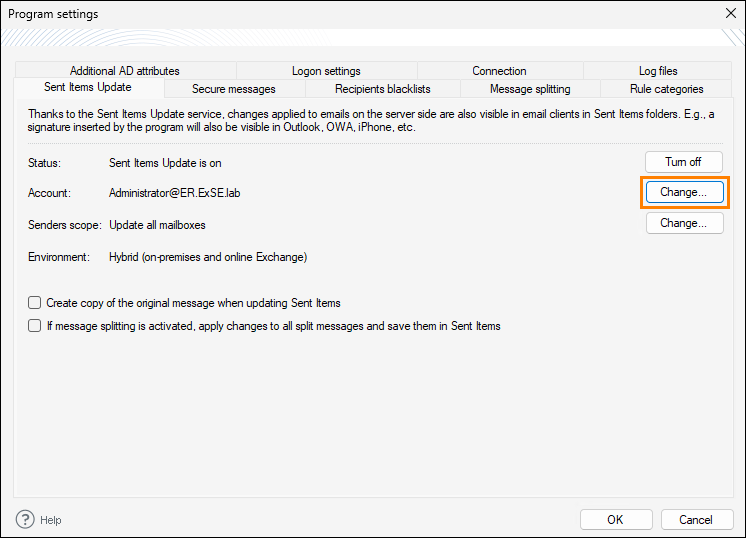
Fig. 2. Reconfiguring the Sent Items Update service.
Environment
Once the Sent Items Update service configuration wizard opens, choose the type of your environment (Fig. 3.).
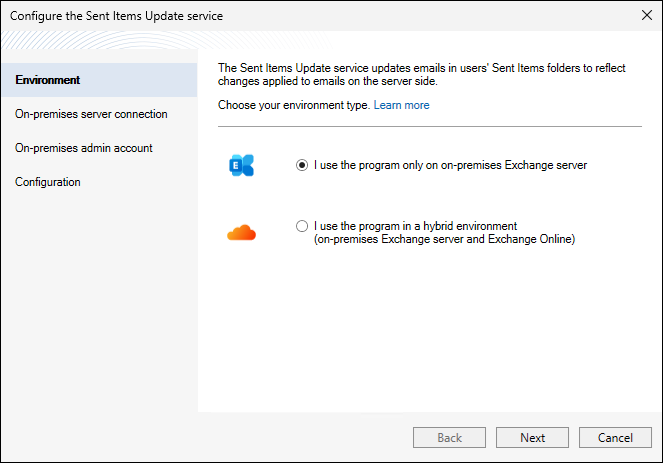
Fig. 3. The Sent Items Update configuration wizard: environment type selection.
The next steps of the wizard will differ slightly, depending on your choice. Some of the steps below will only be available when configuring the SIU service for use in a hybrid environment:
- On‑premises server connection
- On‑premises admin account
- ADD application registration (hybrid environment only)
- ADD application details (hybrid environment only, if you select manual Entra ID app registration option)
- Configuration
On‑premises server connection
Define the method of connecting to your on‑premises server. The Autodiscover Exchange Server option (Fig. 4.) will allow the SIU service to locate the server automatically, based on the admin account credentials provided in the next step of the wizard.
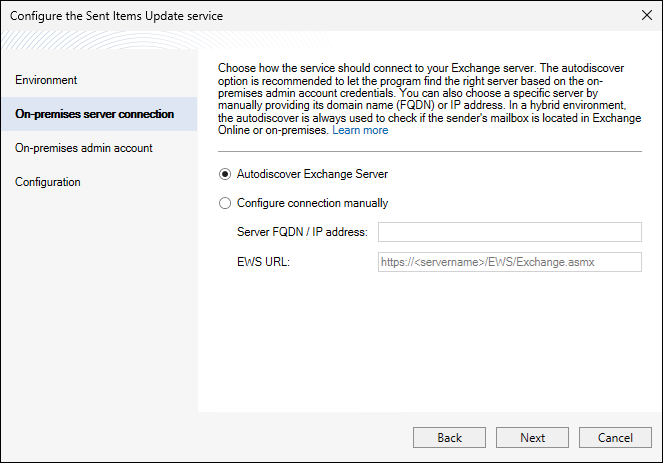
Fig. 4. The Sent Items Update configuration wizard: connecting to an on‑premises Exchange Server via the Autodiscover mechanism.
If, for example, you want to connect to a server from a different domain, you can only do this by selecting the Configure connection manually option (Fig. 5.) and providing the server's FQDN name (e.g. servername.my-domain.com) or IP address. The EWS URL field is filled automatically, but you can edit it as well, if necessary.
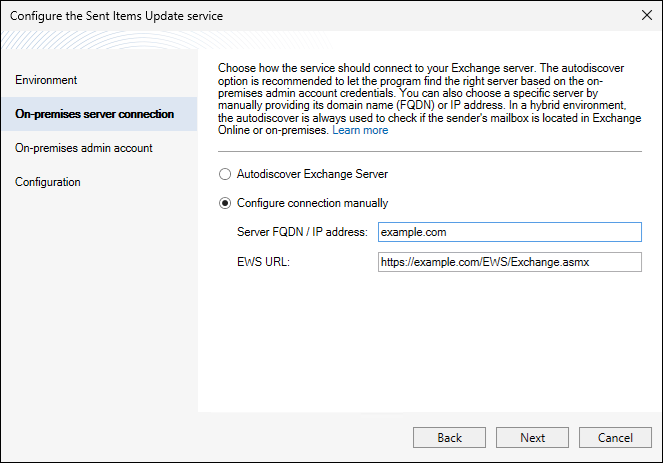
Fig. 5. The Sent Items Update configuration wizard: establishing a manual connection to an on‑premises server.
Tip
If you prefer the manual configuration, you can use the localhost (127.0.0.1) endpoint in your EWS URL, provided that the Exchange server where the software is installed is a Client Access Server (CAS). In this case, the EWS URL is:
https://127.0.0.1/EWS/Exchange.asmx
If you still don't know what your EWS URL is, see this article.
On‑premises admin account
In this step, you need to provide credentials of the account that will be used by the Sent Items Update service to authenticate with Exchange Web Services and update emails in the Sent Items folder.
Use the Choose an existing account option (Fig. 6.) to enter the credentials of an admin account that meets the requirements described in the section above.
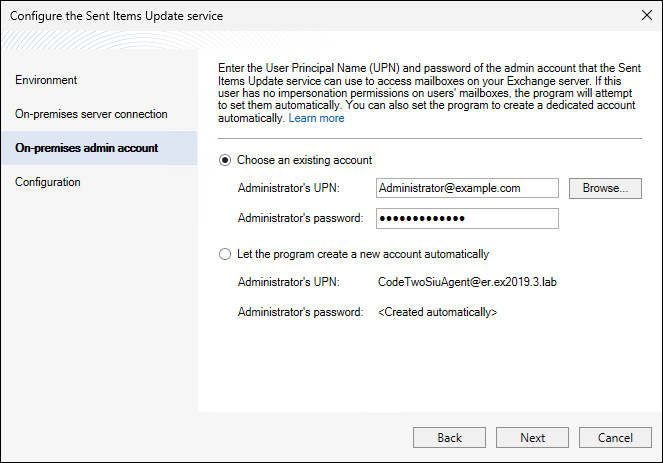
Fig. 6. The Sent Items Update configuration wizard: on‑premises account manual setup.
You can type the account's UPN manually or select it via the Browse button. If you click the Browse button, you can pull the UPN from your Active Directory. By clicking Locations, you can pick the domain from which the administrator's UPN will be taken (Fig. 7.). This option is not available with untrusted domains, so if you want to select a UPN from an untrusted domain, you have to type it manually.
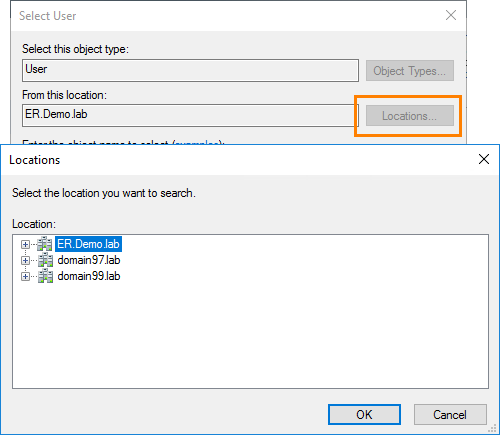
Fig. 7. Choosing a domain to be searched for the administrator's UPN.
Important
Make sure that the selected account has its UPN configured (learn more). Otherwise, the setup process will be unsuccessful.
You can also select the Let the program create a new account automatically option (see Fig. 6.). This will create a dedicated account that will be used by the service to update the processed emails. The account will have the following UPN: CodeTwoSiuAgent@[your domain].
ADD application registration (hybrid environment only)
To allow the SIU service to connect securely to your Exchange Online organization in order to access and update user mailboxes, you need to register CodeTwo Email Signatures On‑prem in your Microsoft Entra ID. The registration can be performed automatically by the SIU configuration wizard or you can do it manually in your Entra ID.
Automatic registration
Select Automatic registration and click Log in as Microsoft 365 admin (Fig. 8.). On the Microsoft 365 sign-in page that opens, provide the credentials of a user with:
- the Global Administrator or Privileged Role Administrator role, and
- an Exchange Online mailbox.
Next, accept the necessary permissions. This will allow the application to update emails in the Sent Items folder with signatures.
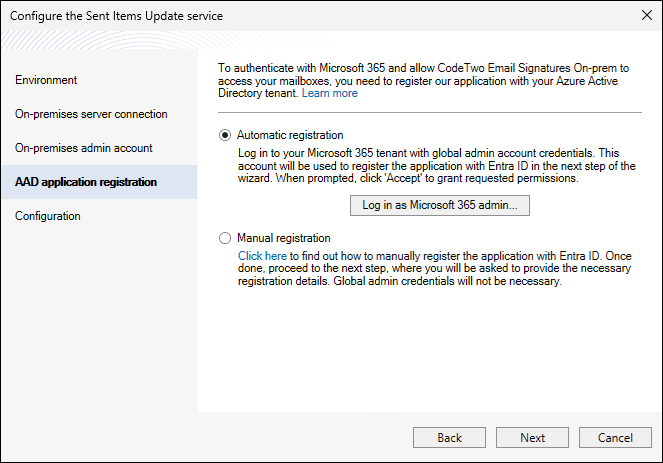
Fig. 8. The Sent Items Update configuration wizard: automatic application registration.
The application will be registered as CodeTwo Email Signatures On‑prem in your Entra ID. A unique certificate will be generated and applied to this application.
Manual registration
Follow these steps to register the CodeTwo Email Signatures On‑prem application manually in your Microsoft Entra ID (Azure Active Directory). Once done, select the Manual registration option in the AAD application registration step of the SIU service configuration wizard (Fig. 9.) and proceed to the next step.
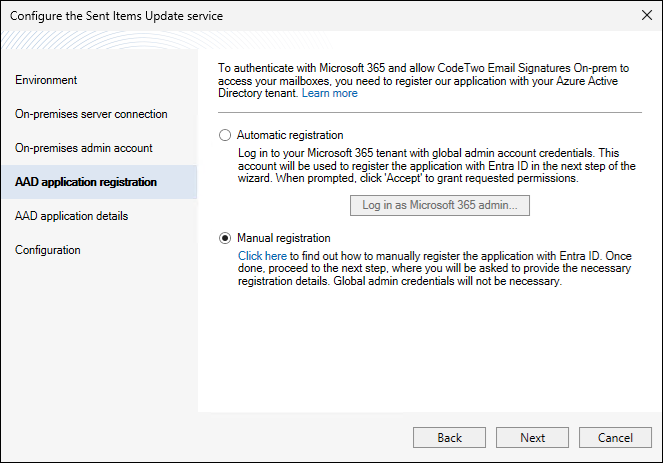
Fig. 9. The Sent Items Update configuration wizard: proceeding with the manual application registration option.
ADD application details (hybrid environment only)
After you have registered the CodeTwo application in your Microsoft Entra ID, you need to provide the registration details in the AAD application details step (Fig. 10.).
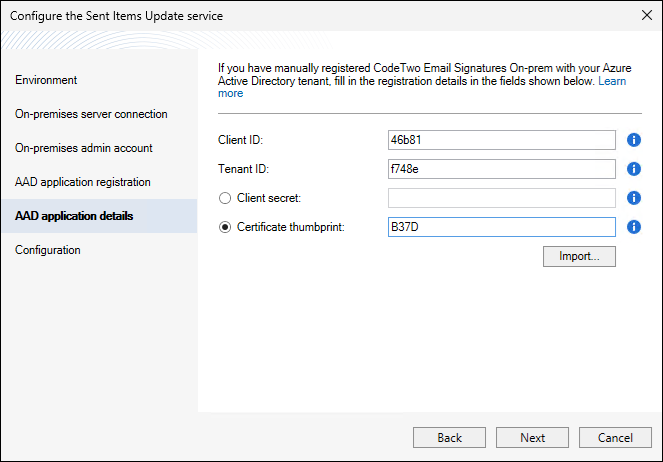
Fig. 10. The Sent Items Update configuration wizard: providing the application registration details.
All the necessary information can be found in the Microsoft Entra admin center of your tenant:
- Client ID – this is the ID assigned to the application after it has been registered in Entra ID. Go to Entra ID > App registrations, select the All applications tab, and click the name of the application. The ID will be shown on the Overview page, next to Application (client) ID (Fig. 11.).
- Tenant ID – this is the unique ID of your Microsoft 365 tenant. You can find it on the same Overview page as shown in Fig. 11., next to Directory (tenant) ID.
- Client secret or Certificate thumbprint – you only need to provide one of these credentials. Both are found in the Microsoft Entra admin center, on the Certificates & secrets page of the registered application (Fig. 12.). Find out more about how to use a client secret or certificate thumbprint.
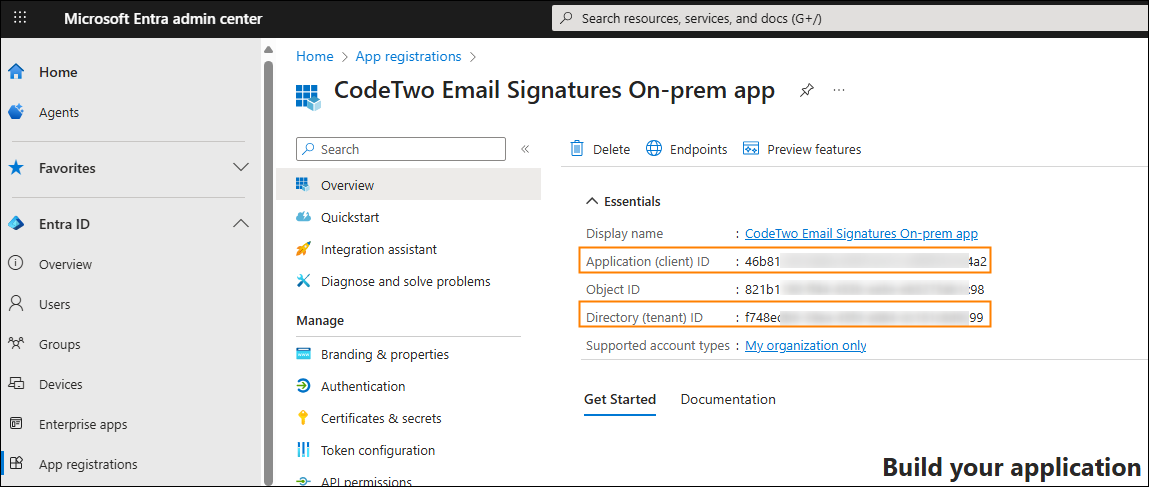
Fig. 11. Location of the client and tenant IDs in the Microsoft Entra admin center.
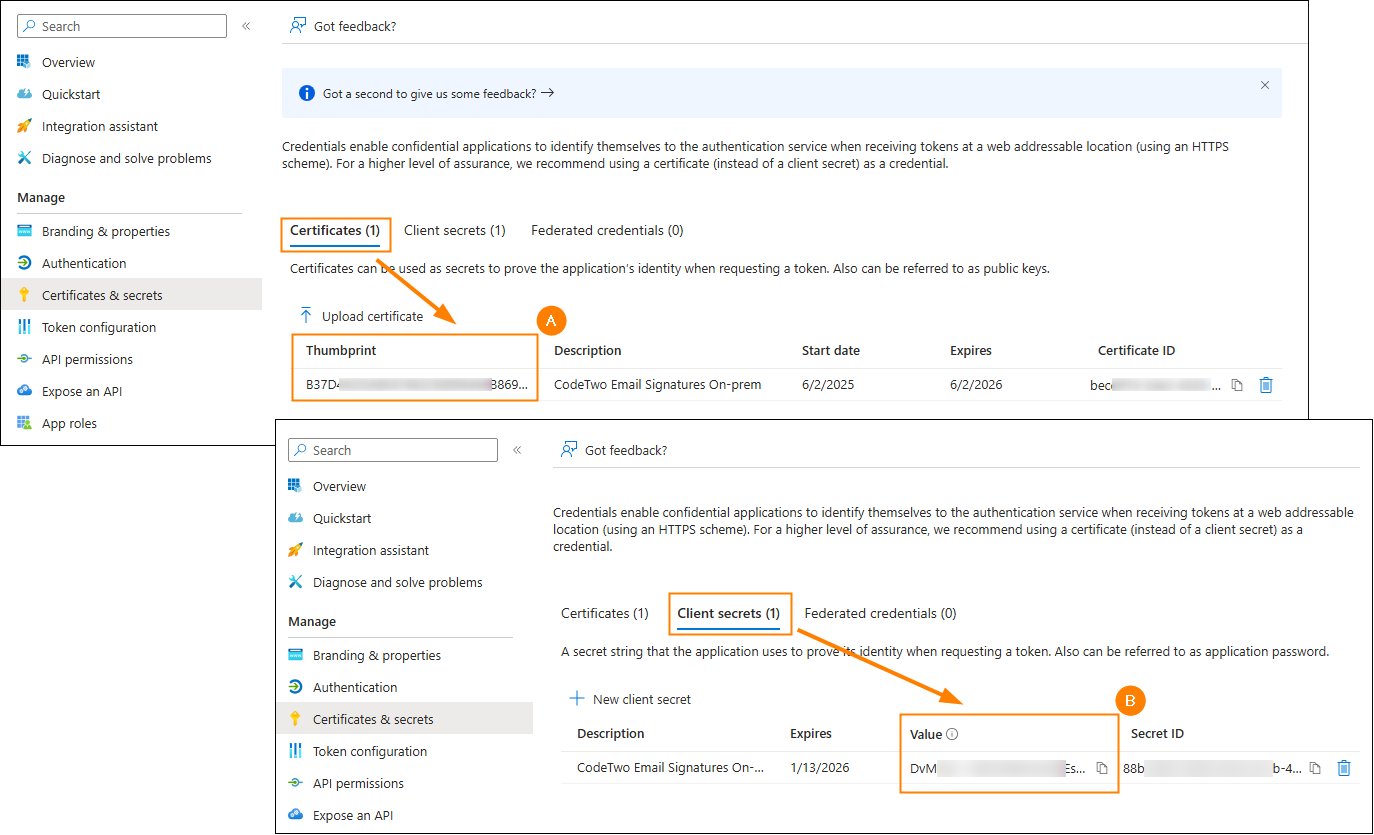
Fig. 12. Location of the certificate thumbprint (A) and client secret (B) credentials in the Microsoft Entra admin center.
Using a client secret
To use the client secret (app password) credential in the SIU service configuration wizard, select the Client secret option and enter (or paste) the value in the right field. Be sure to copy the client secret value once you generate it. You will not be able to see (or copy) this credential once you leave the Certificates & secrets page in your Microsoft Entra admin center.
Using a certificate thumbprint
If you assigned a certificate to the CodeTwo application in your Entra ID, you can use the thumbprint of that certificate in the SIU service configuration wizard (as shown in Fig. 10. above) to authenticate the application. To be able to do so, this certificate needs to be signed with a 2048 bits key and added to the personal certificate store of the currently logged in user. The wizard will also import the certificate to the personal store of the account under which the CodeTwo Sent Items Update service runs.
You can use the Import button to open the Import certificate window (Fig. 13.). Here, click Browse, select your certificate, provide the password and click OK. This will install the certificate in the correct stores.
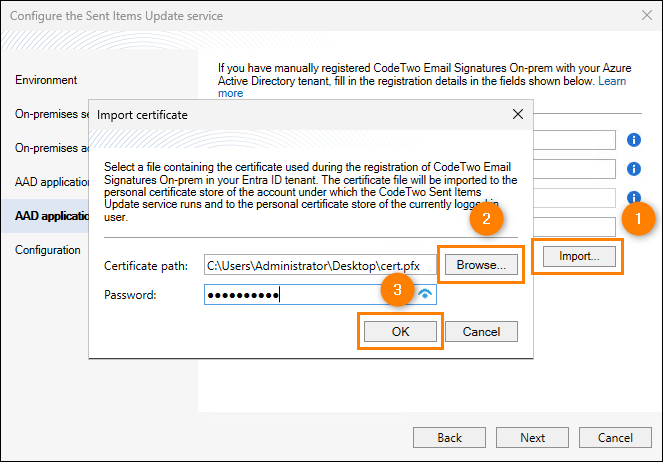
Fig. 13. The Sent Items Update configuration wizard: importing a certificate.
Warning
In case you ever need to reconfigure the SIU service from another instance of the Administration Panel installed on a different machine, you need to import the same certificate to the personal certificate store of the currently logged in user on that machine as well.
Configuration
In the last step, the wizard creates a dedicated service account (if you selected this option in the On‑premises admin account step), assigns the impersonation rights to the selected account and tests if this works. If you configured the SIU service in a hybrid environment, the wizard will also register the CodeTwo Email Signatures On‑prem application in your Entra ID (if you selected the Automatic registration option) and verify the connection to this application as well as to the Microsoft Graph API. Click Configure to begin this process. If the configuration is successful, the wizard shows green-colored check marks next to the actions performed (Fig. 14.).
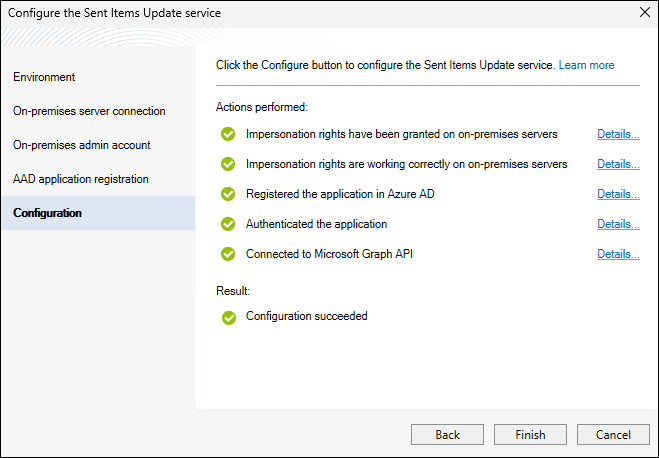
Fig. 14. Successful configuration of the SIU service. The displayed actions might differ depending on your setup.
Once the configuration is done, confirm it by clicking Finish. Note that the service might not work right away – it can take a few minutes before it is deployed in your environment.
Important
Once the Sent Items Update service is configured in an Administration Panel, there is no need to set it up on any other instance of the program in your organization – the configuration is propagated automatically. You only need to restart the other Administration Panels to see the changes.
If you reconfigured the SIU service to allow it to use the Microsoft Graph API instead of Exchange Web Services in a hybrid environment (as described here), you can now remove the old CodeTwo Email Signatures On‑prem app with the Office 365 Exchange Online full_access_as_app permission from your organization’s Entra ID.
In case you encountered any errors during the configuration process, refer to the Troubleshooting section below.
SIU settings
After the successful configuration of the Sent Items Update service, new settings become available in the Program settings window (Fig. 15.).
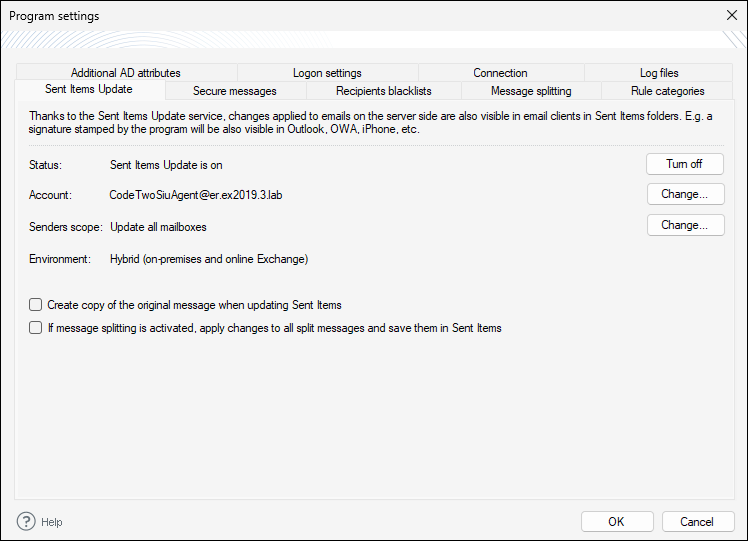
Fig. 15. The Sent Items Update options.
The following entries provide general information about the SIU service:
- Status – shows if the service is turned on/off. Use the button on the right side of the window to enable/disable the feature at any time.
- Account – shows the account under which the service currently works. You can change that account as well as reconfigure the SIU service via the Change button.
- Environment – informs whether the SIU service is configured for an on‑premises environment only or for a hybrid environment (on‑premises Exchange and Exchange Online).
The other options are related to the way messages in the Sent Items folder are updated:
- Senders scope
- Create copy of the original message when updating Sent Items
- If message splitting is activated, apply changes to all split messages and save them in Sent Items
Senders scope
This option allows you to define the users whose sent messages (emails in the Sent Items folder) are updated by the SIU service. Click the Change button (Fig. 16.) to open the Scope of updated mailboxes window. Next, use the drop-down menu to choose all users (the Update all mailboxes option, which is selected by default) or to include/exclude individual users or groups. To do so, select Update mailboxes from the list below only/Update all mailboxes except the ones from the list below and use the Add button to specify these users/groups.
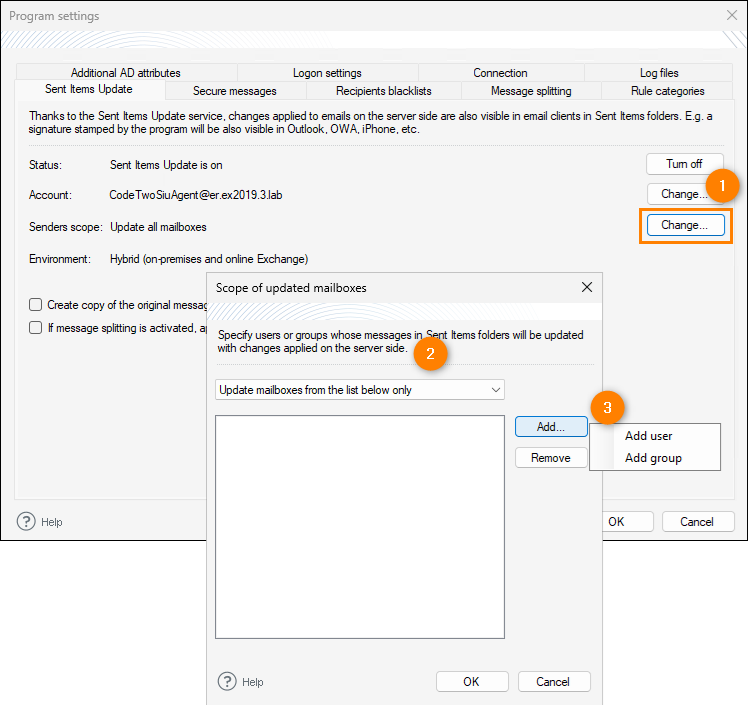
Fig. 16. Changing the scope of mailboxes to be updated by SIU.
Create copy of the original message when updating Sent Items
This option is disabled by default. If you turn it on, there will be two messages in the Sent Items folder for each email sent – one that was not processed by the service and the other that was processed (and, e.g., updated with a signature).
If message splitting is activated, apply changes to all split messages and save them in Sent Items
If a message is addressed to multiple recipients who match different rules, CodeTwo Email Signatures On‑prem can split this message into several copies on the server to apply individual rules to corresponding recipients. If you enable this option, as shown in Fig. 17., the software will show all copies of this message (with different rules applied) in the Sent Items folder of the mailbox from which it was sent. If this option is not available (grayed out), this means that the message splitting feature is not enabled in your organization. You can turn it on in the program's settings – see this article to learn more.
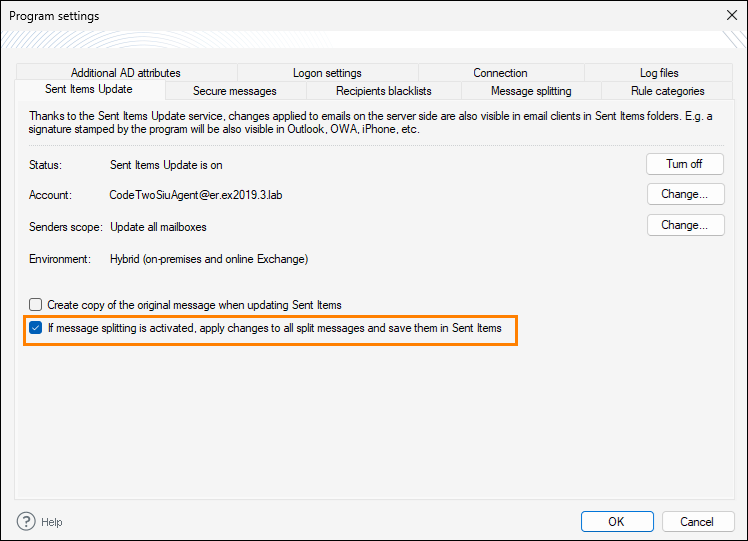
Fig. 17. Enable this option to show all split messages in the Sent Items folder.
Troubleshooting
The Sent Items Update service configuration errors
It may sometimes happen that the configuration ends up with errors. In such a case, the wizard displays which steps have failed. Click on the error message below to see troubleshooting steps:
- Failed to create the Sent Items Update account on on‑premises servers
- Failed to grant the impersonation rights on on‑premises servers
- Impersonation rights are not working correctly on on‑premises servers
- Failed to register the application in Azure AD
- Failed to authenticate the application
- Failed to use the Microsoft Graph API
Failed to create the Sent Items Update account on on‑premises servers
This error might be associated with the service's inability to locate your server. Go back in the configuration wizard to the On‑premises server connection step and make sure to enter correct data.
Failed to grant the impersonation rights on on‑premises servers
This warning refers to the program’s inability to grant impersonation rights automatically. In such a situation, you are instructed to assign impersonation rights manually. Keep in mind that if other actions performed during the Configuration step are completed successfully, the SIU service will still be shown as configured.
Impersonation rights are not working correctly on on‑premises servers
This warning is shown if the impersonation rights were granted, but the wizard failed to test them automatically. In such a case, you can test them manually by clicking on the Details link on the right (see Fig. 18.). In the Details window, press click here. Type in the UPN of a user account (or select one from your AD) and the program will test if the previously configured SIU account has impersonation rights on this user account.
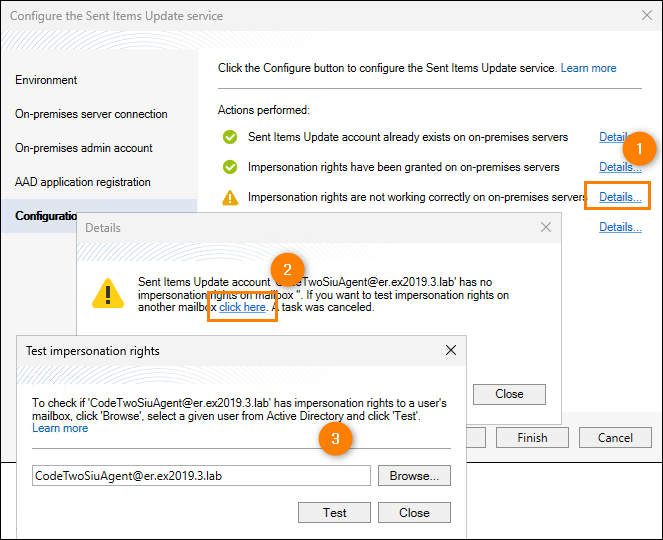
Fig. 18. Testing the selected admin account's impersonation rights on other user mailboxes.
Failed to register the application in Azure AD
This error occurs if the account provided in the AAD application registration step of the SIU service configuration wizard is not assigned the Global Administrator or Privileged Role Administrator role in your Microsoft 365 tenant. Log in to your tenant using an account added to one of the above-mentioned roles.
Also make sure that you have a working internet connection. If necessary, perform the registration manually.
Failed to authenticate the application
If you get this error, make sure to click the Details button to find out more about the possible causes.
If you registered the CodeTwo application manually, also make sure that:
- all details provided in the AAD application registration step are correct,
- the certificate or client secret applied to the CodeTwo application still exist in your Entra ID,
- the certificate used with the CodeTwo application has a key size of at least 2048 bits,
- the time of the machine where the Administration Panel of CodeTwo Email Signatures On‑prem is installed is synchronized with a time server.
Failed to use the Microsoft Graph API
This warning is shown when the admin account used for the automatic registration of the CodeTwo Email Signatures On‑prem application in Entra ID doesn’t have an Exchange Online mailbox. If all other actions performed during the Configuration step are completed successfully, the SIU service will still be shown as configured and will work properly, so you can ignore this warning.
Sent Items not updated in Outlook
If you use Microsoft Outlook, occasionally emails in your Sent Items folder might not be refreshed/displayed correctly. This is usually caused by Outlook's default behavior in the Cached Exchange mode and is not related to the SIU service. See this article to learn how to solve this problem.
Problem not solved?
If you can't find the solution to your problem, try searching our Knowledge Base.
If you still need help, contact our Customer Service. We know our products inside out.
See next
Quick guide to creating email rules
See also
Message splitting – this article describes how to configure the program to update emails including signatures/disclaimers in the Sent items folder of a particular mailbox if a given message was sent to various recipients encompassed by different rules.