How to find the EWS URL and how to test it
Problem:
You want to know the URL of Exchange Web Services (EWS).
Solution:
- Finding the EWS URL on a client access server
- Finding the EWS URL by using the configuration of Web Services Virtual Directory
- Testing the EWS URL
Finding the EWS URL on a client access server
Most Exchange servers have the Mailbox server role that includes Client Access services (CAS). This gives them the possibility to receive and process EWS requests. If you confirm that your server has the Mailbox role and includes the Client Access services (learn how to list Exchange servers and their roles), then its Fully Qualified Domain Name (FQDN) can be used to obtain the EWS URL in the following way:
https://<FQDN>/EWS/Exchange.asmx
where <FQDN> is your machine's Fully Qualified Domain Name. FQDN consists of your machine's name along with the domain, for example: exchange.my-company.com. In this case, EWS URL is:
https://exchange.my-company.com/EWS/Exchange.asmx
Tip
You can use the localhost (127.0.0.1) endpoint instead of FQDN, provided that the Exchange server where the software is installed is a Mailbox server with the Client Access services. In this case, the EWS URL is:
https://127.0.0.1/EWS/Exchange.asmx
If you want to test if the EWS URL is correct, see this section.
Using the configuration of Web Services Virtual Directory to get the EWS URL
You can get the address(es) of your Exchange Web Services by executing the following PowerShell cmdlet in the Exchange Management Shell:
Get-WebServicesVirtualDirectory | Select name, *url* | fl
If you need the EWS URL, for example to customize the configuration of the Sent Items Update service in CodeTwo Email Signatures On-prem, look for the address listed as InternalUrl.
For other purposes, you may need to use the ExternalUrl value. In some environments, the external URL might not have been set up yet. If this is the case, refer to these instructions on how to configure external URLs on Microsoft's website.
Testing the EWS URL
You can test if the EWS URL is correct and EWS works on your machine (for example, on the machine where CodeTwo software is installed). To do so, you need to follow these steps:
- Launch a web browser, type your EWS URL (see the previous section to learn how to get it), and open it.
- Windows will ask you to provide your credentials (Fig. 1.).
- If the credentials are correct, you will be connected (even if certificate error occurs - see Fig. 1.). This means that you can use this EWS URL to configure CodeTwo software.
- If you are not asked for credentials, this means that there is no EWS endpoint under your URL or the connection is not possible. In such a case, make sure that:
- your EWS access is not blocked – for instance, by EWS access controls (see this Microsoft article to learn more about controlling access to EWS),
- your firewall does not block the connection, and
- your DNS information and settings are complete.
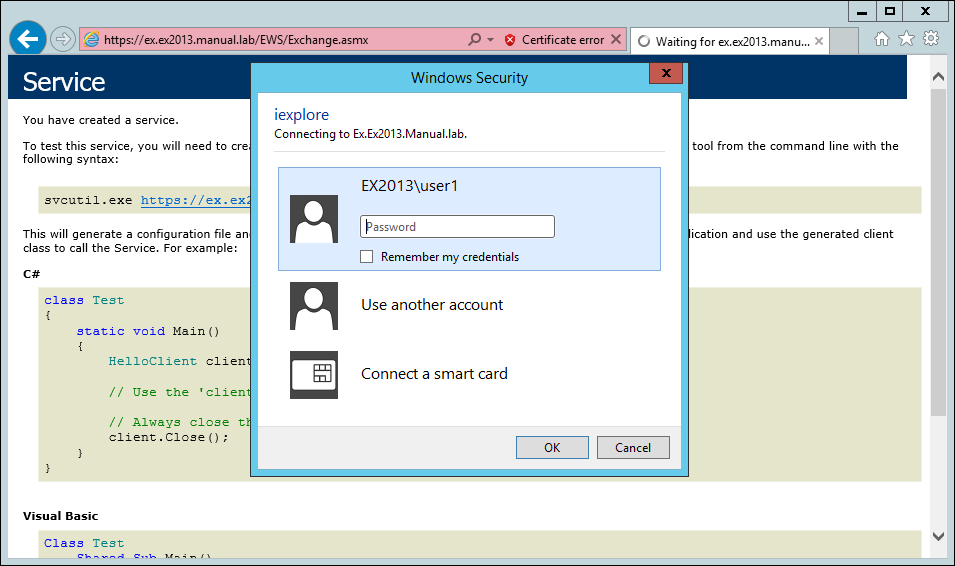
Fig. 1. After you open the EWS URL in your browser, you need to provide your account credentials to connect to EWS.
| Related products: | CodeTwo Backup for Exchange, CodeTwo Backup for Office 365, CodeTwo Email Signatures On-prem, CodeTwo Exchange Migration, CodeTwo Exchange Rules 2007 1.x, 2.x, 3.x, 4.x, CodeTwo Exchange Rules 2010 1.x, 2.x, 3.x, CodeTwo Exchange Rules 2013 1.x, 2.x, CodeTwo Exchange Rules 2016 1.x, CodeTwo Exchange Rules 2019 1.x, CodeTwo Exchange Rules Pro 1.x, 2.x, CodeTwo Office 365 Migration |
| Categories: | How-To |
| Last modified: | September 28, 2026 |
| Created: | September 30, 2014 |
| ID: | 429 |






