



How to share contacts in Office 365?
It is possible to share contacts in Office 365, however available options are limited as compared to calendar sharing.
A major downside is that contacts folder sharing is not possible in Outlook on the web (OWA). To share your personal contacts, you have to use Outlook.
See the steps below:
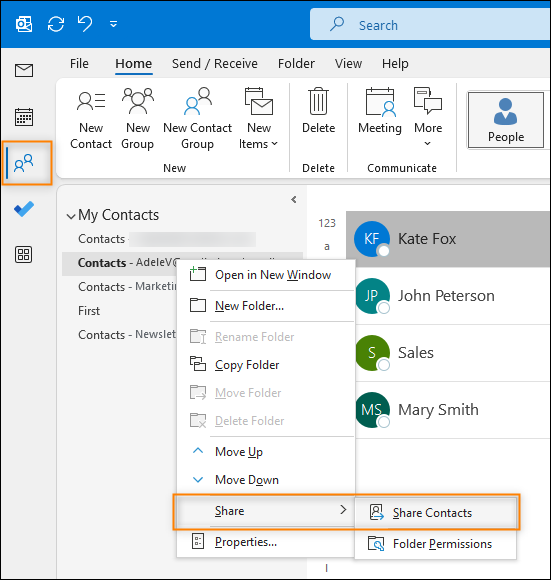
- In Outlook, go to the People view, select a folder with contacts you would like to share and right-click on it.
- In the context menu, select Share and then Share Contacts.

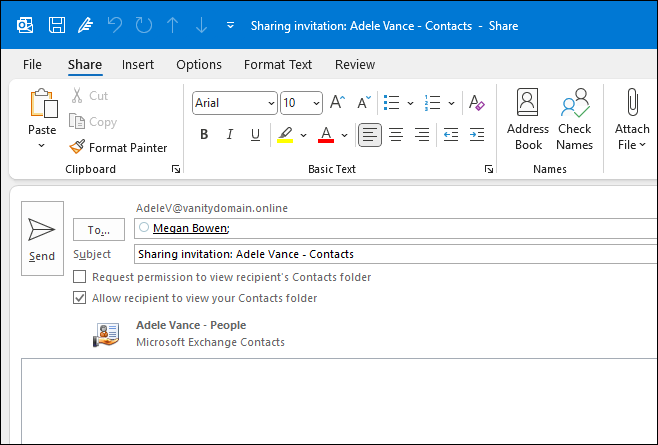
- The sharing invitation will show up. In the To… field, type in names or emails of users you would like to share your contacts folder with. Then, define recipients permissions to the folder. In the blank section at the bottom, you can enter a short message if needed.

- Once your invitation is ready, click Send.
Share contacts in Office 365 using a shared mailbox
For sharing contacts lists, you can also use the shared mailbox functionality. The process of creating a shared mailbox in Office 365 (Microsoft 365) is identical to creating a group calendar.
Make sure you have administrative rights, as they are required to follow this instruction:
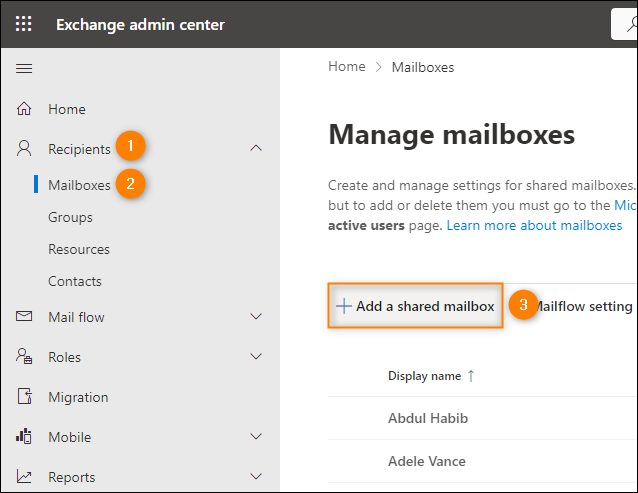
- Sign in to the Exchange admin center using your Office 365 administrative credentials.
- Then, go to Recipients > Mailboxes and click Add a shared mailbox.

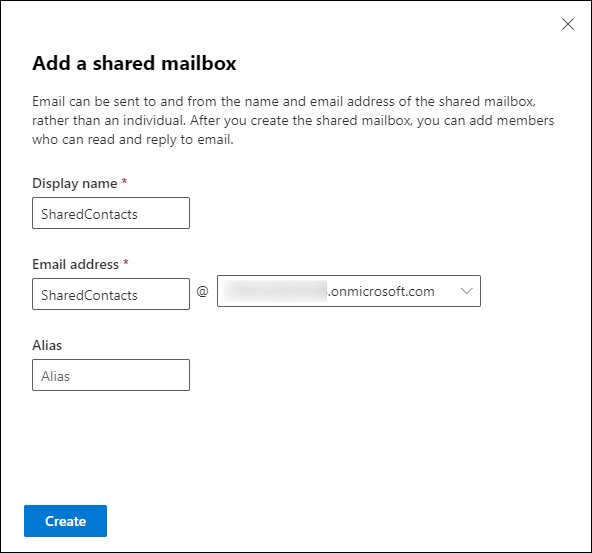
- In the Display name field, type the name of the mailbox. Copy that name to the Email address field (of course, you can use a different name if you wish). Finally, click Create.

- Once the shared mailbox is created, click Add users to this mailbox.
- Next, click Add members and add users from your organization with a standard user picker. The users you choose will have the Full Access permission to the mailbox and will be able to behave as the owner of the mailbox.

- Once you have selected the users, click Save and Confirm to apply all changes.
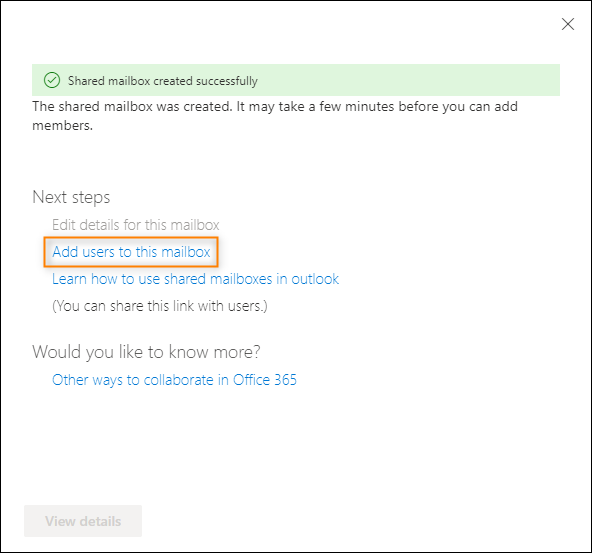
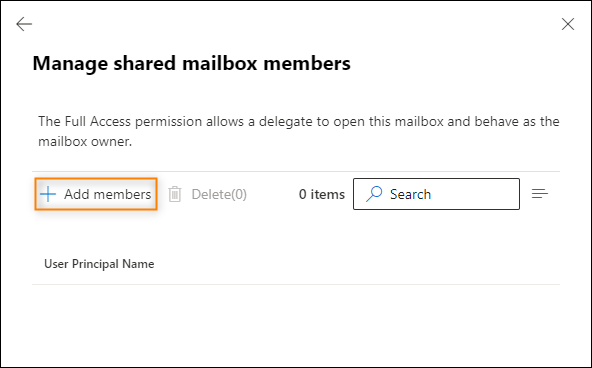
You have just created a shared mailbox. A good thing is that for users specified as having full access to it, Outlook automatically displays shared folders of this mailbox. If a user you added opens the People view in Outlook, there should be a contacts folder visible on the My Contacts list.
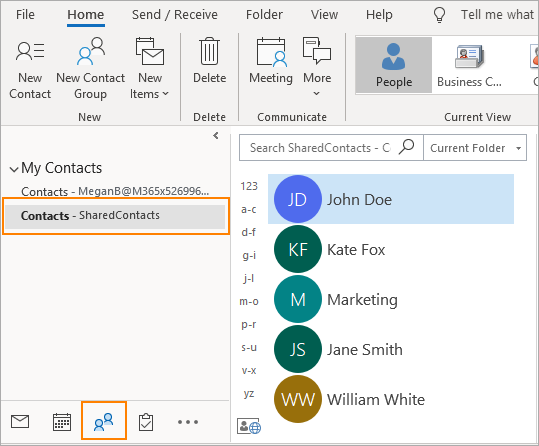
Again, the problem arises if you want to use OWA. It simply does not support opening contacts folder from the shared mailbox.
External sharing with another Office 365 organization
Sadly contacts are also more limited than calendar folders in this scenario. Sharing externally is available only when two organizations are federated.
In the mobile age and cloud era, sharing is not just a buzz-word. It is a must. Contacts sharing is almost as important as email communication and as pointed out above, there are some aspects that could be improved in Office 365. Let’s hope that this will change soon.
See also:

Recommended articles



Hello,
I am having difficulty trying to share just a group of contacts from my contacts list in outlook.
Now, I did get to send a small group of selected contacts I wanted to share to someone but, only the name and email shows I need it to show the whole contact information how I created the contact.
Name, phone. email
Could you please help me in how I can get this to work for me?
We have been trying many times and failed.
Hello Evey,
Open the contacts you shared in Outlook and check if all the fields are filled in. If not – add more information to the right contact cards and share them again.
I have a Shared Mailbox with multiple subfolders under the Contacts. I would like to assign permissions to different set of users to each of these subfolders. I have given permissions on the Contacts folder as well as the subfolder. But when I try to open the Shared Mailbox from the other user account( to whom I have given owner permission on the subfolder), he can only see the main contacts folder, not the subfolder.
Hi Nilima,
Please make sure that the user who does not see the subfolder has at least Folder visible permission for every folder above it. If that does not work, you can use multiple shared mailboxes instead of subfolders. Then you can simply give Full Access rights to chosen users via your Exchange Online Admin Center.
Hi All,
My friend shared a contact folder with me with owner permission. Can it be possible for me to share this shared folder with others.
Also I am not able to get the contacts of this folder while sending a mail.
Thanks
Hi Atul,
When it comes to your first question: no, there is no option to share shared contacts, even with the owner permissions.
As for the second question: you will not be able to see shared contacts in the to field while sending an email. One of the workarounds for this problem is to sync the shared contacts folder with your primary contacts folder using our freeware, CodeTwo Folder Sync Addin.
It may not have worked before, but today MS support showed me how you can actually display contacts from a »shared mailbox« in OWA (or Outlook on the Web, as it is called now):
You have to open the »shared mailbox« in a separate browser tab/window. Just go to your user icon on the top right of the window, click »Open another mailbox…« and search for the shared mailbox or type in its name. The shared mailbox appears in a new browser tab and let’s you edit contacts.
I spent a lot of time looking for a solution and it seems I found it.
Some things are really well hidden in Office 365.
I have a 7000 people contact list and we are working with office 365. I need to share this list with others but others only view and no editing. I have two problems, one is that the list is too large and the skype service get’s stuck due to this and the other is where to save it, thus if I want to send an email I could pick the address to my email recipient “to” field. Any recommendation? add on?
Hi Joe,
You may want to take a look at CodeTwo Public Folders: https://www.codetwo.com/public-folders/share-contacts?sts=3853. You can trial the product free of charge for 30 days to see if this is what you need.
Here are the actions you need to perform to be able to add the contacts in the “to” field in Outlook: https://www.codetwo.com/kb/how-to-create-a-common-company-address-book/?sts=3853
Hope this helps,
Adam
Hi Adam,
Thanks for your great information on this page. Sorry if this is a silly question, but when I go to contacts in Outlook I do not see my fellow Office 365 domain/account users – I do not want to add my own colleagues (that is [email protected]) one by one. Is there something I need to do?
Thanks, Peter
Hi Peter,
If you want to add users from your Office 365 domain to your Contacts folder in Outlook, follow these steps:
1. While in the Contacts folder in Outlook, press CTRL+SHIFT+B or click the Addres Book button on the ribbon (should be on the far right)
2. Highlight all contacts and groups you want to add to the folder (hold SHIFT to highlight multiple items)
3. Right-click on the selection and click Add to Contacts
See this article for more: https://support.office.com/en-us/article/Add-a-contact-from-the-Global-Address-List-0b165964-76ae-4db7-ad2e-20b06c781096
As to sharing a folder with multiple users – the only alternative to adding them one by one, is to share the folder with a group that includes them. This can be a group that you created locally in Outlook or a server-level group.
Let me know if this helps,
Adam
Hi Adam,
Thanks for confirming that. It surely seems a strange omission on Microsoft’s part to leave out what would seem to be basic functionality. But maybe I’m jaded by using Groupwise for so long.
And thanks for the workarounds. I’ll check into those.
Dave
Hi Adam,
Regarding your response to Daniel and Rob about shared contacts not being usable when sending from a primary account – what are they used for then? If we can’t use addresses from a shared folder, what does Microsoft intend for us to use the shared contacts for? Why can’t Bob share a contact folder with Alice so she can send email to those people too? That really doesn’t work?
Sorry to ask such a basic question, but this kind of thing is hard to get an answer from Google.
We were a Groupwise shop until last year, and today is the first time I’ve had someone ask about sharing a contact folder (what Groupwise calls an “Address Book”) with someone else. I tested a few things, then started Googling when things weren’t working in an intuitive way. Your blog was one of the few that seemed to have a live person anywhere near it, so I thought I’d ask.
Thanks,
Dave
Hi Dave,
I agree that it’s something Microsoft should have implemented a long time ago – not sure why they didn’t.
The workarounds I can suggest here and now are:
1. Create a dedicated public contact folder and have users who want to share contacts sync it with their contact folders e.g. using CodeTwo FolderSync Addin: https://www.codetwo.com/freeware/foldersync-addin/?sts=3853
2. Use CodeTwo Public Folders: https://www.codetwo.com/public-folders/share-contacts?sts=3853
All the best,
Adam
I would like to capture names and email addresses from mail sent to shared mailbox to the Contact folder for that mailbox, but they go into my main Contacts folder instead. How do I get them to go to the shared folder? Thanks.
Hi Andrew,
I’m not aware of a built-in solution for this – probably part of the trade-off for shared mailboxes not requiring a license.
If you’re willing to settle for a workaround, check out CodeTwo FolderSync: https://www.codetwo.com/freeware/foldersync-addin/?sts=3853. This is a free Outlook addin we offer, which lets you sync pairs of folders in Outlook. In your scenario you could set it to mirror your personal Contacts folder and the Contacts folder in the shared mailbox.
Best regards,
Adam
thank you for your response
Any outlook will work?? like MS oulook, or we have to download & install the office 365 oulook??
thank you
regards
erwin
It will definitely work in Outlook 2010, 2013 and 2016. Not sure about older versions.
same question like Ms.Karen.
i cannot share my contacts, share is not showing on my web office 365,
please help,
regards,
Erwin
Hi Erwin,
The ‘Share Contacts’ option I talk about in the article is available only in Outlook.
Best regards,
Adam
I have the same problem as Daniel. I can’t seem to get Outlook to put the address in the to box. There are several contacts in the shared folder, but when I type a person’s first name, and click on “check name” nothing happens. Any ideas what I am doing wrong?
Hi Rob,
This is correct behavior, contacts from a shared mailbox cannot be added to an Address Book in Outlook, so they will not resolve when you use ‘Check names’. I misread Daniel’s earlier question (answer already corrected).
To be able to use the contacts when sending emails from your primary mailbox, you would have to either put them in a public folder (https://technet.microsoft.com/pl-pl/library/jj200758%28v=exchg.150%29.aspx) or sync the shared mailbox contacts to your primary contacts folder (e.g. using CodeTwo FolderSync Addin: https://www.codetwo.com/freeware/foldersync-addin/?sts=3853).
Best regards,
Adam
Best
This shared mailbox worked great for our needs. Not only are the contacts shared between the 2 people assigned to that mailbox but so are the tasks. However, is there a way for those shared tasks to show up on the to-do list of those computers?
Hi Tiffany,
Outlook displays tasks only from the default folder tree in the to-do list. So one workaround I see, would require users to sync tasks from the shared mailbox to a folder in their personal mailbox. This can be easily done using a 3rd party solution like our (free) CodeTwo FolderSync Addin: https://www.codetwo.com/freeware/foldersync-addin/?sts=3853
All the best,
Adam
can you share contacts within a 365 group?
Hi Karen,
Yes, you can. Just right-click the contacts folder in Outlook, select Share, Share Contacts and choose the group instead of a single contact. This will result in the invitation being sent out to all members of the group. Each member will then have to open the contacts folder in their Outlook, the same way as they would open a folder shared directly to them.
Hope this helps,
Adam
Hello.
I have shared my contacts to a co-worker, if I will be adding a new contact it will automatically added or it can also be viewed by the person I have shared my contacts?
Many thanks.
Hi Garry,
If you add a new contact to a folder that you are sharing with a co-worker, the new contact will almost immediately be displayed in their Outlook. Depending on their permissions to the folder (see Folder sharing permissions section in this article: https://support.office.com/en-za/article/Share-a-contacts-folder-with-others-ce5a40d1-bc9f-4f5d-a2aa-5ec388573821), they will also be able to introduce their own changes in real time.
Hope this helps,
Adam
We are using the OWA iPhone app to get around this. A new mailbox will be created and the users that want to see the shared contacts for this mailbox can use the OWA app to access it. The cool thing about the OWA app is that the search function supports finding contacts that have been categorized. We plan to categorize all the contacts and the search feature is excellent. I know this does not scale well, but it will work for us in this situation. The other option is to have the users create a new mail account on the phone and connect to this account. No category support this way however. I suspect we will have to dedicate a license to this account as I do not believe you can logon to a public mailbox.
Hello Paul,
Contacts sharing in this article was tried and tested on Office 365 Enterprise E3 plan, which is quite feature rich (I am not entirely sure what do you mean by “premium”).
Moreover – Microsoft states on their pages that:
Note: You cannot access shared contacts list for a shared mailbox from Outlook Web App
http://support.microsoft.com/common/survey.aspx?scid=sw;en;3704&showpage=1
I have seen that basic EDU license of O365 has these limited sharing functionality. However, there is a premium level of service that is more feature rich with sharing of contacts. Have you had any feedback in this area?
How about mobile devices such as iPad?
I’ve tried a number of methods, including share point contacts, but I’m struggling to find a shared contacts solution that is easy to use in outlook and an iPad…
Hello Robert,
As mentioned in the article – mobile devices are left behind in terms of access to public folders, shared mailboxes etc. They are simply not supported. We are currently working on a program that could allow such functionality, even without installation of client mobile apps – you can check it here: https://www.codetwo.com/sync-for-365/
Hello Sebastien,
Thanks for your feedback – glad you find the article useful!
Regarding your questions – yes, you can edit contacts in the shared mailbox from Outlook, and yes, 2007 and 2010 versions are compatible. Just make sure you have them fully updated with latest service packs.
Adam, does users given full access to the shared mailbox trough the office 365 portal can edit the contacts from the shared mailbox straigh from outlook?
Do you think old version of outlook like 2007 and 2010 are compatible with this?
Thank you for your awesome article the best out there.
Hi Daniel,
Contacts from a shared mailbox cannot be used to send emails from a primary mailbox, so the behavior you are noticing is correct.
To be able to use the contacts when sending emails from your primary mailbox, you would have to either put them in a public folder (https://technet.microsoft.com/pl-pl/library/jj200758%28v=exchg.150%29.aspx) or sync the shared mailbox contacts to your primary contacts folder (e.g. using CodeTwo FolderSync Addin: https://www.codetwo.com/freeware/foldersync-addin/?sts=3853).
Best regards,
Adam
Hi there,
I also did this but I can’t see how to get these shared contacts in my “to-field” when writing an email.
Did I miss something or is this just not supported?
I have created a shared mailbox and have full access. I can add contacts but when I type in an addressee in the to-field, I don’t see the contacts from that shared mailbox.
Thanks!