



Ever sent an unfinished, mistaken, or embarrassing email and wanted to take it back as soon as it left the outbox? That’s what message recall is for. The feature is far from perfect, but since its complete redesign in 2023, Microsoft has been working on improving it. Currently, message recall uses the power of the cloud and is also available on mobiles.
What’s new in the message recall in Microsoft 365?
The first version of message recall had an average success rate of 40%. It’s not surprising that people weren’t too happy with how classic message recall worked. The promised >90% effectiveness of the revamped feature looks too good to be true. What’s more, the percentage wasn’t the only promised upgrade. So, let’s see how message recall works after the upgrade from a client-side to a server-side feature.
Changes introduced in 2025
Let’s start with the most recent updates.
Message recall available on mobiles
In May 2025, Microsoft rolled out message recall to mobile Outlook. Recalling on mobiles is very straightforward.
If you do not yet see this on your mobile device, check for updates. Outlook for iOS and Outlook for Android should have received this feature in app version 4.2504.0 or later (see source). Android Beta and iOS TestFlight users should be the first to get it (as with most mobile features).
Changes introduced in 2024
First, let’s dive into the most recent changes to message recall.
- Encrypted emails support. Starting from October 2024, message recall gets an integration with Microsoft Purview’s Information Protection. It means that you gain the option to recall encrypted messages. Before this feature’s rollout, the message recall option is greyed out for encrypted emails stored in your Sent Items Folder. This feature is turned on by default.
- Optional Recall Notifications for Recipients. Introduced in August 2024, this feature allows you to send notifications to the recipients of the recalled messages. This doesn’t sound like too big of a deal, until you’ve experienced messages disappearing from your inbox. You can apply this feature with PowerShell cmdlets:
Set-OrganizationConfig -MessageRecallAlertRecipientsEnabled [$False | $True] and Set-OrganizationConfig -MessageRecallAlertRecipientsReadMessagesOnlyEnabled [$False | $True] - Maximum Recallable Message Age. This feature, rolled out in August 2024, lets you control how much time to allow users to recall messages. When a message exceeds a certain age, message recall will fail. You can control it with the following cmdlet:
Set-OrganizationConfig -MessageRecallMaxRecallableAge [DDDD.HH:MM:SS] - Support for External Round-trip Routing. Starting from August 2024, message recall should support intra-tenant messages that are processed by 3rd party services or on-premises servers, before the actual delivery to the recipients.
Now, back to the features introduced in cloud message recall deployed in 2023.
More versions of Outlook supported
At first, the goodness of the message recall feature was available only on Outlook for Windows. Now, it’s successfully shipped to the new Outlook for Windows, Outlook on the web (OWA), Outlook for Mac and mobile Outlook.
Recall read messages
In the case of the classic message recall, once a recipient had read your email (or marked it as read), you were doomed (to die of embarrassment). The new cloud-based feature, however, lets you recall your message, regardless of its state. This can be super helpful if you realize (not immediately but after some time) that you absolutely need to recall an email, or if your recipients automatically mark emails as read.
At the same time, it’s worth noting that admins can opt to turn that functionality off. But I’ll discuss it later on.
Recall emails from subfolders
With the new message recall, you can take back your email from any subfolder (like Deleted Items) or even a custom mailbox folder. The classic message recall supported only your recipient’s Inbox. It can be extremely useful, for example, if your recipient moves your email manually or uses a rule to move it automatically.
Note that recalling is not possible (by design) if your message is moved to Drafts or Sent Items.
No restrictions as to recipient’s email client
For message recall to work, your recipient no longer needs to use Outlook for Windows. It can be basically any email client that syncs with Exchange Online. What’s more, your recipient’s email app doesn’t have to be open for an email to be successfully recalled. This change greatly increases your chances of message recall success.
Single message recall report for all recipients
The classic message recall feature brought to you a separate status report for each recipient. While it wasn’t a problem when you sent a message to one or two people, you wouldn’t say the same when your unwanted email reached a group of 100 colleagues.
The new message recall introduces a unified, single message recall report that lists all your recipients along with the status of the recalling operation for each of them.
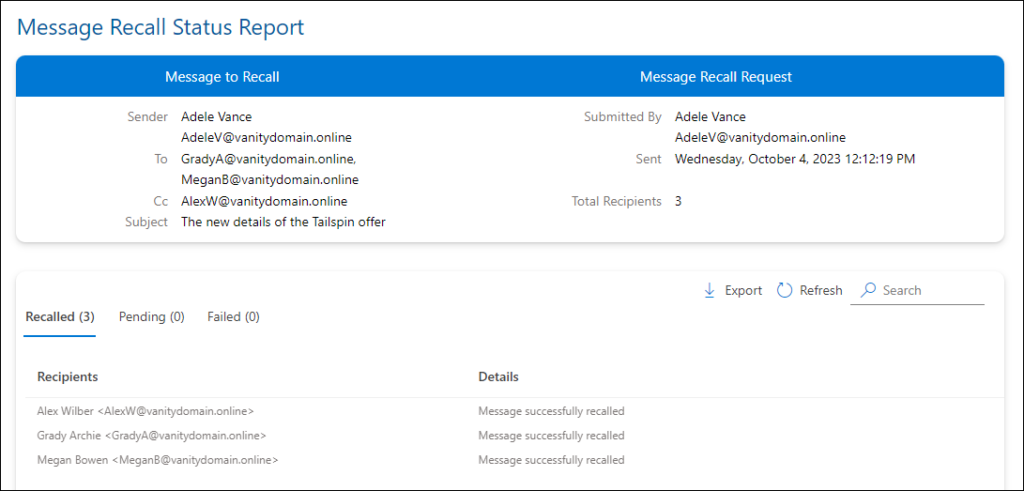
Before the operation fails, Exchange Online attempts to recall your email for up to 24 hours. According to Microsoft’s promises, updating the status should typically take no longer than 5 minutes. Only messages with thousands of recipients could take more than 30 minutes to fetch the recall status.
What stays unchanged?
Still, you can only recall messages sent inside your organization and to mailboxes in Exchange Online (Microsoft 365). If you’ve got a hybrid setup, you won’t be able to recall emails sent to on-premises mailboxes (Exchange Server). Emails sent to recipients outside of your organization also cannot be recalled for privacy and legal reasons. And I bet that technical reasons also play an important role here.
Another leftover from the first version of the message recall feature is the automatic message:
<Sender> would like to recall the message, “<Subject>”. What it means? By default, this message is automatically sent to recipients when the original sender tries to recall an email. It’s quite ironic, because whenever I get such a message, I immediately get very curious about the email’s content.
How to set up message recall?
In fact, you don’t need to set it up in any way – it is rolled out centrally by Microsoft. To test if it’s currently available for your organization, try using one of the new features, e.g. recall a read message, etc. If you’re an admin, you can also sign in to the Exchange admin center (EAC), go to Settings > Mail flow, and see if the Enable cloud-based message recall checkbox is selected.
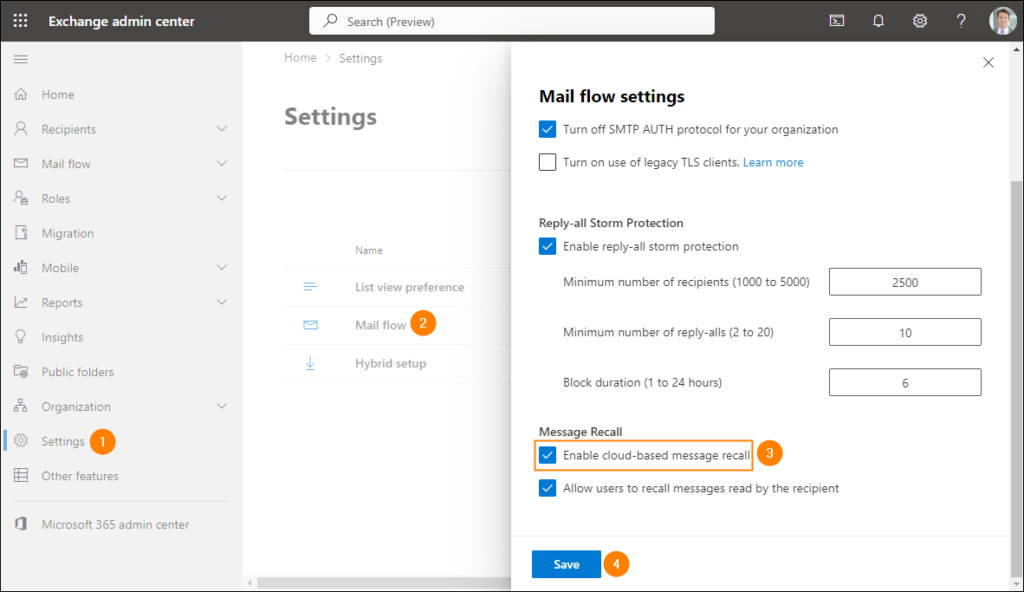
By deselecting the checkbox and clicking Save, you can disable the feature for your entire organization. Alternatively, you can disable it using PowerShell. Just connect to your Exchange Online and use the following cmdlet:
Set-OrganizationConfig -MessageRecallEnabled $falseDisabling the new message recall will restore the classic, client-side version for Outlook for Windows users in your tenant. Selecting the checkbox or running the cmdlet with $true at the end will re-enable the new message recall across the organization.
One more thing that you can currently do as an administrator is globally disabling/enabling recalling of read messages. To do it, either access the Mail flow settings as outlined above, deselect/select the Allow users to recall messages read by the recipient checkbox, and click Save:
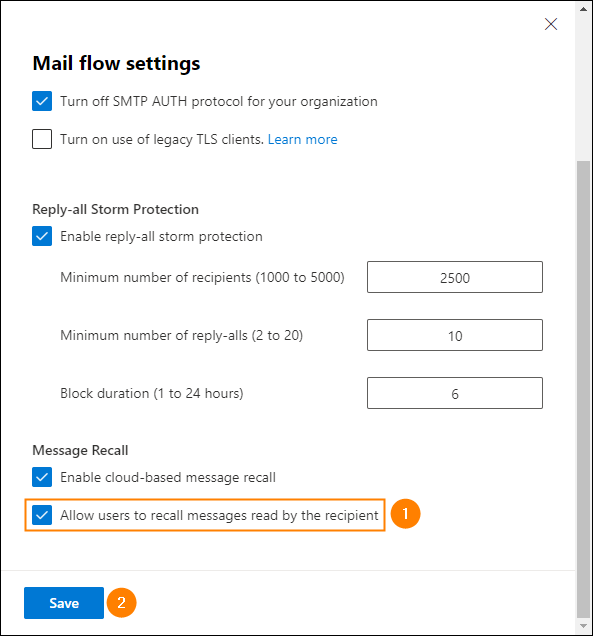
You can also run the following cmdlet. The $true value at the end enables recalling read emails, while $false disables the feature:
Set-OrganizationConfig -RecallReadMessagesEnabled $falseHow to recall an email in Outlook?
Use a link below to see message recalling instructions for your Outlook app:
- Outlook for Windows (classic)
- New Outlook for Windows / Outlook on the web (OWA)
- Outlook for Android / Outlook for iOS
Outlook for Windows (classic)
If you’re using the classic Outlook for Windows, here are the steps to recall your message:
- Go to the Sent Items folder in Outlook for Windows.
- Open the message you want to recall by double-clicking it.
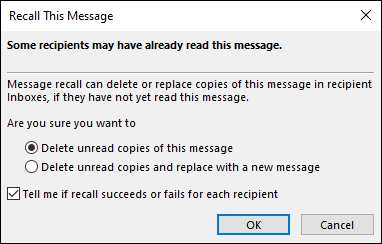
- Click the Actions icon (in the Move group) on the ribbon and choose Recall This Message.
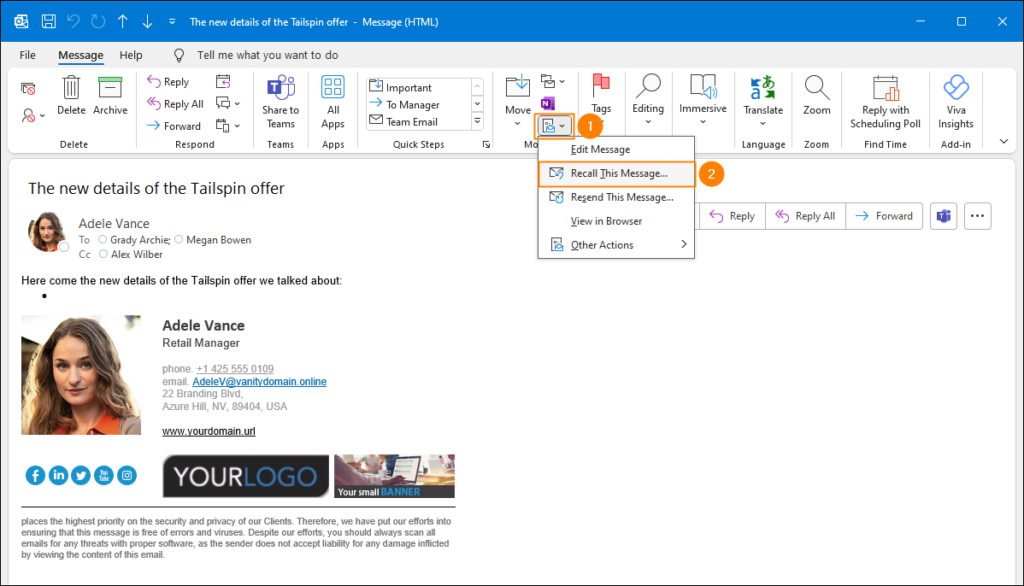
- Choose the option that best suits you. Note that the messages in this popup window might be a little confusing, as they apply to the classic message recall feature. But don’t get distracted and click OK – Microsoft has promised to fix the outdated UIs in the future.
- (Optional) If you’ve chosen to recall and replace your message, make the edits and send the corrected version.
- That’s it. Your message should be recalled in a few moments – it will disappear from your recipient’s mailbox. You’ll also get the message recall report with all the details. If you completed step 5, your recipient will receive your updated message.
Keep in mind that IT admins can now specify organization-wide recall time limit. The time limit can range anywhere between 5 minutes and 10 years.
New Outlook for Windows / Outlook on the web (OWA)
The steps below are identical for the new Outlook desktop experience and the web version of Outlook:
- Go to the Sent Items folder.
- On the list, click the message you want to recall.
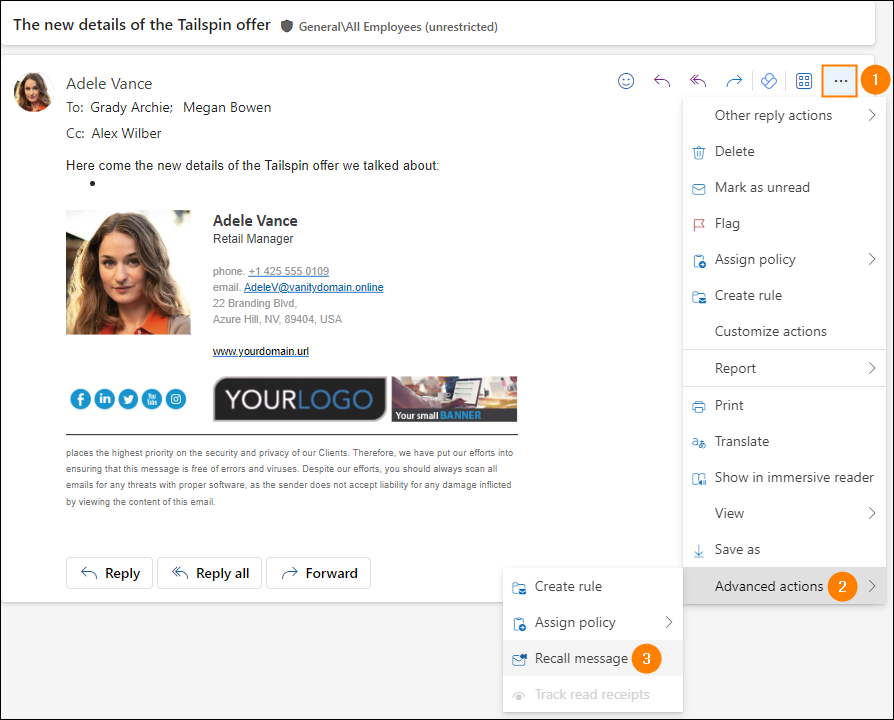
- In the reading pane, click the more actions (…) button, and go to Advanced actions > Recall message.
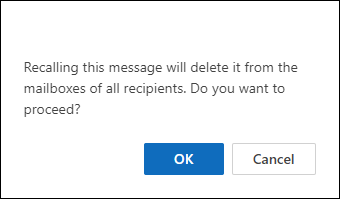
- Confirm that you want to recall the message and you’re done. Your message should be recalled in a few moments – it will disappear from your recipient’s mailbox. You’ll also get the message recall report with all the details.
Keep in mind that IT admins can now specify organization-wide recall time limit. The time limit can range anywhere in between 5 minutes and 10 years.
Outlook for Android / Outlook for iOS
Recalling a message on your mobile device requires just a few easy steps:
- In Outlook on your mobile device, tap your profile picture and go to Sent Items.
- Tap the email you want to retract.
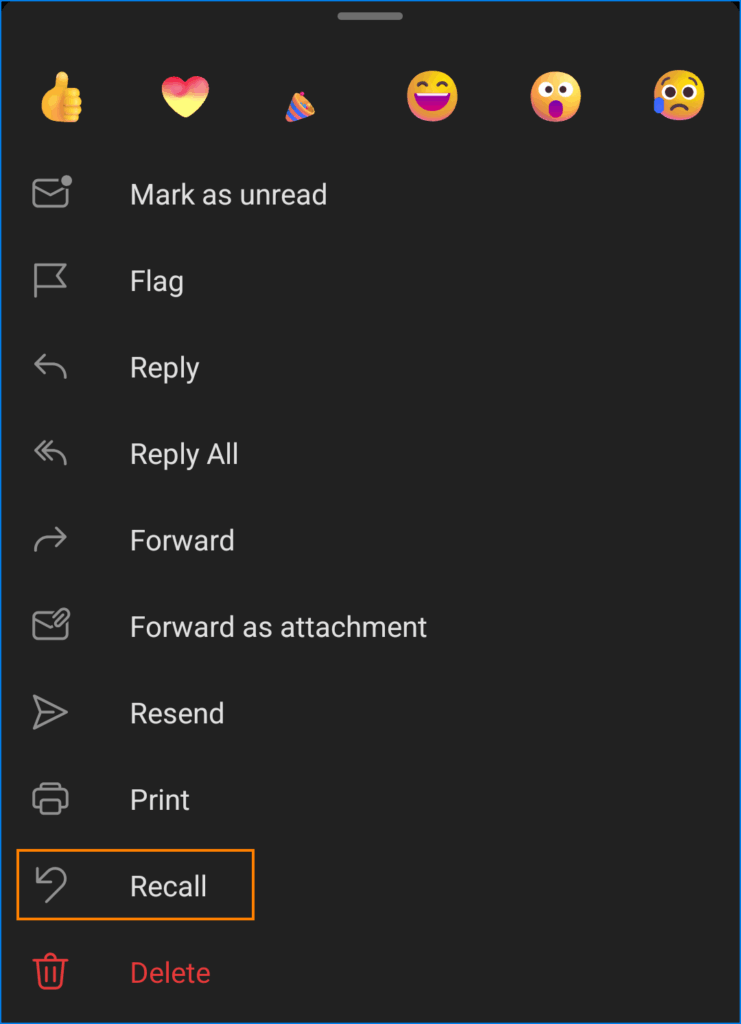
- Tap More options (three dots) > Recall.
Done.
How new message recalling works in less typical scenarios?
Emails sent from a shared mailbox or as a delegate can be recalled as well. However, it’s currently impossible to access the message recall report for messages recalled in those scenarios.
Messages forwarded from recipient’s mailbox to another one using Exchange mail flow rules will be recalled as usual. The recalling won’t work if the forwarding is done manually or by means of a local (Inbox) rule.
Finally, an important note for admins using the eDiscovery feature: Yes, emails recalled by users (mailboxes) subject to a litigation hold will be listed in eDiscovery.
Does message recall work with emails sent to distribution lists?
One thing I had to check was if you can recall emails sent to distribution lists (DLs, aka distribution groups or contact lists). After all, DLs can have up to 100.00 members in Microsoft 365. What’s more, you can have both server-side and user-made DLs created in Outlook. After a quick test, it turns out message recall worked without a problem: my email disappeared from each DL member’s mailbox relatively quickly. But here are some things to keep in mind:
- All the limitations of the new message recall feature still apply (forwarding, specific Outlook rules).
- Depending on your organizational settings, the recipients might receive an email stating that you’ve tried recalling an email with a certain subject.
- Realizing that you want to unsend a message, finding the right option, and waiting for Exchange to do its job can take some time. Some people will probably manage to read the email even though you tried to recall it.
The bottom line is – if you’ve sent an email that absolutely should not have reached its recipients, message recall doesn’t provide a 100% guarantee that they didn’t see it. You might want to send a quick email explaining what happened, even after attempting a recall.
How to configure third-party tools to not interfere with email recalling?
As I mentioned above, you cannot recall a message that leaves your organization. Surprisingly, there might be situations where emails sent internally technically exit your tenant without leaving Microsoft data centers.
That’s the case when you use 3rd party solutions (i.e. ‘smart hosts’) to do something to your emails in transit between sender and recipient, e.g. scan them for threats, insert email signatures, etc. As a result, Exchange Online treats them as external ones, preventing senders from recalling them. At least that was before Microsoft added support for External Round-trip Routing in August 2024.
It is possible that despite the added support for “seemingly external emails,” you won’t be able to recall some internal messages. Here’s how you can try and fix this issue.
Troubleshooting message recalling
“the reason for the recall failure is unknown”
It is possible to receive the message recall report with this unhelpful explanation for why recalling didn’t work. To be honest, whenever I saw the failed status, that’s the explanation I received, which makes the reports just a bit less useful than expected.
The bad news is, this reason for recall failure can mean anything. So, to troubleshoot this issue, I’m afraid you’ll need to read through the possible causes above (like external recipient, message recall turned off) to find the possible reason for the failed recalling.
Smart host conflict
When emails leave your organization, Exchange Online by default converts their format to ensure compatibility with external email systems. Using the workaround shown below, you force Exchange Online to keep the original message format. Before August 2024, it was a required step to make emails processed by third-party services work with message recall. Now, it’s best to use it only if you experience issues with recalling.
- Sign in to the Exchange admin center (EAC) as a Global Administrator or Exchange Administrator.
- Go to Mail flow > Remote domains > Add a remote domain – a new remote domain wizard will launch.
- In the first wizard’s step, name your domain the way you want. In the Remote domain textbox, enter your organization’s email domain, e.g. example.com (if your email looks something like this: [email protected]). You need to be very accurate, as the textbox is case-sensitive.
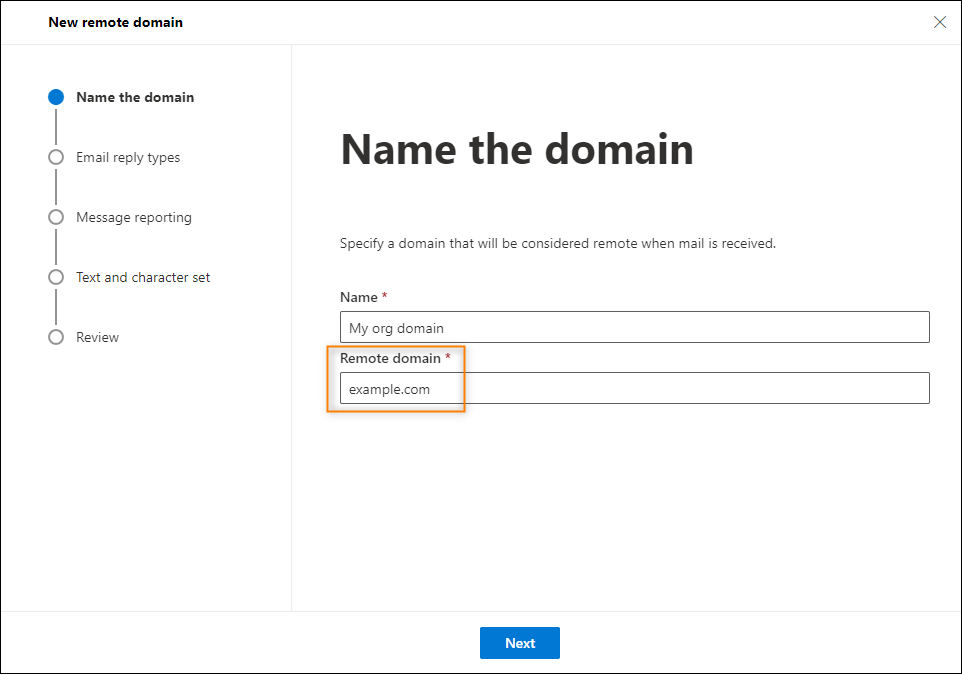
- Click Next several times to go to the Text and character set step. Under the Use rich-text format section, select Always, as shown below.
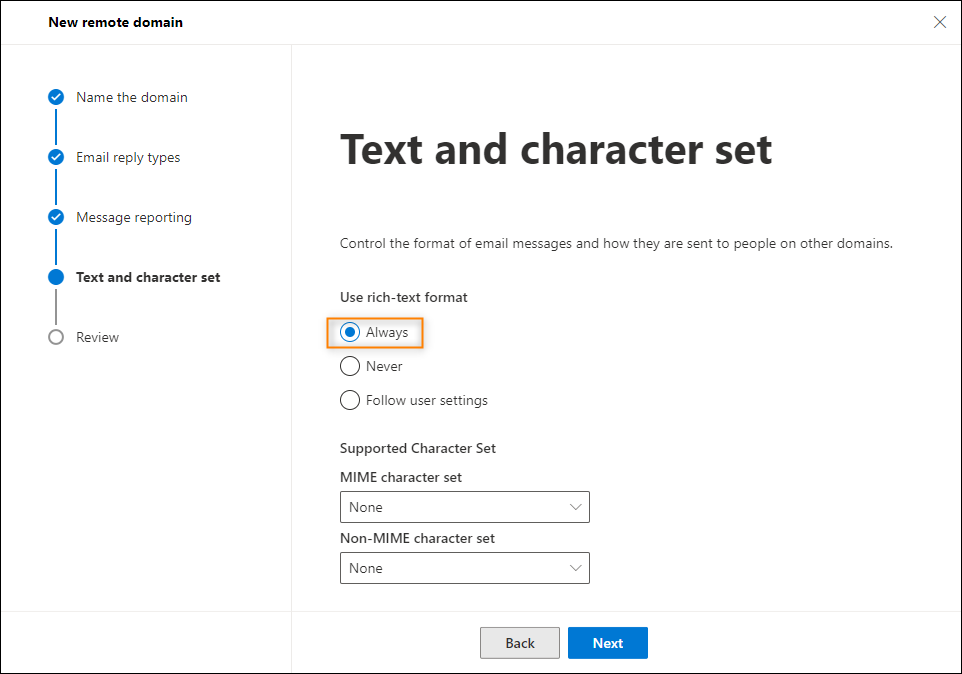
- Complete the wizard and wait some time for the changes to propagate.
Fixing message recall reports
Since August 2024, when Microsoft introduced some changes to message recall and its reporting features, this step shouldn’t be required. Use this method only if you have experienced issues and need to troubleshoot.
If you use a smart host and your message recall reports show incorrect status of recall operation, you can fix it in two ways, using mail flow rules (transport rules):
- By modifying your smart host rule:
- In the Exchange admin center, go to Mail flow > Rules, locate your smart host’s transport rule, and open it for editing.
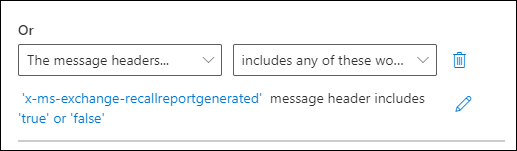
- Add the exception with the following condition: The message headers >includes any of these words.
- Use x-ms-exchange-recallreportgenerated as the header name and true and false as header’s values (words/phrases).

- Save the rule to apply your changes.
- By creating a new rule for recalled messages:
- Go to Mail flow > Rules and create a new mail flow rule.
- In the Apply this rule if section, add the same condition that was used as an exception in the solution above.
- In the Do the following section, select Modify the message properties > set a message header, and provide the message header characteristic of / assigned by your smart host together with its value.
- Complete the new rule creation wizard using the default settings, enable your rule, and move it above your smart host’s rule, so that it’s processed first.
Read more:
Recommended articles


I found this feature dangerous.
Let’s say,
by email: I ask for vacation permission to my boss.
I get the email answer: Proceed.
I, confident, move it the email to my OnlineArchive and proceed with my vacations ….
And few days later my boss says He never give his authorization, I search for the email and surprise surprise … there are not prove of its existence.
Hi Mario,
While the scenario you describe isn’t very common, it can still happen. That’s why it’s possible to disable the recall of read messages – however, this isn’t a decision made or carried out by individual employees, but rather by management and Exchange admins. If situations like that occur, your best option is to save a local copy or take a screenshot of your email conversation before heading off to your well-deserved R&R.
I can see the “Message successfully recalled” status but later on I received a text from a coworker stating to please be careful when sending emails to the distro, does this means she saw the notification or the original email…and if so, why would it say that it was “successfully recalled”?
Message Recall works correctly with both server-based distribution lists and contact lists created by users in Outlook. Depending on the settings, recipients may or may not receive a notification about the recall attempt. As for your scenario, unfortunately, there’s no guarantee that the recall will always succeed – for example, an inbox rule that moves messages to a different folder can prevent message recall from working.
Hello “The reason for the recall failure is unknown” or Messages to recipients outside your organization or on-premises can’t be recalled .
Hi Sva,
Great timing, I’m planning to update this article soon. Can you elaborate on the failure error you’ve received?
When it comes to messages sent outside of your organization – that’s right, at the moment there’s no way for them to work. If Microsoft decides to change how it works, I’ll be sure to write about this!
I have been testing Code 2, All setup and seems to be working ok. When i tried to recall an internal email – i received the message ” messages to recipients outside your organisation or on-premises cant be recalled. The email was only an internal email and the recipient and myself have Code2 licenses assigned.
Can you share some thoughts on this. Thanks
Hello,
Great to hear that you decided to try out our email signature service. The message recall feature is supported by CodeTwo Email Signatures 365. See this KB article for conditions that need to be met for message recall to work as expected in your organization. In case of any further questions or doubts, feel free to contact our Customer Success Team. They will be more than glad to help.
I received a message that “ The message was successfully recalled but was read by the recipient”. Does this mean it is no longer in their inbox, or just that they received a message saying that I want to recall the messsge?
Hi Jenny,
For most cases, it means what it says: someone had read your email before it was recalled (removed) from their mailbox. However, few users in the Microsoft Community forums have reported that despite receiving this message, the email remains in the recipient’s inbox.
As stated in the article, while the new cloud-based Message Recall is much more reliable than the legacy one, you still cannot call it “unfailing” with 100% certainty.
Will this work in hybrid environment, where on-premises AD synchronized to Azure and Account creation happening in on-prem AD.
Hi Muhammed,
As stated in our article, you can recall messages sent within the hybrid environment, as long as recipient’s mailbox is located in the cloud (not on-premises).
For more details, you can also join the discussion under this Exchange Team Blog, where one of the users raised the question of the message recall support in hybrid.
Sry but i dont get it. Like Microsoft you wrote, this is only working within your organization, but later you are writing about what happens if an email will leave your organization…so what?
I think i saw that emails send to me from external senders (maybe Exchange online users too) got recalled.
The other question would be, can i block as admin that externals can recall their msgs from my inbox?
Thanks
Hi,
That’s right, message recall works only within a Microsoft 365 organization. By “leaving organization” I mean “seemingly external emails” which include emails processed by smart hosts, threat scanners or email signature services. Technically, those tools are located outside your organization, but there’s a workaround to keep message recall working within your organization with these tools still in place.
If you’ve seen an external message disappearing, it wasn’t caused by someone’s message recall, but it could be caused, for example, by Microsoft Defender’s Zero-hour auto purge (ZAP) or manual purge using Microsoft Purview. As mentioned in the article, all you can do as an admin is to disable or enable message recall for users.
Take care!
“Unlocking Cloud-Based Message Recall” by CodeTwo illuminates the benefits and process of retrieving emails sent in error. This insightful resource guides administrators through the steps of implementing a cloud-based recall solution, ensuring smoother email management. CodeTwo’s expertise shines through in simplifying this crucial aspect of email administration, enhancing data security and user experience.
Thank you so much for your helpful article! I was able to recall 62 messages that I sent in Outlook 365 by accident. So very thankful (and less embarrassed)!
Appreciate the response. Thank you!
Does this work with meeting invites as well or only email messages?
Unfortunately, meeting invites don’t seem to be supported at the moment.