


This article explains what the maximum mailbox size is, how to increase it, how to check the current mailbox usage for all mailboxes and how to prevent mailboxes from reaching their size limit. In 2026, there have been some changes to the mailbox limits, so make sure to check them out.
Microsoft 365 (or to be more precise, Exchange Online) has certain mailbox size limits. Those limits depend on two variables: the subscription plan assigned to the mailbox and the mailbox type. Knowing your current mailbox sizes and how to expand them can be especially useful if you’re planning to migrate from on-premises Exchange Server to Microsoft 365.
Max mailbox size in Microsoft 365
On August 19, 2026, an important change to mailbox size was announced. Microsoft 365 Business Basic, Business Standard and Business Premium licenses gained additional 50 GB of mailbox space. This means that the mailbox size for most mailboxes is 100 GB. Exchange Online Plan 2 is no longer needed. There are some exceptions, though:
- An F3 (Kiosk) license includes only 2 GB of storage and it doesn’t provide archive mailboxes.
- Shared mailboxes don’t require any license and have the standard, 50 GB size limit. However, when assigned any of the Business Suite or Enterprise licenses, they can store up to 100 GB of data.
- User and shared mailboxes’ storage space can be extended by an archive mailbox (In-Place Archive). Once the archiving feature is enabled, an archive mailbox is assigned to each mailbox separately. By default, an archive mailbox has a 50 GB storage limit, but there is an option to have nearly unlimited (automatically expanding) archiving space* as long as your license includes Exchange Online Archiving. Licenses with the Archiving include Exchange Online Plan 2, Microsoft 365 Enterprise E3 or E5, and Microsoft 365 Business Premium. Other plans can have auto-expanding archives if they have an Exchange Online Archiving add-on license assigned.
* On November 1, 2021, Microsoft introduced limits for auto-expanding archives: a max size of 1.5 TB total and a max growth rate of 1 GB per day. In September 2026, Microsoft announced that the maximum archive size would increase to 3 TB for eligible mailboxes, with the rollout scheduled for October 2026. See Microsoft 365 message center notification MC1472592 for details. It’s still a lot of space, considering it’s reserved for a single user. Mind that it’s not permitted to use journaling, transport rules or auto-forwarding for other mailboxes’ backup or archiving purposes, and the limit might be a way to combat such scenarios.
Increase mailbox size in Microsoft 365
There are two ways to increase the storage space available to a user:
- For any mailboxes that still have the 50 GB quota, assign one of the licenses that grant the higher limit to the mailbox. This will increase the mailbox storage limit from 50 GB to 100 GB.
- Enable Exchange Online Archiving. Depending on your Microsoft 365 license, this will either give you additional 50 GB of archive space or up to 3 TB of archive storage with the auto-expanding archiving feature.
Increasing the maximum quota is not the only way to make more space available in mailboxes. It’s like with your standard hard drives – you can either get a new, larger one, or free up some of the used space. Exchange Online allows you to use retention policies to either retain or delete data automatically, based on the criteria you specify.
Archiving in Microsoft 365
Archive mailboxes are attached to other mailboxes. Data stored in an archive mailbox is accessible and searchable by the user. For users to be able to access a shared mailbox’s In-Place Archive, they need to be assigned explicit FullAccess permissions to the shared mailbox. All the archived data can also be found with eDiscovery. It’s important to know that mailbox items from the primary mailbox do not automatically move to the archives simply because archiving is enabled.
Learn more about archive mailboxes in Exchange Online
There are two ways to move such items to the archive mailbox – by either setting up an archiving policy or moving the items manually. An archiving policy is a type of retention policy. Retention policies can be set according to your organization’s needs to control your data. Mailbox items are assigned specific retention tags, according to which items that reach the specified retention age are automatically moved to archive mailboxes or deleted.
Read this article to learn how to set up an archiving policy
As you probably know, litigation holds and retention policies can allow your company to access data even after it has been deleted from user or shared mailboxes. For example, emails deleted from the Deleted Items folder are moved to the Recoverable Items folder, which has its own quota. The Recoverable Items folder doesn’t count towards the primary mailbox limits.
Read more about retention policies and litigation holds
What is unlimited archiving?
Since November 1, 2021, unlimited archiving is no longer available in Microsoft 365. Now, the feature goes by its second name only: auto-expanding archiving. In September 2026, Microsoft announced an increase in the maximum archive size from 1.5 TB to 3 TB, with the rollout scheduled for October 2026. The limits are:
- Up to 3 TB total size (following the rollout),
- 1 GB max daily growth rate.
While those numbers are far from being “unlimited”, this is a large quota for a single user. The second limit probably acts as a way to prevent the use of journaling and auto-forwarding since archiving is intended just for that user. If a mailbox is getting near the max archive limit, you will need to either clear some of its contents or use a third-party archiving solution. Auto-expanding archiving is available for mailboxes using Exchange Online Plan 2 or Exchange Online Plan 1 with an Exchange Online Archiving add-on license. It needs to be enabled, just like standard archive mailboxes. While this option gives users archives with a generous size limit, it doesn’t mean that they should stop cleaning up their mailboxes. Storage of 1.5 TB sounds fun until a user needs to find a specific email.
How to check mailbox size (usage) in Microsoft 365
Now, of course, you can use the Exchange admin center to check mailbox usage for a certain person:
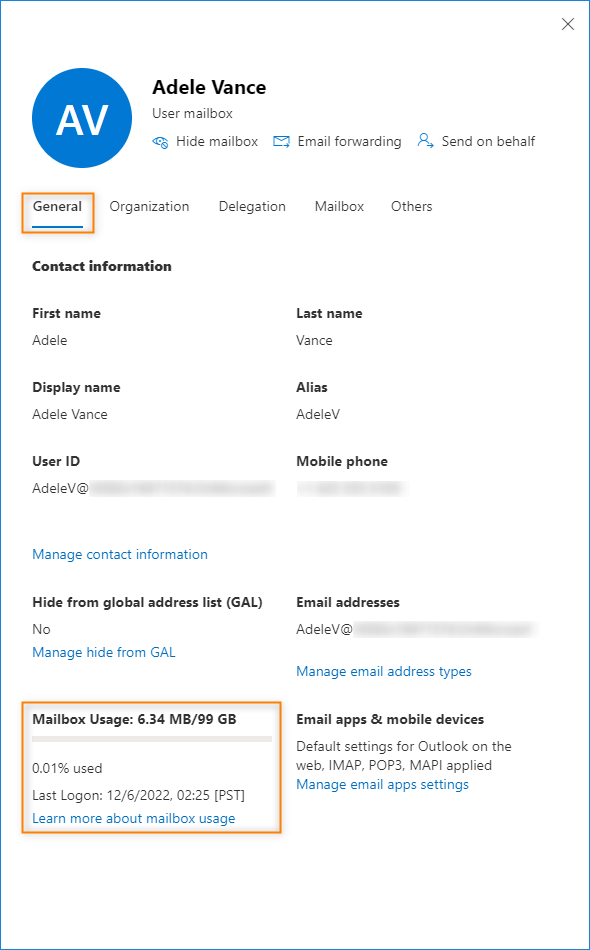
But if you want to check mailbox usage for all mailboxes (including shared mailboxes and resource mailboxes), it is far easier to use PowerShell:
First, connect to Exchange Online via PowerShell.
Then, you can download the current mailbox data into a variable, using the following cmdlet:
$exomailboxsize = (Get-EXOMailbox | Get-EXOMailboxStatistics)
Afterwards, you can, for example, sort the mailboxes according to their size:
$exomailboxsize | Select-Object DisplayName, TotalItemSize | Sort-Object -Property TotalItemSize -Descending
And if there are any mailboxes nearing their maximum size, you can take some steps to increase their limits or free up some of the space.
If you want to check the size of your archive mailboxes, use the following cmdlets instead:
$archivemailboxsize = Get-EXOMailbox -Archive -ResultSize Unlimited | Get-EXOMailboxStatistics -Archive
$archivemailboxsize | Select-Object DisplayName, TotalItemSize | Sort-Object -Property TotalItemSize -Descending
Enable archive mailboxes
You can enable archive mailboxes using the Exchange admin center:
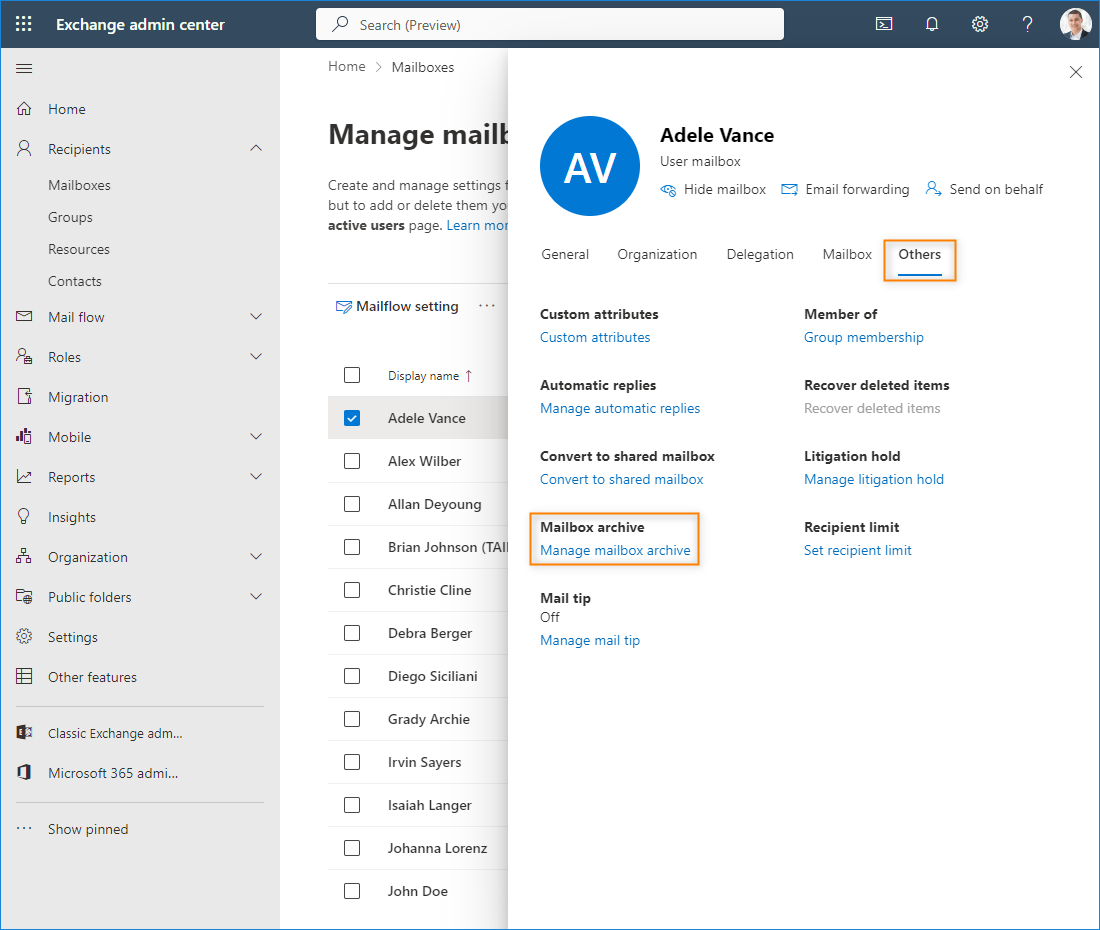
Or via PowerShell.
To enable an archive mailbox for a specific user or shared mailbox, use the following cmdlet:
Enable-Mailbox -Identity [email protected] -Archive
You can easily check which mailboxes already have the archiving feature enabled by using:
Get-EXOMailbox -Archive -ResultSize Unlimited
And to turn on auto-expanding archiving, use the following command:
Enable-Mailbox -Identity [email protected] -AutoExpandingArchive
For more detailed instructions, have a look at this article.
Read more

Recommended articles
Is there a solution to archive public folder content or only individual mailboxes? It seems that 365 groups has a 50MB limitation and these guys are pack rats. There must be a way to continually archive this content. Thanks!
If your Microsoft 365 groups are reaching their size limit, you either need to manually free up space (move some of the items somewhere else), or use a 3rd party archiving tool.
Hi Adam, I have mailbox with Exchange Plan 2
almost got full 95gb/99gb and in place auto archive reached upto 1.6TB.
What is solution to create more space, also any power shell command to delete specific period mails from in place archive.
Hi Sunil,
Here are some suggestions:
1. You can try to delete old mailbox content by using the Search-Mailbox PowerShell cmdlet together with the -DeleteContent switch. Note that the cmdlet is no longer officially supported, yet it’s still fully functional. See this article to learn more.
2. You can create a shared mailbox and redirect incoming correspondence from your full mailbox to the new shared mailbox.
3. If you need to free up space on multiple mailboxes, you could use CodeTwo Backup for Office 365 for data archiving and delete the data from Exchange Online afterwards.
Hi, Adam! Maybe you can direct me to a solution. We have an E5 license, but we’ve noticed with some users they still have a 50GB limit. Does the limit increase automatically to 100GB or do we have to take separate action to reach 100GB?
All users should have the higher limit from the start. Go to Microsoft 365 admin center and check if those users actually have the E5 license assigned to them, as shown in this article.
“You cannot add the Exchange Online Plan 2 license to an account if their current License contains Exchange Online Plan 1.”
I’m running Office 2019 (perpetual licence).
I have a Microsoft 365 Business basic plan for Outlook.
I’m on the verge of hitting my limit of 50Gb (49.6Gb ish). I read somewhere that I can upgrade the mailbox size to 100Gb by subscribing to a Plan 2 but I have not been able to find the procedure anywhere.
Does your reply mean that I can’t upgrade to Plan 2?
Cheers
Charlton
You can upgrade the license in two steps – unassign the Exchange Online Plan 1 license and all depending licenses, save and assign the Exchange Online Plan 2 license, then. You can also enable the Exchange Online Archiving add-on license.
At minimum, you will need to purchase MS 365 or E3 and this will also offer Unlimited storage for One-drive and access to all apps.
And how about when turning first the Exchange Online Plan 1 off in the detailed apps section in the User licenses?
A mailbox without an Exchange Online license cannot be accessed and needs to get a license back within 60 days (Source). Theoretically, it still has the same limit it had before unassigning the license, but it cannot be accessed by the user and returns NDRs when emailing it.
Although I have 365, my outlook files are stored on my local machine and I am frequently reaching my maximum storage limit and must delete files I do not want to delete. Can I increase the maximum limit in this situation?
If you’re keeping a local copy of that many items, the least problematic option will be archiving PST files and moving those archives to a location which has enough space.
You cannot add the Exchange Online Plan 2 license to an account if their current License contains Exchange Online Plan 1.
At minimum, you will need to purchase MS 365 E3 or O365 E3 and this will also offer Unlimited storage for OneDrive and access to all apps.
I ran the command below and no information was returned, am I doing something wrong?
$exomailboxsize = (Get-EXOMailbox | Get-EXOMailboxStatistics)
This short cmdlet saves information into a variable (array). You can see its content by writing
$exomailboxsizeinto the console and hitting enter.When you have an auto-expanding mailbox archive, is the “archive” stored in Azure, or is it local to the user’s machine?
It’s stored in an Exchange Online, in an archive mailbox, not locally.