How to troubleshoot CodeTwo Signatures Web Add-in for Outlook
Problem:
You experience problems with CodeTwo Signatures Web Add-in for Outlook, e.g. default signatures are not automatically added to emails, or you can't insert an email signature at all from the add-in's pane in Outlook desktop & OWA.
Solution:
To troubleshoot your problem, first go to the section that corresponds to your scenario:
- The add-in doesn’t show up in Outlook
- The default signature is not automatically added to an email
- You cannot manually insert a signature from the add-in's pane
The add-in doesn’t show up in Outlook
End users might experience a problem where CodeTwo Signatures Web Add-in doesn’t appear in their Outlook. As a result, Outlook (client-side) signatures cannot be added to emails, and cloud (server-side) signatures cannot be previewed in the add-in pane (but cloud signatures will still be applied after an email is sent).
The add-in might not appear in Outlook due to the following reasons:
- Add-in deployment isn’t complete
- Cache prevents the add-in from being deployed in the classic Outlook for Windows
- Add-in needs to be reenabled in Outlook for iOS and Android
- Company policies prevent end users from using Microsoft 365 web add-ins
- Exchange Web Services is disabled in your Microsoft 365 tenant
1. Add-in deployment isn’t complete
Typically, it takes up to 6 hours for any Web Add-in to appear in Outlook, including CodeTwo Signatures Web Add-in. On rare occasions, the propagation may take even longer, up to 72 hours, depending on the size of your organization.
2. Cache prevents the add-in from showing up in the classic Outlook for Windows
If the Web Add-in works in Outlook on the web but doesn't appear in Outlook for Windows, try clearing the cache as explained in this article.
3. Add-in needs to be re-enabled in Outlook for iOS and Android
Some CodeTwo customers reported that the add-in suddenly stopped working in their Outlook mobile app. To fix this, disable and then enable the add-in as described below:
- In Outlook for iOS or Android, go to Settings > Add-ins.
- Find CodeTwo Signatures add-in and turn it off by using the checkbox shown in Fig. 1., then tap + next to the add-in to turn it on again.
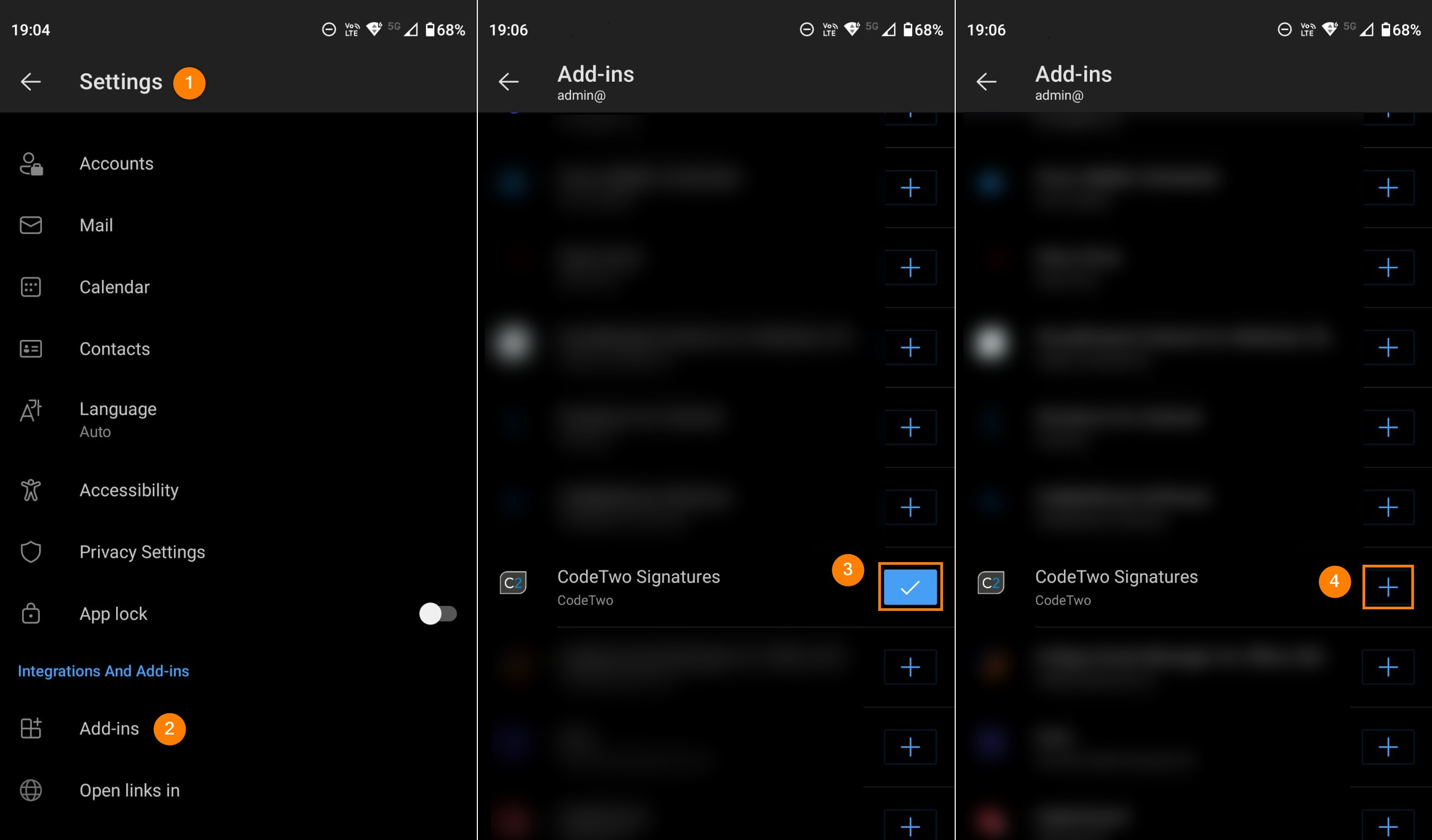
Fig. 1. Disabling and re-enabling CodeTwo add-in in Outlook mobile apps.
4. Company policies prevent end users from using Microsoft 365 Web Add-ins
Certain Group Policy Object (GPO) settings and Intune policies may prevent Web Add-ins from appearing in Microsoft 365 apps. Both GPO and Intune can be applied to all users or to a subset of users. Since those policies work independently, conflicting settings may arise. By default, GPO policies take precedence in such situations.
GPO
The following GPO settings may cause CodeTwo Signatures Web Add-in not to work in Outlook:
- User Configuration / Policies / Administrative Templates / Microsoft Office 2016 / Privacy / Trust Center > Allow the use of connected experiences in Office set to Disabled.
- User Configuration / Policies / Administrative Templates / Microsoft Office 2016 / Security Settings / Trust Center / Trusted Catalogs / Block Web Add-ins set to Enabled.
To allow the add-in to work, open the Group Policy Management console (gpmc.msc) and check whether any of your active Group Policy Objects include any of the above settings. The easiest way to do this is by reviewing the Settings tab of all the active linked policies (Fig. 2.).
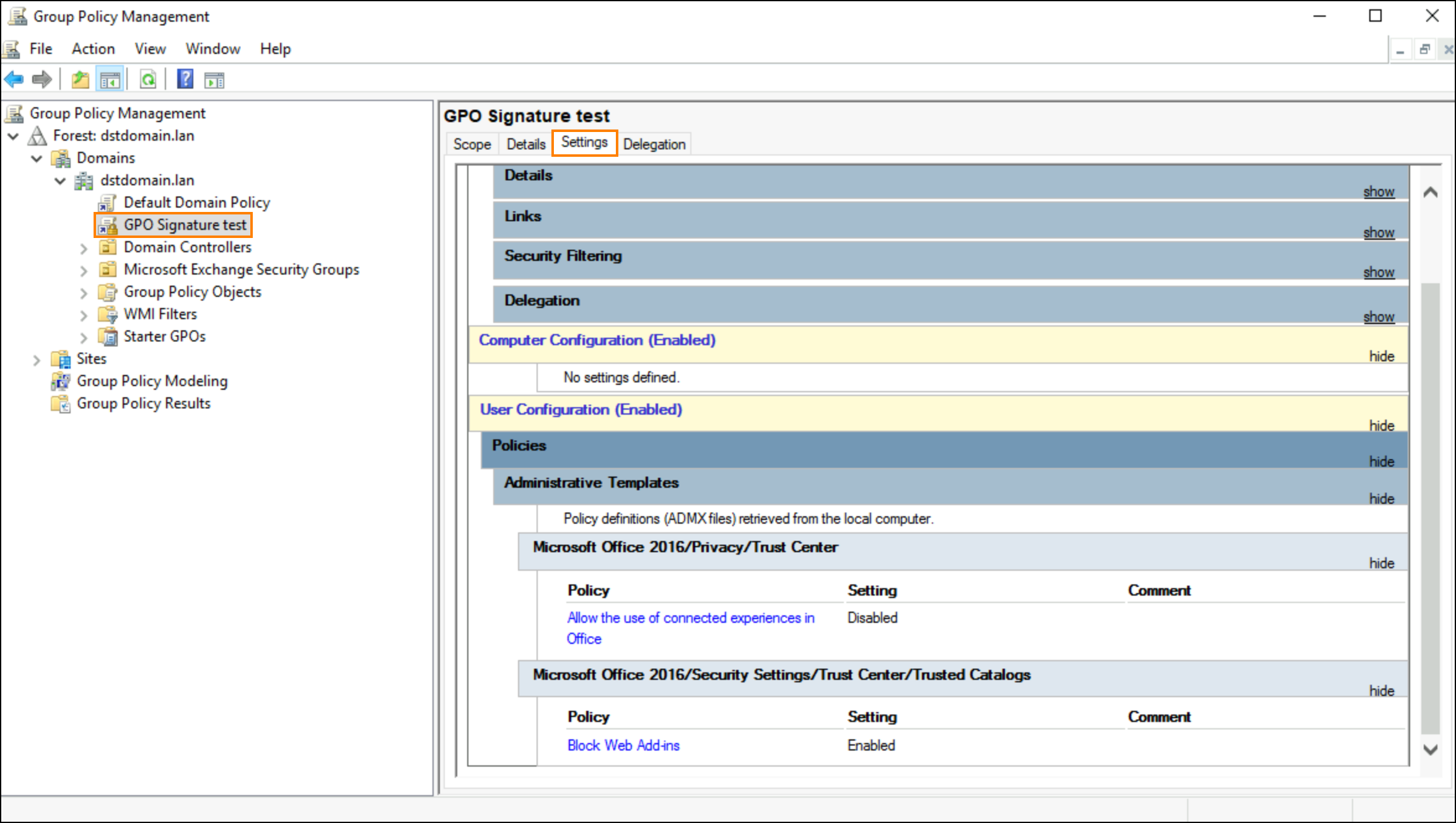
Fig. 2. Verifying GPO settings.
If any of the listed settings are applied, open the relevant GPO for editing and change the status of the problematic policy setting to Not configured.
It may take some time for a GPO to apply. To speed up the process, you can run the following command in the user’s CMD console (Fig. 3.):
gpupdate /force /wait:no
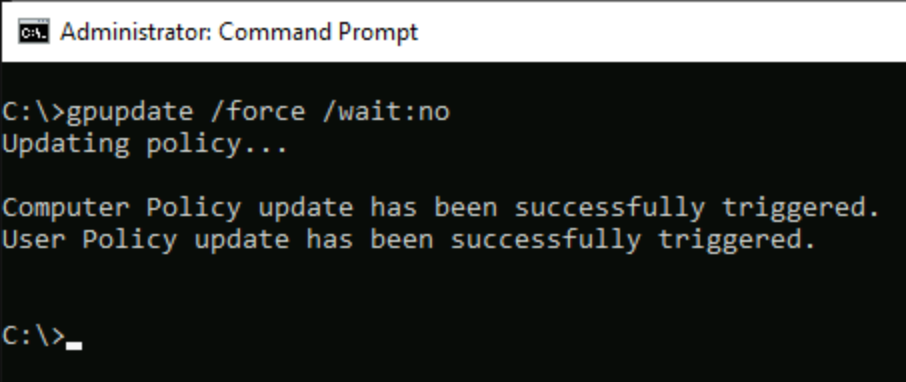
Fig. 3. Forcing Group Policy setting update.
Intune
Go to the Microsoft Intune admin center or Microsoft 365 Apps admin center. Click on the active policies and go to the Policies step.
Use the search box to find the Allow the use of connected experiences in Office and Block Web Add-ins settings (Fig. 4.).
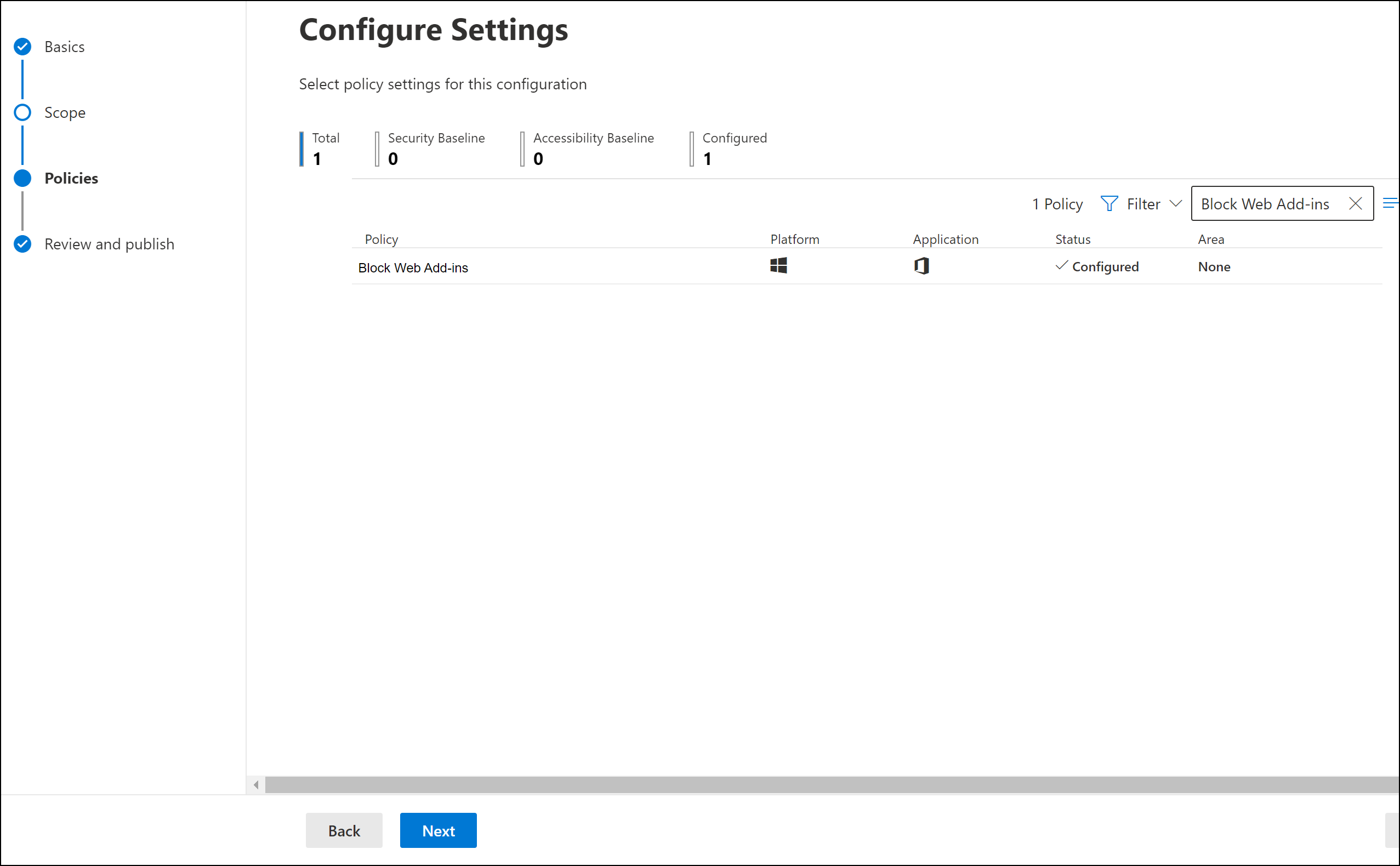
Fig. 4. The Block Web Add-ins setting in an Intune policy.
If these policy settings are configured, you can change them to Not configured and publish the policy update.
5. Exchange Web Services is disabled in your Microsoft 365 tenant
The deployment and propagation of Outlook add-ins in Exchange Online depend on Exchange Web Services (EWS), so make sure EWS is enabled in your tenant. Here’s how to do it:
- Open Windows PowerShell and connect to your Exchange Online organization by following these steps.
- Use the following cmdlet to check if EWS is enabled organization-wide:
Get-OrganizationConfig | select EWSEnabled
If the result is False or you don’t get any value (Null), go to the next step to enable EWS.Important
The Null value is treated as True until September 2026. Starting October 1, 2026, the Null value for this setting will automatically change to False.
- To allow EWS for the entire organization, use the following cmdlet:
Set-OrganizationConfig -EwsEnabled:$true
The default signature is not automatically added to an email
CodeTwo Signatures Web Add-in for Outlook uses the event-based activation feature to automatically add signatures to emails based on Outlook (client-side) signature rules configured by the admin in the Signatures app. However, the automatic insertion of signatures might not work for the following reasons:
- You are using an unsupported version of Outlook or Windows
- Your email signature is too large
- You deployed the add-in manually by using the Get Add-ins option (Outlook for Windows or OWA)
- Outlook cache prevents the add-in from working correctly (the classic Outlook for Windows)
- You’re using a DNS or network filtering tool (firewall or antivirus software, a browser extension, etc.)
- Outlook connected experiences are blocked
- It takes a very long time for the signature to be added (new Outlook for Windows)
- Macros are disabled in Outlook or programmatic access is blocked (classic Outlook for Windows and Outlook for Mac)
1. You are using an unsupported version of Outlook or Windows
Update your Outlook app to the latest version. See this article for the complete list of supported versions of Outlook.
Additionally, at the moment the event-based activation feature is supported only on Windows 10 (Version 1903, Build 18362), Windows Server 2019 (Version 1903), and newer.
Note that you can still insert a signature manually in Outlook desktop. To do so, open the add-in pane (click the CodeTwo Signatures button on the ribbon, as shown in Fig. 5.) and select the appropriate signature.
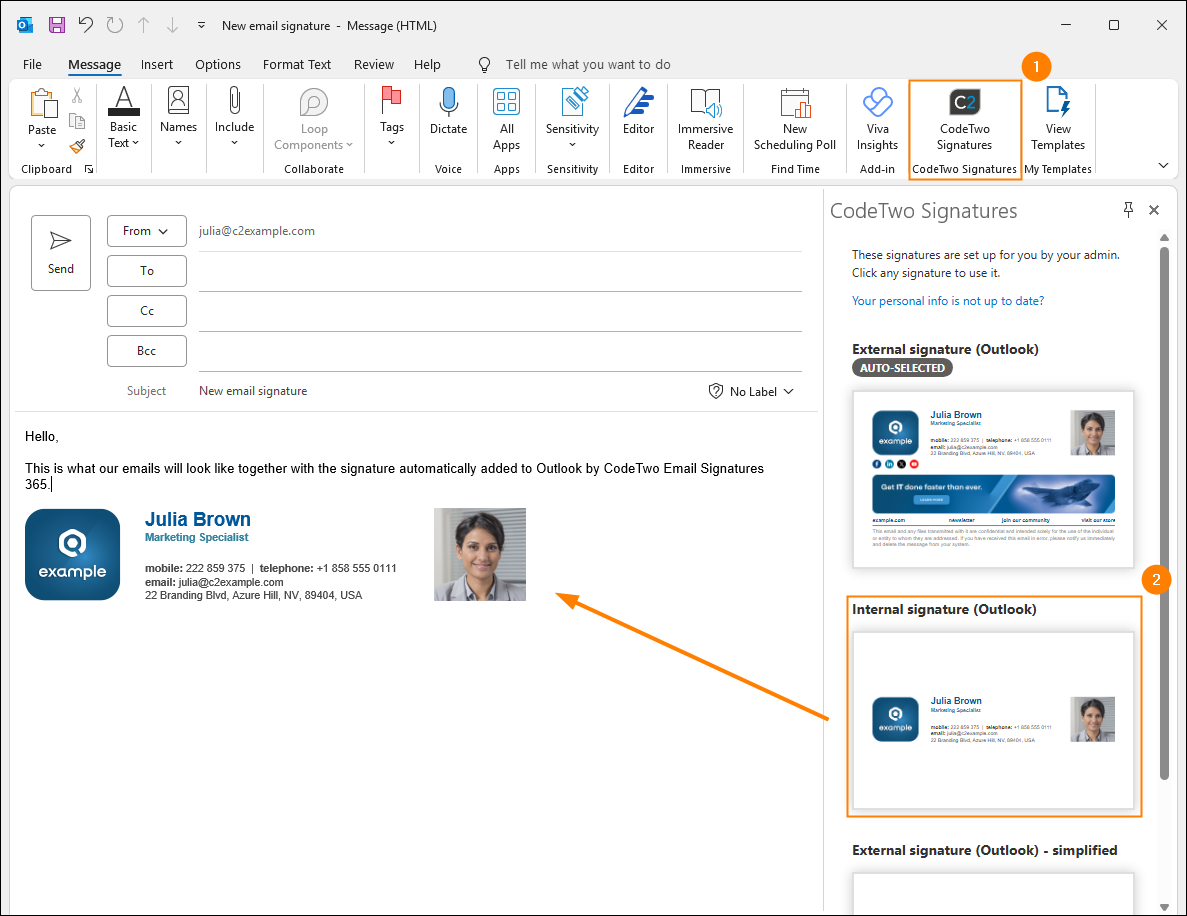
Fig. 5. Inserting an email signature manually from the CodeTwo Signatures pane.
2. Your email signature is too large
If your email signature file is too large, e.g. includes lots of high quality graphics, has at least several hundreds of kilobytes after you save it to disk, etc., it might fail to get inserted automatically, especially when:
- Your internet connection is poor.
- You use VPN software or a proxy.
To fix the problem, reduce the data size of the signature template by:
- scaling down your graphics with a graphics editor of your choice (see an example for Gimp) and then readding them to your template. Learn more
- (if applicable) replacing images in the base64 format, which can have a large file size, with images in the PNG, JPEG/JPG, or GIF format in your template. Learn more
3. You deployed the add-in manually by using the Get Add-ins option in Outlook for Windows, Outlook for Mac or OWA
For the add-in to work correctly, it needs to be deployed centrally from the Microsoft 365 admin center by an admin, as described in this article. Otherwise, some features, like the event-based activation, might not work.
You can still add signatures manually, as shown in Fig. 5.
4. Outlook cache prevents the add-in from working correctly (the classic Outlook for Windows)
If signatures are added automatically to emails composed in Outlook on the web but not in Outlook for Windows, try clearing the cache as explained in this article.
5. You’re using a DNS or network filtering tool
If your organization uses a DNS or network filtering tool (firewall or antivirus software, a browser extension, etc.), and some or all users are not receiving automatic CodeTwo signatures (or cannot insert them manually), you may need to whitelist Web Add-in’s endpoints by adding them to the list of allowed IP addresses in your tool settings. Learn more
If your users continue to experience issues despite whitelisting, it may indicate that your DNS or network filtering tool is interfering with Web Add-ins for Microsoft 365. CodeTwo users have specifically reported issues with solutions like Cisco Secure Endpoint (formerly Cisco Advanced Malware Protection for Endpoints) and DNSFilter.
In such cases, you can try the following:
- update your DNS or network filtering tool to the latest version, or
- test if disabling or uninstalling the tool resolves the issue. If it does, try modifying the tool’s settings accordingly.
Note that all modern signature Web Add-ins on the market work on the same principle (they use Microsoft’s event-based activation technology) and will be affected similarly.
Similarly, some browser extensions (such as those provided by McAfee) are known for blocking the Web Add-in when using Outlook on the web (OWA). Try disabling the extension or using a different web browser without the extension installed when sending emails from OWA.
6. Outlook connected experiences are blocked
Turning off Outlook connected experiences may prevent CodeTwo Signatures Web Add-in from adding email signatures to emails automatically. Connected experiences can be blocked by company policies defined by GPO or Intune.
Learn how to verify if your company policies block this Outlook feature from this section: Company policies prevent end users from using Microsoft 365 web add-ins
7. It takes a very long time for the signature to be added (new Outlook for Windows)
CodeTwo customers who reported this problem were using EWSAllowList. If the new Outlook for Windows app is not added to this list, it may cause timeouts and delays for Outlook add-ins.
To add the new Outlook for Windows app to the EWSAllowList, follow these steps:
- Open Windows PowerShell and connect to your Exchange Online organization by following these steps.
- Run the following cmdlet. It adds the new Outlook for Windows app to the list without overwriting your existing entries:
Set-OrganizationConfig -EwsAllowList @{Add="OneOutlook/*"} - You can verify that the app was added by running:
(Get-OrganizationConfig).EwsAllowList | Format-List
The output should include the OneOutlook/* entry, as shown in Fig. 6.

Fig. 6. Verifying that the new Outlook for Windows app was added to EWSAllowList.
Important
The propagation of this change may take up to 72 hours. Once the propagation is complete, the add-in should start adding signatures without delays.
8. Macros are disabled in Outlook or programmatic access is blocked (classic Outlook for Windows and Outlook for Mac)
The CodeTwo Outlook add-in requires programmatic access to an email to insert a signature. If programmatic access is blocked, for example, because Outlook macros are disabled, the add-in cannot add a signature.
The same applies in classic Outlook for Windows and Outlook for Mac when you reply to or forward an email that has a sensitivity label (applied by another user) with the Allow Programmatic Access (Allow Macros) custom policy option disabled. In this case, the add-in cannot access the message to insert a signature, and the following message is displayed:
You cannot perform this action. Permission to this message is restricted.
You cannot manually insert a signature from the add-in's pane
An email signature isn’t added to an email automatically. When you try to insert it manually from the add-in pane in Outlook (desktop and OWA), you see the following error instead:
Your signature could not be inserted.
Here are the possible reasons why you cannot add a signature by using CodeTwo Signatures Web Add-in for Outlook:
- Your email signature contains unsupported or potentially unsafe HTML code
- Your email signature contains too many characters
- A group policy setting prevents the add-in from inserting a signature
- File Block Settings in Word prevent the add-in from working correctly
1. Your email signature contains unsupported or potentially unsafe HTML code
HTML signature templates, just like email body, need to contain supported HTML code only. See this Microsoft article for the list of supported HTML elements, attributes, and CSS properties.
You might also be unable to insert an email signature if it contains possibly harmful elements. For example, Outlook for Windows and Outlook on the web (OWA) block SVG images as potentially unsafe because they can be easily exploited to embed malicious JavaScript code. What’s more, using external SVG graphics in your email signature might cause your emails to be treated as spam. For this reason, we don’t recommend using SVG images in your signatures. Learn more
To solve the problem, ask your admin to remove (and/or replace) unsupported or unsafe HTML code from all signature templates that you cannot insert into emails from the add-in's pane.
2. Your email signature contains too many characters
There is a limit of 120,000 characters for an HTML email signature. Ask your admin to check if the number of characters in a signature template that causes problems is within the limit. If not, the number of characters needs to be reduced accordingly.
3. A group policy setting prevents the add-in from inserting a signature
Certain group policy settings (local or centrally managed) may prevent CodeTwo Signatures Web Add-in from working correctly. Ask your admin to check if that’s the cause of the issue and provide them these steps:
Open the Group Policy Editor (gpedit.msc) and go to the following path (Fig. 7.):
User Configuration > Administrative Templates > Microsoft Word 2016 > Word Options > Security > Trust Center > File Block Settings > Web pages
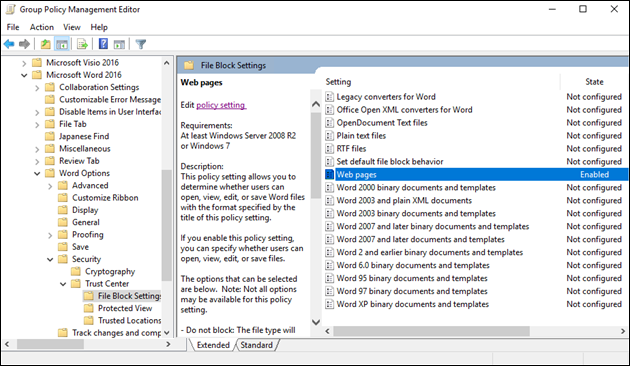
Fig. 7. Locating the problematic GPO policy setting.
If the Web pages policy is set to Enabled and one of the following file block settings is selected: Block, Open in Protected View, Open/Save blocked, use open policy or Allow editing and open in Protected View (Fig. 8.), the Web Add-in will be unable to add signatures to your emails. To fix this, set the policy to Disabled or Not Configured, or change the file block setting to Do not block. This should allow the add-in to work correctly.
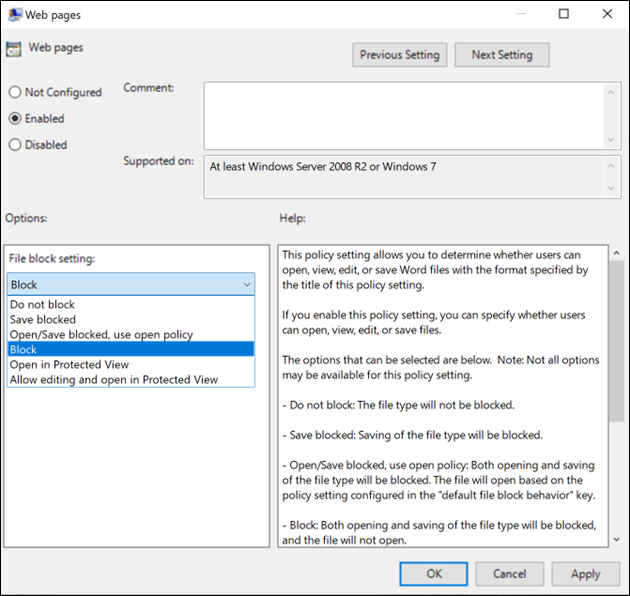
Fig. 8. The Web pages policy setting that prevents the add-in from inserting an email signature.
4. File Block Settings in Word prevent the add-in from working correctly
You won’t be able to add a signature with the CodeTwo add-in (either automatically or manually) if File Block Settings in Word prevent opening web pages. Although these settings are configured in Word, they also affect other Microsoft Office components and can block the Web Add-in’s mechanism responsible for adding signatures in Outlook.
To configure the File Block Settings so that you can use the CodeTwo add-in without issues, follow the steps below:
- Open Word and go to Options.
- In the Word Options window, go to the Trust Center tab and click Trust Center Settings (Fig. 9.).
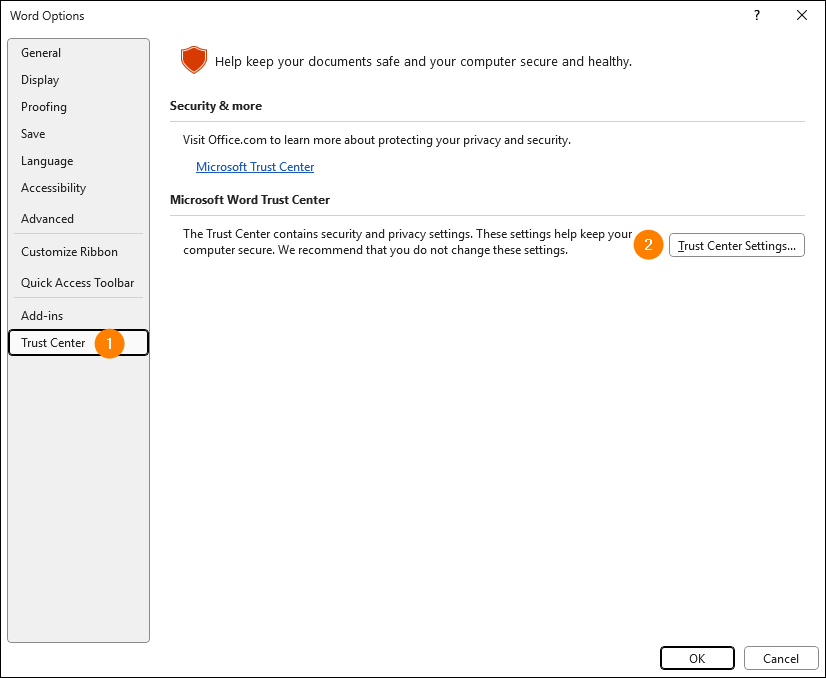
Fig. 9. Accessing Trust Center Settings in Word.
- In the Trust Center window, go to the File Block Settings tab (as shown in Fig. 10.).
- On the list of file types, clear (uncheck) the Open and Save checkboxes for Web Pages and click OK to save your changes (Fig. 10.). This should allow the add-in to work correctly in Outlook.
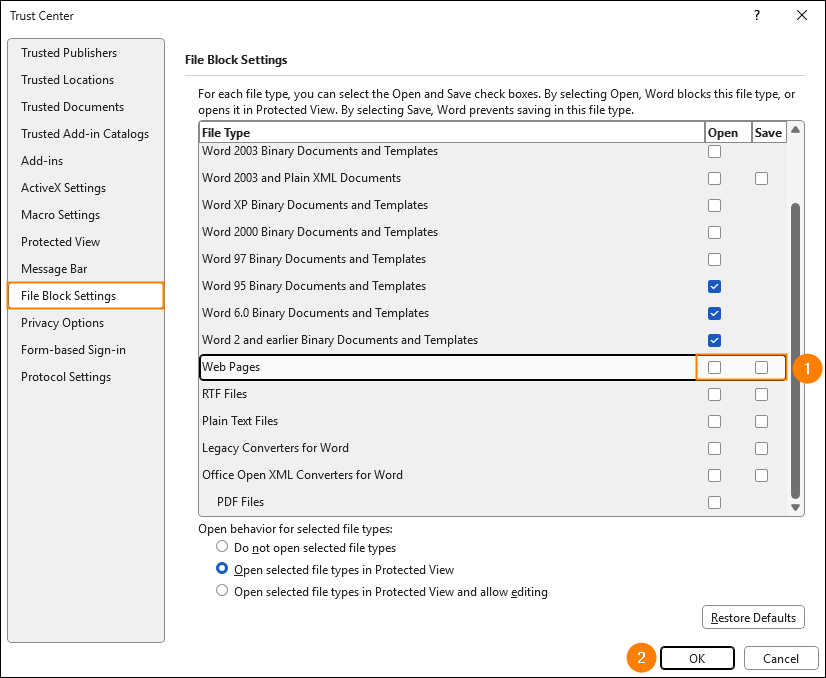
Fig. 10. Clearing the Open and Save file block settings for web pages in Word’s Trust Center.
| Related products: | CodeTwo Email Signatures for Office 365 |
| Categories: | Troubleshooting |
| Last modified: | July 6, 2026 |
| Created: | November 8, 2021 |
| ID: | 953 |






