How to add email signatures directly under latest messages
Problem:
You are using CodeTwo email signature management tools and you would like your signatures to be added right below each sent message (including replies and forwards) instead of at the bottom of an email conversation.
Solution:
By default, email signatures are always added directly beneath the body of each sent message. This means that if you create a new email signature rule in CodeTwo Email Signatures 365 or use the Insert signature action in CodeTwo Email Signatures On-prem (or in the discontinued CodeTwo Exchange Rules family of products), your signature will be added directly under each reply or forward message. You can change this behavior and add signatures at the very bottom of an email thread (this placement is typical for some legal disclaimers) by using the signature position settings.
Important
The signature positioning options are not available for Outlook (client-side) signature rules in CodeTwo Email Signatures 365. CodeTwo Outlook signatures are added directly in Outlook, so an Outlook user can manually insert a signature wherever they like in a conversation while composing an email.
Changing the signature position on the Email layout tab in the signature template editor
The basic procedure for changing the position of your signature in an email conversation is very similar in all CodeTwo email signature software. To begin, choose your signature-adding rule and open the signature template editor:
- In the case of CodeTwo Email Signatures 365, click Edit signature while hovering your mouse over the signature’s preview in the main window of the Signatures app.
- In the case of CodeTwo Email Signatures On-prem and CodeTwo Exchange Rules, click Edit on the Actions tab in the Administration Panel.
Once in the editor, go to the Email layout tab and use the buttons on the ribbon (Fig. 1.) to change the position of your signature.
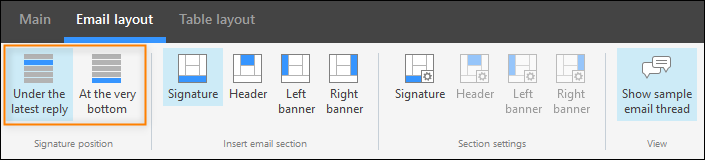
Fig. 1. These buttons allow you to change the signature's position in an email thread.
Additionally, there’s an alternative method for accessing the signature position settings, which differs depending on the CodeTwo product you use:
- Changing the signature position by using the Custom setup mode (CodeTwo Email Signatures 365 only)
- Changing the signature position in the Signature settings window (other CodeTwo signature software)
Changing the signature position by using the Custom setup mode (CodeTwo Email Signatures 365 only)
In CodeTwo Email Signatures 365, you can also access the signature position settings via the Signature button in the Section settings group (see Fig. 2.). However, this button is only available if you select the Custom setup mode in the Design step of the signature rule (Fig. 3.) before editing your signature template (learn more).
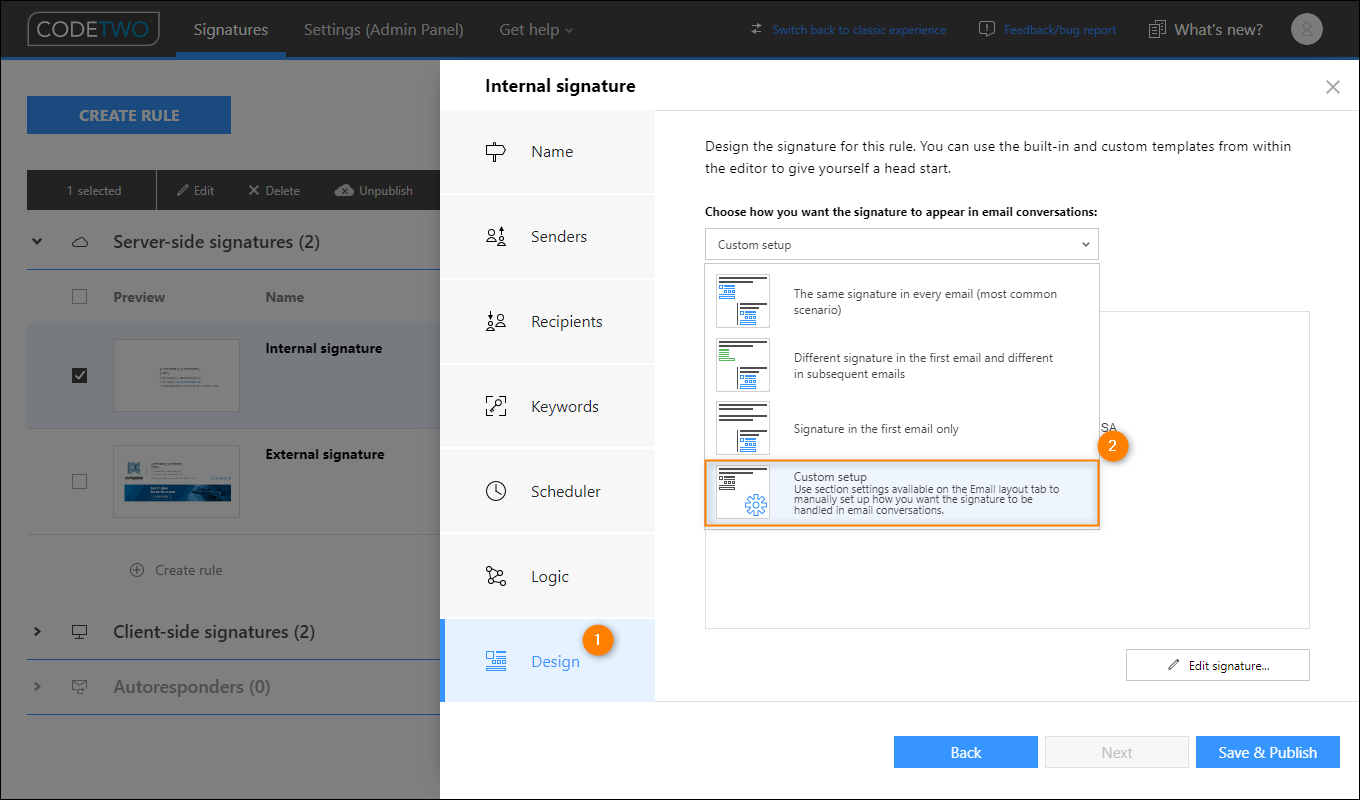
Fig. 2. Selecting the Custom setup management option for email signatures in CodeTwo Email Signatures 365.
Changing the signature position in the Signature settings window
This section applies to CodeTwo Email Signatures On-prem and CodeTwo Exchange Rules family of products only.
The position of a signature in an email thread can also be changed in the Signature settings window accessed by clicking the Settings ( ) button in the editing pane (Fig. 3.). Select:
- Right under the latest reply/forward message option to change the template layout to the one that is typical of a signature, or
- At the very bottom of an email conversation option to change the template layout to the one that is typical of a disclaimer
and click OK.
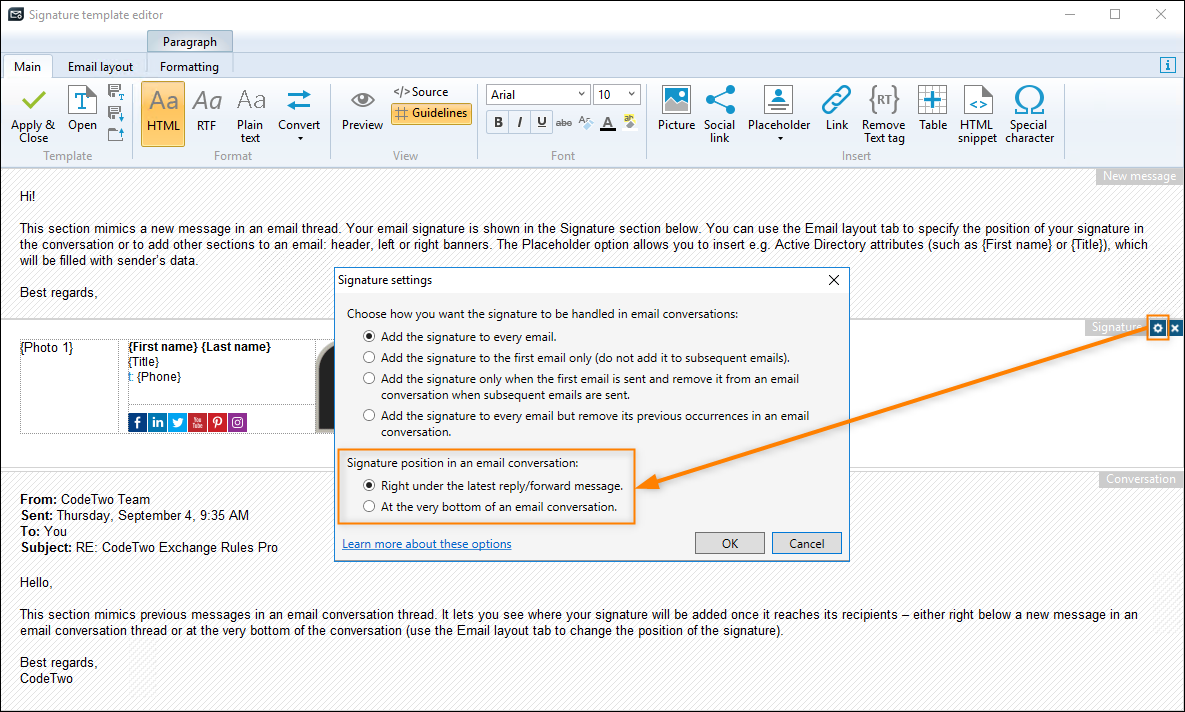
Fig. 3. Accessing the Signature settings window in the editor of CodeTwo Email Signatures On-prem.
See also:
| Related products: | CodeTwo Email Signatures for Office 365, CodeTwo Email Signatures On-prem, CodeTwo Exchange Rules 2007 4.x, CodeTwo Exchange Rules 2010 3.x, CodeTwo Exchange Rules 2013 2.x, CodeTwo Exchange Rules 2016 1.x, CodeTwo Exchange Rules 2019 1.x, CodeTwo Exchange Rules Pro 2.x |
| Categories: | How-To |
| Last modified: | November 21, 2025 |
| Created: | December 31, 2018 |
| ID: | 783 |





