



When you first think of email marketing, newsletters and marketing automation are probably the first ideas that come to your mind. What marketers often forget is that there are more options on the table.
One of these options, and a great way to promote your products and brand by email, is centrally managed email signatures. Since email footers can contain branding elements and marketing banners, taking full control of employees’ signatures is a marketing and branding opportunity no company should miss.
But smart marketers don’t just run marketing campaigns through email signatures – they also collect meaningful web analytics data to judge how those campaigns perform. In this article, I will show you how to use Google Analytics (currently the most widely used web analytics platform) to track your email signature marketing campaigns, optimize your marketing efforts, and make them more effective in the future.
I will use CodeTwo Email Signatures 365 for creating a company-wide email signature in Microsoft 365, and Google custom campaign parameters for tagging the links used in it. I will also show you how to access the collected data in the Google Analytics interface. Let’s cut to the chase then!
Note: The article below describes how to tag links using Google custom campaign parameters that are used by Google Analytics for identifying web traffic sources. Keep in mind that this methodology can be used with other web analytics platforms as well. Some of them (for example, Kissmetrics or Matomo) even support the same tag names as Google.
What are custom campaign parameters?
Custom campaign parameters, also known as URL or UTM tags, are used by Google Analytics to identify the marketing Custom campaign parameters, also known as URL or UTM tags, are used by Google Analytics to identify the marketing campaigns that generate traffic to your website. If links to your webpage are properly tagged, Google Analytics can group incoming traffic according to the tag values. This makes your data more readable in the Analytics reports.
There are five types of URL tags you can use:
- utm_source – usually stands for the referrer, for example, newsletter, google, footer, email-signature etc.
- utm_medium – defines the marketing medium that is distributing the given link, for example, email.
- utm_campaign – the name of your campaign, which can refer to a product name or marketing slogan, for example, summer_discount.
- utm_term – used in paid ads to define keywords that are linked to your website, for example, buy (this tag is optional).
- utm_content – useful in A/B testing for defining specific ads that direct traffic to a website. In terms of email signature campaigns, it can be used to see which version of your email banner is the most clickable, for example, bannerA (this tag is optional).
With the introduction of Google Analytics 4, more UTM parameters were added. I will quickly list them without providing examples, as they are not particularly useful for email signature campaigns.
- utm_id – identifier for a specific campaign or promotion.
- utm_source_platform – similar to utm_source.
- utm_creative_format – type of creative.
- utm_marketing_tactic – targeting criteria.
Each of these parameters can provide useful information in your reports. In order to collect this information, you need to pair those tags with proper values and add them to your links as a query string.
The full list of parameters and detailed explanations can also be found in Google’s official documentation.
Tip: It is important to stay consistent when naming the values of UTM tags across all campaigns that you run. For instance, once you choose to name a medium ‘email’, you shouldn’t change it to ‘e-mail’ in future campaigns which use the same medium. This will let you measure the results in a more consistent way.
Let’s now move on and see how URL tracking works with email signature campaigns.
Composing a company-wide email signature with URL tags
In this example, I will create a rule adding an email signature with URL tags to all emails sent from my company. My email platform is Microsoft 365, so I will use CodeTwo Email Signatures 365 to create the rule, design the signature template, and add it to all outgoing messages, complete with each user’s details.
Note: The URL tagging process described below can be applied to other CodeTwo email signature products as well. For example, if you use Exchange Server Subscription Edition (SE) as your email server, you can tag email signatures added by CodeTwo Email Signatures On-prem.
First, I set up the following signature rule to add unified email signatures for all users. By modifying the rule’s conditions and exceptions, you can just as easily apply this rule to a specific group of users or even individual mailboxes.
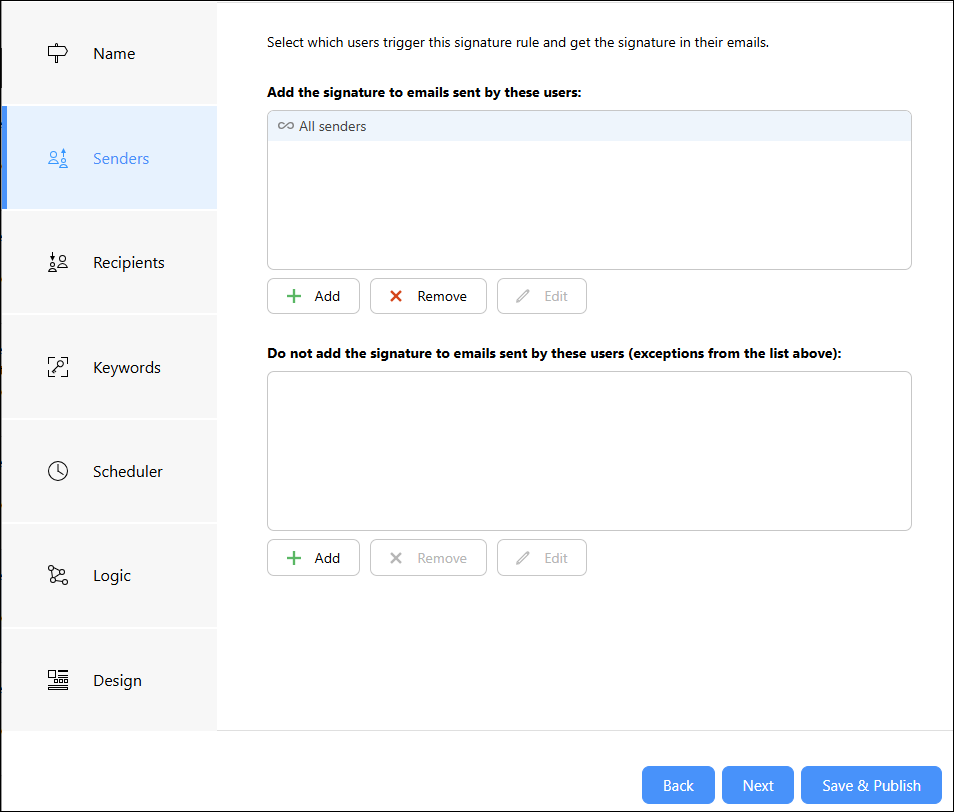
The program has a built-in access rights management feature and I’m able to deploy this signature rule without any support from IT. This gives me flexibility in terms of changing the marketing information that is sent out in signatures.
Next, I need to design the actual signature template. To build my template, I can choose one of the ready-made designs from CodeTwo’s built-in signature template library. It takes just a few clicks to customize the branding elements and tailor the design to my needs.
This is how my template looks in the CodeTwo Email Signatures 365 editor:
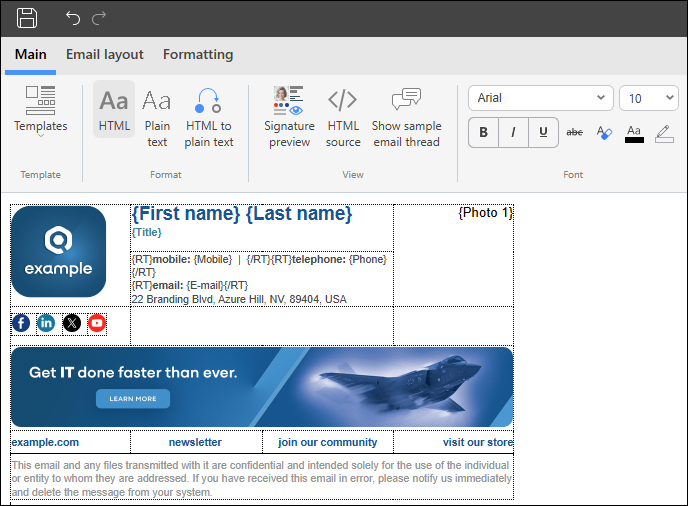
Finally, I need to set up proper URL tags for the links included in the signature template. I want both my logo and banner to link to the same landing page, so these tags will help me see which element generates more clicks.
The easiest way to do that is to use the link builder available in CodeTwo’s signature template editor. Instead of building the URL manually, I simply enter the relevant parameter values, and the URL is generated automatically.
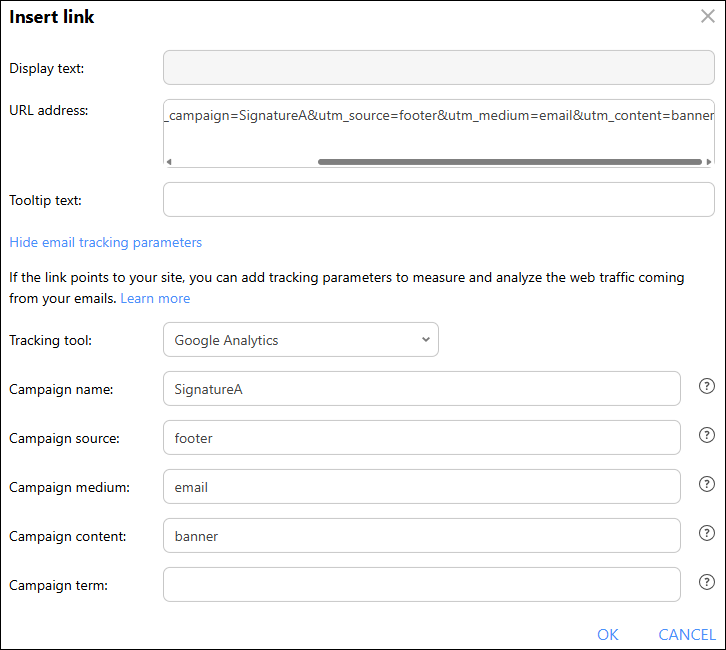
For the purpose of this example, I use the primary three parameters and one additional to differentiate between the logo and banner. The values for those parameters are:
- Campaign name (utm_campaign): SignatureA.
- Campaign source (utm_source): footer.
- Campaign medium (utm_medium): email.
- Campaign content (utm_content): logo and banner, respectively.
The final URL for the logo looks like this:
https://www.yourdomain.url?utm_campaign=SignatureA&utm_source=footer&utm_medium=email&utm_content=logo
And for the banner:
https://www.yourdomain.url?utm_campaign=SignatureA&utm_source=footer&utm_medium=email&utm_content=banner
And that’s it! I save my changes in the CodeTwo editor and my email signature campaign is ready to go live. All I need to do is hit the Save & Publish button and the software will start adding signatures according to the rule I defined.
As the next step, I can create additional rules with different visual elements and URL tags (for example, SignatureB, SignatureC, and SignatureD as campaign names) to see which campaign drives the most traffic to my website.
Reading campaign data in Google Analytics
Now it’s time to find my data in Google Analytics. I log in to my Analytics account and click Acquisition > Non Google campaign in the left pane of the interface.
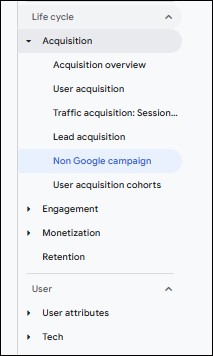
I can now see the list of campaigns that direct traffic to my website. The easiest way to find my email signature campaign is to find its name in the search field (in our case, it’s SignatureA).
I can also view the results for the entire source (footer) or medium values (email) by changing the Primary Dimension in my Google Analytics view. It all depends on what you are currently trying to analyze and at which level of granularity you need to work (whether you’re analyzing a single campaign or the entire medium this campaign uses).
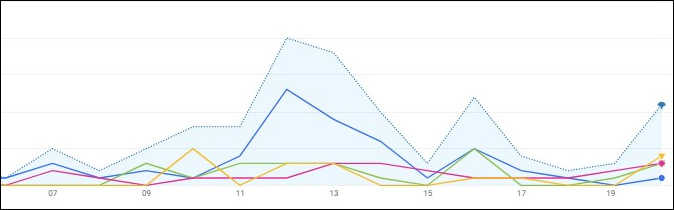
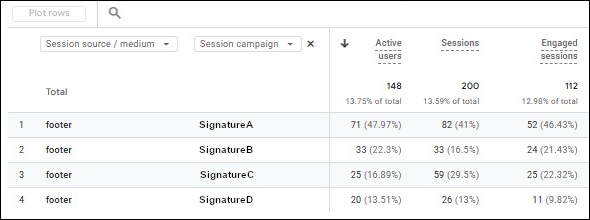
After a few days of collecting data for the four sample campaigns, we can see a few trends. At this moment, the SignatureA campaign works best, since it drives the most traffic to the landing page. Other fields with useful data include:
- Bounce rate – shows you how many users left your website without interacting with any other pages.
- Average session duration – tells you how long your visitors stayed on your website.
- Conversions – shows how many conversions (user actions you define yourself) each campaign generated.
- Content – if you defined the
utm_contentparameter to differentiate between various signature elements, you can also see which elements generated the most conversions.
Based on these insights, I can continue running the SignatureA campaign or even expand it, as it’s proven to be the most effective of the four campaigns.
CodeTwo Email Signatures 365 is the only fully Microsoft 365 Certified email signature solution (the entire infrastructure reviewed & pen-tested by Microsoft). It's an Azure-based cloud service that supports all devices and email apps. Co-engineered and awarded by Microsoft, it also holds the highest user satisfaction ratings. With ISO 27001 & 27018 certification and a proprietary 4-layer security system, it's the most secure signature manager on the market. Watch a short product video
CodeTwo offers solutions for organization-wide email signature management, data backup and migration for Microsoft 365 & Exchange Server, developed since 2007 and used by over 140k organizations worldwide, including Facebook, Samsung and UNICEF.
Recommended articles


Great post. I’m dealing with some of these issues as well.
Hi Gniewko, very insightful tips in this article. One thing that pops into my mind now is what if I ran a similar campaign from outlook without using CodeTwo Exchange but simply adding UTM tags to the links contained in that email? would that still work or GA won’t collect data if the email is not sent in HTML format?
Thanks very much, Ricky
Hi Ricky,
Whenever a tagged link is clicked, or pasted into a browser – GA collects data, CodeTwo Exchange Rules is not necessary for tagging links. However, if you are to handle signatures in a company, and manage multiple campaigns, CodeTwo Exchange Rules will make that much quicker and easier.
As to emails not sent in an HTML format, they still can be used to track the campaigns; however, people are less likely to click a plaintext link.
Thanks for the write up (interestingly, Google’s own pages for this explanation don’t shown up on first page).
Intersting article, whilst I understand why you’ve written this to include your own CodeTwo software, I feel this article could do with more value for the masses (the Small Business Owner’s & Decision Makers that I serve).
If you don’t mind, I’d like to add the following to help those (the masses) who 1.Don’t have such centrally managed email (yes they exist and are even the majority in my experience) 2.Don’t even have an email footer strategy, campaign or thought for.
So, the benefits/tips for the masses then …
1. Properly tag your links in your email signature will give you better insight when trying to decipher Analytics (eg.Instead of “Direct” accruing data, you’ll see ’email signatures’ as a source).
2. Ad a unique tag for each member of staff (even if they have same links as their peers, this can also prove insightful eg.”Need more info Click Here” could tell you whether one member of staff or department is getting more clicks than the next).
3. You can also achieve a similar tracking in analytics, by simply adopting the following tagging mindset:
eg.
http://www.yourweb.site/?ref=email-sig_department_jo-bloggs
or better still..
http://www.yourweb.site/page-you-want-visitor-to-arrive-at.html?ref=email-sig_department_jo-bloggs
Thereafter, simply setup a filter in Google Analytics that looks for that full-url and even create a custom dashboard report to email you monthly on the individuals’ teams performance.
Steve Walters
Marketing Consultant & Tech Adviser.