Who gets CodeTwo signatures? User scopes explained
This article explains:
- How different scopes determine which users can consume CodeTwo licenses and get email signatures or automatic replies.
- Why some users don’t get CodeTwo signatures even if you select the All senders condition in signature rules.
Scopes that determine who gets CodeTwo email signatures and automatic replies
Users in your Microsoft 365 organization can consume CodeTwo licenses and benefit from the service (get signatures, automatic replies, etc.) based on different scopes you configure when deploying CodeTwo Email Signatures 365. Fig. 1. below shows the minimum conditions a user must meet to get a signature or automatic reply from CodeTwo.
This diagram does not consider other rule settings (such as exceptions, email recipients, or keywords) that may also affect whether a user gets a signature or automatic reply.
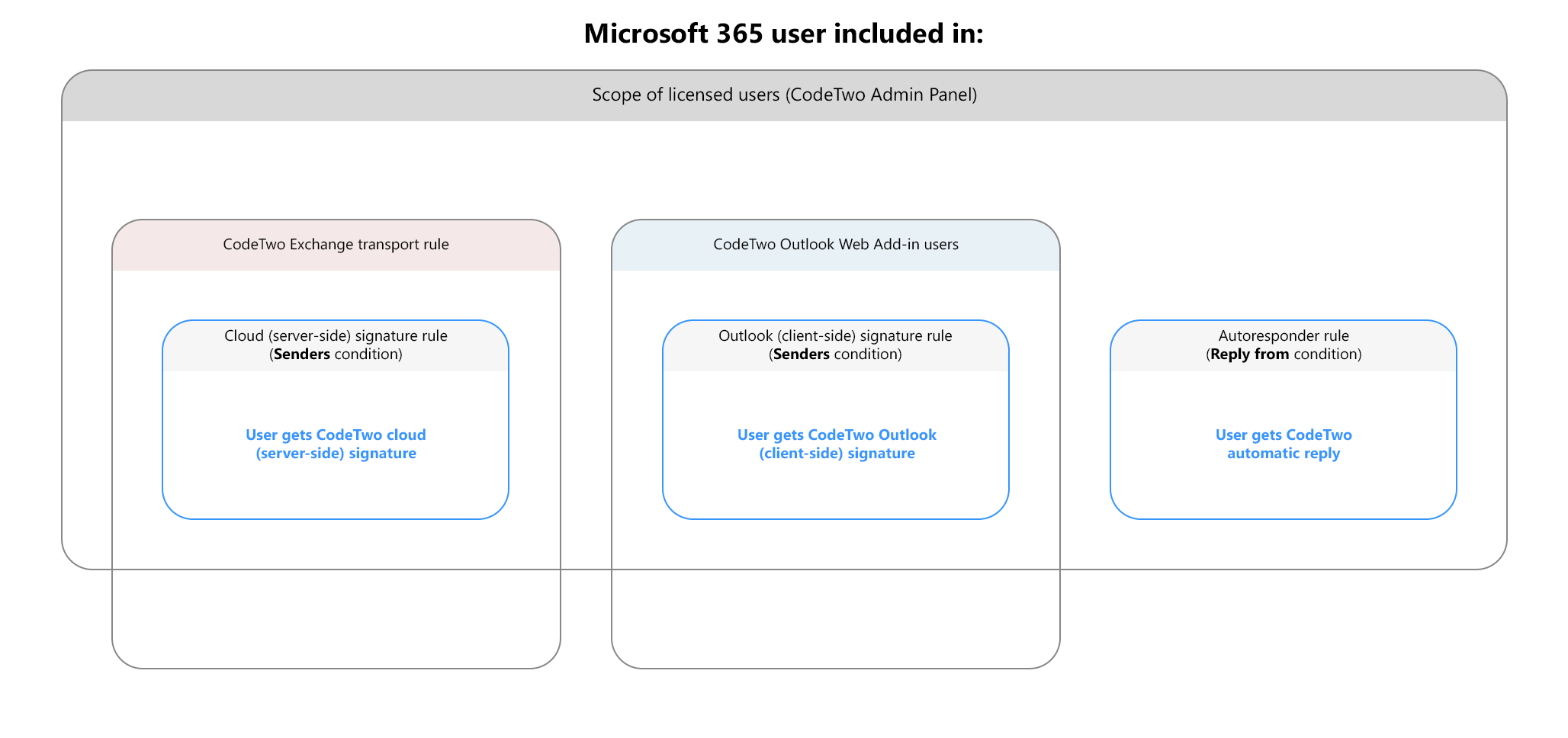
Fig. 1. Different scopes in CodeTwo Email Signatures 365 that determine who gets email signatures and automatic replies.
Here's a quick overview of all user scopes used in CodeTwo, listed from the broadest to the most specific one:
- Scope of licensed users – defines who can consume CodeTwo licenses and get signatures, automatic replies, etc. You configure this scope initially in CodeTwo Admin Panel when registering your tenant to CodeTwo (but you can change it later). If you limit this scope to a specific group, only members of that group (including shared mailboxes and nested groups) can be selected in user/group pickers in CodeTwo's Signatures app (learn more).
- CodeTwo Exchange transport rule users (cloud/server-side and combo mode only) – only users included in this transport rule will have their emails routed through CodeTwo, so they can get cloud (server-side) signatures. You define these users when configuring Exchange Online connectors in CodeTwo Admin Panel or by manually editing the transport rule in the Exchange admin center.
- CodeTwo Outlook Web Add-in users (Outlook/client-side and combo mode only) – only users who have the add-in deployed can get Outlook (client-side) signatures. Learn how to deploy the add-in or add/remove add-in users.
- Users defined in signature and Autoresponder rules – rule configured in the Signatures app specify which users get a certain signature or automatic reply. Learn more about creating email signature rules and Autoresponder rules.
Advanced access rights management
If you turn on Advanced access rights management for your Microsoft 365 tenant in CodeTwo, you can organize email signature and Autoresponder rules into teams. Each team has an additional Team users setting that can further limit who can get signatures or automatic replies based on the rules assigned to that team. Learn more
How does the 'All senders' condition work?
The All senders condition used in cloud (server-side) and Outlook (client-side) rules doesn’t automatically apply to every user in your Microsoft 365 tenant. The table below shows the minimum requirements for this condition to apply:
| Requirement | Cloud (server-side) signature | Outlook (client-side) signature |
|---|---|---|
| 1. User is included in the scope of licensed users | Yes | Yes |
| 2. User is included in the CodeTwo Exchange transport rule | Yes | No |
| 3. User is included in the CodeTwo Outlook Web Add-in users | No | Yes |
| All senders condition applies if: | 1. and 2. are met | 1. and 3. are met |
To learn more about each scope or settings, see this section.
Advanced access rights management
If you turn on Advanced access rights management for your Microsoft 365 tenant in CodeTwo, you can organize email signature and Autoresponder rules into teams. Rules that use the All senders condition within a specific team will only apply to users specified as team users in that team. Learn more
Alias email addresses
The All senders condition applies to email aliases as well. If you want to configure a separate signature rule for an alias address, select the Email addresses condition instead. Learn how to add different signatures to emails sent from alias addresses
Examples of how different scopes determine who gets CodeTwo email signatures and automatic replies
Example 1:
User A is a member of the Leadership group and User B is a member of the Support group in Microsoft 365.
The following scopes are set in CodeTwo:
- Scope of licensed users: All users
- CodeTwo Exchange transport rule: Leadership group
- CodeTwo Web Add-in: All users
- Cloud (server-side) signature rule applies to: All senders
- Outlook (client-side) signature rule applies to: members of the Support group
- Autoresponder rule applies to: members of the Leadership group
Outcome:
- User A gets a cloud signature and an automatic reply (assuming other rule conditions are met). They don't get an Outlook signature because the rule condition in point E is not met.
- User B gets an Outlook signature only (assuming other rule conditions are met). They don't get:
- a cloud signature even though All senders is selected in point D because they are excluded from the transport rule (point B);
- an automatic reply because the rule condition in point F is not met.
Example 2:
User A is a member of the Leadership group, and User B is a member of the Support group in Microsoft 365.
The following scopes are set in CodeTwo:
- Scope of licensed users: Support group
- CodeTwo Exchange transport rule: All users
- CodeTwo Web Add-in: All users
- Cloud (server-side) signature rules applies to: All senders
- Outlook (client-side) signature rule applies to: All senders
- Autoresponder rule applies to: members of the Support group
Outcome:
- User A doesn't get any signature or automatic reply because they are not included in the scope of licensed users (point A). However:
- all emails sent from User A will still go through CodeTwo services (because of point B);
- CodeTwo Web Add-in will still appear in User A's Outlook apps (because of point C).
- User B can get a cloud or Outlook signature and an automatic reply ((assuming other rule conditions are met).
| Related products: | CodeTwo Email Signatures for Office 365 |
| Categories: | FAQ |
| Last modified: | February 2, 2026 |
| Created: | February 13, 2025 |
| ID: | 1114 |






