In many business scenarios it makes sense to stamp emails with signatures which include images. The obvious examples that come to mind are social media buttons and marketing banners, but I’m sure you can think of a bunch of other ones (users’ photographs?).
This, however, may come into conflict with the need to not overcrowd the recipient’s eye with too much content or to simply conserve disk space.
CodeTwo Exchange Rules and CodeTwo Email Signatures for Office 365 solve this by allowing to automatically add a full-blown email signature to new emails and a simplified version to subsequent replies and forwards.
Here’s how to configure both products to do this job:
- Create a new rule by pressing the + (plus) button in CodeTwo Email Signatures for Office 365 (Fig. 1.) or the + Add… button and then New rule (clean) in CodeTwo Exchange Rules (Fig. 2.).

Fig. 1.
Fig. 2. - Define the criteria that will have to be met by emails for the rule to be applied.
- Design the part of the signature that will act as the simplified version and will be added in an entire conversation, except for the first email sent by your user. Here is an example of what it could look like:

Learn how to use the editor in CodeTwo Email Signatures for Office 365
Learn how to use the editor in CodeTwo Exchange Rules - In the Editor, click the gear icon on the right, and configure the signature like so:
- If disclaimer / signature is already found in the conversation, then : add new one
- Add disclaimer / signature : right under the original reply message

- Click OK, then Save and close the Editor.
- In the Options tab select the following setting: If this rule is applied : Go to the next rule

- Now add a new empty rule like you did in Step 1 and define identical criteria as in Step 2.
- In the new rule, use the Editor to design the remaining part of the full-blown signature (this part will only be added in the first email in a conversation). In my example it looks like this:
- Next, in the Editor, click the gear icon and define the following settings:
- If disclaimer / signature is already found in the conversation, then : do nothing (option ‘add new one’ NOT checked)
- Add disclaimer / signature : right under the original reply message
- Click OK, Save and close the editor.
- Click the Floppy disk (Submit changes) button in the upper-left corner.
- Create a new rule by pressing the + (plus) button in CodeTwo Email Signatures for Office 365 (Fig. 1.) or the + Add… button and then New rule (clean) in CodeTwo Exchange Rules (Fig. 2.).


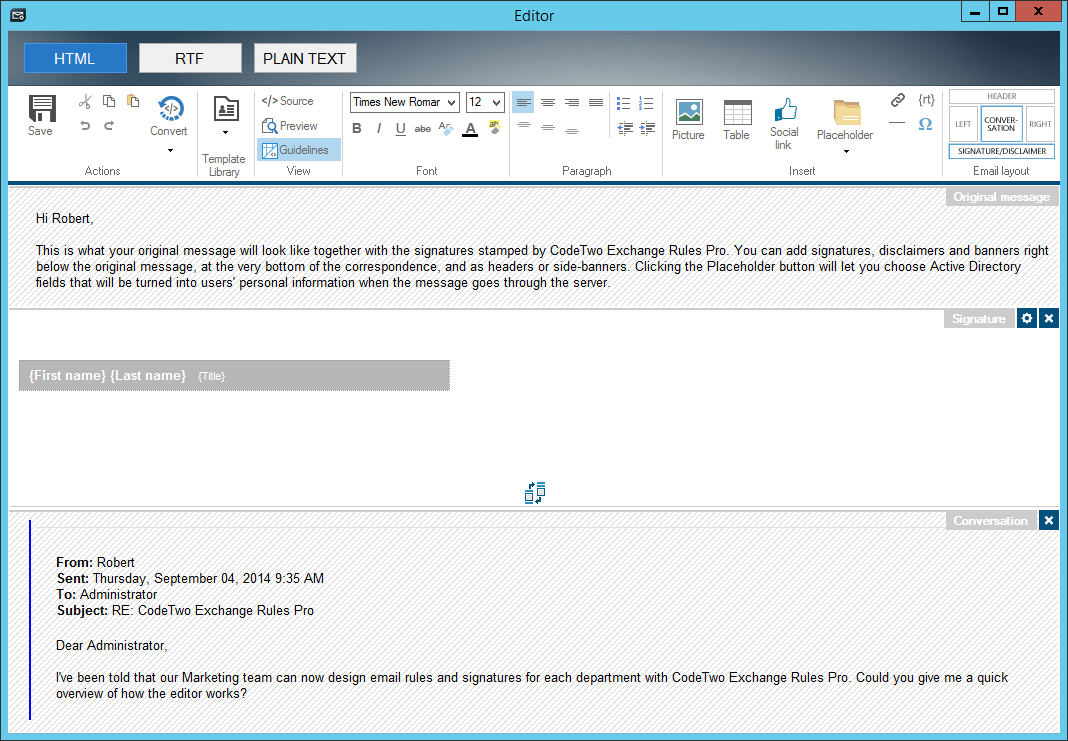


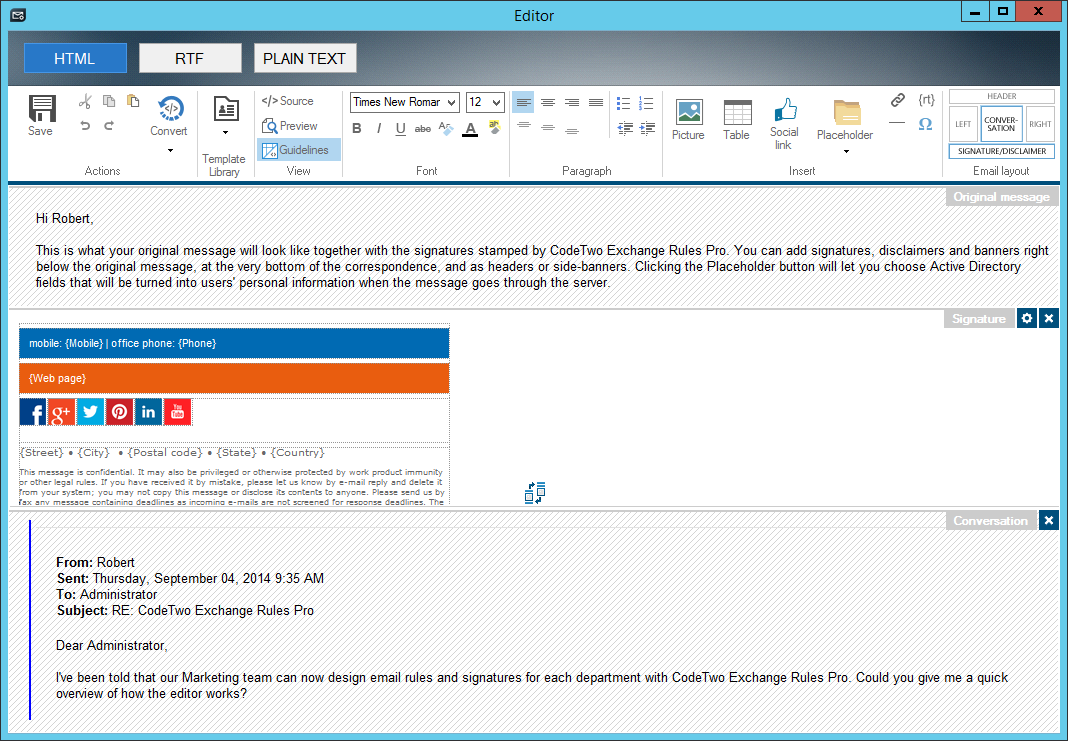

Once you complete these steps, your CodeTwo solution is going to start stamping initial emails sent by users with an email signature consisting of the 2 designs you created. In my example this first signature would look like this:

When users send subsequent replies and forwards (after their initial email has been stamped with the above design), the shortened design is going to be added to their emails. Again, in my example it is going to look like this:

Tools used in this article
CodeTwo Email Signatures for Office 365 (14-day trial available)
CodeTwo Exchange Rules (30-day trial available)
CodeTwo Email Signatures 365 is the only fully Microsoft 365 Certified email signature solution (the entire infrastructure reviewed & pen-tested by Microsoft). It's an Azure-based cloud service that supports all devices and email apps. Co-engineered and awarded by Microsoft, it also holds the highest user satisfaction ratings. With ISO 27001 & 27018 certification and a proprietary 4-layer security system, it's the most secure signature manager on the market. Watch a short product video
CodeTwo offers solutions for organization-wide email signature management, data backup and migration for Microsoft 365 & Exchange Server, developed since 2007 and used by over 140k organizations worldwide, including Facebook, Samsung and UNICEF.
Recommended articles


CodeTwo sp. z o.o. sp. k. is a controller of your personal data.
See our Privacy Policy to learn more.