How to fix problems with Outlook / OWA not responding when using legacy-deployed Web Add-in
Problem:
When you create an email in Outlook for Windows, the message
CodeTwo Signatures is working on your request
appears at the top of the reading pane and Outlook stops responding. In Outlook for Mac and OWA, you might get one of the following messages while sending an email:
Add-in CodeTwo Signatures is blocking the send of this message
CodeTwo Signatures is taking longer than expected
CodeTwo Signatures is preventing this email from being sent
CodeTwo Signatures timed out
As a result, you cannot send any new messages.
Solution:
This problem occurs if you used the legacy method of deploying the CodeTwo Signatures Web Add-in for Outlook via the manifest file (which was available when the add-in was in beta).
Use the links below to apply a solution for your version of Outlook:
Outlook for Windows (Outlook 2016, 2019 and 2021)
The following one-time purchase (non-subscription) versions of Outlook for Windows might be affected: 2016, 2019, and 2021 (build 2203 and later).
There are two known solutions to the problem:
- Redeploying the CodeTwo Outlook add-in via the modern method (the Microsoft 365 admin center)
- Upgrading Outlooks of the affected users to the subscription-based version (Outlook for Microsoft 365)
Remove the CodeTwo Outlook add-in and redeploy it
Follow the instructions below to centrally remove the add-in and deploy it once again using the modern deployment method (via the Microsoft 365 admin center):
- Sign in to the Microsoft 365 admin center.
- Go to Settings > Integrated apps, choose CodeTwo Signatures, and click Remove app (Fig. 1.).
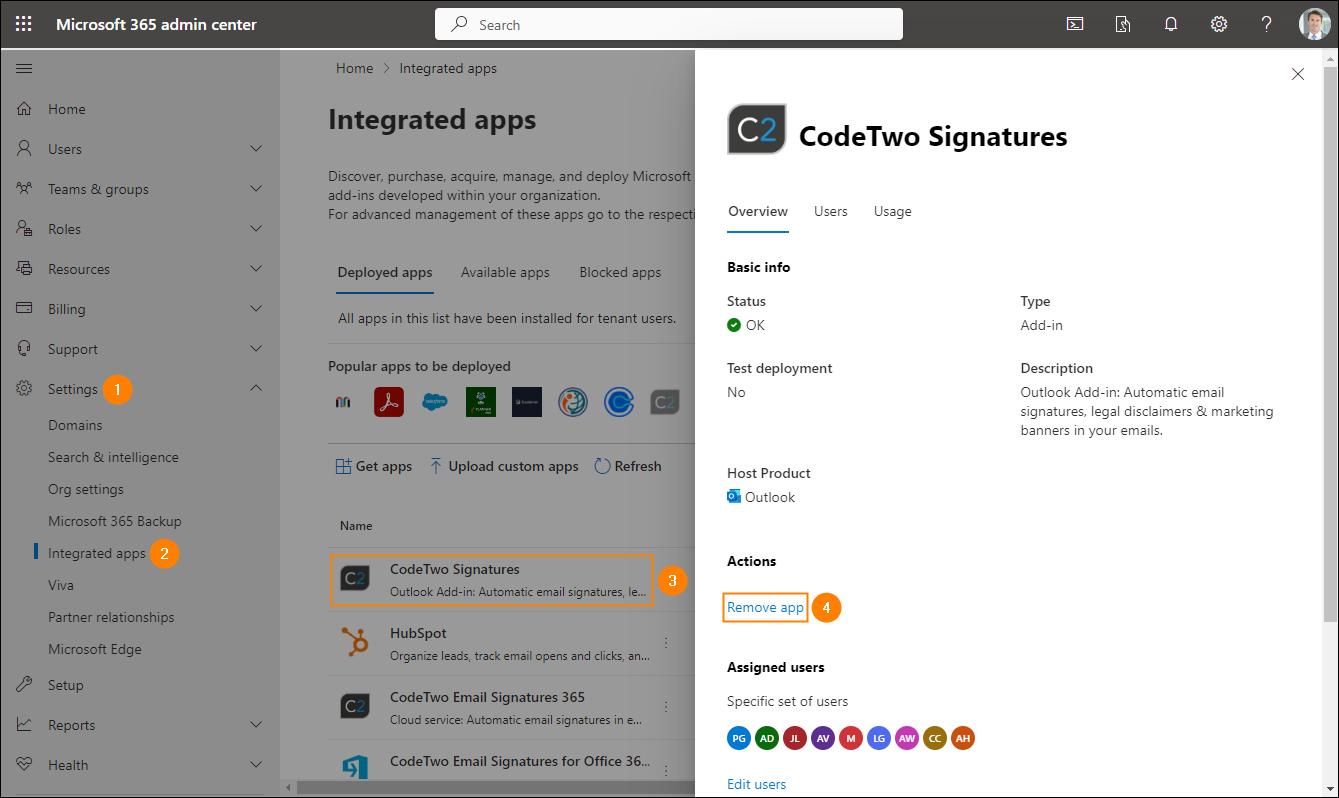
Fig. 1. Accessing the add-in’s settings to remove it.
- Next, select the required checkbox and click Remove (Fig. 2.). Wait for the process to finish and click Done.
If you cannot remove the add-in this way, it might mean you deployed it through the Exchange admin center. In that case, you need to remove the add-in using PowerShell, as described in this article.
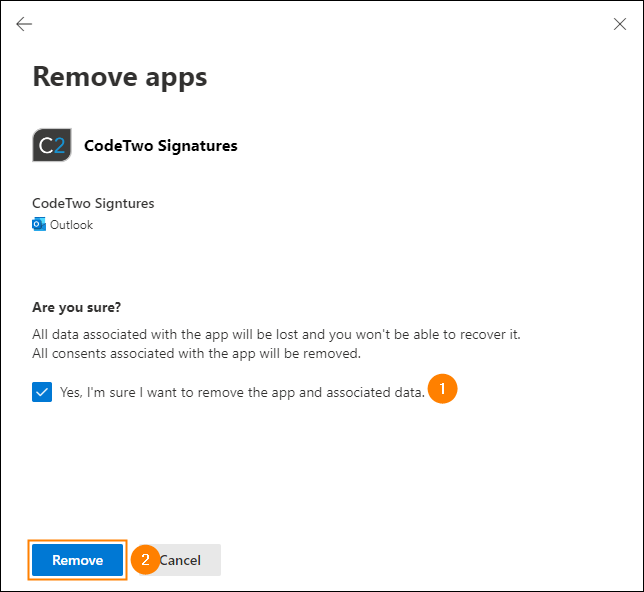
Fig. 2. Confirming the decision to remove add-in.
- Finally, redeploy the add-in for your organization, following the instructions from this section.
Important
The complete process of either removing or deploying the add-in in your Microsoft 365 environment usually takes up to 6 hours. You can, of course, ignore the waiting time and start the deployment right after removing the add-in from the Microsoft 365 admin center. However, keep in mind that until the time has elapsed, your users might still be using the add-in deployed from the manifest file in their Outlooks and facing the problem in question.
Now, with the add-in deployed via the Microsoft 365 admin center, your users should no longer experience the problem and should be able to send emails as usual.
Switch to the subscription-based version of Outlook
If there are just few affected users in your organization, it might be a good idea to switch their Outlooks to the version that is licensed based on the subscription model (Outlook for Microsoft 365). That way, you’ll not disrupt operations for these users who use CodeTwo Signatures Web Add-in for Outlook with no issues. To do so:
- Make sure you've assigned the Office 365 license to the affected users. If not, assign the license (e.g. Office 365 E5) for them in the Microsoft 365 admin center.
- Ask your affected user(s) to uninstall their 'old' Office product with the lifetime license. You can also do it in a centralized way, using SCCM, GPO, or other deployment tool you use in your organization.
- Next, ask the affected user(s) to download and install the 'new' subscription-based Office 365 product, as highlighted here. Alternatively, use a tool for the centralized deployment of Office 365 apps, e.g. use Intune, following the instructions from this article.
- After successful installation, ask the user(s) to reboot their PCs.
Now, when your affected users add their email account in Outlook, they should be able to use the add-in without any problems.
Outlook for Mac
First, make sure that the affected end users are using the supported version of Outlook for Mac.
If so, follow these steps to redeploy the CodeTwo Outlook add-in in your organization by using the modern deployment method (via the Microsoft 365 admin center).
Outlook on the web / OWA
In OWA, when you try to send an email that was stamped with a signature by CodeTwo Signatures Web Add-in for Outlook, you might get the notification as shown in Fig. 3.
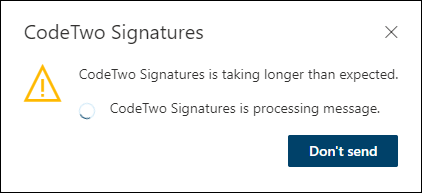
Fig. 3. A notification regarding CodeTwo Outlook add-in shown in OWA.
If you click Don't send and then try to send the email again, the message goes out without any problems (together with your email signature). However, to fix the issue completely, try to redeploy the add-in in your Microsoft 365 tenant, as described here.
| Related products: | CodeTwo Email Signatures for Office 365 |
| Categories: | Troubleshooting |
| Last modified: | November 13, 2025 |
| Created: | May 12, 2022 |
| ID: | 987 |





