How to redeploy CodeTwo Outlook Web Add-in deployed by using manifest file
Problem:
You're using the modern CodeTwo Web Add-in for Outlook deployed via the manifest file, which is no longer supported & updated.
Solution:
The deployment via the manifest file was only supported in the beta version of the add-in. To enjoy full support and new features in the add-in, you first need to remove it from your Microsoft 365 tenant and then deploy the add-in again from the Microsoft 365 admin center. Follow the instructions below to complete all the required steps.
Important: Carefully plan the redeployment
The complete process of either removing or deploying the add-in in your Microsoft 365 environment usually takes up to 6 hours. However, the deployment can take up to 72 hours to complete, depending on the size of your organization.
You can, of course, ignore the waiting time and start the redeployment right after removing the add-in from the Microsoft 365 admin center. However, keep in mind that until the time has elapsed, your users might still be using the add-in deployed from the manifest file in their Outlooks or experience the add-in's unavailability. As a result, we suggest that you plan the redeployment outside your organization's working hours, e.g. at the beginning of a weekend.
- Sign in to the Microsoft 365 admin center using an account with the Global Administrator role.
- Go to Settings > Integrated apps and click CodeTwo Signatures on the deployed apps list (Fig. 1.).
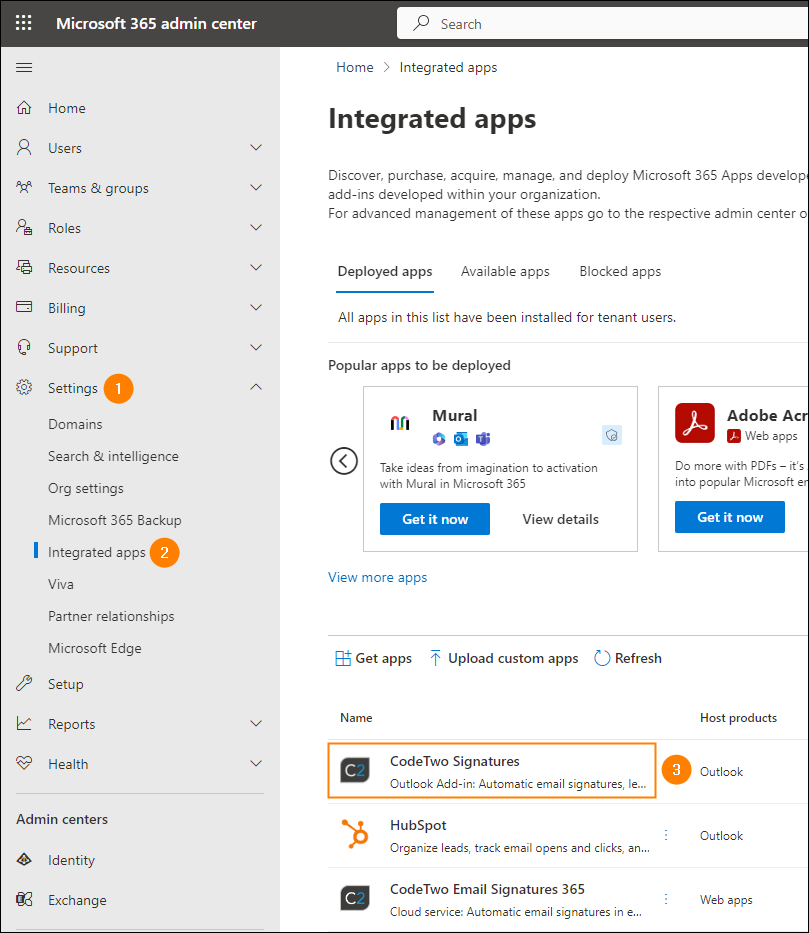
Fig. 1. Accessing the add-in’s settings to remove it.
- Before removing the add-in, click the Users tab and take a screenshot showing the users and/or groups for which the add-in is deployed (Fig. 2.). That way, you'll be able to quickly redeploy the add-in for exactly the same users later on.
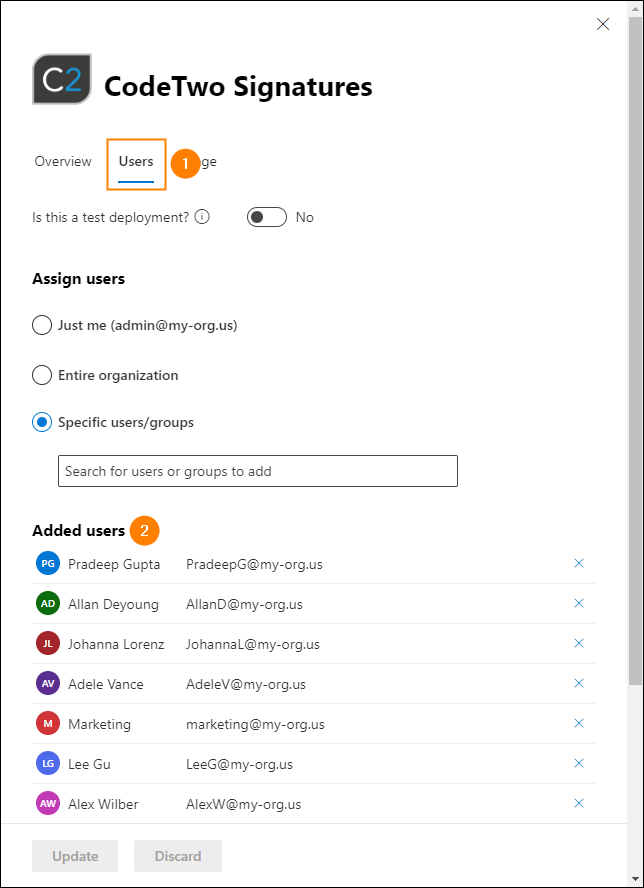
Fig. 2. Checking the users and groups included in the deployment before removing the add-in.
- Next, go to the Overview tab and click Remove app (Fig. 3.).
If you cannot remove the add-in this way, see the troubleshooting section for more options.
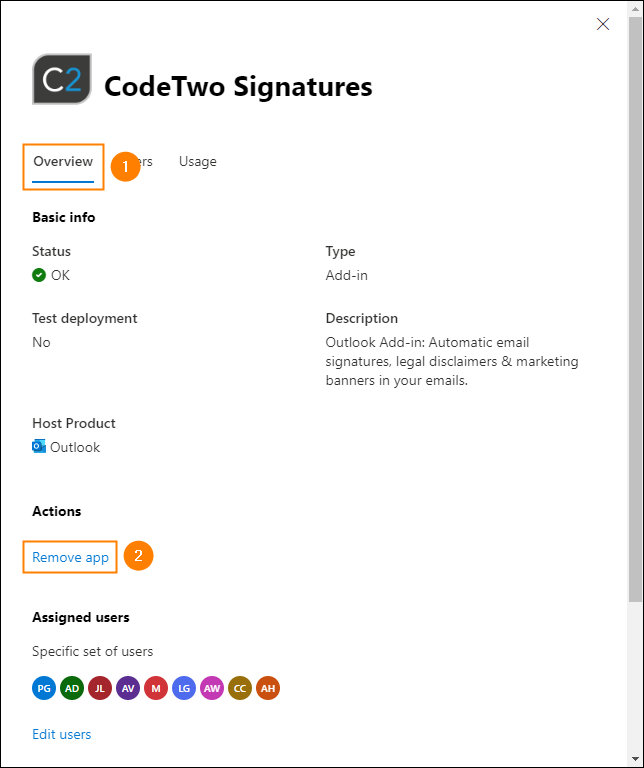
Fig. 3. Removing the add-in deployed via the manifest file.
- Next, select the required checkbox and click Remove (Fig. 4.). Wait for the process to finish and click Done.
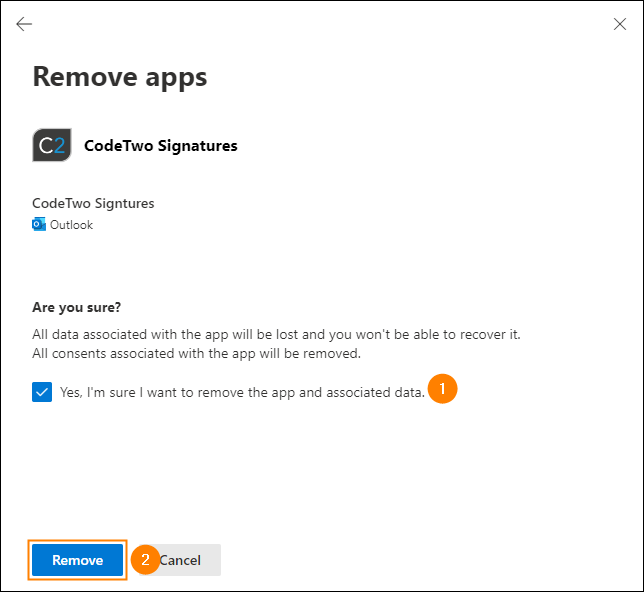
Fig. 4. Confirming the decision to remove the add-in.
- Finally, redeploy the add-in for the same users as before, following the instructions from the video below. You can also use this link to launch the Web Add-in deployment wizard in your Microsoft 365 admin center (Integrated apps). If you need more details on the deployment, have a look at this section of the user's manual.
Troubleshooting
If you get the following error when trying to remove the add-in from the Integrated apps page:
This add-on is already installed via Exchange Administration. Remove the add-on from the Exchange Administration Center to install and manage from the Integrated Apps page.
it means you deployed the add-in through the Exchange admin center (EAC). Since this deployment method is no longer supported in Microsoft 365, you need to remove the add-in using PowerShell, as described below:
- Connect to your Microsoft 365 tenant via PowerShell. See this article to learn how to do that.
- Run the following cmdlet:
Get-App | Format-Table -Auto DisplayName,AppId
This will return the ID of the add-in (along with other apps), as shown in Fig. 5. The AppId is unique for each deployment, so your value will differ.
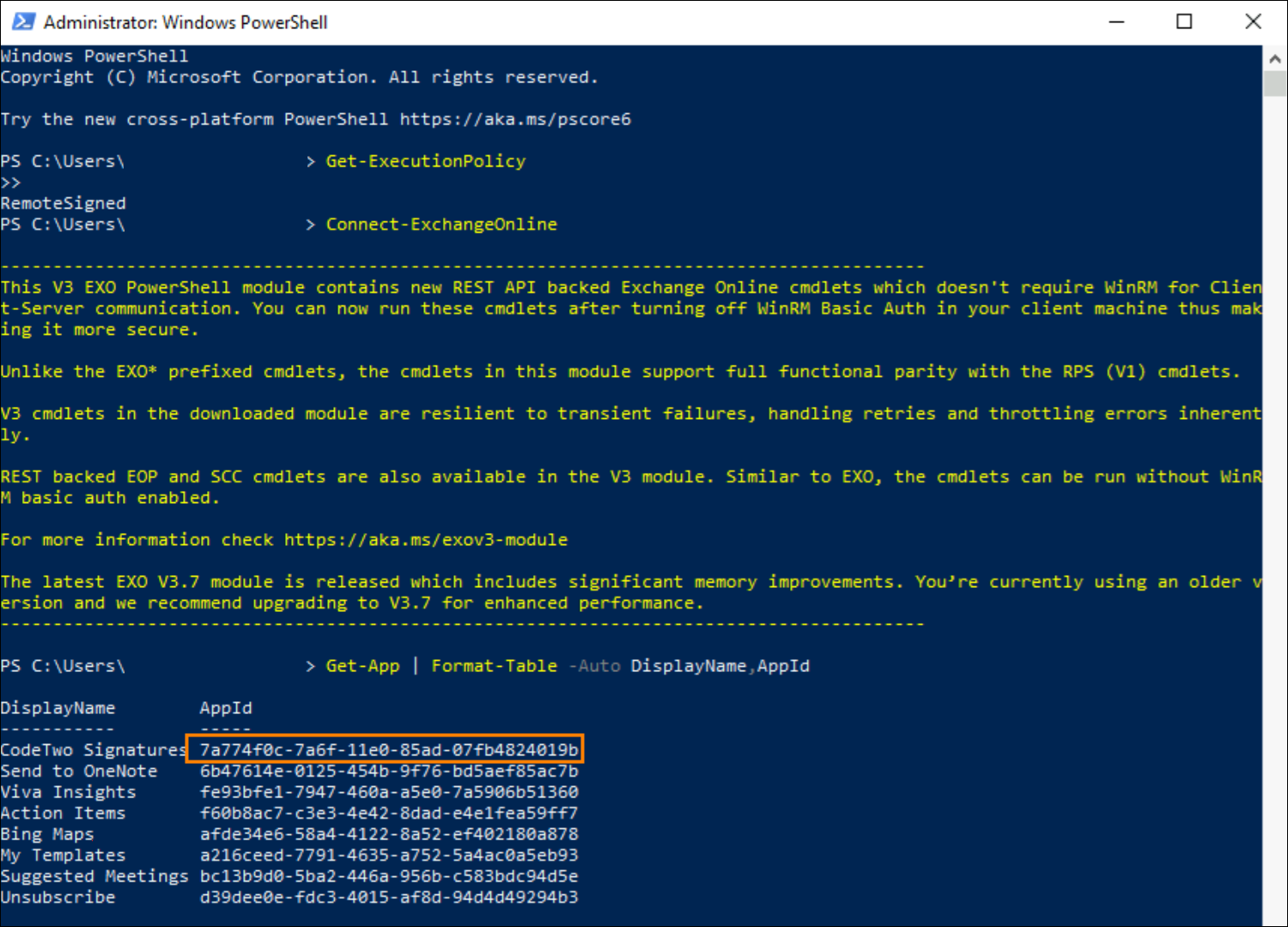
Fig. 5. Obtaining the AppId of the CodeTwo Signatures add-in using PowerShell.
- Run the cmdlet below, replacing <AppID> with the value obtained in the previous step:
Remove-App -OrganizationApp -Identity "<AppID>"For example:Remove-App -OrganizationApp -Identity "7a774f0c-7a6f-11e0-85ad-07fb4824019b"
When prompted (Fig. 6.), type Y and press Enter to confirm the deletion.

Fig. 6. Removing the CodeTwo Signatures add-in using PowerShell.
- Disconnect from your Microsoft 365 tenant.
After completing these steps, the add-in will be removed from your organization. You can now redeploy it as described here.
| Related products: | CodeTwo Email Signatures for Office 365 |
| Categories: | How-To, Troubleshooting |
| Last modified: | November 13, 2025 |
| Created: | January 17, 2024 |
| ID: | 1068 |





