CodeTwo Exchange Migration
- Seamless migration to Exchange Server SE
- Used by 10k+ organizations from 170+ countries
- Ultra-secure (no 3rd party involved) »
Videos
Watch the video below to find out how the program works and how to effectively use it to perform migrations between various Exchange Server environments.
Screenshots
Take a look at the screenshots below. They show the user interface and main functionalities of the program.
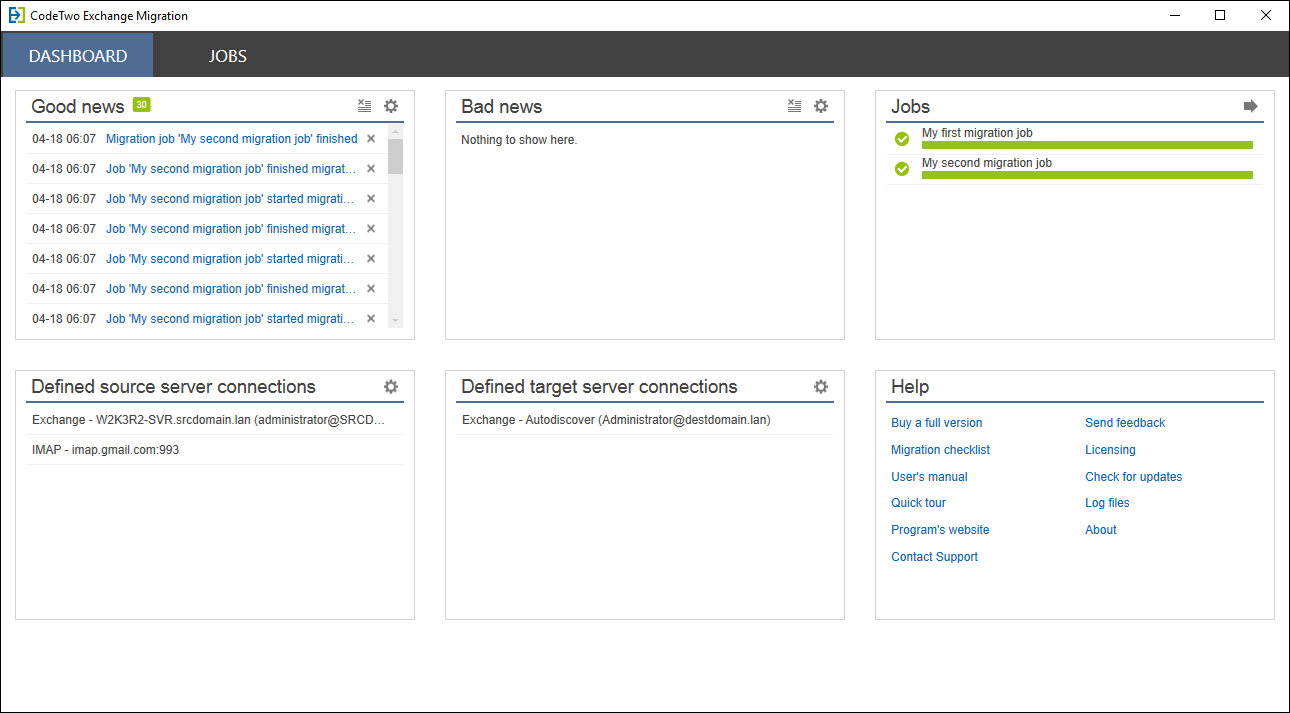
This is the main window of CodeTwo Exchange Migration. From here, you can quickly navigate to all migration jobs, check the status of the migration process, or configure source and target connections.
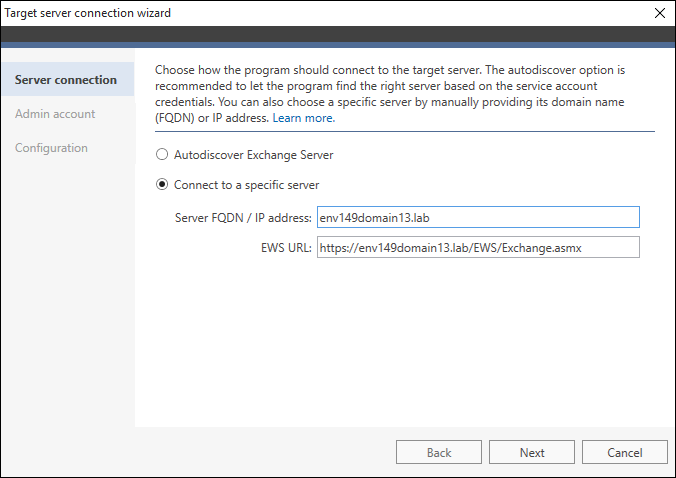
No matter where you want to connect (on-prem Exchange, Microsoft 365, or an IMAP server), dedicated wizards make the setup easy. The process is usually fully automated, but you can also configure everything manually if needed.
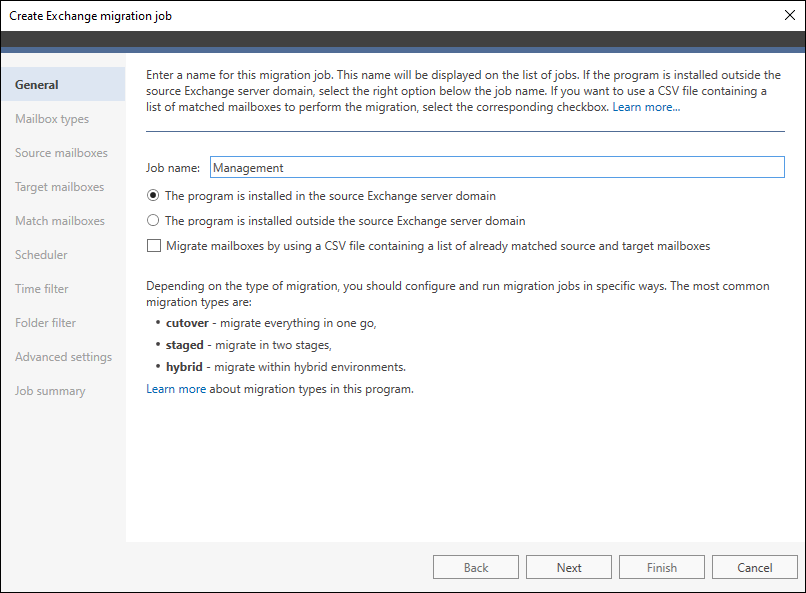
The migration job configuration wizard helps you create a new migration job and select mailboxes to migrate. The program lets you migrate to Exchange Server Subscription Edition from Exchange 2013 and later versions, Microsoft 365, and from servers supporting IMAP (e.g., Google Workspace, Zimbra, or Kopano).
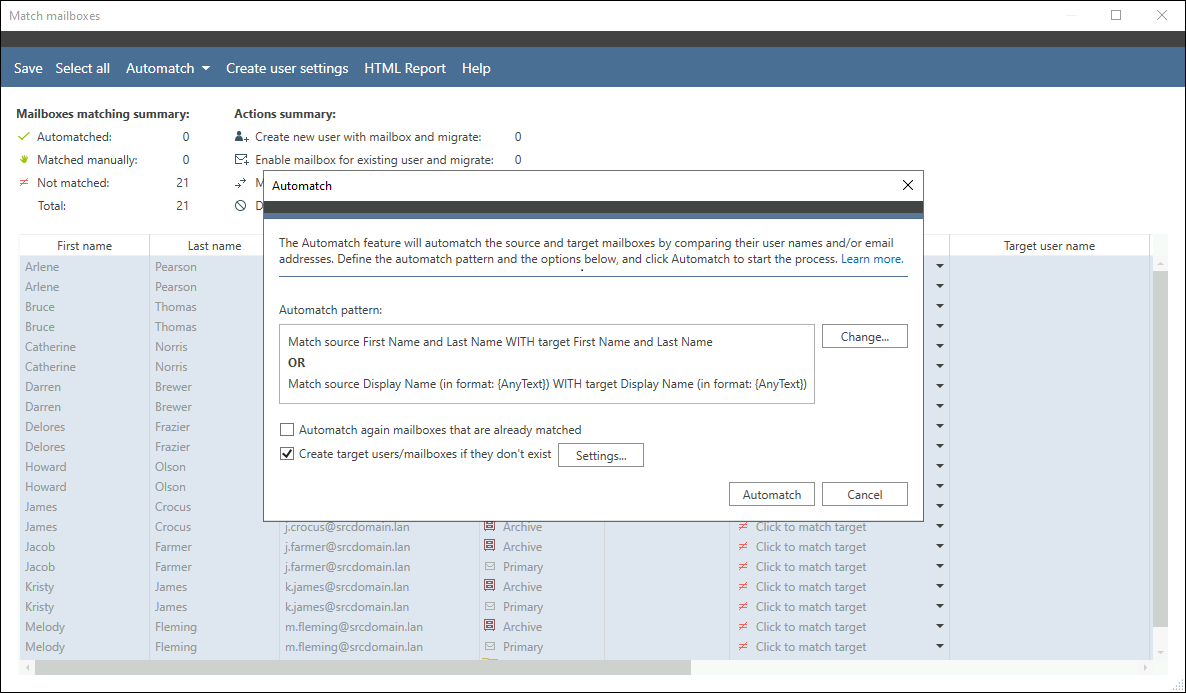
Once you have selected the source mailboxes for migration, you can use the Automatch option to let CodeTwo Exchange Migration match them with mailboxes in your target organization. You can use a predefined matching pattern or create your own custom algorithm based on some of the Active Directory attributes.
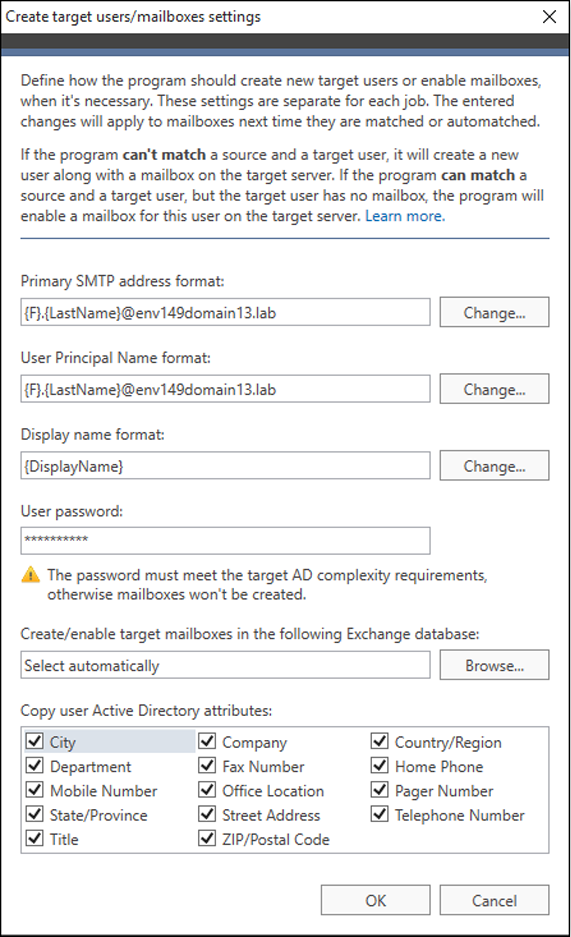
You can also create primary mailboxes on your target server directly in the program. Leave the default settings or change the email address and display name format to suit your needs.
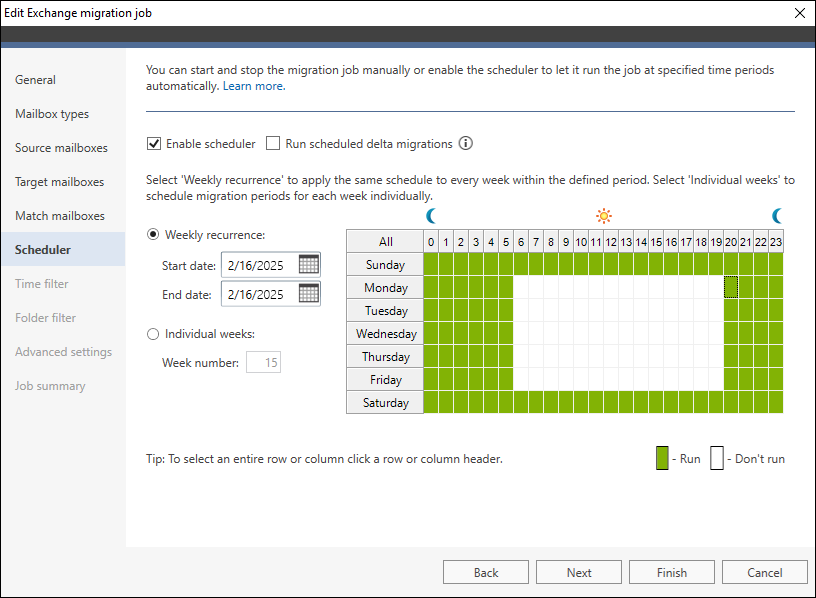
The built-in scheduler lets you configure the migration job to run automatically. If you enable this option, you can specify when it should start and stop during the week. It can also perform automatic delta migrations.
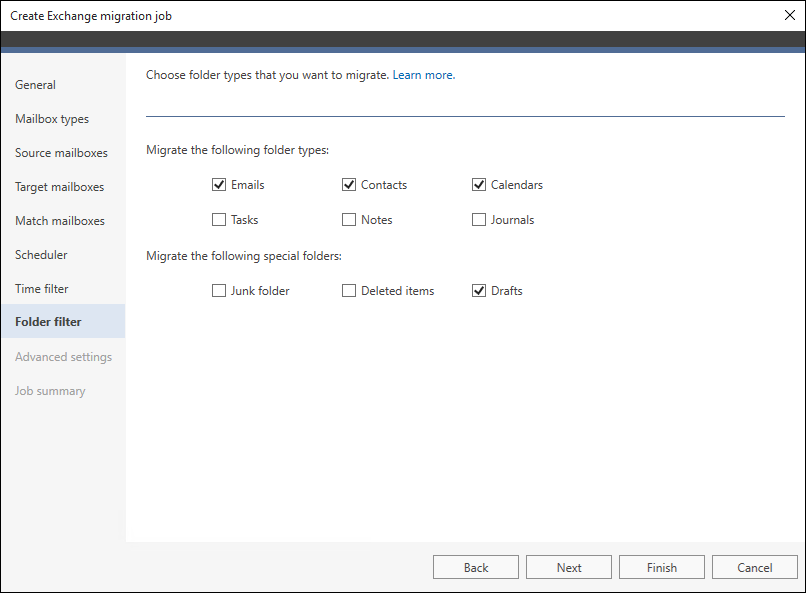
You can also filter the data you want to migrate. In the Time filter step, choose to migrate only items from the last few weeks or months. With the Folder filter, you can exclude Junk folder, Deleted items, and other unnecessary mailbox folders from the migration job.
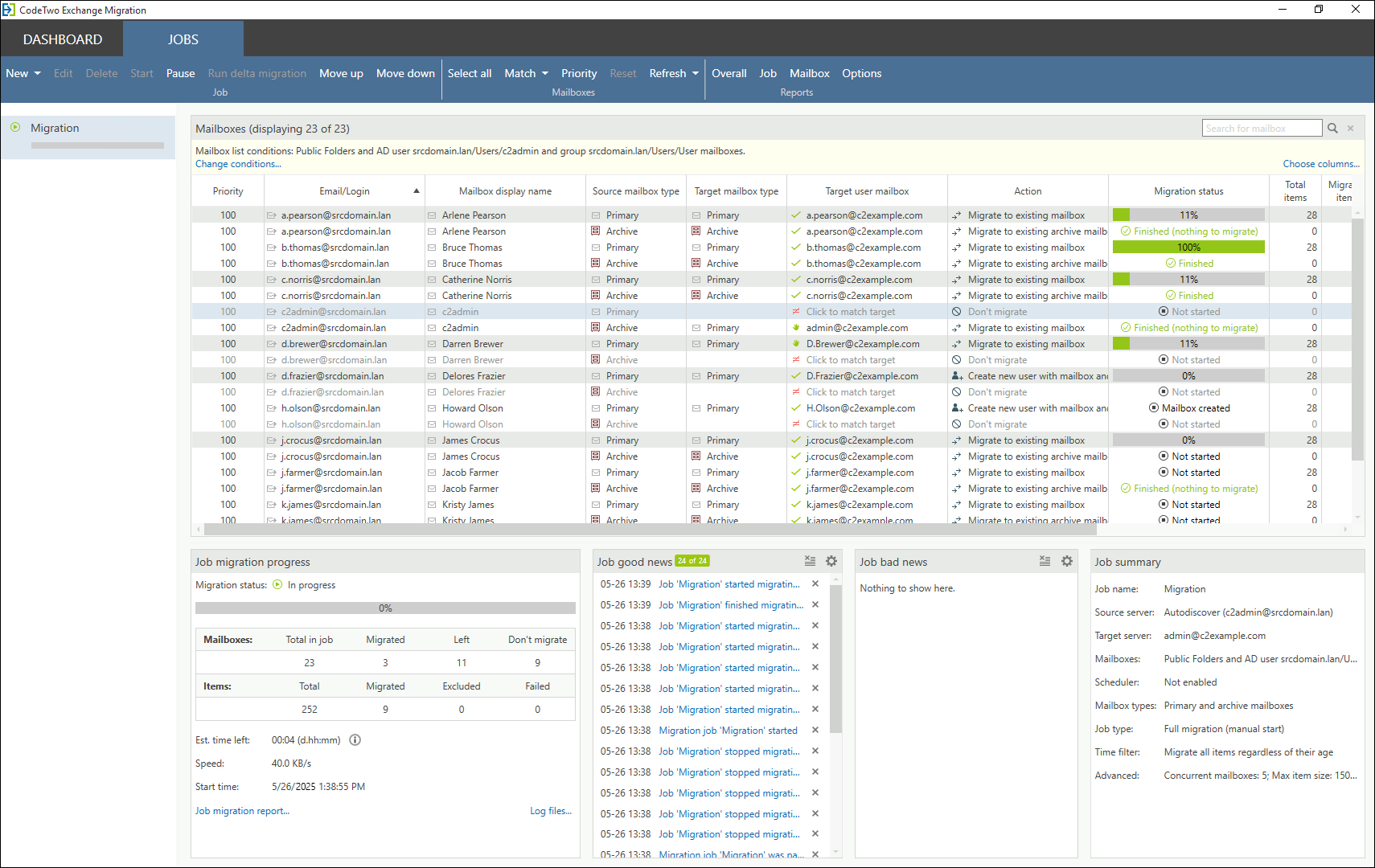
Once you complete configuring the migration job wizard, you can begin the migration right away or wait for the scheduler to start the process automatically.
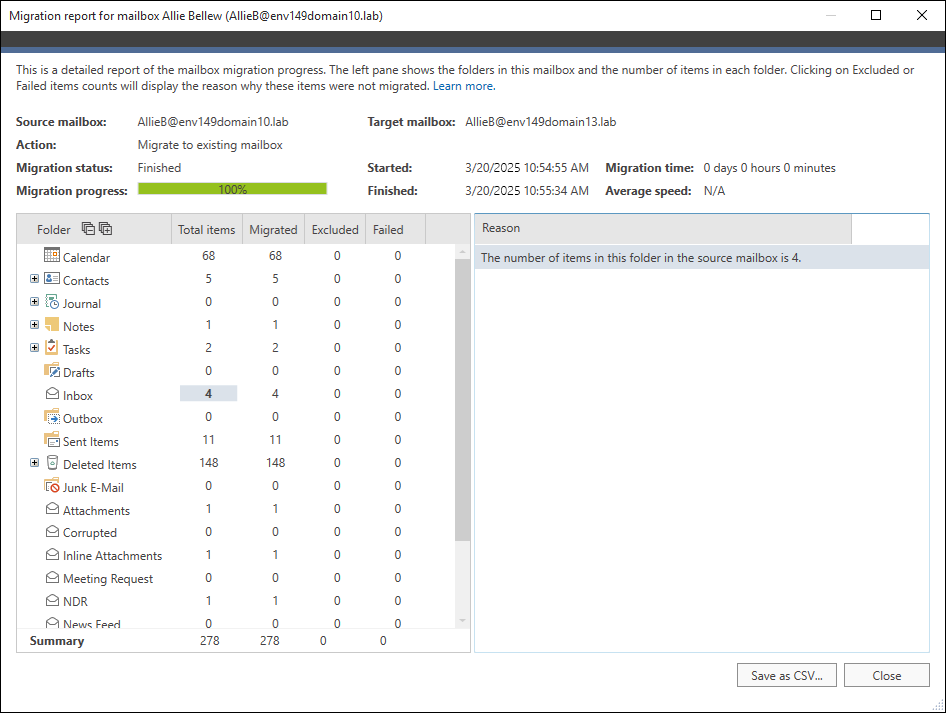
You can enable email reports to receive migration progress updates in your inbox, or view reports directly in the program. For example, the in-depth mailbox migration report shows the migration status of a single mailbox, while the overall migration report provides information about all your migration jobs.






