



Reasons
There can be many reasons why someone might want to export contacts from Outlook. It may be to:
- import them to another email client, like Gmail;
- manage them in Excel (to, for example, bulk-edit contacts and import them back to Outlook);
- migrate them (together with other item types) to another account/computer/device;
- back them up.
You might wonder what difference it makes. Let me explain.
Depending on the reason for exporting, you might need different target file formats. And the task becomes even more complicated if you want to finish this process for more than a single user.
So, for example, if you want to migrate your own contacts to another email client, it’s easiest to export contacts to CSV – this simple file format is supported by pretty much any client. You can also export individual contacts to vCard (VCF file format).
In case of manual migration of multiple users (for example from Exchange Server to Microsoft 365), or mailbox data backup, Outlook contacts are only a small piece of the whole picture. In both scenarios, you can export Outlook contacts and other mailbox items to the PST format. Not only will you be able to export all kinds of Outlook items, but also it will be quite easy to automate this process for multiple mailboxes.
Export Outlook contacts to CSV
Outlook has a feature which lets you easily export contacts to CSV files. Here’s how to use it:
- In your Outlook, go to the File tab.
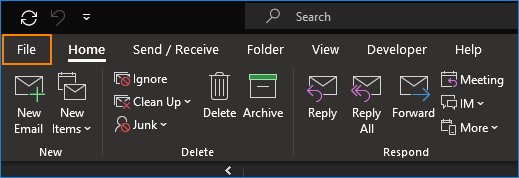
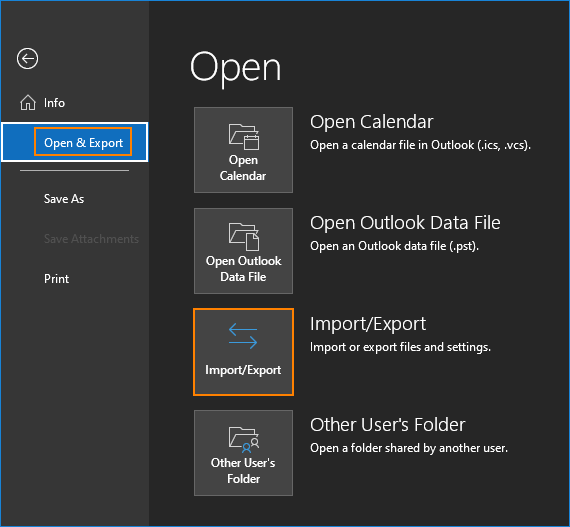
- Next, go to Open & Export > Import/Export.
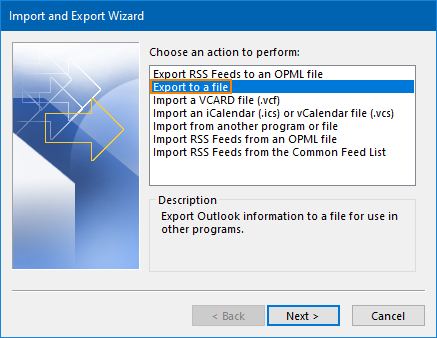
- Choose Export to a file and click Next.
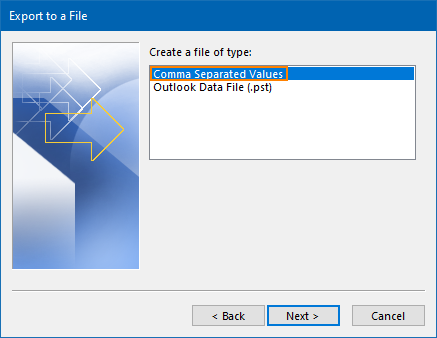
- Pick Comma Separated Values (CSV) as the output file type and click Next.
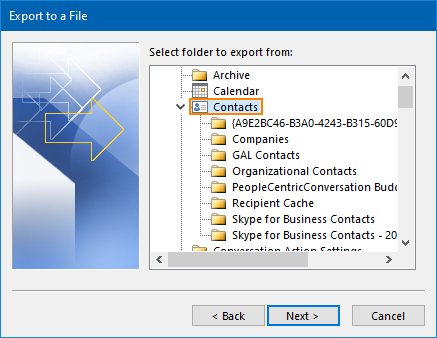
- Now, choose the folder you want to export. By default, your contacts will be in the Contacts folder. Mind that there is no option to include subfolders and your contact groups are not available to choose from. After you click a folder to be exported, click Next again.
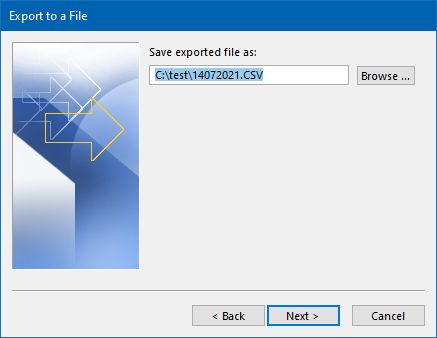
- Now, you need to specify the export location. When you are done, click Next for the last time.
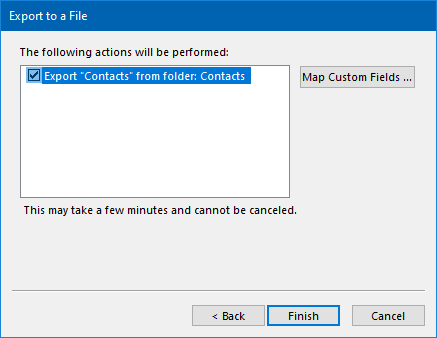
- This is the last window in the Export to a File wizard. The Map Custom Fields button allows you to specify alternative column names. It can be useful if you want to limit the number of exported fields or if a target email client requires specific CSV format. In most cases, however, it is not necessary to use it. Click Finish to start exporting your Outlook data.
Apart from importing your output CSV file to email clients, you can also view and edit it in Excel or Notepad.
Export Outlook contacts to PST
Keep in mind that using PST files for backup and migration purposes is more of a workaround rather than a best practice.
Single user
- First, go to the File tab in your Outlook.
- Click Open & Export and then Import/Export.
- In the Import and Export Wizard, click Export to a file and proceed by clicking Next.
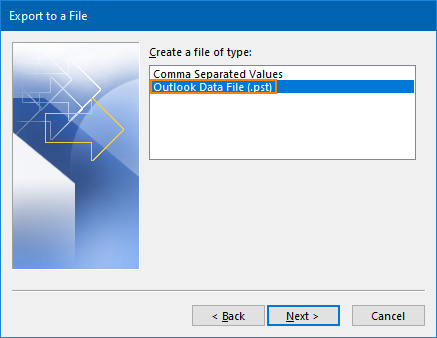
- Choose Outlook Data File (.pst) as the output file type and click Next.
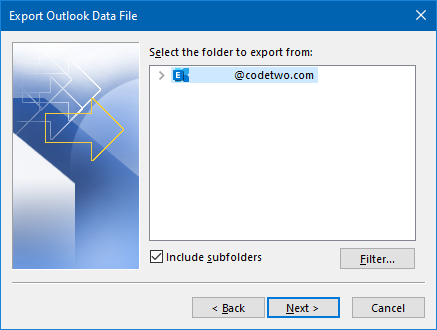
- Now, either navigate to a certain folder (like Contacts) or choose to export the whole mailbox content by clicking your email address. The Filter option lets you export only chosen items based on, for example, words found in subject or body, sender, category, size, or a different value found in any of the contact fields. Click Next when you are done.
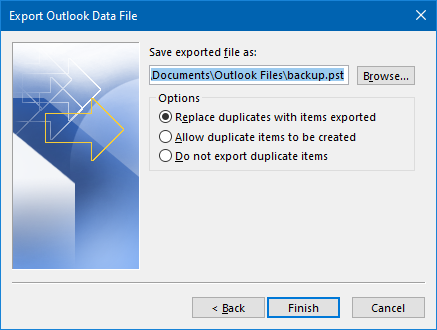
- In the last step of the export wizard, you can choose the target location of your PST file and decide on one of three options concerning duplicates. Click Finish to export your Outlook data to PST.
Multiple users
There are two most common ways to export mailbox items (including Outlook contacts) of multiple users.
First is to log in to each mailbox separately and use the Outlook’s Import and Export Wizard. Not only is it a highly time-consuming method, but also might be against the company’s privacy policy.
The second method is to use PowerShell and the New-MailboxExportRequest cmdlet. This way, you can use a simple script to export mailbox data in bulk. This article provides a step-by-step guide on how to use New-MailboxExportRequest. The major downside is that the cmdlet isn’t available in Exchange Online, so you will be able to use it only in on-premises Exchange environments.
Export an Outlook contact to a vCard
A vCard, just as the name suggests, is a virtual business card. While CSV files give you the best option to manage contacts, vCards offer a more user-friendly interface which includes options like the Picture placeholder and additional notes.
It may come as a surprise but the Outlook’s Import and Export Wizard has an option to import vCards but doesn’t let you export them from Outlook. Fortunately, you can easily do that from the Contacts folder.
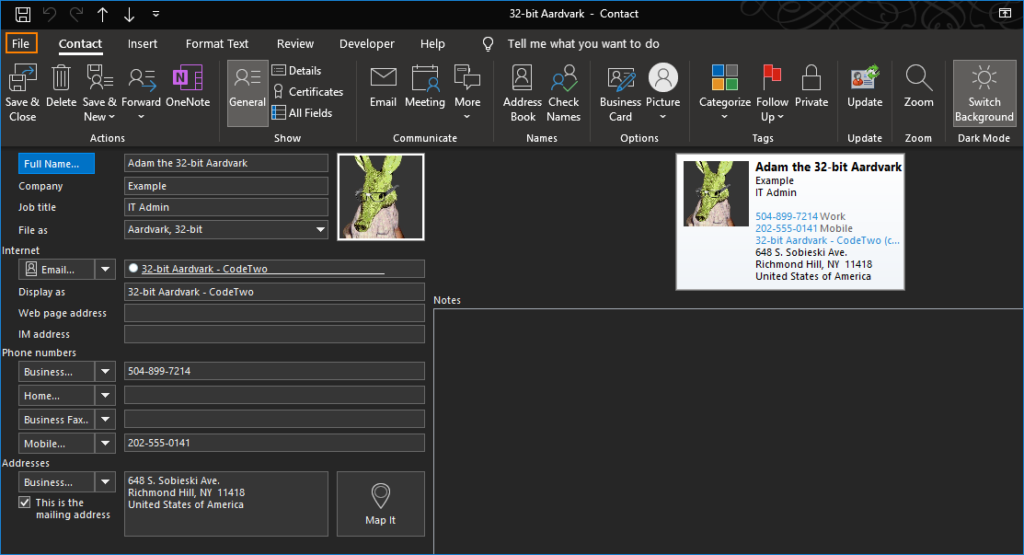
- Go to your Contacts folder and open the contact you want to export to a vCard.
- In the window with an opened contact, go to File.
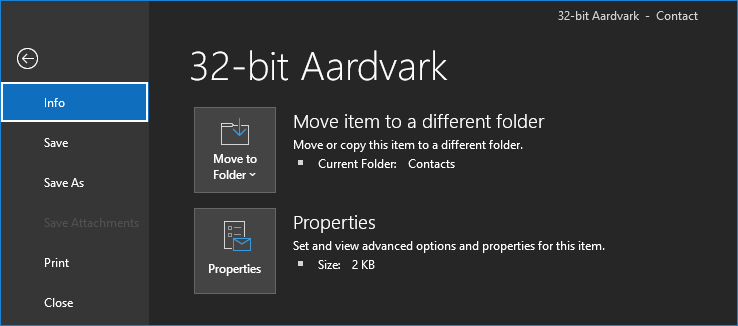
- And finally, click Save As and choose the target location. Make sure the target file extension is set to the default (.vcf).
Export GAL contacts
If you are using a work or school account, there is a good chance that most of your contacts are not in the Contacts folder at all. They might reside in GAL (Global Address List). If you want to export them to CSV or PST, you might need to import these GAL contacts to your Contacts folder first.
Note: Before you export GAL contacts, it’s a good idea to stop for a moment and ask yourself why you would like to do it. As long as your email client is connected to an email server, GAL addresses should be available for you. However, copying them to a local disk poses a few risks:
- If any contact information changes in Active Directory, your local copy won’t reflect those changes.
- The contacts contain personal information. While adding them to Outlook doesn’t necessarily carry any risks, exporting them might eventually result in a data breach. I’m no data protection expert, but the whole thing doesn’t sound GDPR-compliant.
After you’ve answered those questions and still want to go with it, here’s how to add GAL contacts to your Outlook contact list:
- First, go to your Contacts folder. Then, go to Home > Address Book.

- Next, make sure the Address Book field points to your Global Address List and highlight all the contacts you want to export. If you want to export all contacts from the GAL, click on the first entry, hold the Shift key and click on the last entry. When you have highlighted all the contacts you need, go to File>Add to Contacts.
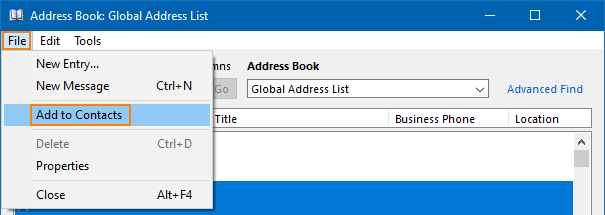
All the contacts you highlighted should be added to your Contacts folder. Now, you can use any of the methods mentioned in this article to export them.

Recommended articles

Almost all of my web search results are for the OWA crap. Very glad to find SOMEone supporting local, run-on-my-PC version of Outlook. THANKS!
I googled exporting contacts from OWA and this came up. This isn’t OWA! UUUUUUGH!!!!!