Troubleshooting CSV export and import issues in the Attributes manager
Problem:
You experience problems when exporting a CSV file with user attributes from the Attributes manager or when importing it back.
Solution:
To troubleshoot your problem, go to the section that corresponds to your scenario.
CSV export:
- The exported CSV file contains only attribute names with no users
- Microsoft Excel incorrectly displays data exported into the CSV file (for example, all data is in one column)
CSV import:
The exported CSV file contains only attribute names with no users
The CSV file exported from the Attributes manager summarizes changes made to attribute values by end users. If the file contains only the list of attribute names in the header row, your users most likely haven’t made any changes to their attribute values yet.
Microsoft Excel incorrectly displays data exported into the CSV file (for example, all data is in one column)
This problem is most likely related to an incorrect character used to separate values in the CSV file, which is set according to your locale settings. Instead of changing the locale settings (not recommended), follow the steps below to fix the file:
- Open the exported CSV file in Microsoft Excel.
- Select the first column in which all the data is stacked, go to the Data tab on the ribbon, and click Text to Columns (Fig. 1.).
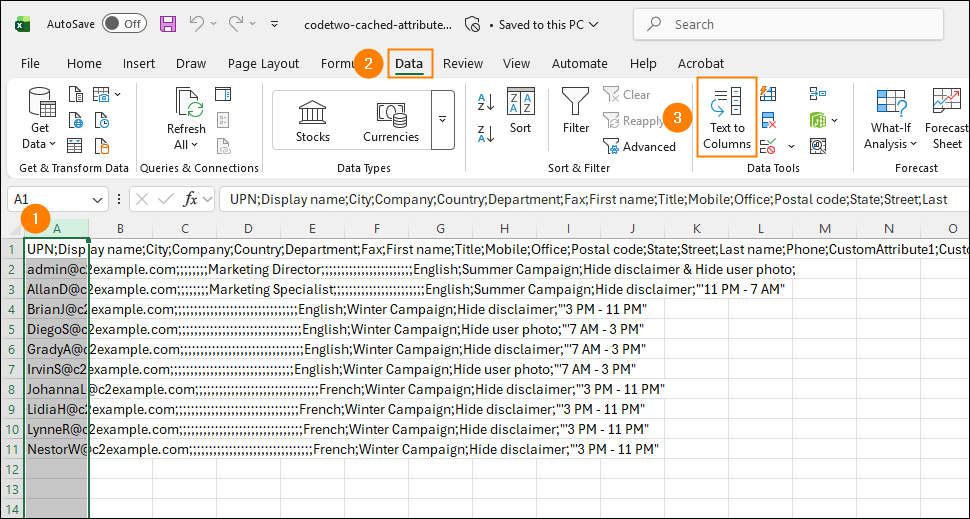
Fig. 1. Using the Text to Columns feature to fix the incorrectly displayed data.
- In the wizard that opens, select Delimited and click Next (Fig. 2.).
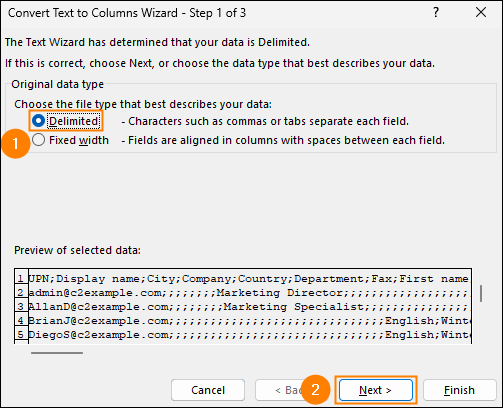
Fig. 2. Choosing how your data should be organized in your CSV file.
- In the second step, select the checkbox next to Semicolon and click Next to proceed (Fig. 3.).
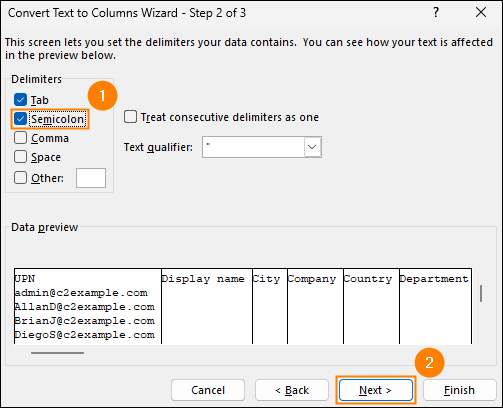
Fig. 3. Setting semicolon as the correct delimiter character for the CSV file.
- In the last step, click Finish.
Data exported from the Attributes manager should now be organized correctly.
For alternative methods to deal with this problem, see this article.
Data import from the CSV file fails
When importing a CSV file into the Attributes manager, you may see one of the following error messages:
An error occurred when importing your attributes.

One or more values for CodeTwo custom attributes in your CSV file are invalid. Check your file and try again.
Learn how to resolve this problem
An error occurred when importing your attributes. Try again.
Learn how to resolve this problem
Invalid values for CodeTwo custom attributes
This error occurs in the following cases:
- You’re trying to import a single-select or multi-select custom attribute with a value that isn’t defined in the Attributes manager. For example, if you have a Language attribute with the values English, French, and German, and you try to import Spanish, the error above will occur. Learn more about single-select and multi-select custom attributes
- You’re trying to import a value for a custom attribute of the Number type and:
- The value is not a valid decimal number.
- The value uses a decimal separator other than a dot (.).
- The value exceeds 20 characters.
See examples of incorrect and correct values below.
| INCORRECT | CORRECT | |
|---|---|---|
| Valid decimal number |
|
|
| Dot as the decimal separator |
|
|
| Max. 20 characters |
|
|
To resolve the problem, review your CSV file, correct the incorrect values, and import the file again.
The CSV file can’t be read by the Attributes manager
This error occurs if the Attributes manager can’t read the CSV file, even if all attribute values are correct.
For example, this error may occur if:
- The file doesn’t include the UPN column.
- The CSV file has been heavily modified, making it unreadable for the Attributes manager.
In such a case, export a new CSV file from the Attributes manager, make your changes in it, and import it back. Alternatively, compare your original file against the new file, correct any differences, and then try importing the original file again.
If the problem occurs after you changed the file’s delimiter settings as described in this section, you may need to restore the original file structure before importing the file again. Here’s how to do this using an Excel formula:
- Click the first empty cell to the right of your data, e.g., AJ1.
- In the formula bar, enter:
=TEXTJOIN(";",FALSE,A1:XYZ1)where XYZ is the last column containing attribute data. For example, in Fig. 4. below, the formula is =TEXTJOIN(";",FALSE,A1:AI1).
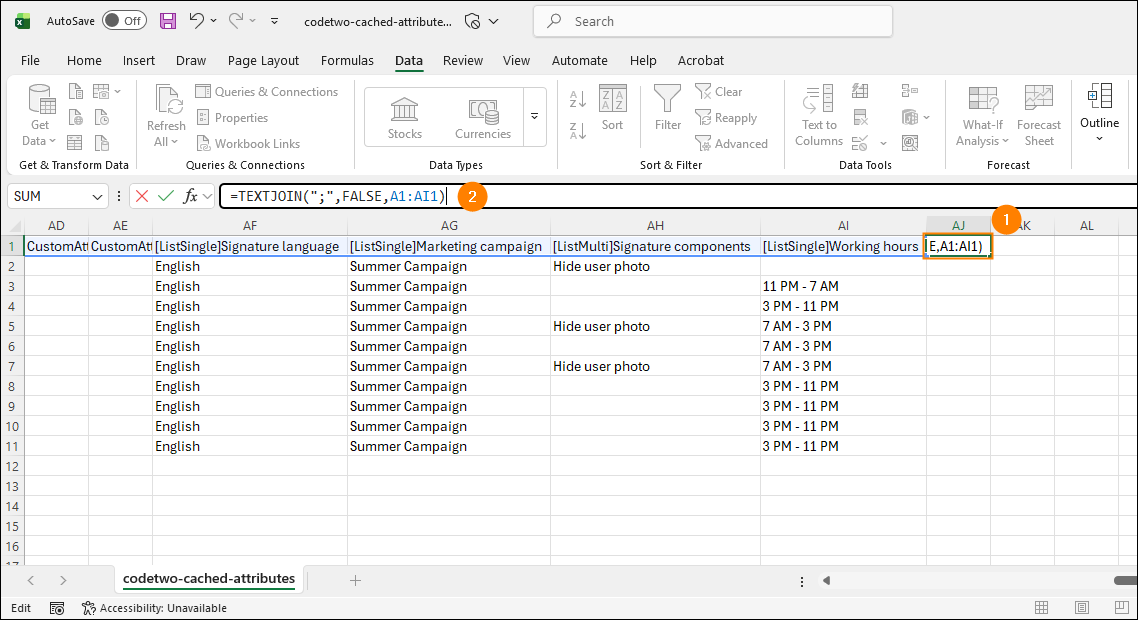
Fig. 4. Entering the TEXTJOIN formula joins the values in the first row of the CSV file.
- Press Enter to apply the formula. The cell will display the joined data for the first row of your file, as shown in Fig. 5.
- Select the cell again and double-click the fill handle (the square in the bottom right corner of the cell) to apply the formula to all remaining rows at once (Fig. 5.).
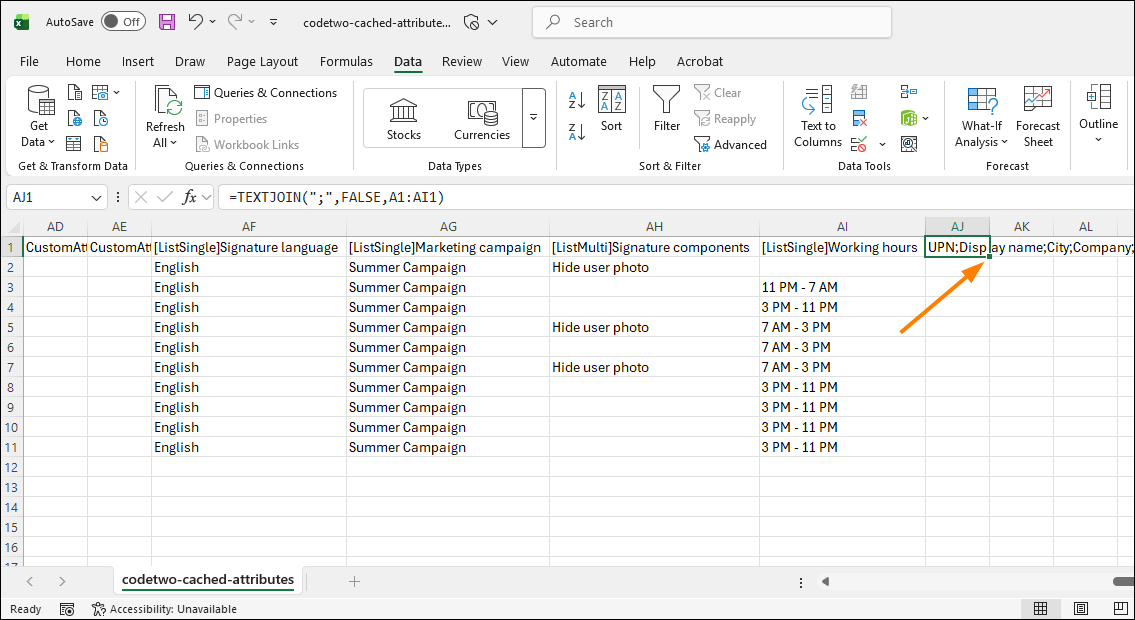
Fig. 5. Double-clicking the fill handle quickly fills the remaining rows.
- Press Ctrl+C to copy the joined data from all rows.
- Open a new spreadsheet.
- Right-click the first cell. Under Paste Options, select Values, as shown in Fig. 6. Alternatively, click Paste Special > Values.
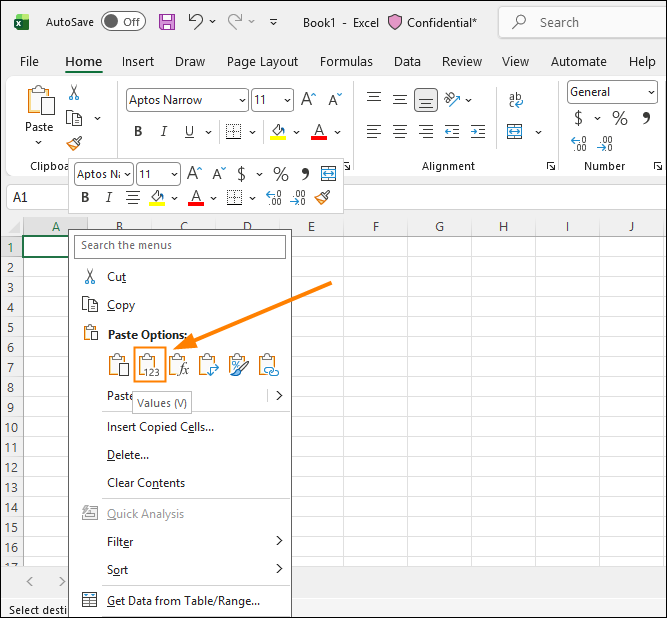
Fig. 6. This option pastes the copied values instead of the formulas that generated them.
- Make sure the file has the original structure, as shown in Fig. 7., and that it contains all the necessary attribute values that you want to import.
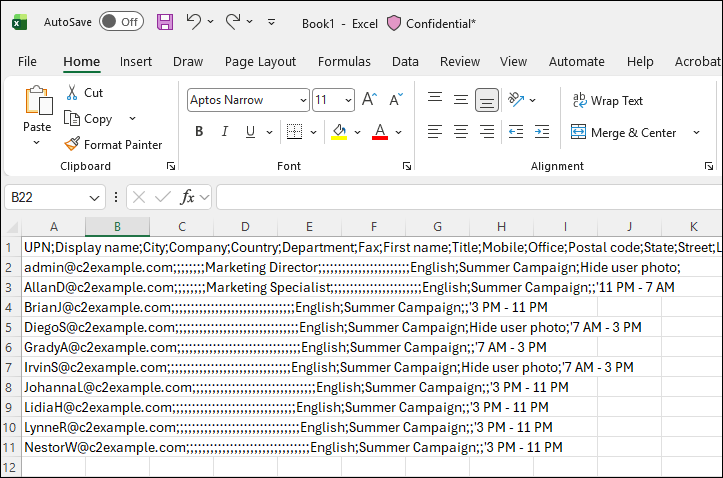
Fig. 7. The new file prepared for import into the Attributes manager.
- Save the new spreadsheet as a CSV UTF-8 (Comma delimited) (*.csv) file.
- Import the file into the Attributes manager by following the steps in this article.
| Related products: | CodeTwo Email Signatures for Office 365 |
| Categories: | Troubleshooting |
| Last modified: | September 10, 2026 |
| Created: | August 20, 2026 |
| ID: | 1170 |






