Troubleshooting problems with CodeTwo add-in deployment
Problem:
You experience problems deploying CodeTwo’s signatures add-in for Outlook centrally via the Integrated apps page in the Microsoft 365 admin center. You get the following error:
Deployment failed
Solution:
This error is not related to CodeTwo because Microsoft handles the deployment (and update) process for add-ins across all Microsoft 365 tenants. CodeTwo only provides the add-in through Microsoft Marketplace. If the deployment fails, perform the following steps, as recommended by Microsoft:
- Deploy the add-in using a different Microsoft 365 global admin account
- Reassign 'Org Custom Apps' and 'Org Marketplace App' permissions
- Other troubleshooting steps
Deploy the add-in using a different Microsoft 365 global admin account
One of the first and quickest solutions suggested by Microsoft is to use a different Microsoft 365 account with global admin rights to perform the deployment.
If this doesn't resolve your issue, continue with the steps below.
Reassign 'Org Custom Apps' and 'Org Marketplace App' permissions
In some cases, the deployment fails because the required permissions are missing or not applied correctly. Reassigning these permissions may resolve the issue.
- In the Microsoft 365 admin center, go to Roles > Role assignments.
- Go to the Exchange tab and click Organization Management on the list (use the search box to locate this role group quickly).
- In the pane that opens, go to the Permissions tab, type apps in the search box and clear (deselect) the following permissions: Org Custom Apps and Org Marketplace App, as shown in Fig. 1.
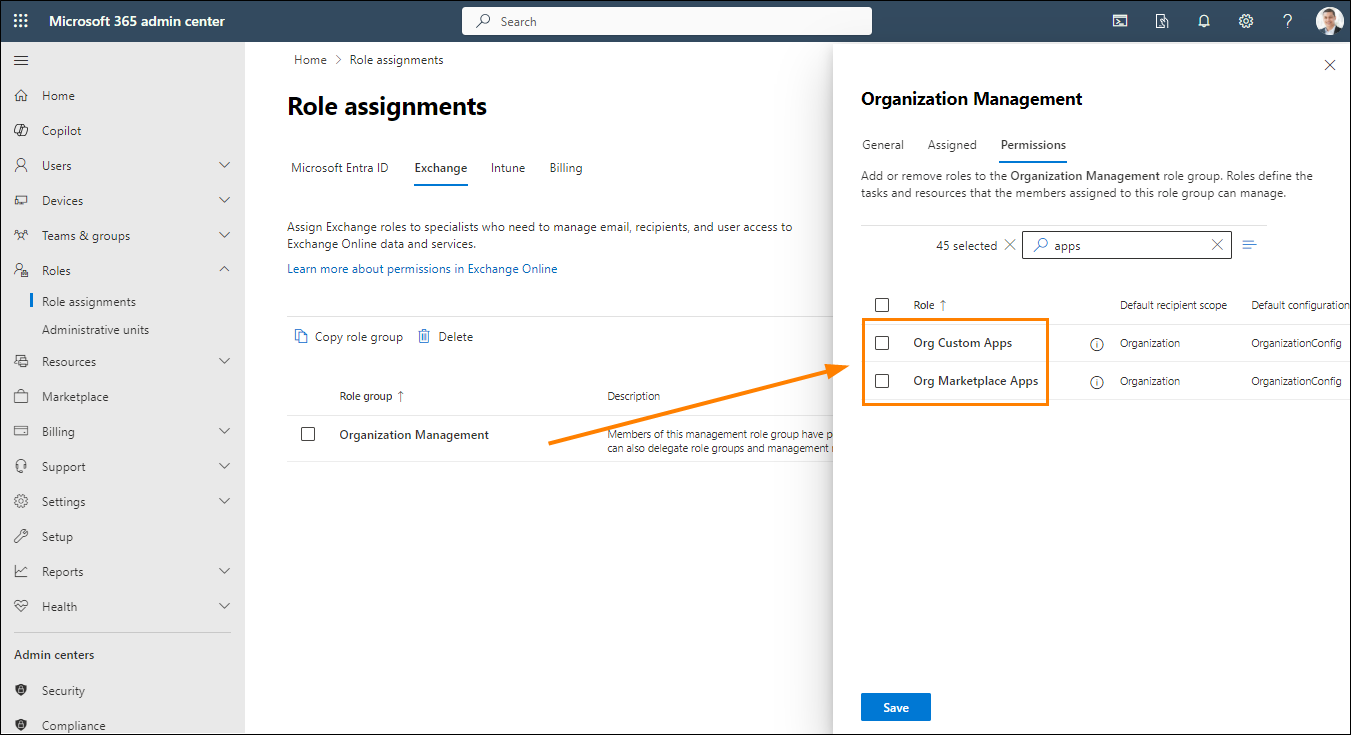
Fig. 1. Removing permissions from the Organization Management role group in the Microsoft 365 admin center.
- Click Save to apply your changes.
- Refresh the web page in your browser and repeat steps 1-4, but this time reassign (select) the Org Custom Apps and Org Marketplace App permissions to the Organization Management role group.
When you’re done, try deploying the CodeTwo Outlook add-in again by following these steps.
If this didn’t resolve the problem, try assigning the Org Custom Apps and Org Marketplace App permissions to the Organization Management role group by using PowerShell. To do this:
- First, connect to Exchange Online by using the following cmdlets:
Set-ExecutionPolicy RemoteSigned
Install-Module -Name ExchangeOnlineManagement
Import-Module ExchangeOnlineManagement
Connect-ExchangeOnline -UserPrincipalName <globaladmin@yourcompany>
where <globaladmin@yourcompany> is the UPN (User Principal Name) of your tenant’s Microsoft 365 global admin account.
- Run the following commands to assign the required permissions to the Organization Management role group:
New-ManagementRoleAssignment -SecurityGroup "Organization Management" -Role "Org Custom Apps"
New-ManagementRoleAssignment -SecurityGroup "Organization Management" -Role "Org Marketplace Apps"
- Finally, disconnect from Exchange Online:
Disconnect-ExchangeOnline
To learn more about how to connect to Exchange Online with PowerShell, see this article.
Other troubleshooting steps
Microsoft has confirmed that you might encounter problems when deploying the add-in to security groups synced from on-premises Exchange, particularly groups with more than 100 members. If that’s the case in your scenario, try creating groups with fewer users, or use different types of groups during the deployment. Microsoft is aware of this issue and is actively working on a fix. See also this Microsoft article on common issues with Outlook add-ins.
Also, add-in deployment issues are often caused by temporary Microsoft 365 service outages or availability issues. Try deploying the add-in again later or reach out to Microsoft Support for assistance.
| Related products: | CodeTwo Email Signatures for Office 365 |
| Categories: | Troubleshooting |
| Last modified: | May 28, 2026 |
| Created: | May 26, 2026 |
| ID: | 1161 |






