How to automatically remove blank spaces from email signatures if Entra ID / AD data is missing
Problem:
Your email signature template contains a placeholder that is dynamically filled with a matching attribute value from Entra ID or Active Directory when an email is sent. If the attribute has no data, then an empty space is left in the signature where the placeholder should be. This article explains how to automatically remove such placeholders, along with the space they occupy.
Solution:
CodeTwo email signature management software includes a built-in feature called Remove if blank or Remove Text tag (RT tags). This feature is particularly useful in email signature templates that include Entra ID / Active Directory (AD) placeholders. By surrounding a placeholder with RT tags, the CodeTwo software will automatically remove it from a signature if that placeholder cannot be replaced with the corresponding data from Entra ID / AD.
Remove Text tags can remove not only blank placeholders, but also accompanying text (such as Phone:) or even entire HTML elements that contain empty spaces. For example, if your signature includes a table row with a blank placeholder, the RT tags feature can remove the entire row.
Use the links below to learn more and see examples.
- How to use RT tags to automatically remove empty placeholders and accompanying phrases
- How to use RT tags to automatically remove a table row that contains an empty placeholder
Conditional placeholders
CodeTwo software also features conditional placeholders that can be used as an alternative for RT tags. Instead of removing empty placeholders, conditional placeholders can be used to insert custom data into email signatures in case some Entra ID / AD attributes are missing, e.g. company’s generic phone number instead of sender’s personal phone number, an avatar instead of a user photo, a department name instead of a job name, and so on. Learn more about conditional placeholders used in:
How to use RT tags to automatically remove empty placeholders and accompanying phrases
- Open your CodeTwo software and edit the signature template that includes placeholders.
- In the template editor, find the placeholder and any accompanying text (e.g. Phone: {Phone}).
- Use the mouse to highlight (select) both the text and the placeholder.
- Click Remove if blank (in CodeTwo Email Signatures 365) or Remove Text tag (in CodeTwo email signature software for on-premises Exchange) on the editor's ribbon (Fig. 1.).
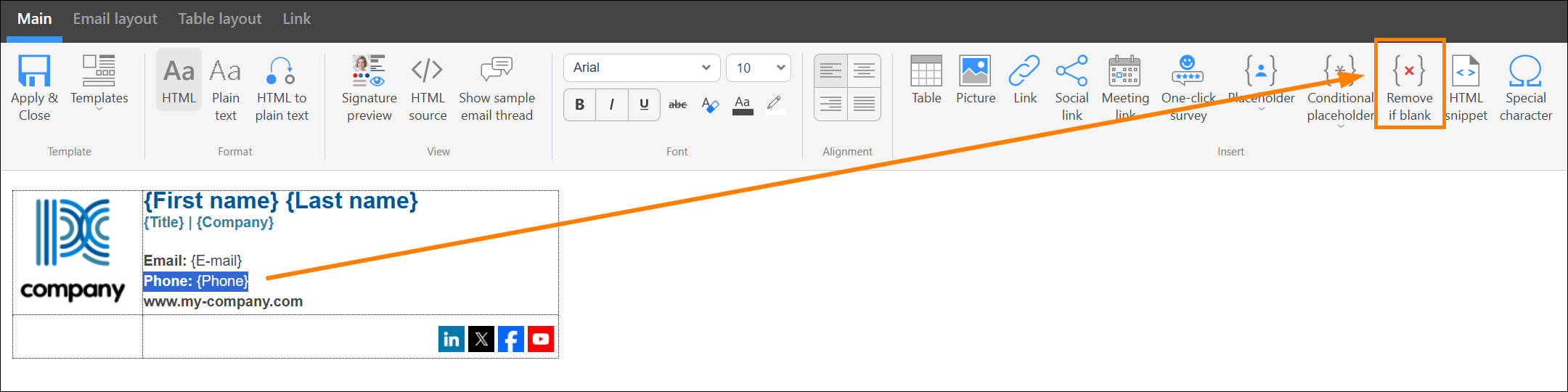
Fig. 1. Adding RT tags to an email signature template in CodeTwo Email Signatures 365.
- The selected content will be automatically wrapped with RT tags, as shown in Fig. 2.
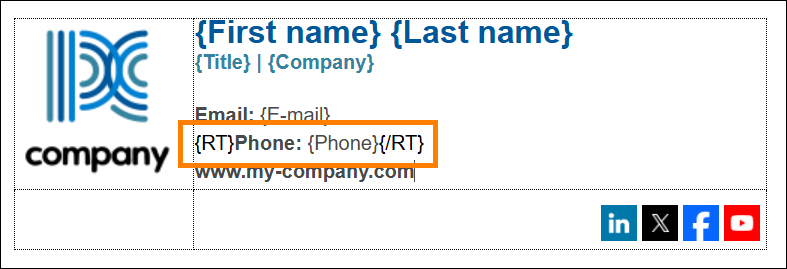
Fig. 2. The selected element has been surrounded by RT tags.
- Now, if the placeholder surrounded by RT tags does not have a corresponding value in Entra ID / AD (for a given message sender), it will be automatically removed by CodeTwo software when the email is sent. However, before you save your template, make sure that the phrase to be removed does not occupy a whole line of text. If it does (as in the example above), an empty line might remain in the signature (Fig. 3.).
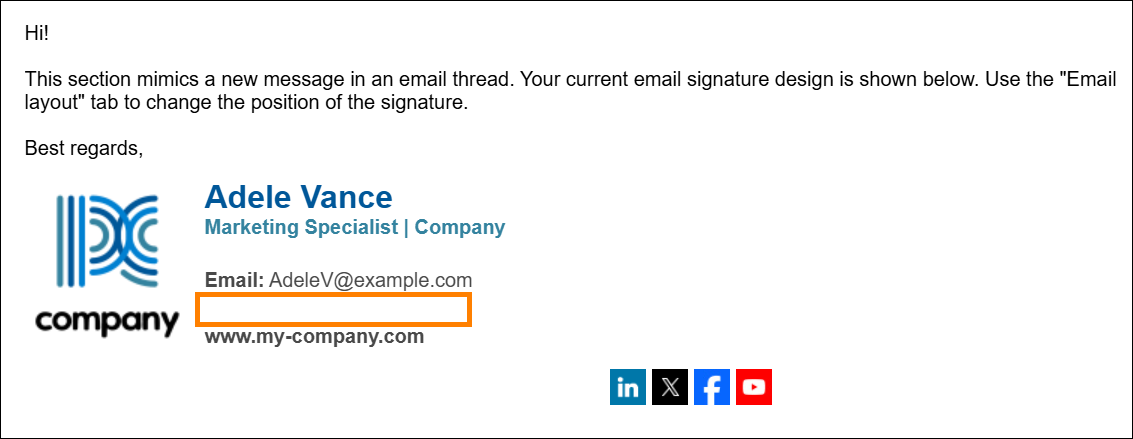
Fig. 3. An empty line left in an email signature. This can be easily fixed.
- To avoid this empty line, move the closing RT tag ({/RT}) to the beginning of the next line (Fig. 4.).
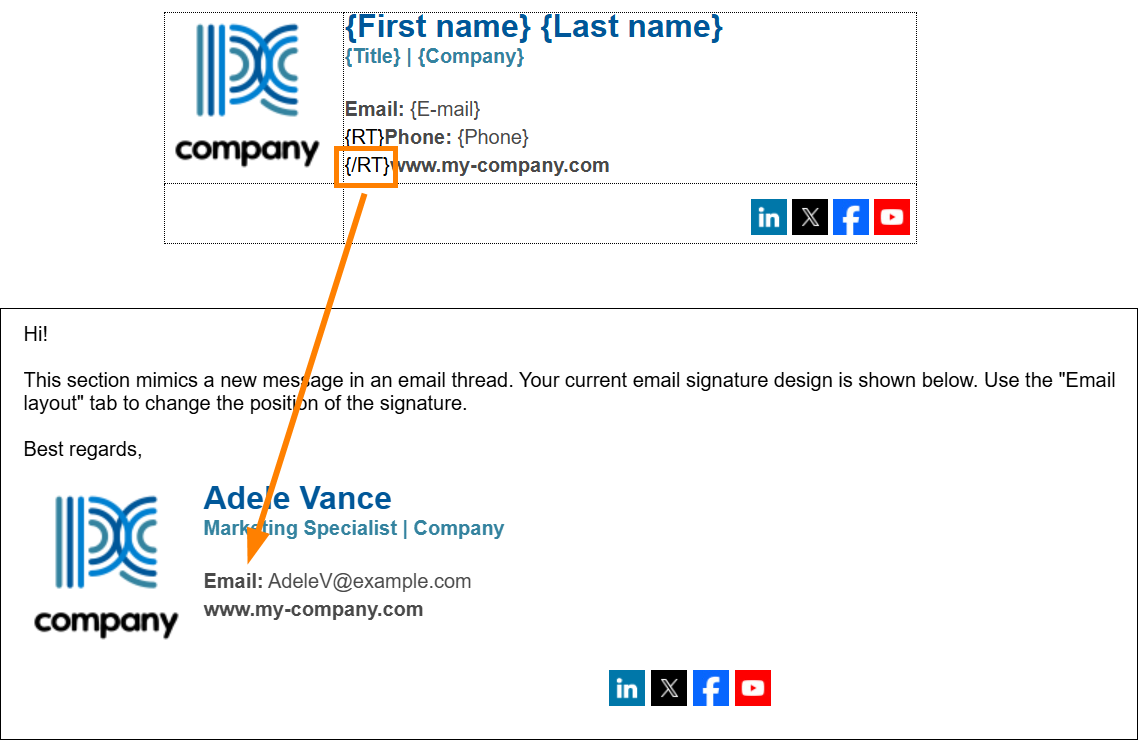
Fig. 4. Correct RT tag placement removes the blank line if the placeholder is empty.
Example #1 (bad)
This is an example of a signature in which the line containing the phone number is removed if this number is missing for a user in Entra ID / Active Directory:
{First name} {Last name}
{RT}Phone: {Phone}{/RT}
E-mail: {E-mail}
If RT tags are used as shown above, the whole content in between {RT} and {/RT} will be removed if the {Phone} attribute in AD has no value. As a result, an empty line will appear instead. If you would like to have this empty line removed when RT tags are used, you need to modify the signature by putting the RT closing tag ({/RT}) at the beginning of the next line, as shown in the third example.
Example #2 (bad)
In this example, more than one placeholder ({Phone} and {E-mail}) is surrounded by a single pair of RT tags:
{First name} {Last name}
{RT}Phone: {Phone}
E-mail: {E-mail}
{/RT}
With RT tags used as shown above, the whole content in between {RT} and {/RT} will be displayed if at least one of the two placeholders has a specified value – even if the other has none. As a result, a blank space may be displayed in the signature instead of the user’s phone number or email address. For this reason, it is a good practice to use separate RT tags for each placeholder, as shown in the next example.
Example #3 (good)
{First name} {Last name}
{RT}Phone: {Phone}
{/RT}{RT}E-mail: {E-mail}
{/RT}
How to use RT tags to automatically remove a table row that contains an empty placeholder
Remove Text tags can be used to remove certain HTML elements (syntax) if these elements include empty placeholders. A typical situation when you might want to automatically remove an element is when you use a signature based on an HTML table which contains various placeholders (Fig. 5.).
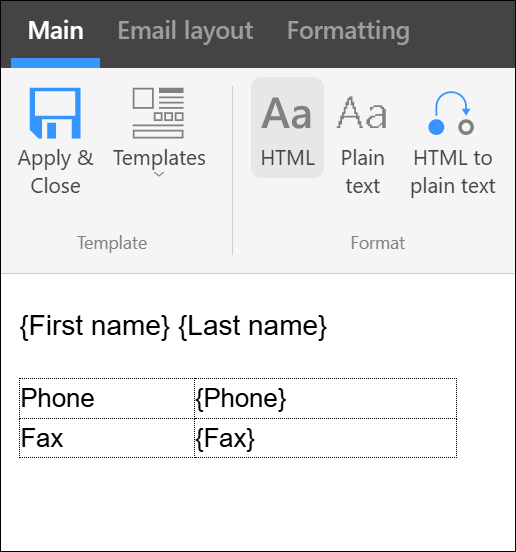
Fig. 5. A sample signature based on a simple HTML table.
Let’s assume that an email signature contains a table with two Entra ID / AD attribute placeholders, {Phone} and {Fax}, each in a separate row. When such a signature is added to emails, the {Phone} attribute placeholder is usually filled in for every sender, unlike the {Fax} field. To keep your signature layout clean, you can remove the entire table row with the fax number if this number is not populated with Entra ID / AD data (the sender's Entra ID / Active Directory account has no Fax attribute). To do so, please follow the steps below:
- Using RT tags in CodeTwo Email Signatures 365
- Using RT tags in CodeTwo email signature software for on-premises Exchange
Using RT tags in CodeTwo Email Signatures 365
To access the HTML source code view in the CodeTwo Email Signatures 365 signature template editor, click the HTML source button (Fig. 6., item 1). In the window that opens, insert RT tags by clicking Remove if blank (Fig. 8., item 2).
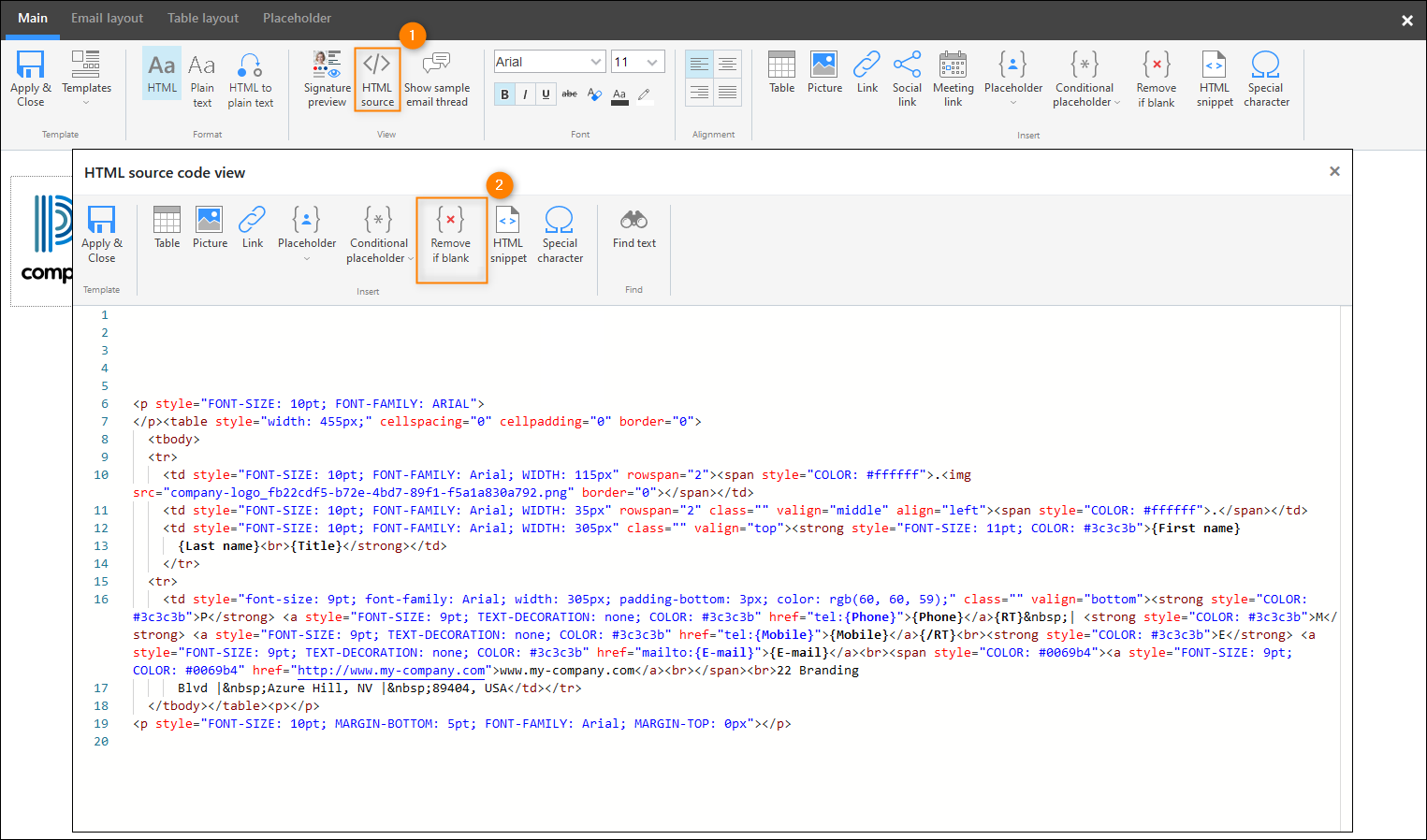
Fig. 6. Signature template editor – HTML source code view.
Troubleshooting
If the table row is not removed despite using Remove Text tags, you can also try adding the tags inside HTML comments, as shown in Fig. 7.
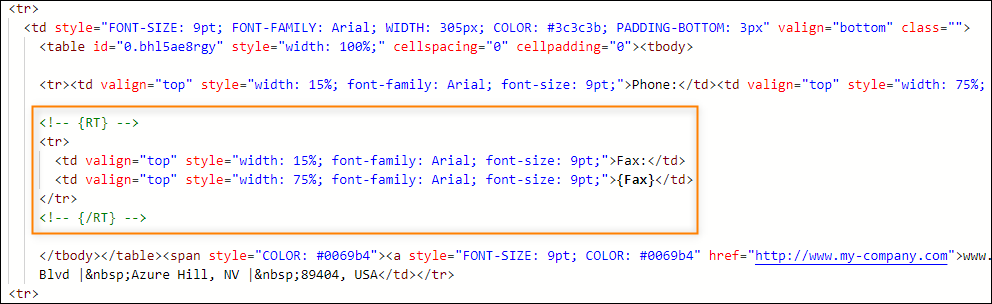
Fig. 7. Using RT tags inside HTML comments.
Using RT tags in CodeTwo email signature software for on-premises Exchange
This section applies to CodeTwo Email Signatures On-prem and CodeTwo Exchange Rules family of software (discontinued).
- Open your signature in the editor and switch to the HTML source code view by clicking the </> Source button on the ribbon.
- Find the appropriate <tr> element for the table row with Fax information.
- Select the entire <tr> element (make sure to select both the opening <tr> and closing </tr> tags, as highlighted in yellow in Fig. 8.) and click the {rt} Remove Text tag button. This will wrap the whole <tr> element with the RT tags.
- Save your changes via the Apply & Close button in the source code view, then save the changes again in the editor's window.
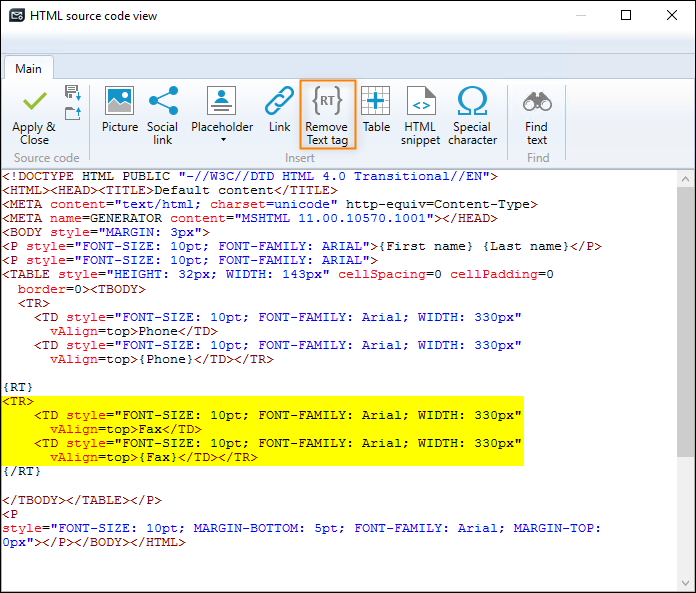
Fig. 8. Using RT tags to remove parts of the HTML source code.
From now on, if the value of your placeholder is missing, the entire row is removed without disrupting your signature layout. If you use the Remove Text tags to remove HTML elements, use the Preview button in the editor to review your changes before you apply them.
| Related products: | CodeTwo Email Signatures for Office 365, CodeTwo Email Signatures On-prem, CodeTwo Exchange Rules 2.x, 3.x, CodeTwo Exchange Rules 2007 1.x, 2.x, 3.x, 4.x, CodeTwo Exchange Rules 2010 1.x, 2.x, 3.x, CodeTwo Exchange Rules 2013 1.x, 2.x, CodeTwo Exchange Rules 2016 1.x, CodeTwo Exchange Rules 2019 1.x, CodeTwo Exchange Rules Pro 1.x, 2.x |
| Categories: | How-To |
| Last modified: | September 8, 2025 |
| Created: | January 28, 2019 |
| ID: | 787 |






