How to change the message size limit in Exchange Online and Exchange Server
Problem:
You would like to change the message size limit configured in Exchange Online or on-premises Exchange Server. This may be helpful when uploading large items during migration or restore jobs performed using CodeTwo migration and backup software.
Solution:
Select your environment below to learn how to manage message size restrictions and adjust the message size limit.
Exchange Online (Microsoft 365)
The default message size allowed in Exchange Online is up to 35 MB for sent messages and 36 MB for received messages. Both these limits can be further increased to the maximum limit of 150 MB.
Important
In some cases, the actual limits are restricted by up to 33% to account for the increase of data size during the encoding process. This can happen, for instance, if a message is routed outside of Microsoft datacenters or if you’re using Outlook on the web (OWA) as your email app. Because of that, it’s best to set the limits as approximately 33% larger than you actually need.
Any attempt to upload items that exceed the applied size limit results in the following (or similar) errors logged to the software's mailbox log files:
Error while uploading package. System.Exception: The underlying connection was closed: An unexpected error occurred on a send.
[ErrorMessageSizeExceeded] - The message exceeds the maximum supported size., Cannot save changes made to an item to store.
If you want to upload an item and such an error occurs, make sure this item’s size is allowed by your Exchange Online mailboxes. To do so, follow the steps below:
- Sign in to the Exchange admin center using an account with the Organization Management or Recipient Management permissions.
- Go to Recipients > Mailboxes and select a mailbox for which you want to manage the message size limit (Fig. 1.).

Fig. 1. Accessing mailbox settings in the Exchange admin center.
- In the pane that opens, switch to the Mailbox tab and click Manage message size restriction (Fig. 2.).
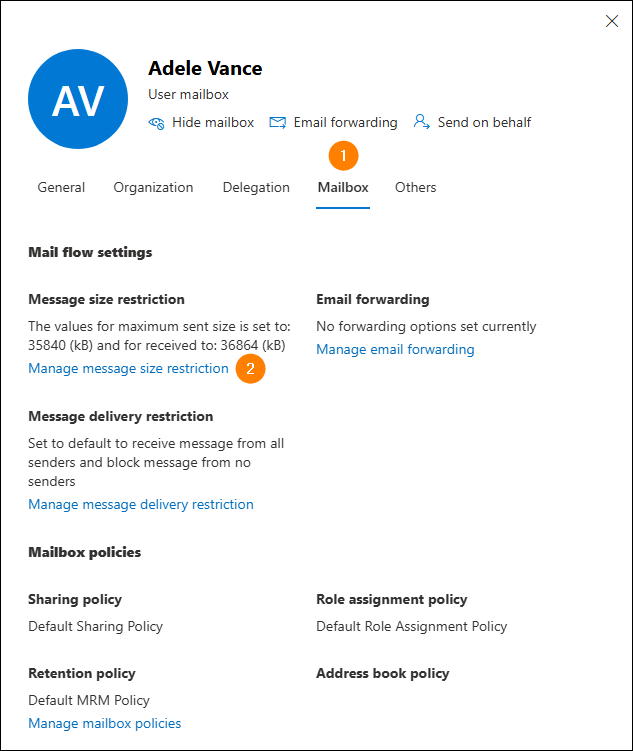
Fig. 2. Accessing a mailbox’s message size settings.
- In the Message size restrictions pane, set a relevant size limit for sent and received messages (Fig. 3.).
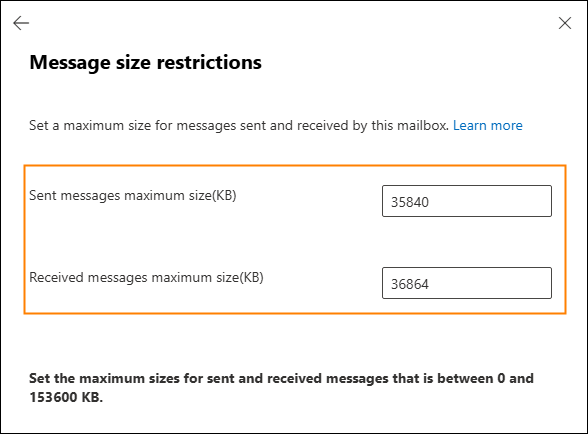
Fig. 3. Setting a message size limit for a mailbox.
- If needed, repeat steps 2-4 for other mailboxes.
Be aware that it may take up to half an hour for the changes to take effect.
Read more about Exchange Online limits on Microsoft's website.
Exchange Server (2013 and later)
By default, the maximum size of messages received and sent in Exchange Server is 10 MB. Also, Exchange Server does not accept items larger than 64 MB to be uploaded due to the restrictions of Exchange Web Services (EWS), the protocol used to access and manage on-prem Exchange data.
To change that, you need to modify the EWS web.config files and configure some of the Exchange Transport service settings via the Exchange Management Shell, as shown later in this article.
Important
In some cases, the actual limits are restricted by up to 33% to account for the increase of data size during the Base64 encoding process. Because of that, it’s best to set the limits as approximately 33% larger than you actually need.
If you attempt to upload items exceeding the applied message size limit, this results in the following (or similar) errors logged to the software's log files:
- Errors caused when the maxReceivedMessageSize value is too low:
[ErrorInvalidRequest] - The request is too large. Reduce the size of the request and try again.
- Errors caused when the requestLimits maxAllowedContentLength value is too low:
The request failed with HTTP status 507: Insufficient Storage.
- Errors caused when the TransportConfig MaxReceiveSize value is too low or not yet set:
[ErrorMessageSizeExceeded] - The message exceeds the maximum
Follow the solutions below to adjust the Exchange limits. We use a value of 200 MB (equal to 204800 KB or 209715200 Bytes) as an example. You can modify all values to suit your needs.
Important
- Be aware that the settings mentioned here are applied globally – it is not possible to limit them to particular mailboxes or groups of users.
- Applying the changes may affect some of your services. For example, EWS-based email clients may stop working. Consider those changes as temporary measures that you will revert in the end. We therefore recommend backing up the files you are about to modify.
- If you’re using CodeTwo Backup, note that connections to on-premises Exchange servers are only supported in versions prior to 2.6.x.
- Log on to your target Exchange Server machine with the Client Access (CAS) role (Exchange 2013) or the Mailbox role (Exchange 2016 and later).
- Go to your EWS settings file path:
%ExchangeInstallPath%FrontEnd\HttpProxy\ews\web.config
- Open the web.config file by using any text editor.
- Locate maxRequestLength and change its value to 204800.
- Locate maxAllowedContentLength and change its value to 209715200.
- Save and close the file.
- (This step applies to Exchange 2013 only; for Exchange 2016 and later, proceed to the next step.) Restart your machine with the CAS role and log on to your machine with the Mailbox role.
- Go to your EWS settings file path:
%ExchangeInstallPath%ClientAccess\exchweb\ews\web.config
- Open the web.config file by using any text editor.
- Locate maxRequestLength and change its value to 204800.
- Locate maxAllowedContentLength and change its value to 209715200.
- Locate all occurrences of maxReceivedMessageSize in the file and change their values, for example, to 209715200. Be aware that you don't need to change the default values of maxReceivedMessageSize for UMLegacyMessageEncoderSoap11Element bindings, as described in this Microsoft article.
- Save and close the file.
- Open the Exchange Management Shell (EMS).
- To change the maximum size of received messages in the Exchange Transport service, execute the following PowerShell cmdlet in the EMS:
Set-TransportConfig -MaxReceiveSize 200MB
- Restart the machine, and you are good to go.
Troubleshooting
I cannot reply to or forward migrated/restored messages
There may be situations where your messages have been migrated or restored to your server, but you cannot reply to them or forward them. This behavior might be caused by the default size limits of your send/receive connectors or by the sending limits of the Exchange Transport service. To change these settings, use the Exchange Management Shell:
- Check your connectors' names and current settings:
Get-SendConnector | Format-List -Property Identity, MaxMessageSize
Get-ReceiveConnector | Format-List -Property Identity, MaxMessageSize
- Set the limits according to your needs (e.g., to 200 MB):
Set-TransportConfig -MaxSendSize 200MB
Set-SendConnector -Identity "<Your Send Connector Name>" -MaxMessageSize 200MB
Set-ReceiveConnector -Identity "<Your Receive Connector Name>" -MaxMessageSize 200MB
A message I want to migrate is too large even though the mailbox’s message size is unlimited
While you’re migrating a mailbox, some messages may be considered too large even though the mailbox’s MaxSendSize and MaxReceiveSize parameters are set to Unlimited. This may happen when the limit set for the Exchange Transport service overrides the mailbox’s settings.
To resolve this, set a specific value for the MaxSendSize and MaxReceiveSize parameters. For instance:
Set-Mailbox -Identity "<User name>" -MaxSendSize 200MB -MaxReceiveSize 200MB
See also:
- Changing the connection speed limit
- Finding large items in Exchange mailboxes
- Troubleshooting the 'Request Entity Too Large' error
Microsoft's resources:
| Related products: | CodeTwo Backup for Exchange, CodeTwo Backup for Office 365, CodeTwo Exchange Migration, CodeTwo Office 365 Migration |
| Categories: | How-To |
| Last modified: | October 20, 2026 |
| Created: | August 25, 2013 |
| ID: | 284 |






