



Microsoft has long signaled its plans to retire Exchange Web Services (EWS) in Exchange Online, but this time it’s official – EWS will be initially disabled in October 2026 and fully retired on April 1, 2027. From that point on, interactions with mailbox and calendar data – from migration and backup operations to third-party app integrations – will need to be handled via Microsoft Graph API.
This shift is consistent with Microsoft’s push to turn Graph into a unified, cloud-optimized platform for managing Microsoft 365 data that would consolidate older solutions (we covered this in more detail in this article). But it comes with same tradeoffs, too, as feature parity with those solutions is not always guaranteed.
With EWS on its way out of Exchange Online, the feature gap is clearly noticeable when it comes to public folders. Read on to learn how EWS retirement may impact public folders used in your organization and why finding an efficient migration tool is now essential to secure them.
How EWS retirement impacts public folder migrations
Originally developed in the pre-Graph era, Exchange public folders rely heavily on EWS. Most importantly, EWS remains the only API that fully supports public folder migrations to or within Exchange Online, with no replacement in Graph or elsewhere.
Microsoft’s approach to public folders can feel somewhat confusing – public folders have never been officially scheduled for retirement and are still included in the roadmap for parity gaps to be closed before EWS deprecation. But how exactly public folder migrations will work after EWS is retired, if they will work at all, is still up in the air.
That’s why many organizations choose to stay on the safe side and future‑proof their public folder data by completing necessary migrations to a Microsoft 365 tenant while EWS is still operational.
How to migrate public folders to Microsoft 365
There are several ways for migrating public folder data to Microsoft 365, whether from an on-premises Exchange server or another Microsoft 365 tenant. The following two options tend to be the most practical in the majority of cases:
- Recreating public folders in the target environment – this way, you can migrate your public folder data and keep its hierarchy with as few changes as possible (along with the same drawbacks as before, including limited support on mobile devices). See this article to learn more about this migration scenario
- Migrating public folders to a Microsoft 365 shared mailbox – while this approach doesn’t preserve the original hierarchy across mailboxes, it fully supports mobile access, making it a popular alternative to public folders. See this article to learn more about this migration scenario
Which option should you choose, then? They both have their benefits and limitations, but with public folders increasingly looking like a legacy feature and considering their limited support following EWS retirement, I’d say that shared mailboxes stand out as the more reliable and future‑proof choice.
Plan, prepare, and perform public folder migration with CodeTwo
Whether you want to keep your public folders in the target environment or convert them to shared mailboxes, CodeTwo Office 365 Migration can help you plan, prepare, and perform the entire migration process with ease.
CodeTwo’s solution is a lightweight and intuitive desktop application for data migrations from on-premises Exchange Server to Microsoft 365 (Exchange Online), or between two Microsoft 365 tenants. The program eliminates the need for PowerShell scripting, ensures full data encryption, and automates the complex manual tasks required when using Microsoft’s built-in migration tools.
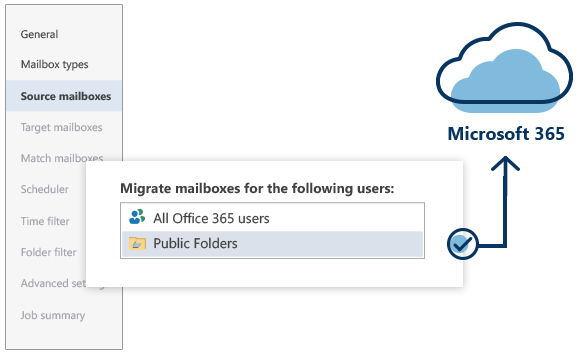
Going beyond the native solutions, CodeTwo Office 365 Migration helps you complete public folder migration with minimal time and effort. Using the application, you can:
- configure the entire migration process with just a few clicks,
- easily match your source public folders with either target public folders or shared mailboxes,
- run the migration according to a schedule (for example, outside working hours),
- specify folder types you want to migrate,
- generate migration reports,
- migrate other data, including emails, contacts, or tasks.
Learn more about migrating public folders with CodeTwo Office 365 Migration
Try CodeTwo Office 365 Migration
To try CodeTwo Office 365 Migration in your environment, go to this website and test the application for 30 days at no cost. Free technical support is available 24/7, even during your trial.
Don’t wait until it’s too late – download CodeTwo Office 365 Migration and start preparing for your public folder migration today.
See also
Recommended articles

CodeTwo sp. z o.o. sp. k. is a controller of your personal data.
See our Privacy Policy to learn more.