It’s been roughly 4 months since we released our previous program and we’re ready to present a totally new stuff! Ladies and Gentelmen – please welcome CodeTwo Outlook Sync! It has been designed to live up to requirements of thousands of users worldwide who need a simple, logical and ridiculously easy-to-use sharing tool for Microsoft Outlook. The program will let you sync Outlook between two computers with a few clicks. And.. yes! It’s also available in a free version.
Why CodeTwo Outlook Sync?
There is a couple of solutions to share Outlook between two computers available on the market. However, none of them was good enough for us. That’s why we created our own solution. The program origins from CodeTwo, a company that specializes in synchronization algorithms – check out our CodeTwo Exchange Sync and CodeTwo Public Folders advanced data real-time synchronization applications. You can be sure CodeTwo Outlook Sync is a top quality product which is fast, reliable, ergonomic, intuitive and easy to use.
Who needs to sync Outlook between two PCs?
If dentists and golfers believe all holes are meant to be filled, we believe that all computers need to be synced. So.. long story short: Everyone needs this program because sharing information is indispensable in today’s world and blah blah blah. Ok – to be frank, you need CodeTwo Outlook Sync if:
- You have two computers (e.g. desktop and laptop) and you need to sync Outlook between them to stay on top of everything. Thanks to CodeTwo Outlook Sync, your email will be synced, your calendars on two PCs will contain the same number of appointments and your contact folders will be always equal. You will forever remove the need to check your tasks on both machines. Your life will become easier if you don’t wake up in the middle of the night because you realize you’ve forgotten to do something.
- You need to sync Outlook with your secretary (or you are a secretary and need to share Outlook with your boss or workmate) to have common Outlook calendars, contacts, tasks, inbox etc. Can you imagine how greatly it can facilitate your everyday work? I guess you can.
- You need to share Outlook tasks with your workmate or family member. This is perfect for planning and organizing your common work. You can assign tasks and monitor them in your own computer. Your tasks lists are always up-to-date so you won’t forget to pay for the last invoice and to call your Mom on her Birthday.
- You feel you have to backup Outlook to another computer. If you often think about a switched on iron left in your house or about turning on a burglar alarm when you’re off for work, you’re the guy who needs to back up your Outlook from time to time. CodeTwo Outlook Sync is also perfect for that.
If any of the above is true for you, you just have to download CodeTwo Outlook Sync now. Come on! It’s free.
How to sync Outlook between two computers?
It’s simple if you have CodeTwo Outlook Sync. Just run the installer on PC no. 1 and follow the wizard. The installation wizard will ask you to go to PC no. 2 and install the program there. Once you have completed this process, you will be asked to configure the program before you start sharing your Outlook files.
The configuration of CodeTwo Outlook Sync is amazingly simple. Once the installation has been finished, the configuration window will appear. Confirm that you have installed CodeTwo Outlook Sync on both machines and you will be asked to select a machine from your network you want to sync your data with.

Once you connect your computer to a second machine, you can select folders you want to synchronize. It can be default Microsoft Outlook folders or non-default ones that are selected in Advanced View.

Choose the setting for the initial synchronization.

And this is it! You are ready to sync your Outlook data between two computers.
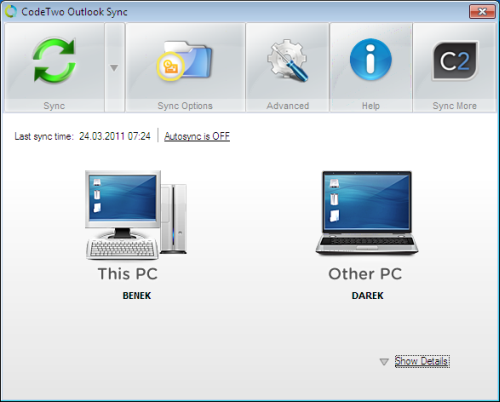
CodeTwo Outlook Sync has been created for home users as well as for business use. You can use it to sync Outlook between two PCs in any scenario. If you need to sync more than two computers you can use CodeTwo Public Folders for that.
Download CodeTwo Outlook Sync
Learn more about CodeTwo Outlook Sync
Frequently Asked Questions
User’s Manual



Recommended articles

Let us know about your impressions :)
I’ll try it!