


Before you perform any kind of an administrative task in your SharePoint Online, you need to connect to your organization. Mind that connecting to SharePoint Online might be useful not only when you want to manage your SharePoint sites and permissions, but also when you want to run some scripts on Office 365 groups. This article shows you how to take the first step to manage your online resources by connecting to your SharePoint organization with PowerShell.
How to connect to SharePoint Online
There are a few different approaches which allow you to get access to your resources in SharePoint Online. While all methods require you to use the Conect-SPOService cmdlet, they each offer a slightly different experience.
Method 1 – manual connection
The easiest method to connect your PS console to SharePoint Online is to run the following cmdlet:
Connect-SPOService -url https://*org-name*-admin.sharepoint.com
Mind to replace *org-name* with the actual name of your SharePoint organization. After you hit enter, you will see a familiar Office 365 login page:
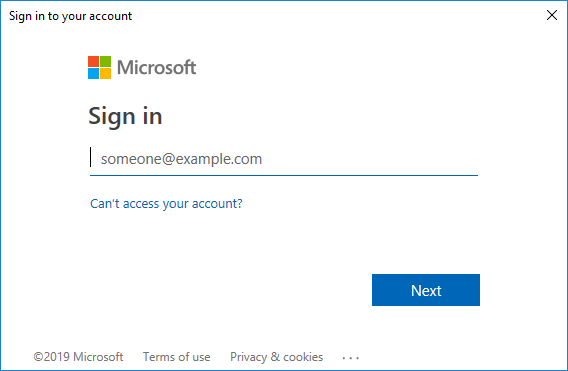
Simply enter your credentials and the PowerShell console will connect to SharePoint Online. This method has one clear advantage – it works even when your account has MFA enabled. On the other hand, most people use PowerShell not to deal with the popups and additional windows and would rather avoid unnecessary popups. You will find this method especially troublesome if you decide to connect PowerShell to another module (like Exchange Online). Fortunately, there are different methods for accessing SharePoint with your console.
Method 2 – remember your credentials for the Session
If you do not wish to reenter your credentials each time you want to reconnect to your organization (or connect to another module), this method is optimal for you:
$creds = Get-Credential -UserName *yourUPN* -Message "Enter your Office 365 credentials";
Connect-SPOService -url https://*org-name*-admin.sharepoint.com -Credential $creds
The Get-Credential cmdlet will cause a standard PowerShell sign-in box to pop up. The -UserName attribute allows you to automatically fill in the login field. The credentials will be remembered as long as you keep your PowerShell console open and don’t overwrite the $creds variable. Mind that you can use your saved credentials to log in to other Office 365 services, for example:
Connect-AzureAD -Credential $creds
Connect-MSOLService -Credential $creds
Method 3 – connect without any sign in boxes
This final method allows you to login without any pop-ups or additional boxes – you perform each task in the console.
$login = *yourUPN*;
$pwd = *password*;
$pwd = ConvertTo-SecureString $pwd -AsPlainText -Force;
$credentials = New-Object -TypeName System.Management.Automation.PSCredential -argumentlist $login,$pwd;
Connect-SPOService -url https://*org-name*-admin.sharepoint.com -Credential $credentials;
Some optimization-oriented admins are tempted to automatize the login procedure by saving their credentials in the script files. Unfortunately, this exposes login data in the script. It is not recommended, it is not safe, it is not good practice, but it allows automation at its finest.
Test your connection
No matter which method you choose, you will not get any “connection established” notification. Although no error usually means that you have connected successfully, you should make sure. To check if you have been successful connecting to SharePoint Online, you can run a simple cmdlet:
Get-SPOSite
You should see the list of your SharePoint Online sites. If that’s the case, you should be able to perform any administrative task you have enough permissions to do.
Common problems and their solutions
There are a few problems you might run into while trying to connect with SharePoint Online.
Connect-SPOService : The remote server returned an error: (401) Unauthorized.
This error appears when the user does not have permissions to connect to the Office 365 organization via PowerShell. The remedy is simple – have your administrator run Set-User <your_identity> -RemotePowerShellEnabled $true
Get-SPOSite : No connection available. Use Connect-SPOService before running this CmdLet.
It seems that you have failed to successfully connect to your SharePoint Online organization. Go through the connection procedure once more and make sure you follow each step closely.
Connect-SPOService : The term ‘Connect-SPOService’ is not recognized as the name of a cmdlet, function, script file, or operable program. Check the spelling of the name, or if a path was included, verify that the path is correct and try again.
You need to download the SharePoint Online module for PowerShell. Run:
Get-Module -Name Microsoft.Online.SharePoint.PowerShell -ListAvailable | select Name,Version
to confirm if you have the required module (and also if you need an update), and use:
Install-Module -Name Microsoft.Online.SharePoint.PowerShell
To fix the problem.
Connect-SPOService : The sign-in name or password does not match one in the Microsoft account system.
There are two possible reasons for this error – either you have made a mistake while inserting your credentials, or you have a multifactor authentication enabled (MFA). If it is due to the MFA, you will need to remove the -Credential parameter while connecting to SharePoint Online and enter your credentials with the traditional, login page experience.
Files cannot be loaded because running scripts is disabled on this system. Provide a valid certificate with which to sign the files.
Run Get-ExecutionPolicy to see what is your Execution Policy. If it is restricted, use Set-ExecutionPolicy RemoteSigned to let yourself run the required scripts.
Summary
Accessing your SharePoint Online via PowerShell is an easy first step you have to take before you experience a whole new level of SharePoint management. Stay tuned for more detailed articles on how to manage SharePoint Online.
Useful links:
Recommended articles


Hello, I’m getting the error message below. I’m in an on-prem sharepoint Farm and I have downloaded SharePoint 2019 Management Shell as well as Windows Powershell.
Connect-SPOSevice : The term ‘Connect-SPOSevice’ is not recognized as the name of a cmdlet, function, script file, or
operable program. Check the spelling of the name, or if a path was included, verify that the path is correct and try
again.
At line:1 char:1
+ Connect-SPOSevice
+ ~~~~~~~~~~~~~~~~~
+ CategoryInfo : ObjectNotFound: (Connect-SPOSevice:String) [], CommandNotFoundException
+ FullyQualifiedErrorId : CommandNotFoundException
Hello,
There are two problems here:
1. There’s a typo in your “Connect-SPOService”.
2. The Connect-SPOService applies to SharePoint Online, not SharePoint Server 2019.
To learn more about PowerShell in on-prem SharePoint Server, check out this resource from Microsoft.
I am getting the error as:
Connect-SPOService : The sign-in name or password does not match one in the Microsoft account system.
At line:1 char:1
+ Connect-SPOService
+ ~~~~~~~~~~~~~~~~~~
+ CategoryInfo : NotSpecified: (:) [Connect-SPOService], IdcrlException
+ FullyQualifiedErrorId : Microsoft.SharePoint.Client.IdcrlException,Microsoft.Online.SharePoint.PowerShell.Connec
tSPOService
Here I am giving the credentials correctly, but still it is showing the error. What should I do?
Then most probably you have MFA enabled in your tenant. Have you tried logging in without the -Credential parameter? It should open a standard Microsoft 365 Sign in window.
Hi – I am a newbie on powershell for SharePoint online, what I was trying to do is to get all subsites and lists with item counts. I have a script saved but not sure what cmdlets to use to run the script. Really dot appreciate any info you can provide. thank you in advanced.
Hi MA,
If you have a script, you do not have to use any additional cmdlets, simply run the script.
To run the script, change the directory to where the script is and run it. For example:
cd “C:\scripts”
.\”the script you downloaded”.ps1
If you need to make any changes to the script file, they would normally be mentioned in the script documentation (where you downloaded it from) or in the script itself, as comments. It is hard to say more, not knowing what kind of script you use.
Hi
Thanks for the post..
I am getting Connect-SPOService : Root element is missing.
when trying to connect.
Can you tell me what is the issue ..
Thanks
PCM
The Root element is missing error usually occurs when you have a blank variable or attribute in your code. Which of the connection methods are you using?