How to troubleshoot Entra ID (Azure AD) attributes synchronization problems
Problem:
You are using Microsoft Entra ID (Azure Active Directory) attributes of your users in email signatures. However, when a signature is added to an email by CodeTwo Email Signatures 365, some of these attributes show wrong values or no values at all.
Solution:
Tip
To avoid synchronization-related problems, we recommend that you use CodeTwo's Attributes manager instead. Our tool not only lets you edit and bulk edit Entra ID (Azure AD) attributes used in email signatures, disclaimers and auto-replies, but also easily create custom ones that match your use cases. What's important, all the changes are applied instantly and do not affect your original Entra ID data because all the data is stored in Entra ID CodeTwo cache. Learn more
To troubleshoot this issue, first go to the section that corresponds with your environment:
Troubleshooting directory extension attributes synchronization problems in hybrid environments
There are a couple of reasons why you might get incorrect attribute values for directory extensions in your email signatures. First, you need to determine the source of the problem. Use Graph Explorer to check the value of the attribute in question in your Microsoft Entra ID (Azure Active Directory). Go to this article to learn how to use this tool.
Depending on what values are returned in Graph Explorer, there are different solutions you can check:
- If Graph Explorer returns the same value that is shown in your email signature (which is incorrect), the problem might be caused by the following reasons:
- The synchronization of directory extension attributes is disabled or Microsoft Entra Connect (Azure AD Connect) is not configured correctly
- Some directory extensions have been excluded from synchronization
- You are synchronizing outdated, wrong and/or unsupported attributes
- You are using Microsoft Entra Cloud Sync (Azure AD Cloud Sync)
- If Graph Explorer returns the correct value, different from the one shown in your email signature, try:
- refreshing OAuth 2.0 access tokens, as described in this article,
- updating Entra ID CodeTwo cache manually, as described here.
If neither of these solution work, contact CodeTwo Customer Support. Please also provide us with a screenshot from Graph Explorer showing the problematic attribute value(s).
The synchronization of directory extension attributes is disabled or Microsoft Entra Connect (Azure AD Connect) is not configured correctly
By default, directory extension attributes (custom attributes) are not being synchronized between your on-premises Active Directory and Entra ID (Azure AD). Because of that, they are not available in CodeTwo Email Signatures 365. To be able to use these attributes in your email signatures, enable the synchronization by configuring the Microsoft Entra Connect tool as described here.
If the synchronization is enabled and Microsoft Entra Connect was configured correctly, try forcing full synchronization of Microsoft Entra Connect by executing the following PowerShell cmdlet:
Start-ADSyncSyncCycle -PolicyType Initial
Once done, update Entra ID CodeTwo cache in CodeTwo Admin Panel, as described in this article.
Some directory extensions have been excluded from synchronization
If you have enabled the directory extension attributes synchronization, as described here, but you still don't see some or all of these attributes in email signatures, double check if the attributes you want to use have been actually selected in Microsoft Entra Connect (Azure AD Connect).
To do so, open the Microsoft Entra Connect and go to Sync > Directory Extensions (Fig. 1.). Only attributes listed under Selected Attributes are synchronized with your Microsoft 365 (Office 365) tenant.
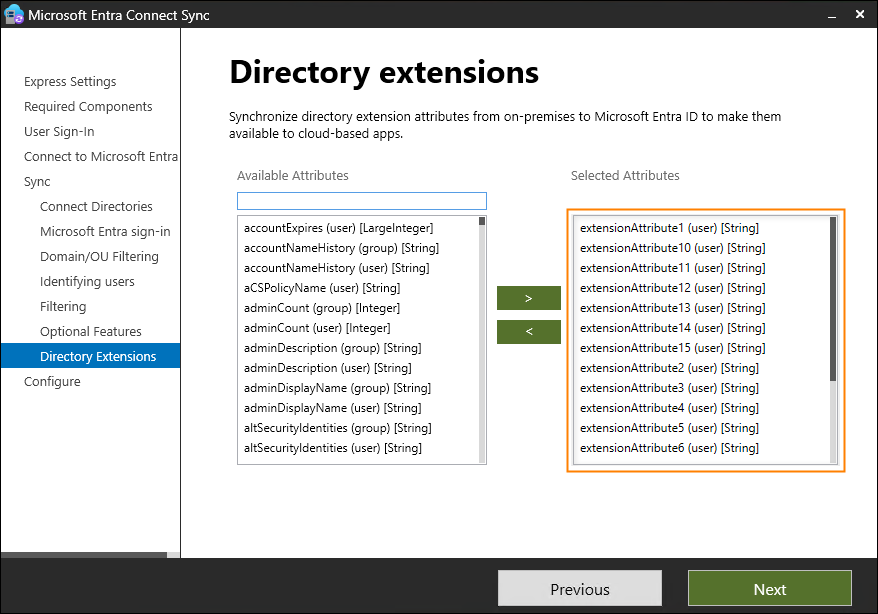
Fig. 1. Selecting directory extension attributes that you want to sync with Entra ID.
You are synchronizing outdated, wrong and/or unsupported attributes
Browse through the problematic directory extension attributes in your on-premises Active Directory to make sure their values are correct. Note that only single-value attributes are supported by CodeTwo Email Signatures 365 (learn more). Even if you sync and use multi-value attributes in your email signature, they will not be displayed.
Also keep in mind that some extension attributes have similar names. For example, extensionAttribute1 is a single-value attribute and is supported by CodeTwo Email Signatures 365. However, msExchExtensionCustomAttribute1 is a completely different attribute, plus it is multi-value, which means you cannot use it with our program.
If there is an extension attribute in your Entra ID (Azure AD) that is not up to date, but the value or this attribute is correct in the on-premises Active Directory, you can try to force data synchronization to Entra ID by using a simple workaround:
- In your on-premisesenvironment, temporarily change the value of the incorrectly updated attribute.
- Force full Microsoft Entra Connect (Azure AD Connect) synchronization by using the following cmdlet:
Start-ADSyncSyncCycle -PolicyType Initial
- Update Entra ID CodeTwo cache in CodeTwo Admin Panel, as described in this article.
- Change the attribute back to its original value.
- Force full Microsoft Entra Connect synchronization again.
You are using Microsoft Entra Cloud Sync (Azure AD Cloud Sync)
Microsoft Entra Cloud Sync is the cloud version of Microsoft Entra Connect. There are some significant differences between these two versions – you can see the full comparison here.
One of the differences is the lack of support for the synchronization of customer defined AD attributes (directory extensions) by the cloud version. If you want to sync such attributes to our service and use them in email signatures, use the Microsoft Entra Connect application instead. Refer to this user’s manual article to learn how to correctly configure Microsoft Entra Connect.
Troubleshooting Entra ID (Azure AD) attributes synchronization problems in non-hybrid (cloud only) environments
First, use Graph Explorer to check the value of the attribute in question in your Microsoft Entra ID (Azure Active Directory). Go to this article to learn how to use this tool.
Depending on what values are returned in Graph Explorer, there are different solutions you can check:
- If Graph Explorer returns the same value that is shown in your email signature (which is incorrect), check what value is shown in Exchange Online for a given user. If the value is also not correct, update it. If the value in Exchange Online is correct, contact Microsoft support, as there might be an issue on their end. The problem is not related to CodeTwo Email Signatures 365.
- If Graph Explorer returns the correct value, different from the one shown in your email signature, try:
- refreshing OAuth 2.0 access tokens, as described in this article,
- updating Entra ID CodeTwo cache manually, as described here.
If you are using additional attributes (Initials, Notes, P.O. Box, Pager, Web page, Home phone) in email signatures, and they show incorrect values, it might be possible that these values were changed in Exchange Online. If so, you need to synchronize them again with the CodeTwo service. To do so, follow these steps.
| Related products: | CodeTwo Email Signatures for Office 365 |
| Categories: | Troubleshooting |
| Last modified: | January 30, 2026 |
| Created: | July 16, 2020 |
| ID: | 881 |





