How to check user properties in Entra ID (Azure AD) with Graph Explorer
Problem:
You want to manually check Microsoft 365 user attributes and custom attributes data stored in Microsoft Entra ID (Azure Active Directory). This data is used e.g. in email signatures added by CodeTwo Email Signatures 365.
Solution:
To view user data currently stored in Entra ID (Azure AD), you can use the Graph Explorer tool. To do so, follow the steps below:
- Go to the https://developer.microsoft.com/en-us/graph/graph-explorer website.
- Sign in to Graph Explorer with your Microsoft 365 global admin account (Fig. 1.). When asked, accept the necessary permissions.
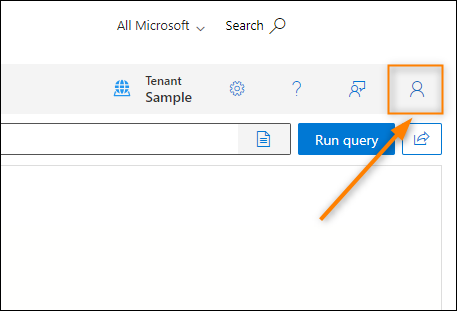
Fig. 1. You need to sign in with global admin credentials to be able to access the Entra ID attributes of other users in your tenant.
- In the upper part of the website, select GET from the query operators drop-down menu and beta from the API version drop-down menu (Fig. 2.).
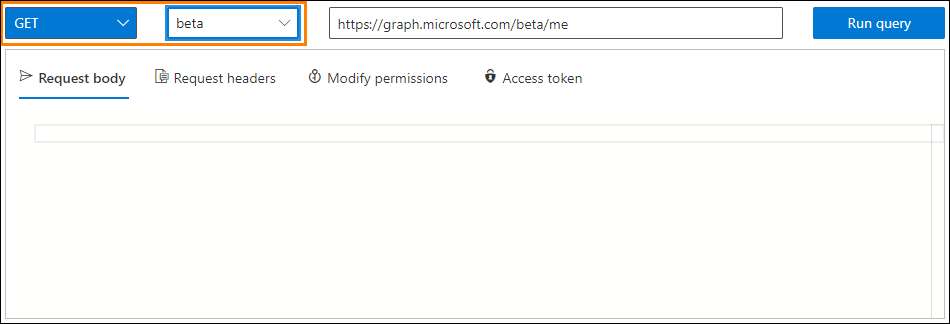
Fig. 2. Selecting a query operator and the API version.
Important
By selecting the beta version of the API, you also will be able to get the information on Entra ID (Azure AD) custom attributes.
- In the query box, enter the following URL:
https://graph.microsoft.com/beta/me
to retrieve the Entra ID data of the signed in user, or enter:https://graph.microsoft.com/beta/users/<email address>
to retrieve the Entra ID data of any user in your tenant. Instead of <email address>, enter the email address of a specific user, e.g.https://graph.microsoft.com/beta/users/[email protected]
- Open the Modify permissions tab and click the Consent button next to all the required permissions (Fig. 3.). If the status reads Consented, it means the necessary consent has already been granted. Each consent needs to be granted separately.
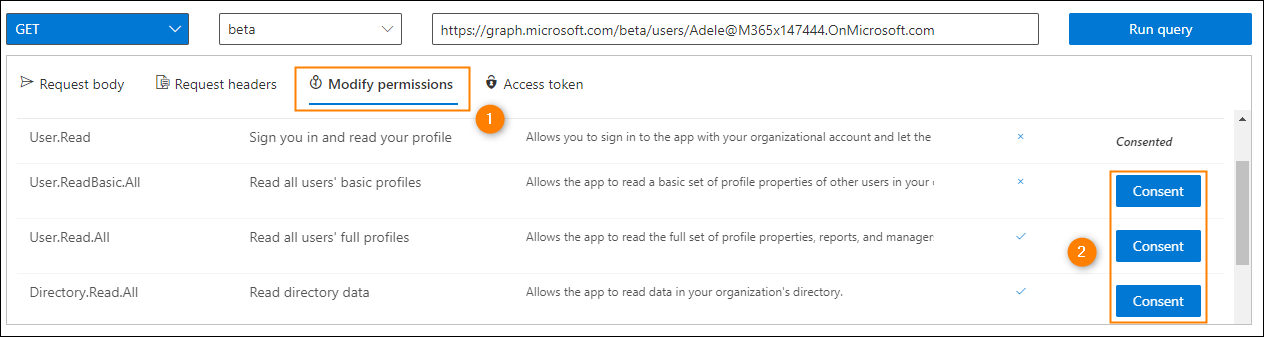
Fig. 3. Granting the necessary consents to the Graph API.
- Click Run query to pull the required information from Entra ID. You will find the results under Response preview (Fig. 4.).
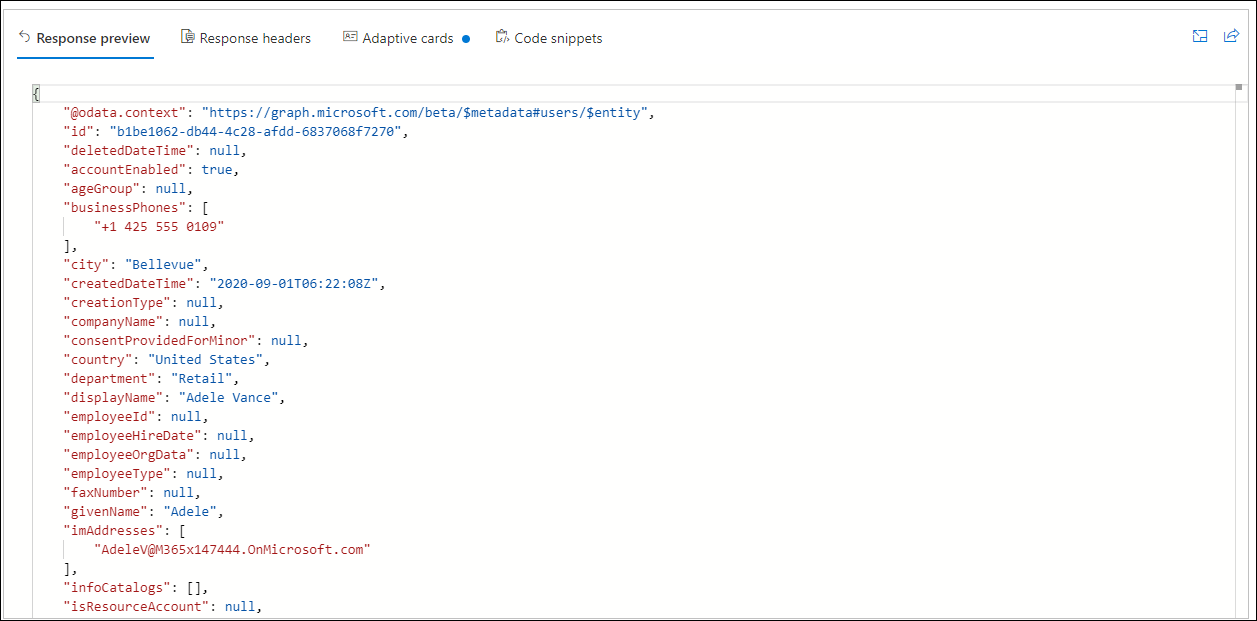
Fig. 4. Results of a query run for the selected Microsoft 365 user.
How to find the Entra ID (Azure AD) attributes used in CodeTwo software
The names of the Entra ID attributes shown in Graph Explorer are slightly different than the names of placeholders used in signatures added by CodeTwo Email Signatures 365. Refer to the table below to find the correct attribute in the query results. For a more comprehensive list, refer to this article.
| Entra ID (as shown in Graph Explorer) | CodeTwo Email Signatures 365 |
|---|---|
| city | City |
| companyName | Company |
| country | Country |
| department | Department |
| displayName | Display name |
| givenName | First Name |
| surname | Last name |
| officeLocation | Office |
| Learn more | Photo |
| postalCode | Postal code |
| state | State |
| streetAddress | Street |
| jobTitle | Title |
| faxNumber | Fax |
| mobilePhone | Mobile |
| businessPhones | Phone |
To quickly find the value of a given Entra ID attribute in the query results, use Ctrl+F on the Response preview tab.
Tip
If you want the query to return a specific Entra ID attribute value only, use the following URL:
https://graph.microsoft.com/beta/users/<email address>/<Azure AD attribute name>
For example, the following URL:
https://graph.microsoft.com/beta/users/[email protected]/givenName
will return Adele’s first name only (as provided in Entra ID), as shown in Fig. 5.

Fig. 5. Results of a query run for a specific Entra ID attribute only.
How to get users’ Microsoft 365 profile picture data using Graph Explorer
The query results shown in Fig. 4. are missing the information about the user’s Microsoft 365 profile picture. To check, if a given user has a profile picture added in their Entra ID (Azure AD), enter the following URL in the query box:
https://graph.microsoft.com/beta/users/<email address>/photo/
If the photo exists, the query will return similar information to that shown in Fig. 6. below.
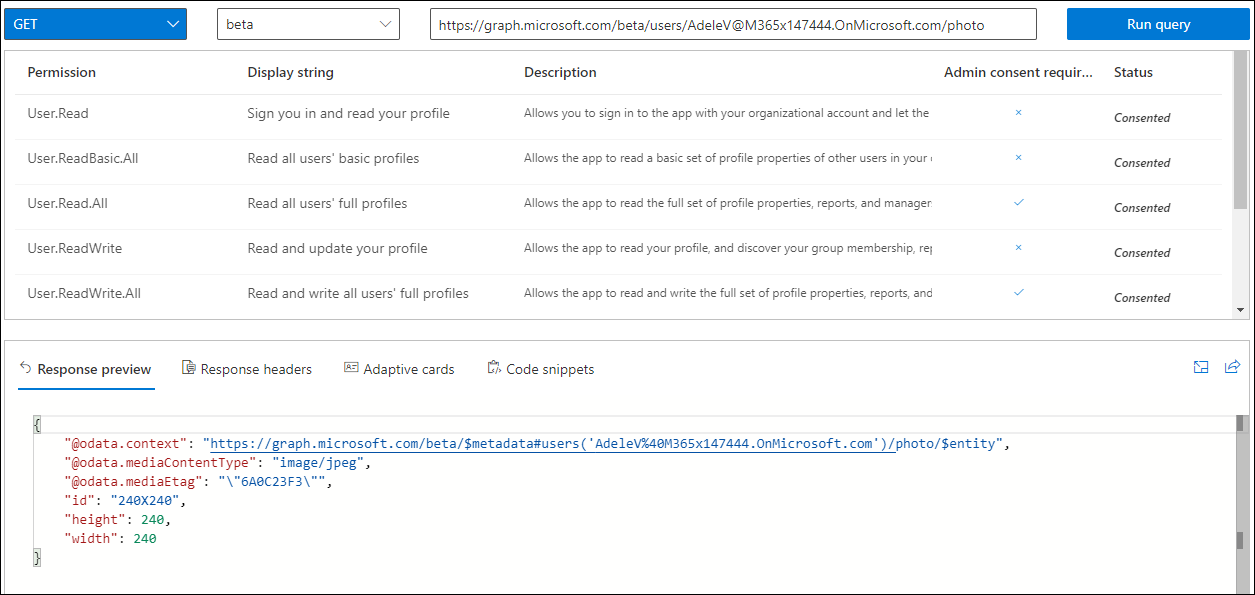
Fig. 6. Checking if a given user has a profile picture added in their Entra ID.
If you want Graph Explorer to display the photo (Fig. 7.), use the following URL:
https://graph.microsoft.com/beta/users/[email protected]/photo/$value
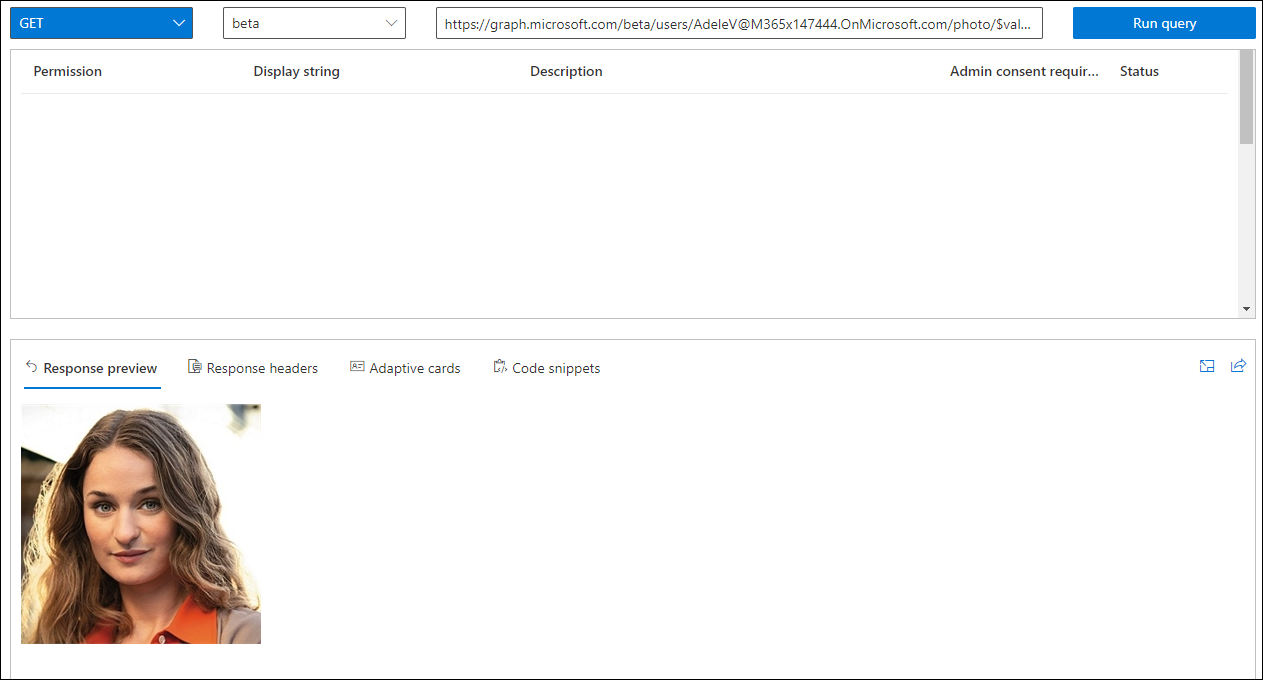
Fig. 7. Using Graph Explorer to display the user's Microsoft 365 profile picture.
See also:
| Related products: | CodeTwo Email Signatures for Office 365 |
| Categories: | How-To |
| Last modified: | August 1, 2024 |
| Created: | September 14, 2020 |
| ID: | 895 |





