How to set a password for a shared mailbox
Problem:
You want to learn how to set a password for a shared mailbox in Microsoft 365 (Office 365), for example, to add the mailbox as a standard user account (secondary account) in your email app.
Solution:
Important
If you want to use CodeTwo signatures with a shared mailbox, note that in most cases you shouldn’t password-protect that mailbox and add it as a secondary account. Instead, the mailbox should be accessed via the primary user account that has delegate permissions for that mailbox.
We only recommend adding a shared mailbox as a secondary account as a workaround for using CodeTwo Outlook (client-side) signatures with the shared mailbox in Outlook mobile, where shared mailboxes are not yet fully supported by Web Add-ins (such as CodeTwo signatures add-in) due to limitations of the Outlook API.
See also: How to add signatures to emails sent from shared mailboxes
Follow the steps below to set a password for a Microsoft 365 shared mailbox:
- Sign in to the Microsoft 365 admin center, go to Users > Active users in the left-hand navigation menu, locate your shared mailbox on the list, and click it (Fig. 1.).
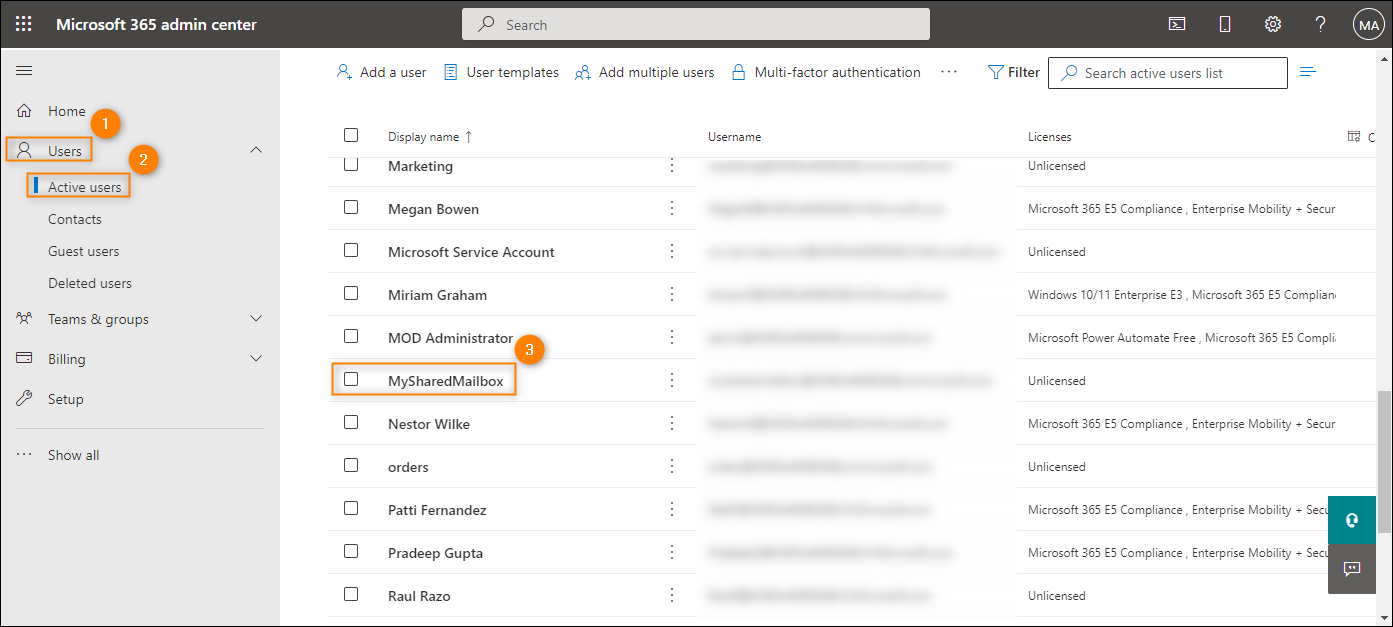
Fig. 1. Opening shared mailbox properties in the Microsoft 365 admin center.
- Click the Reset password option (Fig. 2.).
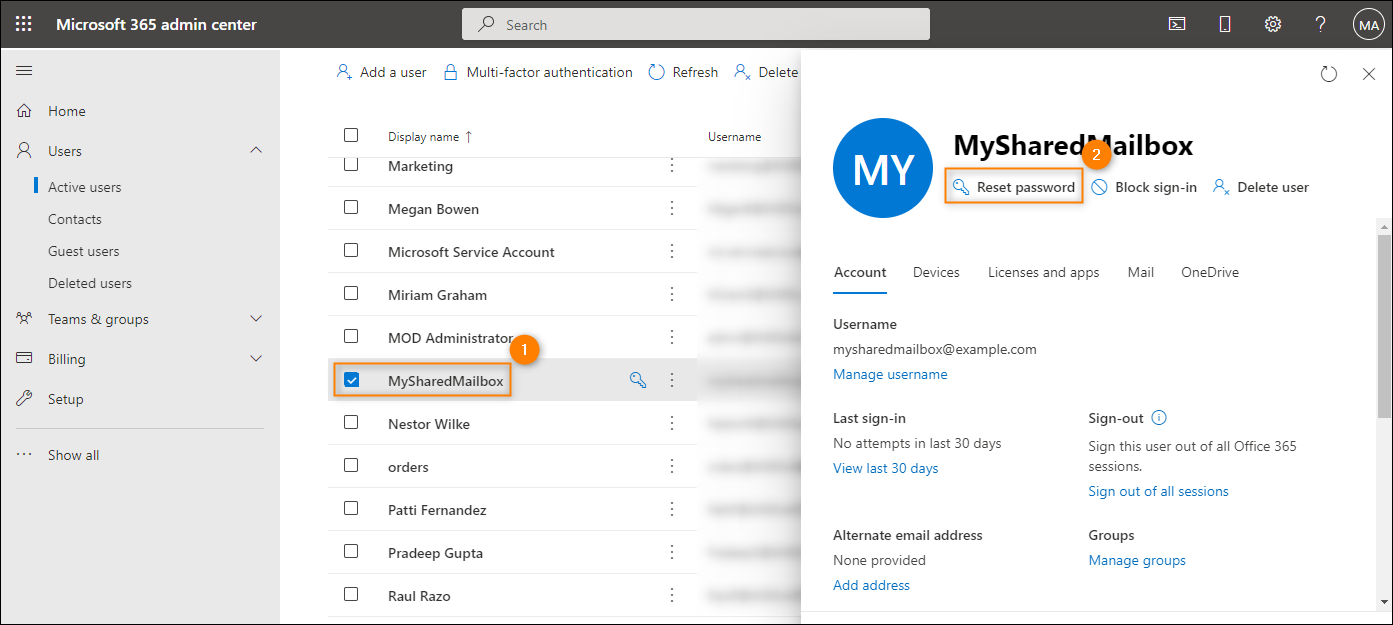
Fig. 2. Locating the Reset password option for a shared mailbox.
- Clear the two checkboxes shown in Fig. 3.
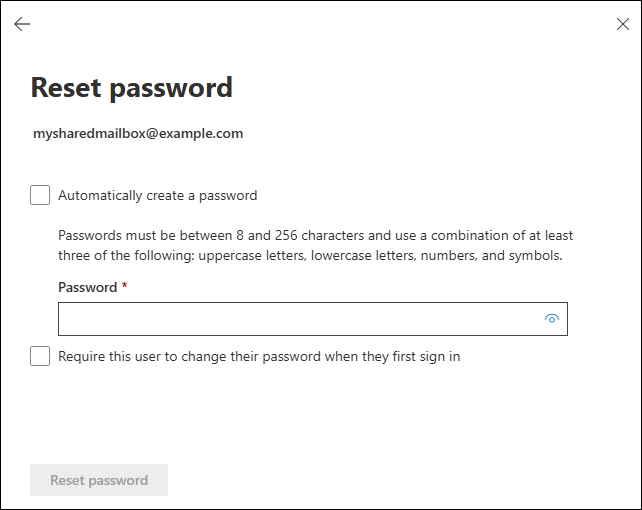
Fig. 3. Clearing the checkboxes that are selected by default when opening the password reset pane.
- In the Password textbox that appears, type the password, making sure it’s strong enough – you’ll need it later to add the shared mailbox to your email app. Finally, click Reset password (Fig. 4.) and allow some time for the change to propagate.
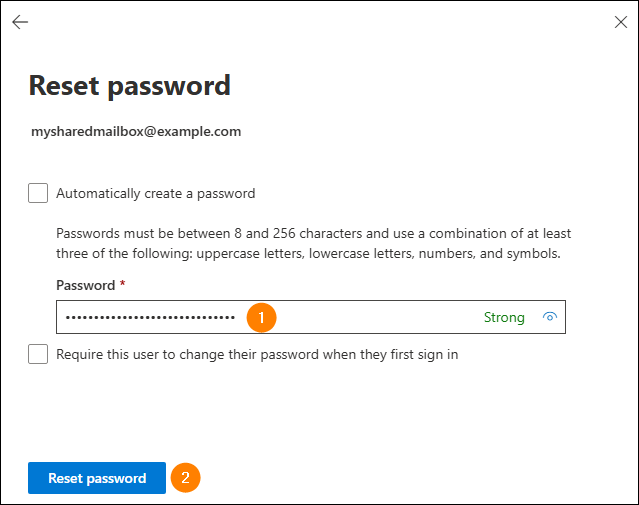
Fig. 4. Defining a new password for your shared mailbox.
- Additionally, make sure that sign-in is not blocked for the shared mailbox – if it is, the Sign-in blocked information will be displayed for this mailbox, as shown in Fig. 5. To enable sign-in, simply click Unblock sign-in, clear the Block this user from signing in checkbox, and save your changes (Fig. 5.).
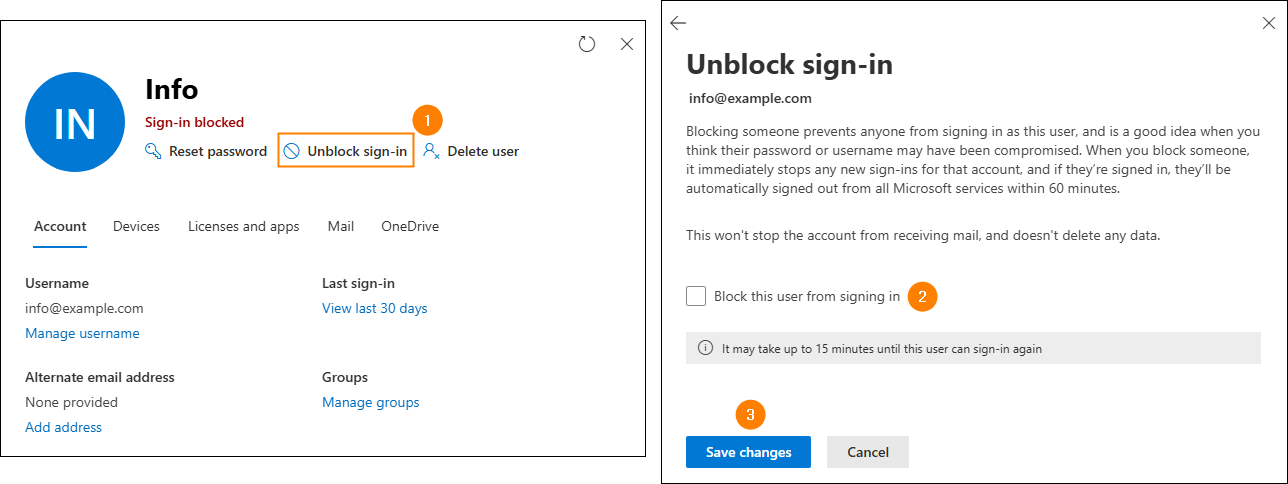
Fig. 5. Unblocking sign-in for the shared mailbox.
- Once the changes propagate, you can add the shared mailbox as a standard (secondary) account in your email app. If you're using Outlook, see the articles below to learn how to do it in your version:
When prompted for password, type the password you created in step 4.
See also:
| Related products: | General (Microsoft 365, Exchange & more) |
| Categories: | How-To |
| Last modified: | February 11, 2026 |
| Created: | February 11, 2026 |
| ID: | 1149 |






