How to troubleshoot the SenderNotAuthenticatedForGroup error
Problem:
In response to your email, you received a non-delivery report (NDR) with the following (or very similar) error message:
Reported error: 550 5.7.133 RESOLVER.RST.SenderNotAuthenticatedForGroup; authentication required; Delivery restriction check failed because the sender was not authenticated when sending to this group
Solution:
The problem occurs when a message is sent to an Exchange distribution group address for which sender's authentication is required and this condition is not met. This may happen when using CodeTwo Email Signatures 365 or other third-party solutions that route emails through external services. The issue is caused by the fact that Microsoft Exchange (both on-premises and Online) recognizes internal/external senders according to the actual mail flow direction (which, in that case, would be incoming from an external server) instead of comparing the sender's address with its own directory.
Typically, the solution to this problem is to disable the sender's authentication requirement in the recipient's Exchange. To do that, follow the steps below:
- In Exchange on-premises, start the
 Exchange Management Shell or, similarly to Exchange Online (Microsoft 365), connect remotely.
 - Execute the following PowerShell cmdlet, where <group_name> is the distribution group in question:
Set-DistributionGroup <group_name> -RequireSenderAuthenticationEnabled $false
If due to your corporate security policies you cannot apply the solution above, and if you are using CodeTwo Email Signatures 365, you can, as an alternative, exclude this distribution group from the scope of the CodeTwo Exchange transport rule by manually defining an appropriate exception within this rule. This will resolve the issue of NDRs, but you must be aware that this will exclude emails sent to this distribution group from being processed by the CodeTwo cloud service. That means that cloud (server-side) signatures will not be added to those emails.
To apply this solution, follow the steps below:
- Open the Exchange admin center, go to Mail flow > Rules and click the CodeTwo Exchange transport rule. In the pane that opens, click Edit rule conditions (Fig. 1.).
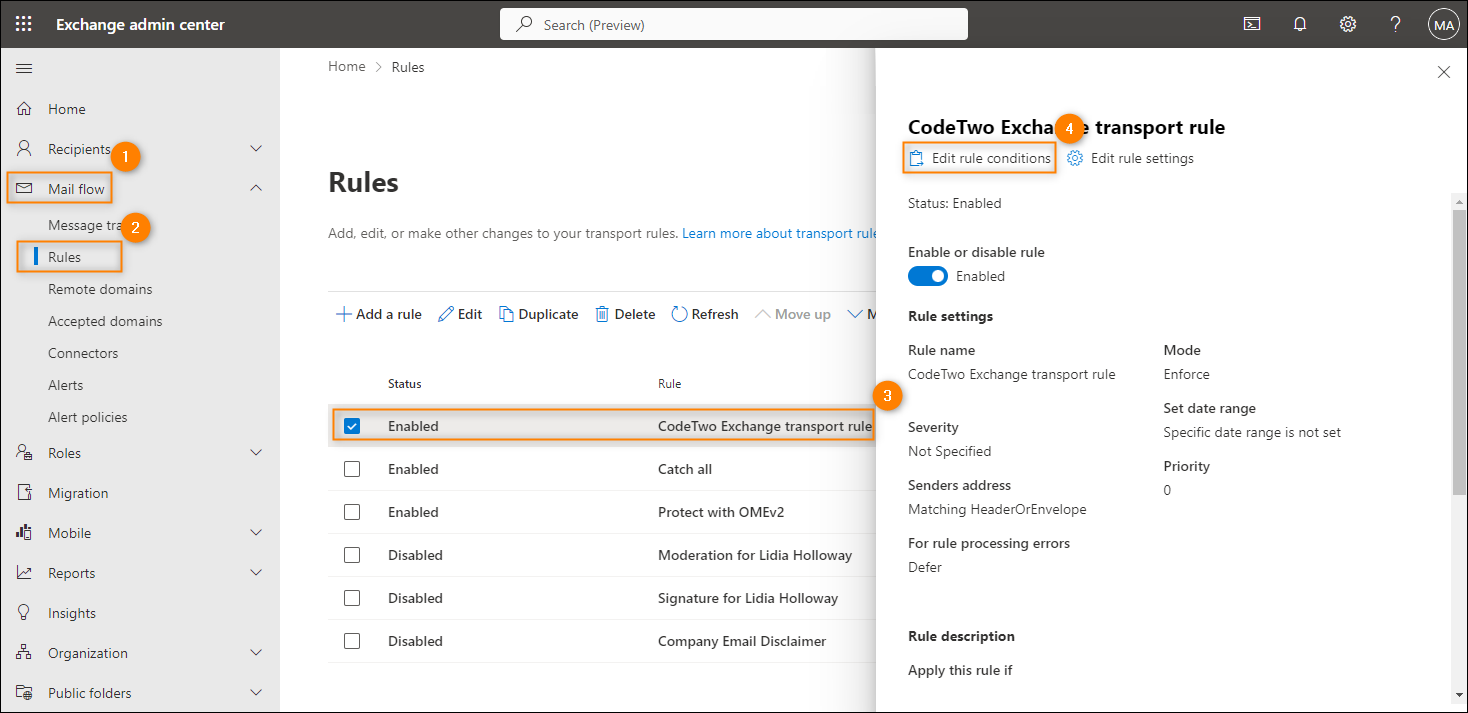
Fig. 1. Opening the CodeTwo Exchange transport rule for editing.
- Under the Except if section, click the plus (+) button to add a new exception and select The recipient > address matches any of these text patterns (Fig. 2.).
Warning
Be advised not to use the The recipient > is this person exception, as it will not work for distribution group addresses.
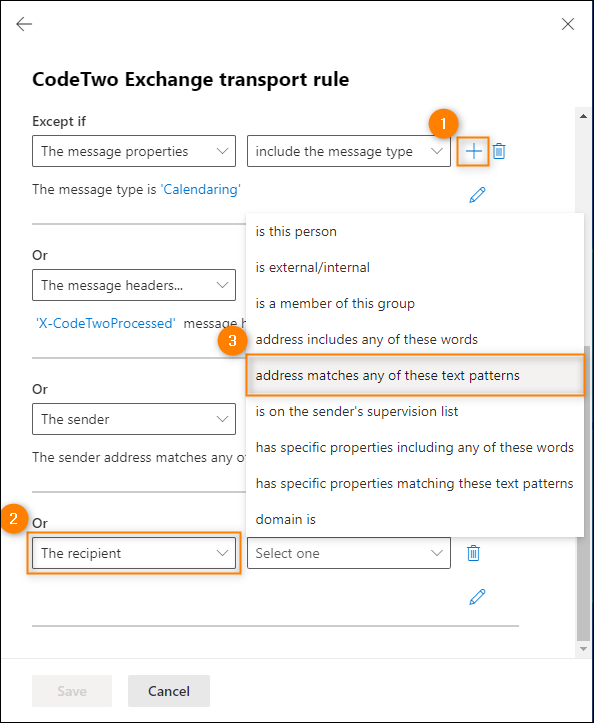
Fig. 2. Defining the conditions of the newly-added exception.
- Next, provide the full email address of the distribution group in question in the text field, click Add and Save (Fig. 3.).
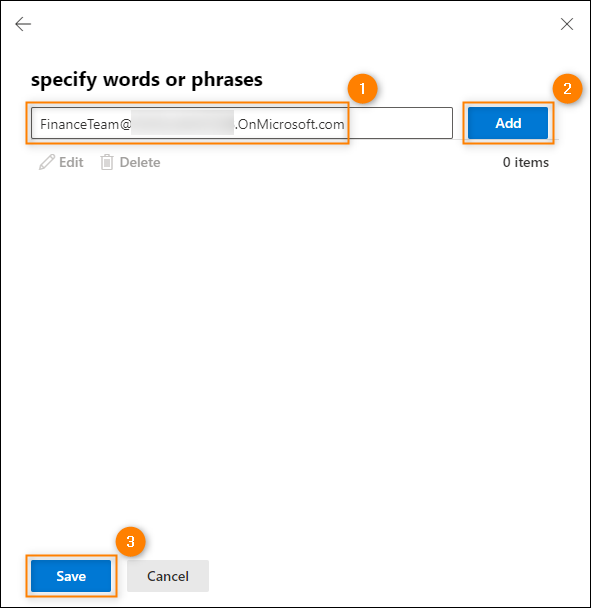
Fig. 3. Adding the email address of the distribution group to the exception.
- Finally, submit your changes by clicking Save once more.
See also:
| Related products: | CodeTwo Email Signatures for Office 365 |
| Categories: | Troubleshooting |
| Last modified: | June 16, 2023 |
| Created: | June 14, 2016 |
| ID: | 560 |





