How to create an account with the Privileged Role Administrator role
Problem:
You want to create a new Microsoft 365 admin account with the Privileged Role Administrator role assigned.
Solution:
Privileged Role Administrator is a built-in role that lets users manage role assignments in Microsoft Entra ID. While it doesn’t allow performing any other privileged actions in itself, it can be used to grant further privileges by creating additional role assignments. Read this Microsoft article to learn more about this role
You may need an account with this role, for instance, to register a CodeTwo application in Microsoft Entra ID using a less privileged role than Global Administrator.
Follow the steps below to create an account with the Privileged Role Administrator role.
- Sign in to the Microsoft 365 admin center using an account with Global Administrator permissions.
- Go to Users > Active users and click Add a user (Fig. 1.).
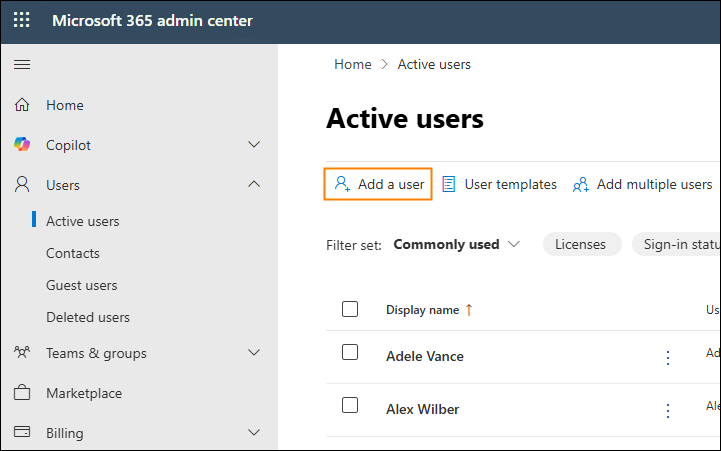
Fig. 1. Adding a new user.
- In the Basics step, fill in all the necessary fields and click Next (Fig. 2.).
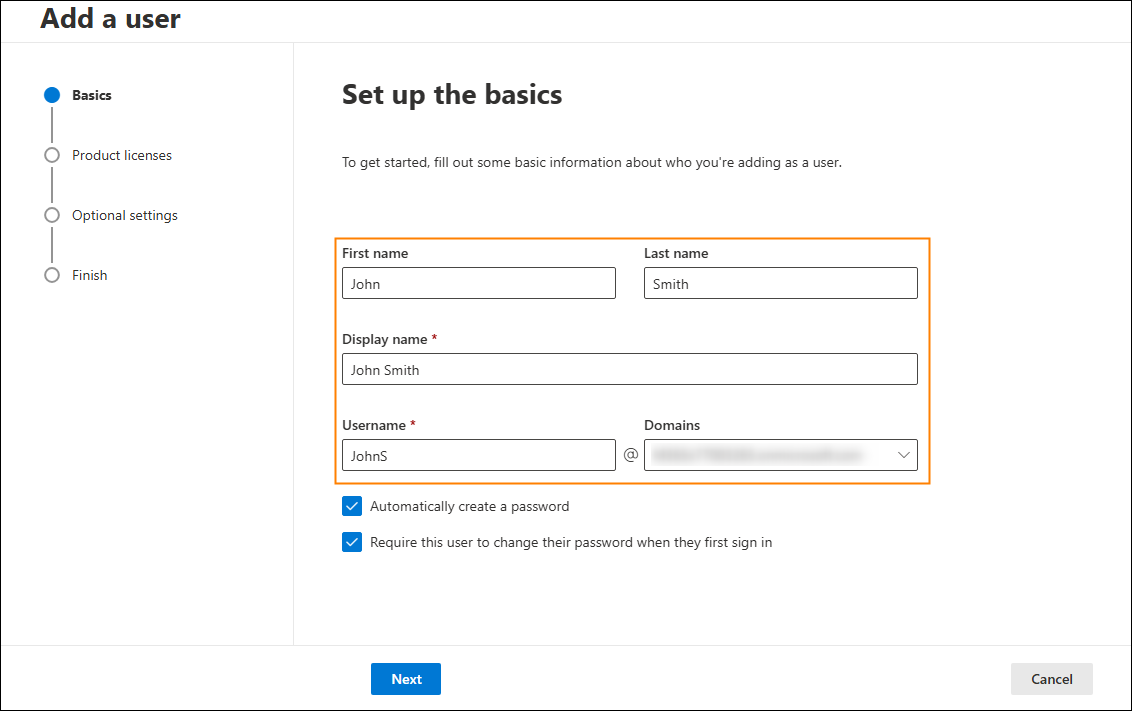
Fig. 2. Adding basic user information.
- In the Product licenses step, assign the user a product license and click Next (Fig. 3.).

Fig. 3. Assigning a product license to the new user.
- In the Optional settings step, select the Admin center access option, scroll down to the Identity section, and select the Privileged Role Administrator role. Click Next to continue (Fig. 4.).

Fig. 4. Assigning the Privileged Role Administrator role.
- Review your settings in the Finish step and click Finish adding to create the new user.
| Related products: | General (Microsoft 365, Exchange & more) |
| Categories: | How-To |
| Last modified: | September 19, 2025 |
| Created: | September 19, 2025 |
| ID: | 1138 |






