How to check your Outlook version
Problem:
You need to check which version of Outlook you are using.
Solution:
To find out which Outlook version you are currently using, follow the links below to view the steps for your platform:
- Outlook for Windows (classic UI)
- Outlook for Windows (new UI)
- Outlook for Mac
- Outlook on the web (OWA) / Outlook.com
- Outlook for Android
- Outlook for iOS
Classic Outlook for Windows (2013 and higher)
- Open Outlook and go to File > Office Account.
- The version number is displayed in the About Outlook section (Fig. 1.)
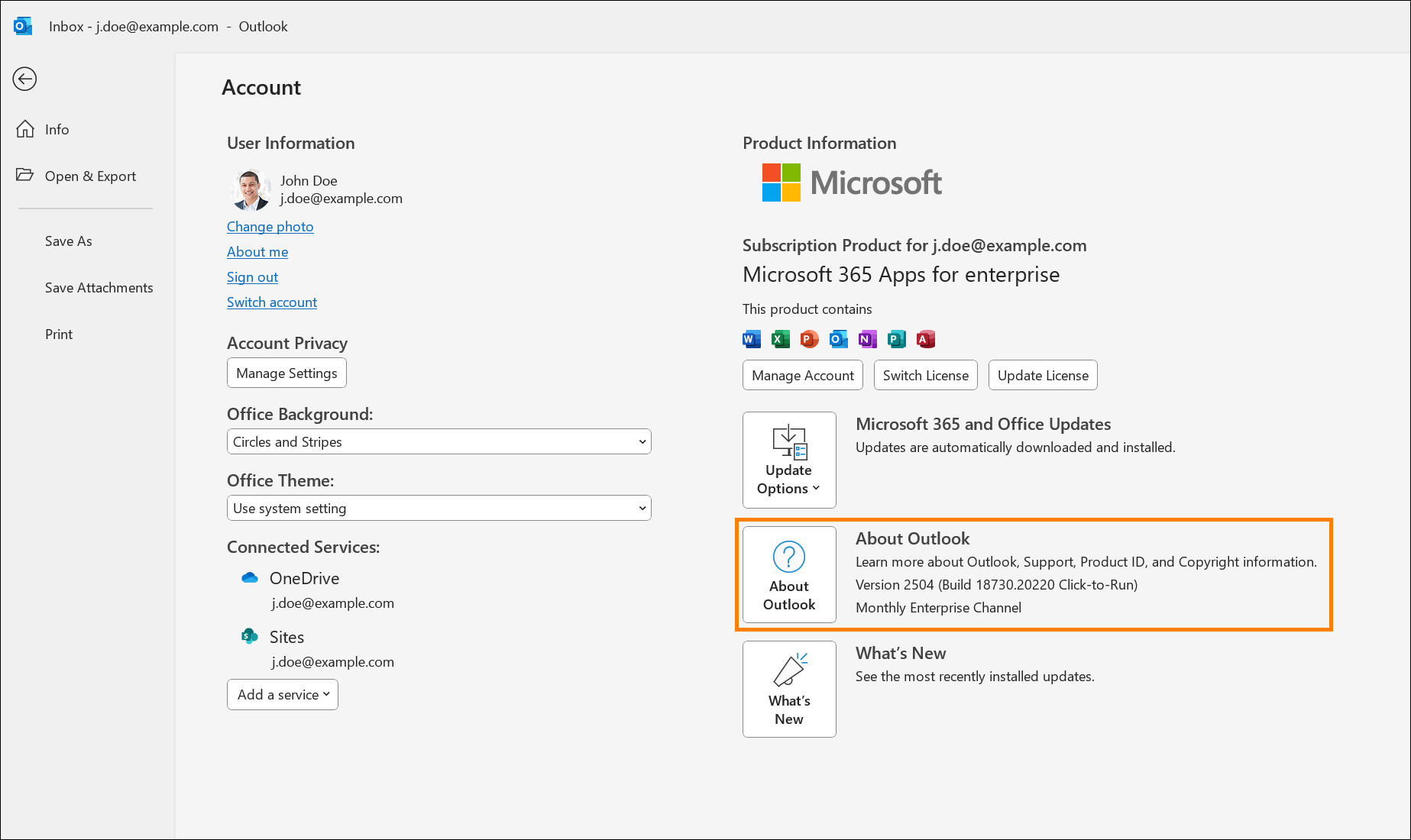
Fig. 1. Outlook version number as shown in Outlook for Windows (classic UI).
- When you click About Outlook, a window appears where you can find more details about the app, e.g., if you are using the 32‑bit or 64‑bit version (Fig. 2.).
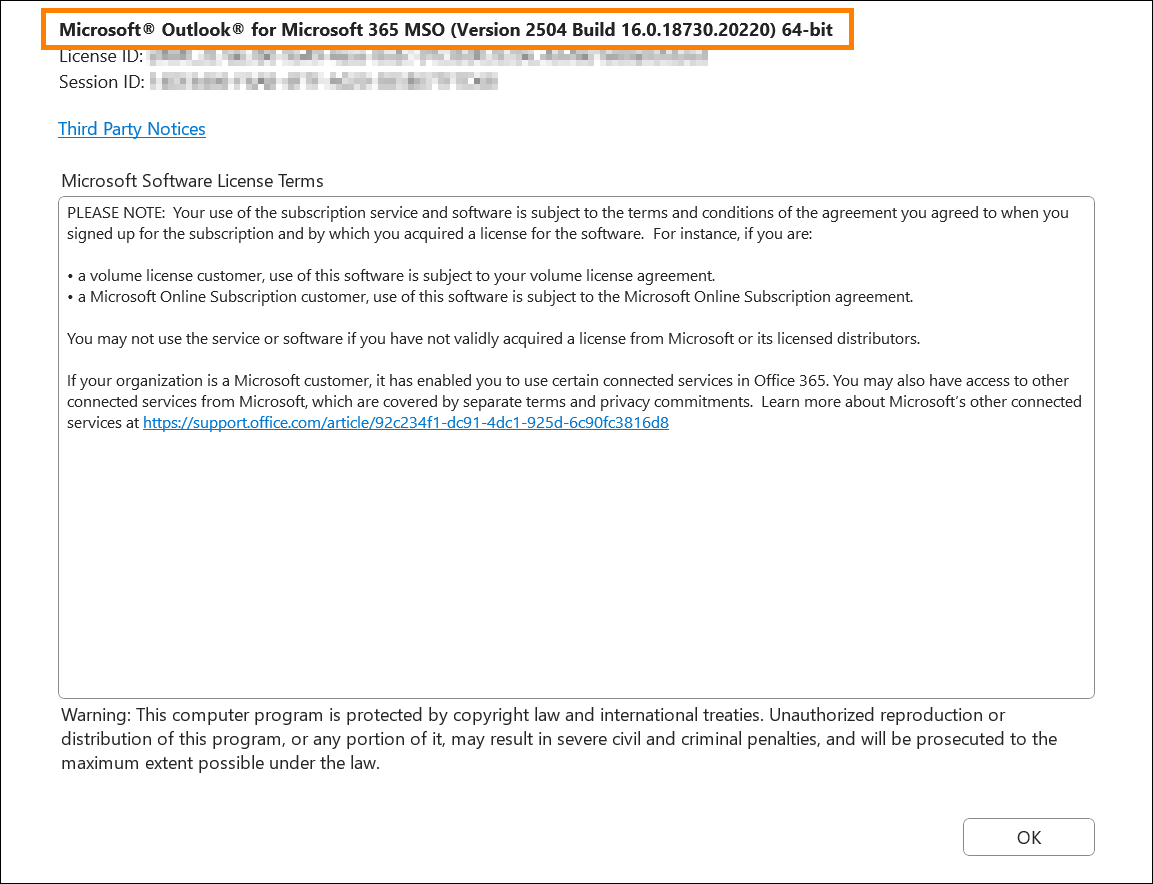
Fig. 2. The About Outlook window in classic Outlook for Windows provides more details about your software.
New Outlook for Windows
- Open Outlook and click the gear icon in the upper-right corner.
- In the Settings window that opens, go to General > About Outlook. The version number appears on the right side of the window (Fig. 3.).
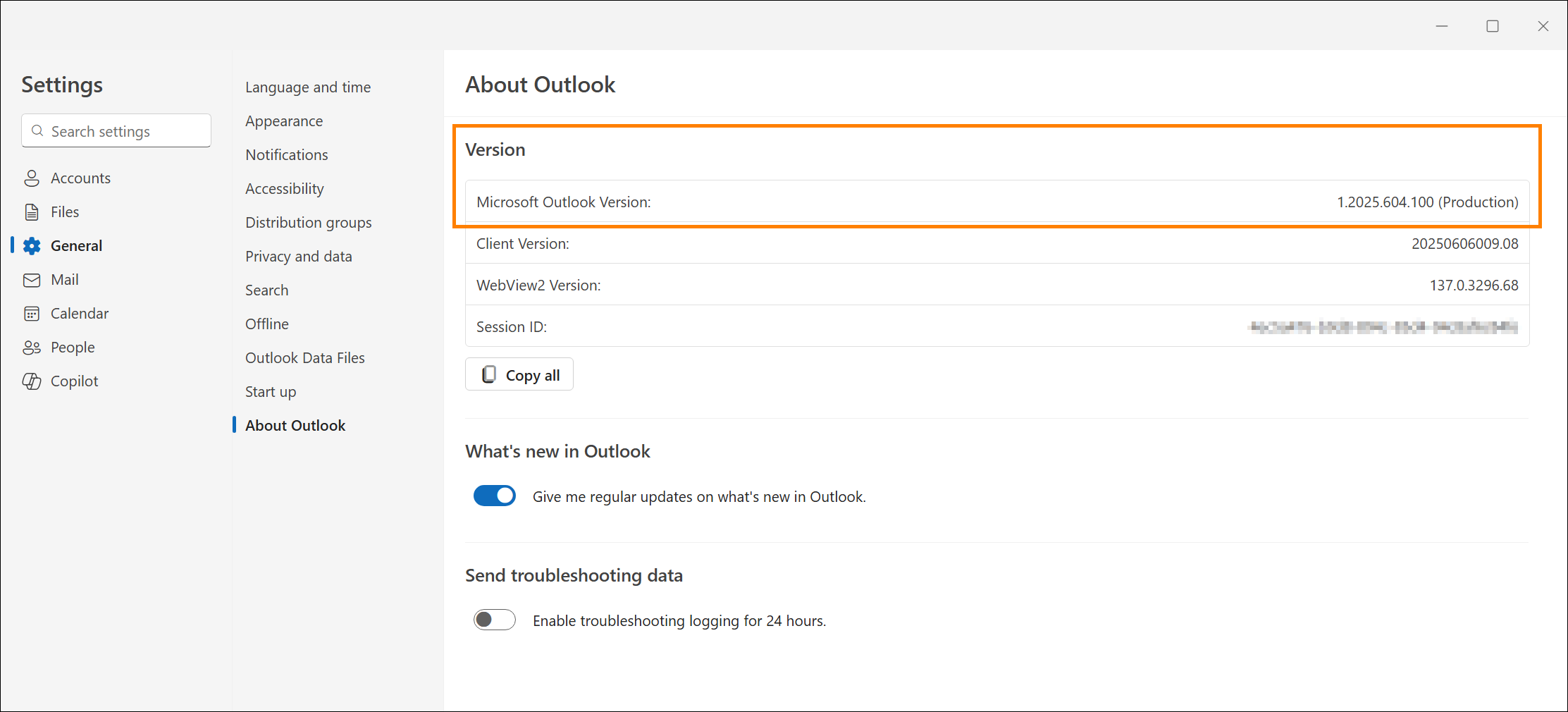
Fig. 3. Outlook version number as shown in Outlook for Windows (new UI).
Outlook for Mac
- Open Outlook and go to Outlook > About Outlook (Fig. 4.).
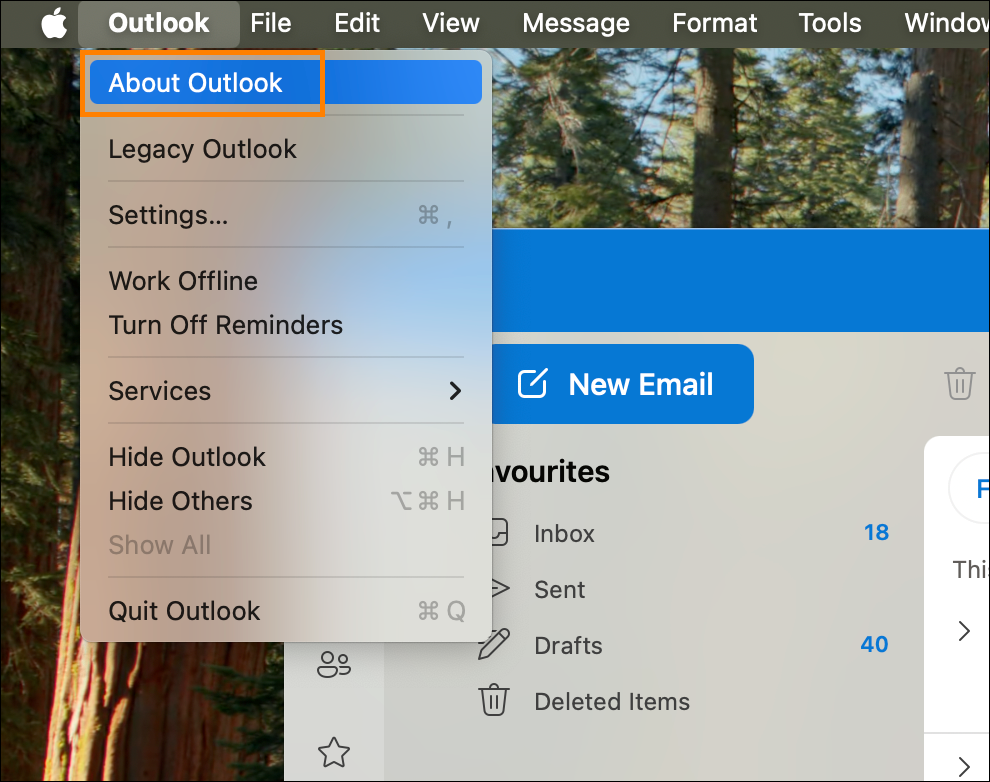
Fig. 4. About Outlook option in the Outlook menu bar on Mac.
- The version number appears in the About Outlook pop-up window (Fig. 5.).
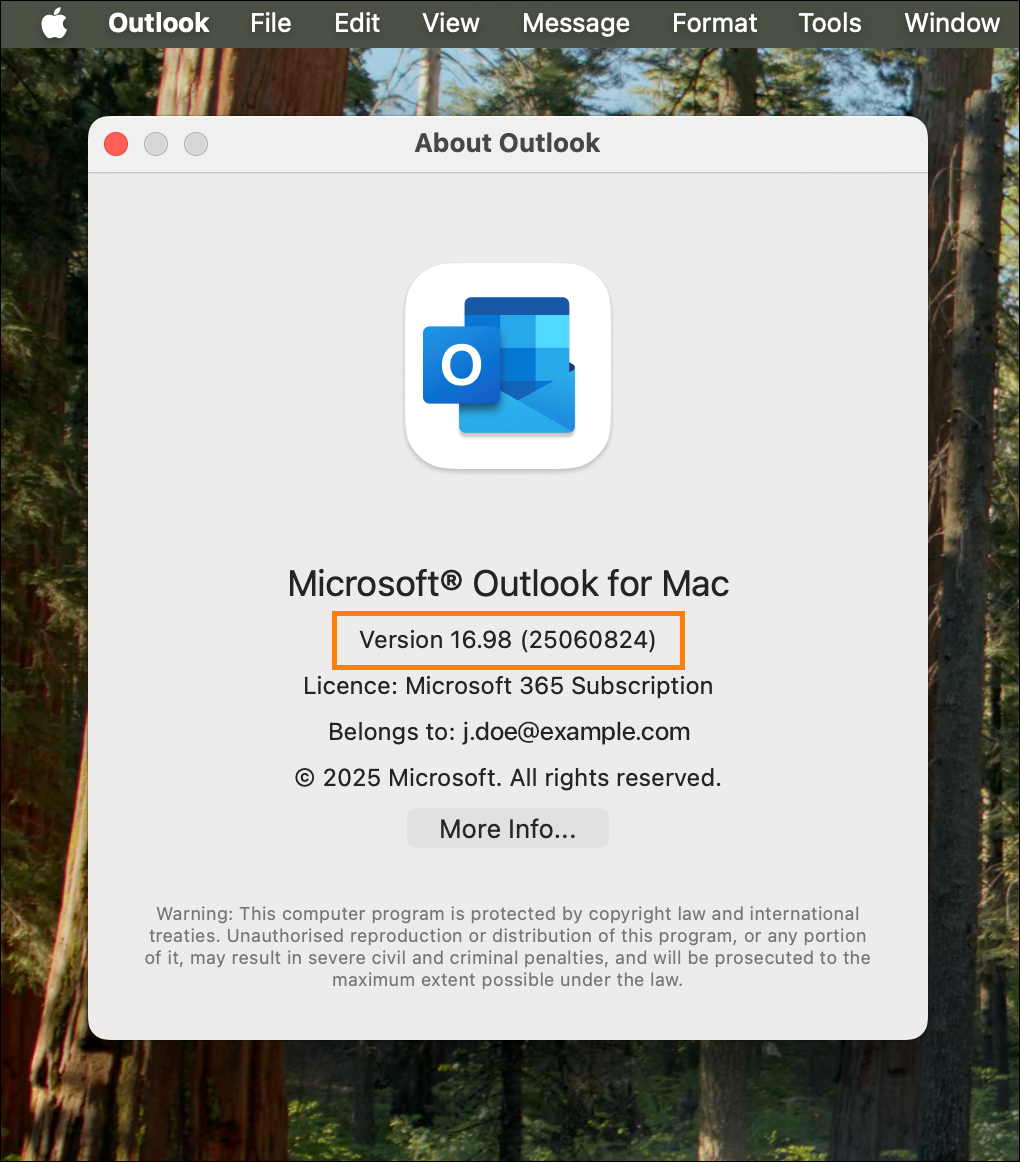
Fig. 5. Outlook version number as shown in Outlook for Mac
Outlook on the web (OWA) / Outlook.com
In Outlook on the web (OWA) / Outlook.com, it is not possible to check the application version directly from the user interface. However, you can search for the version number in the application’s page source. In the following example, we’ll use web development tools (DevTools) available in the browser to do so:
- Sign in to OWA at https://outlook.office.com/ or to Outlook.com at https://outlook.live.com/ with your Microsoft account.
- Open the web development tools of your web browser. In most browsers, you can do so by right-clicking an empty area of the screen and selecting Inspect or Inspect Element (Fig. 6.).
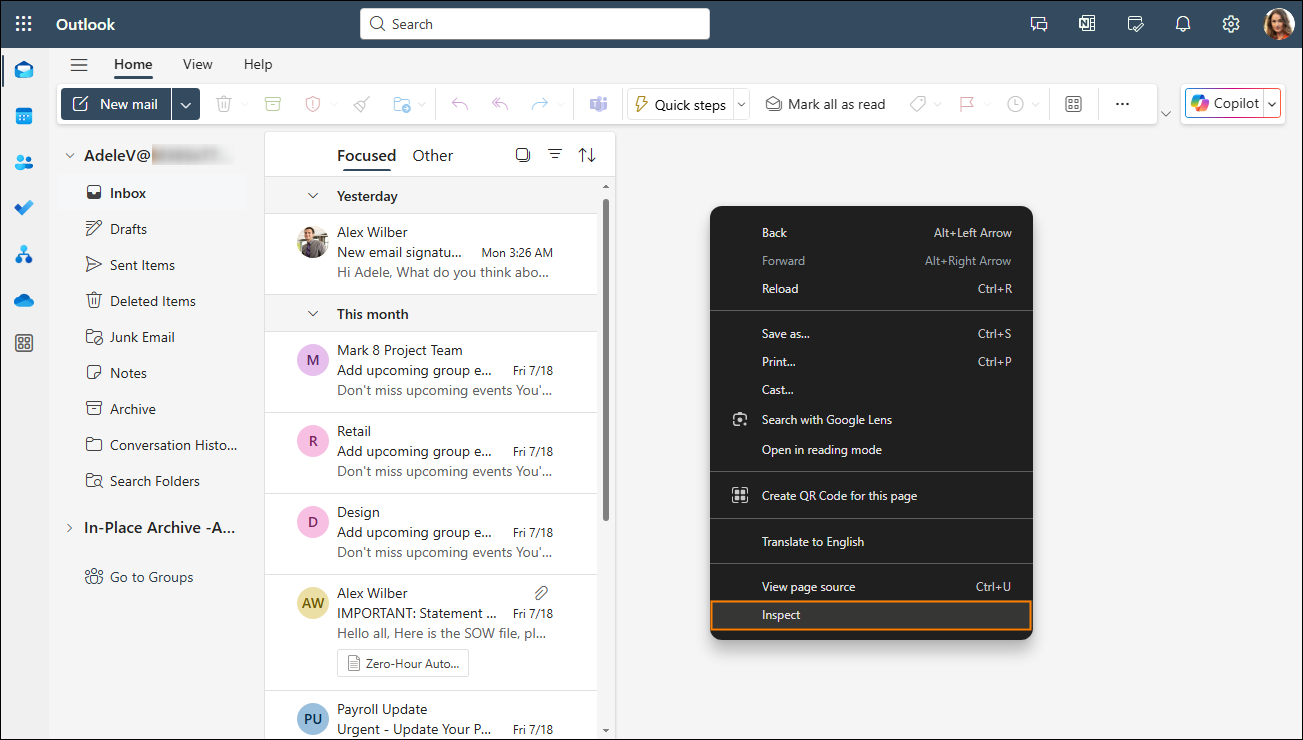
Fig. 6. Opening web development tools in Google Chrome.
Tip
To learn more about web development tools available in your browser, refer to the browser’s documentation, e.g.:
- In the pane that opens, navigate to the search box (e.g., by pressing Ctrl+F or a corresponding keyboard shortcut) and use it to search for the scriptVer value (see Fig. 7.).
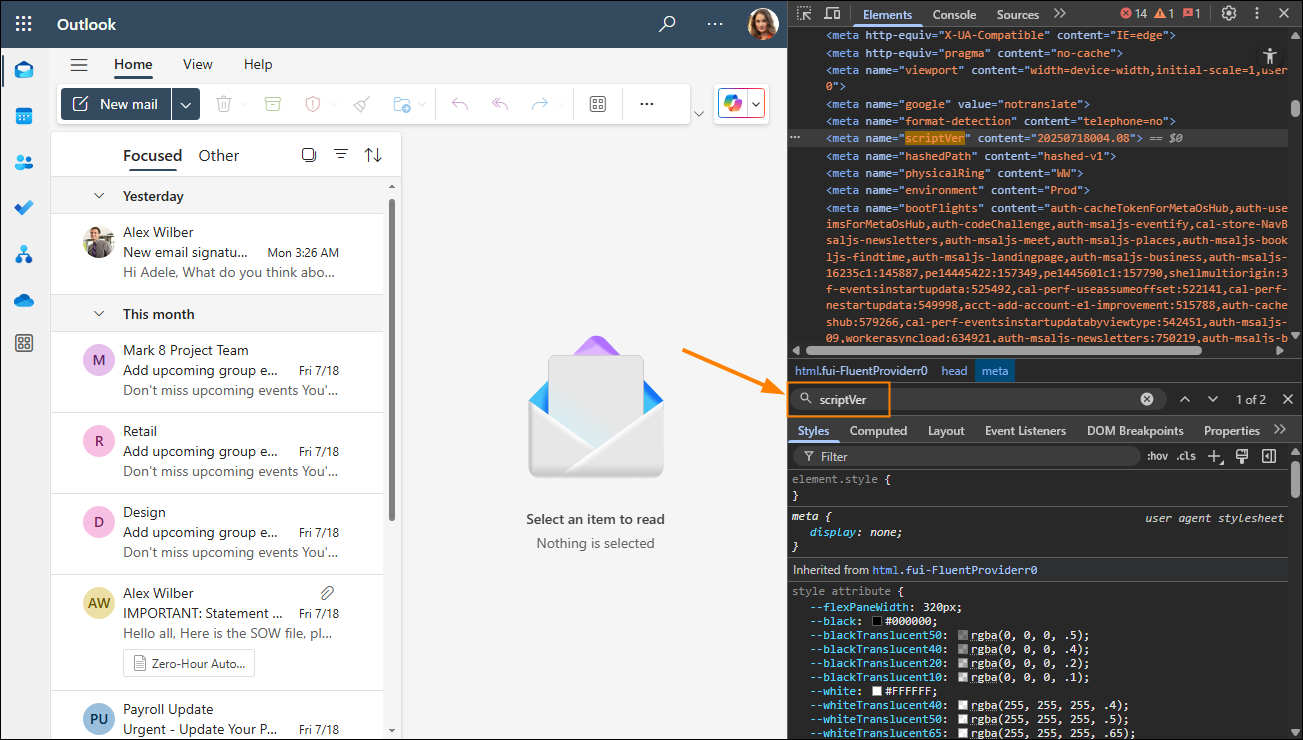
Fig. 7. Searching for the scriptVer value in Outlook on the web's page source.
- As a result, the following line will be located (see Fig. 8):
<meta name="scriptVer" content="XXXXXXXXXXX.XX">
The number displayed as the content value is the version of the Outlook web app you’re using.
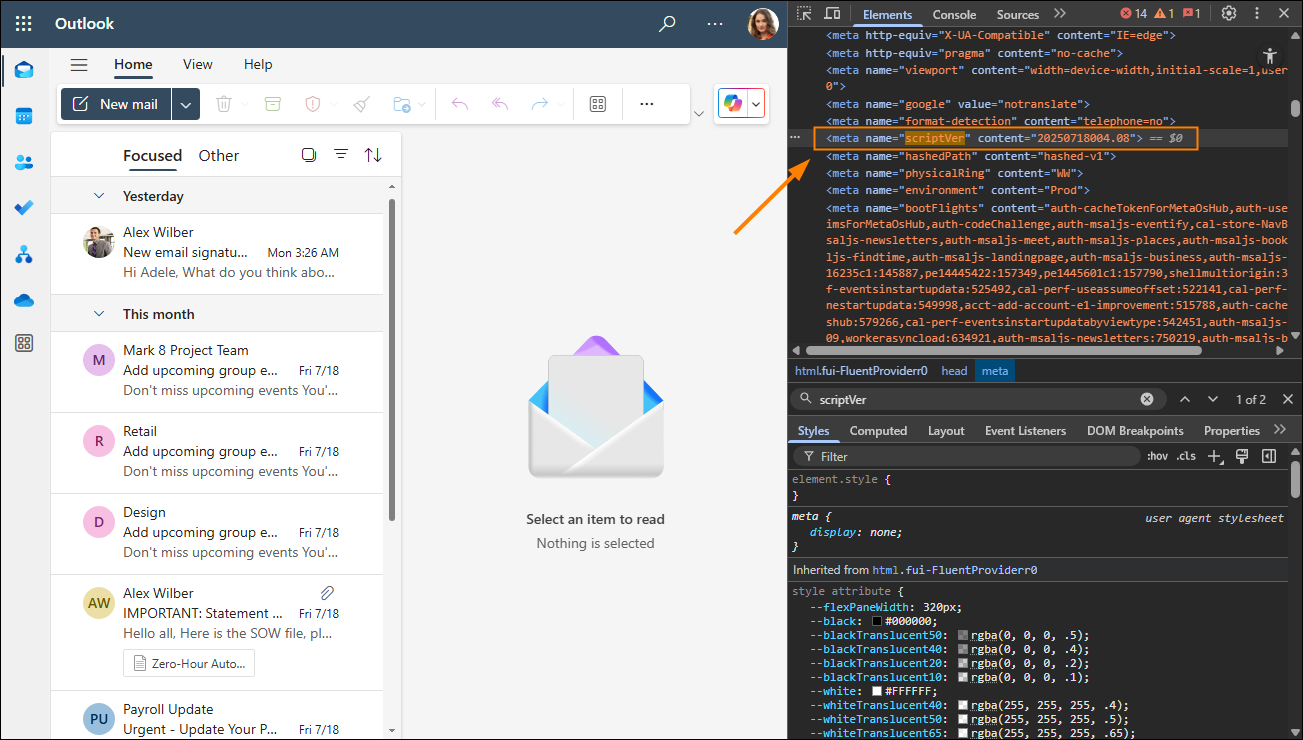
Fig. 8. Outlook version number as shown in Outlook on the web (OWA).
Outlook for Android
- Open Outlook on your Android device and tap the account profile picture.
- Tap the gear icon (Fig. 9.) to open Settings.
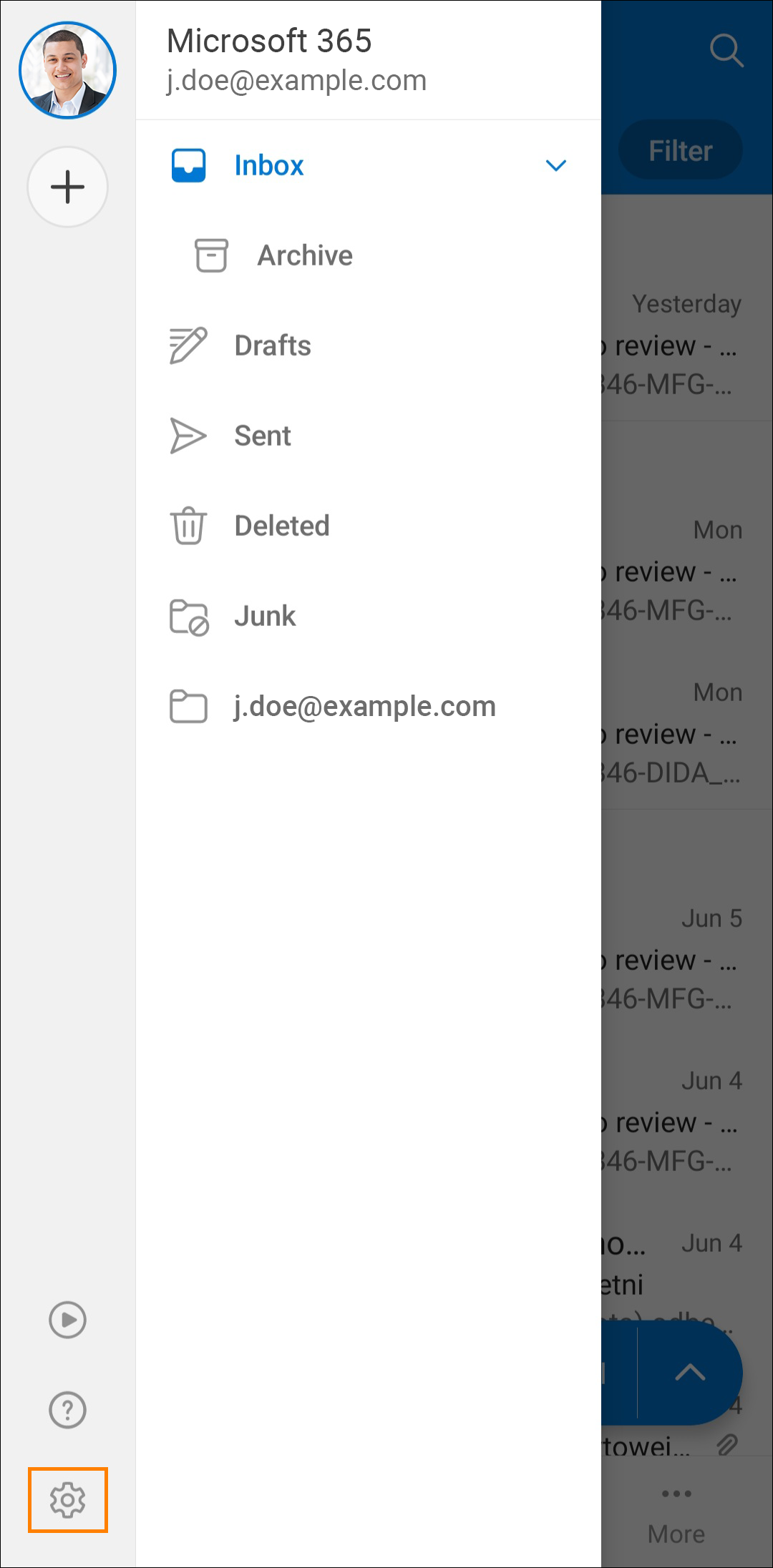
Fig. 9. The gear (Settings) icon in Outlook for Android.
- Tap Help & feedback (Fig. 10.).
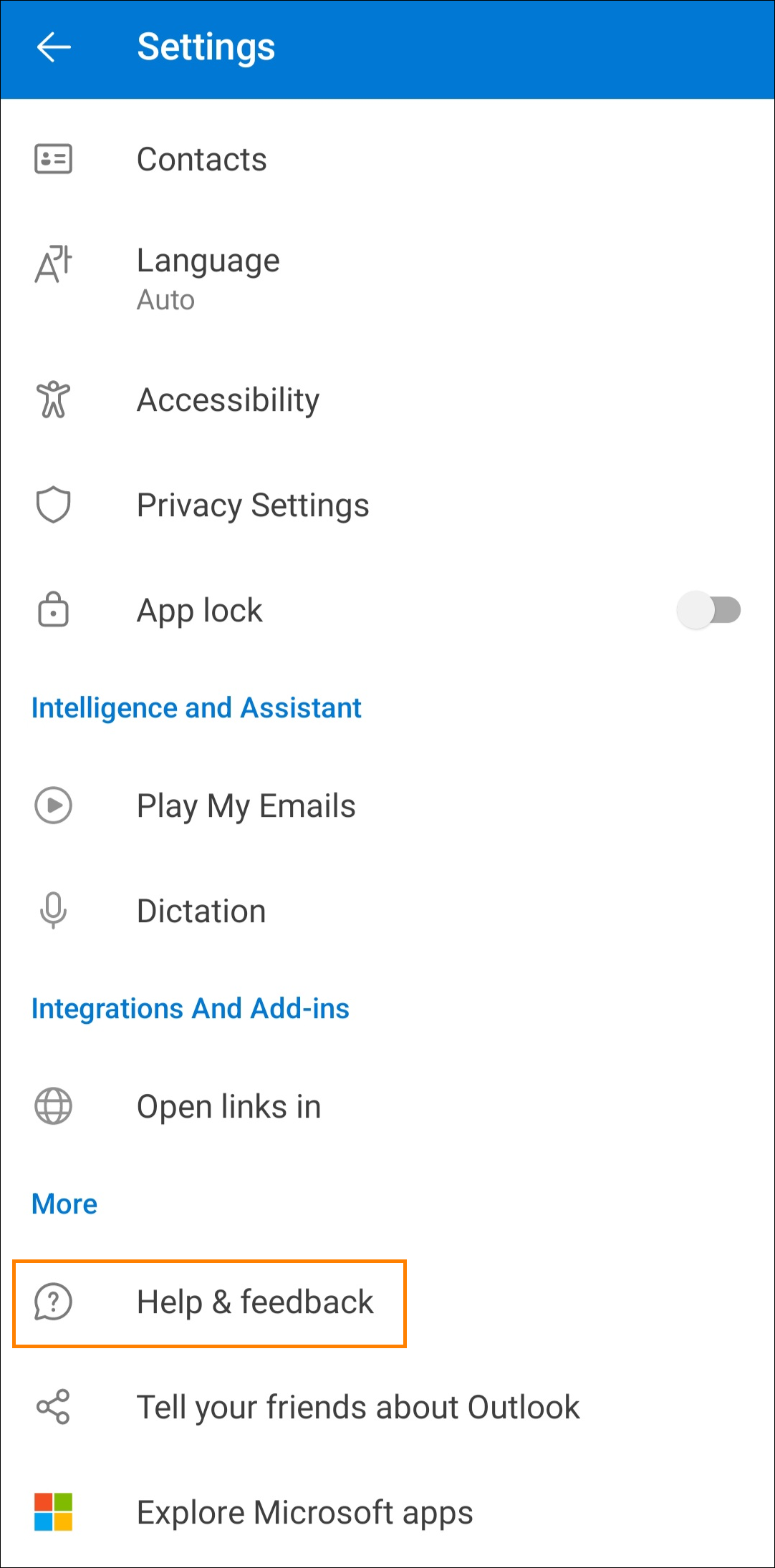
Fig. 10. The Help & feedback option in the Settings tab in Outlook for Android.
- The version number appears at the bottom of the screen (Fig. 11.).
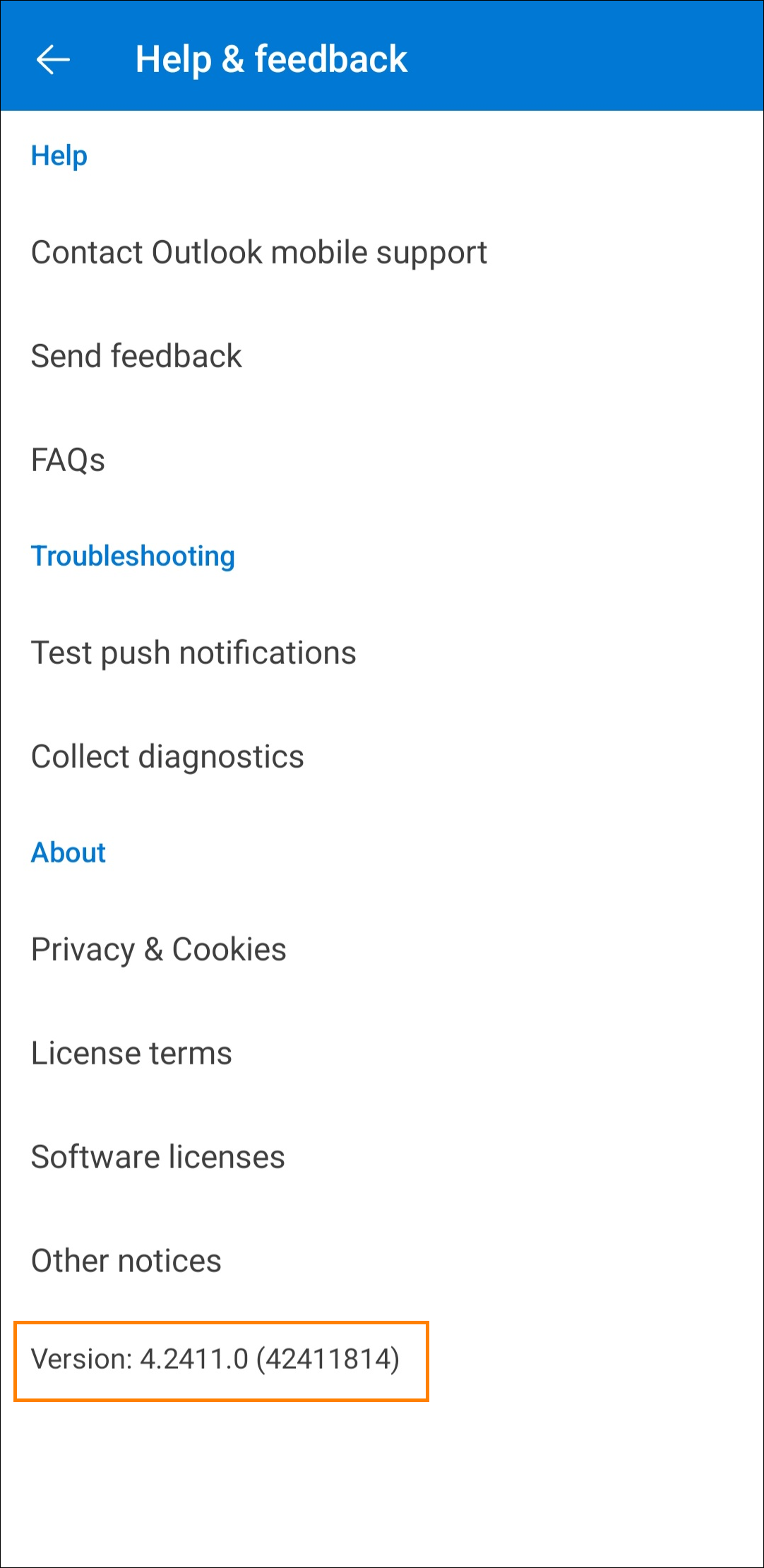
Fig. 11. Outlook version number as shown in Outlook for Android.
Alternative path to check the app version on an Android mobile device:
- Press and hold the Outlook app icon.
- Tap App info in the menu that appears (Fig. 12.).
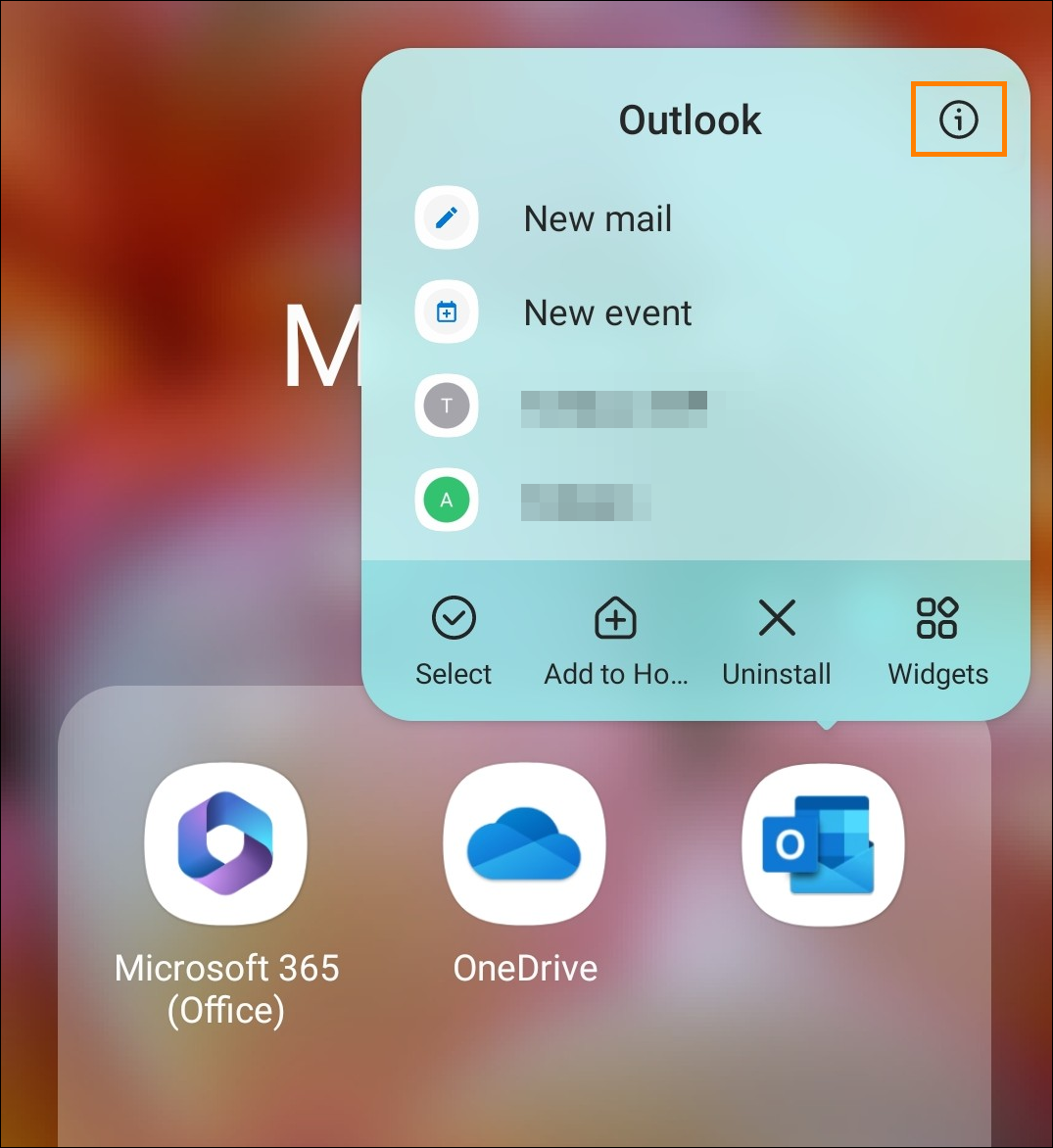
Fig. 12. The App info icon in the app’s long-press menu on Android.
- The version number can be found at the bottom of the screen (Fig. 13.).
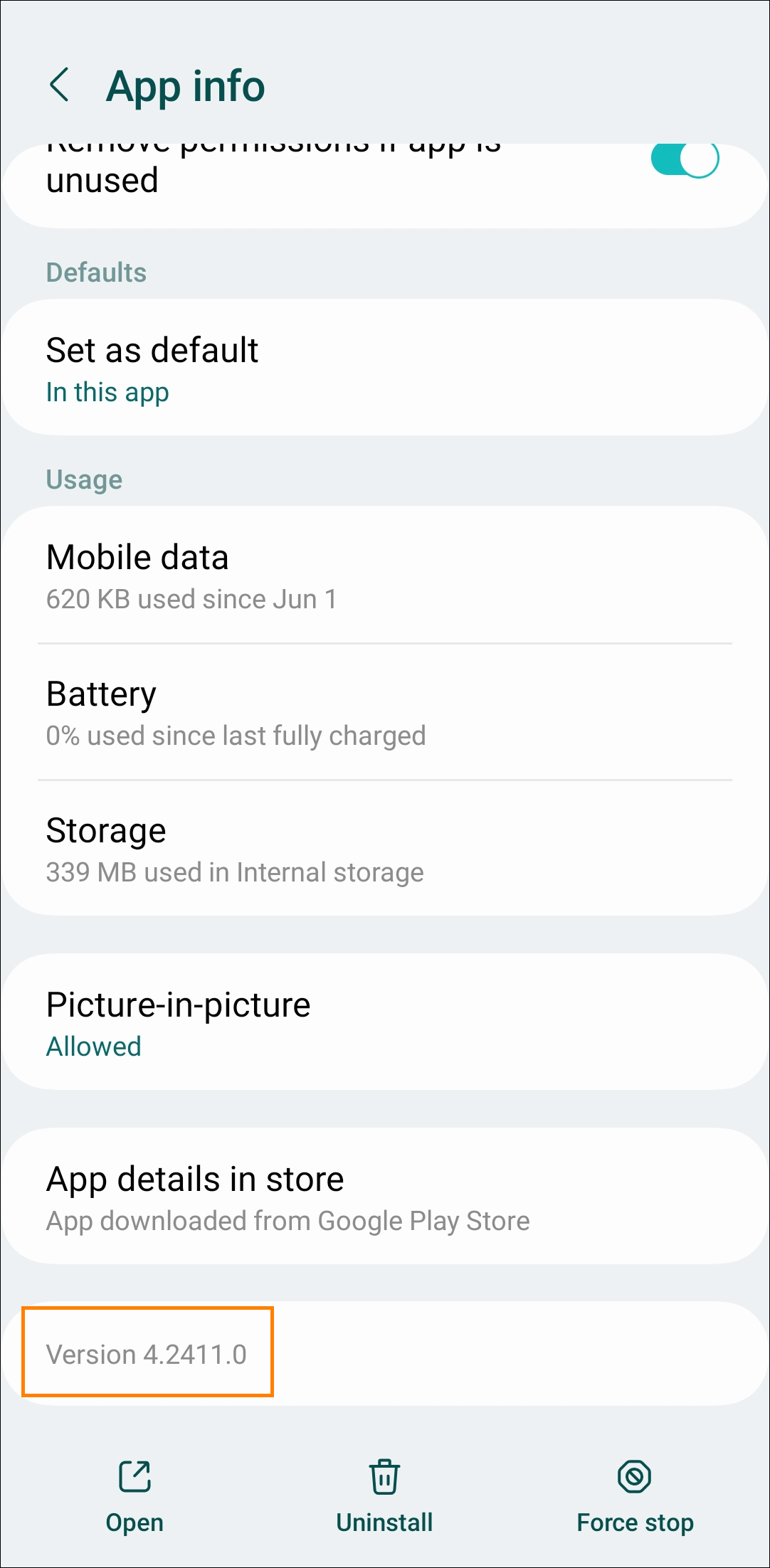
Fig. 13. Checking the app version in Android system settings.
Outlook for iOS
- Open Outlook on your iOS device (e.g., iPhone) and tap the account profile picture.
- Tap the gear icon (Fig. 14.) to open Settings.
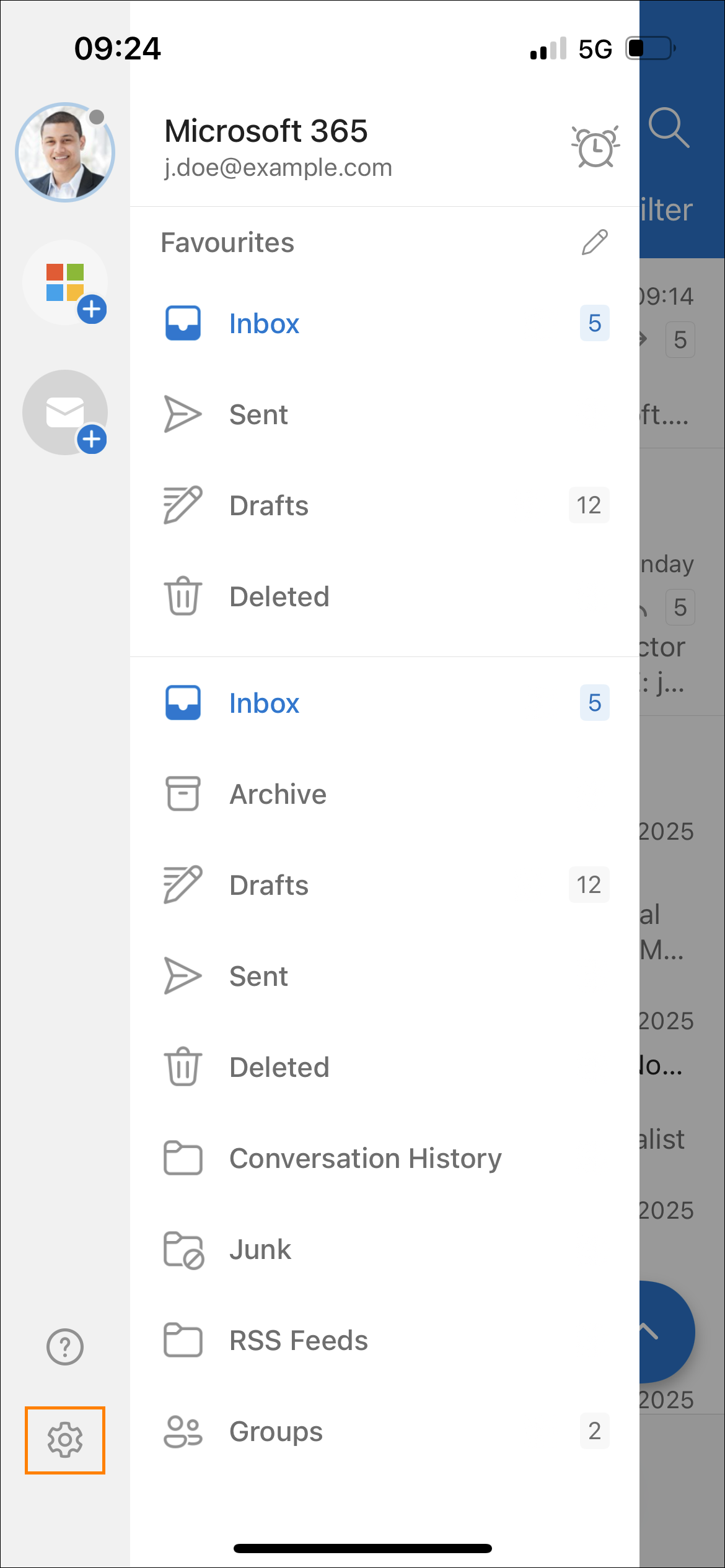
Fig. 14. The gear (Settings) icon in Outlook for iOS.
- Tap Help & Feedback (Fig. 15.).
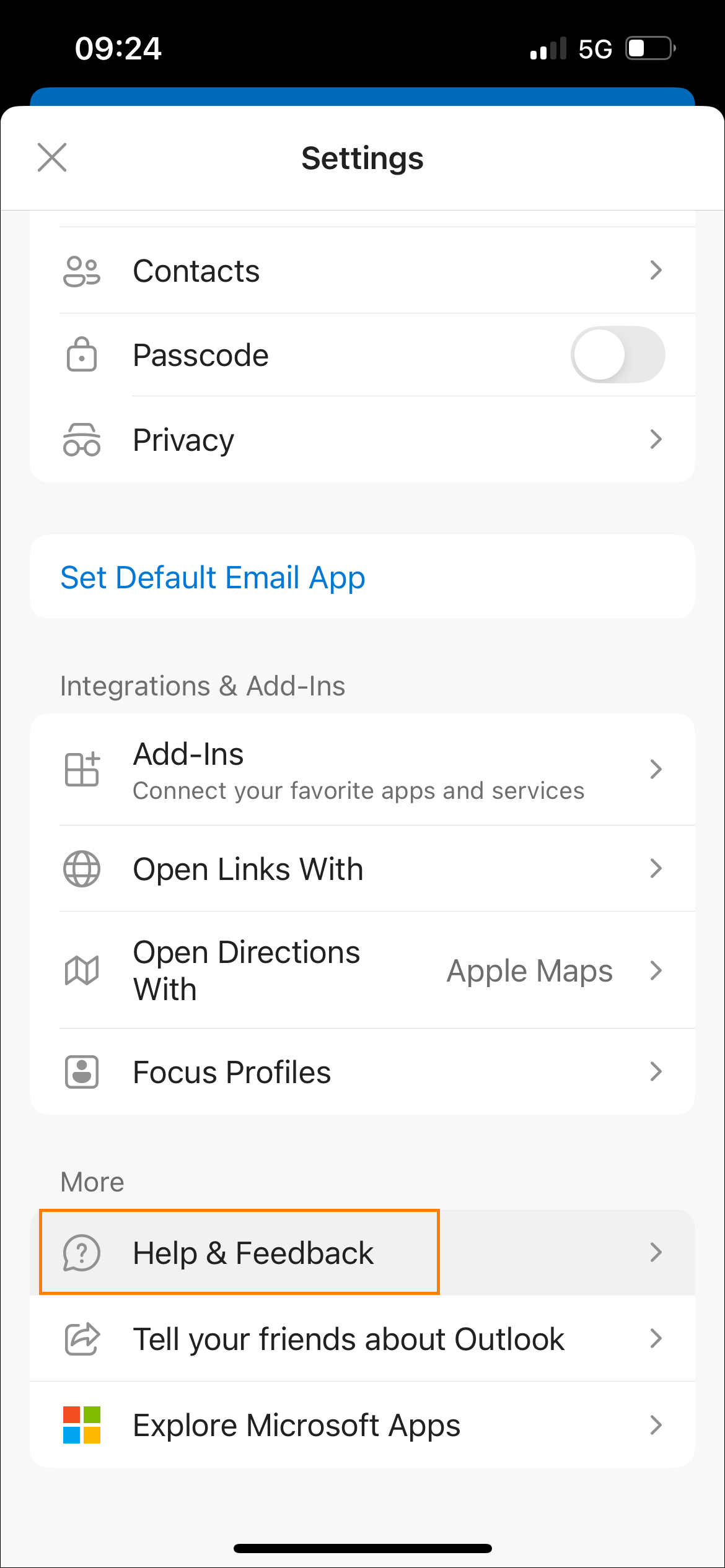
Fig. 15. The Help & feedback option in the Settings tab in Outlook for iOS.
- The version number appears at the bottom of the screen (Fig. 16.).
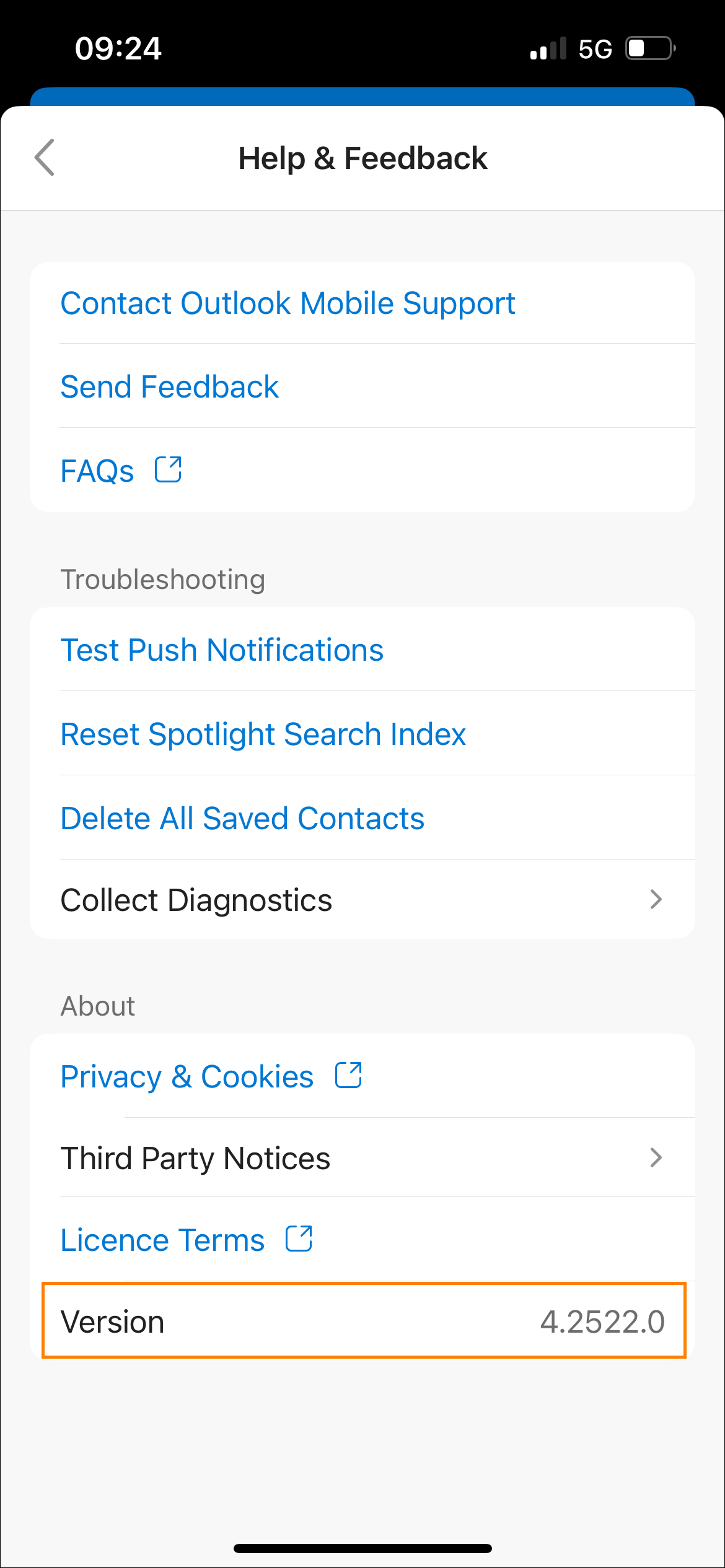
Fig. 16. Outlook version number as shown in Outlook for iOS.
| Related products: | CodeTwo Email Signatures for Office 365, Tools for Outlook |
| Categories: | How-To |
| Last modified: | September 8, 2025 |
| Created: | June 26, 2025 |
| ID: | 1132 |





