Blocked Azure IP causes problems with email delivery
Problem:
An email sent by a user does not reach the recipient. The sending user might get a non-delivery report with the following error:
550 5.7.1 Service unavailable, Client host [<IP address>] blocked using Customer Block list (AS16012607).
where the <IP address> is an IP address of a certain Azure region. See a complete list of IP addresses of the CodeTwo cloud service regions.
Important
If the IP is blocked on the recipient’s server, the sender will get an NDR message similar to the one above. To send emails to the recipient’s address normally, you need to contact their email admin to follow the procedure below. In the meantime, you can configure a transport rule that will exclude those recipients from getting signatures.
Blocking the IP on a tenant which uses CodeTwo Email Signatures 365 results in dropping all emails that were forwarded to the CodeTwo cloud service. Such setting makes the CodeTwo service unable to send any messages (including NDRs) back to the tenant. You should pay extra attention not to block any Azure service IPs.
In both situations, the solution below fixes the issue.
Solution:
The problem occurs when IP Block list in the Microsoft Defender XDR (Microsoft 365 Defender) portal is configured to block an IP address of a CodeTwo cloud service region. Removing the IP from the IP Block list solves the problem.
- Click this link to access the Anti-spam policies page - use your admin's credentials to sign in.
Info
To manually access the page, go to Email & collaboration > Policies & rules > Threat policies > Anti-spam.
- Select Connection filter policy (Default) to open the settings panel, and click Edit connection filter policy (Fig. 1.).
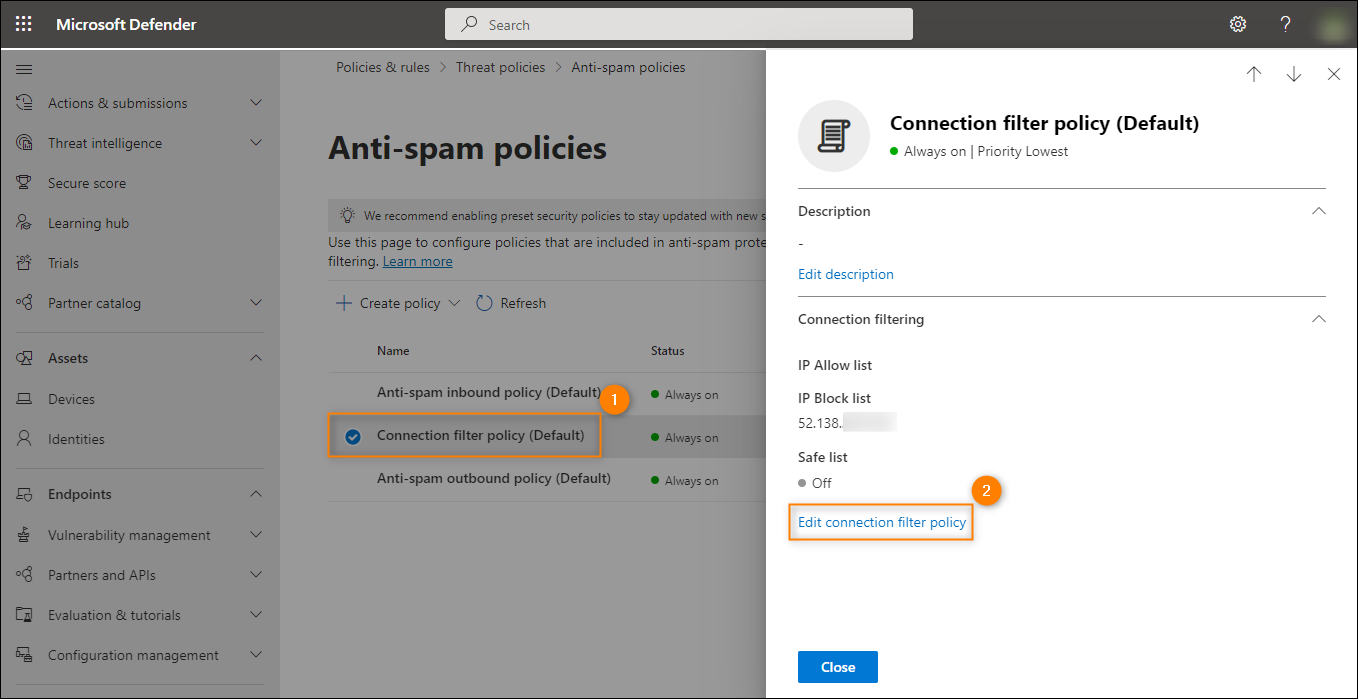
Fig. 1. Accessing connection filter policy settings.
- Remove the IP address which matches the address of any CodeTwo service region from the Always block messages from the following IP addresses or address range field by clicking the X sign next to it. Use the Save button to save your changes (Fig. 2.).
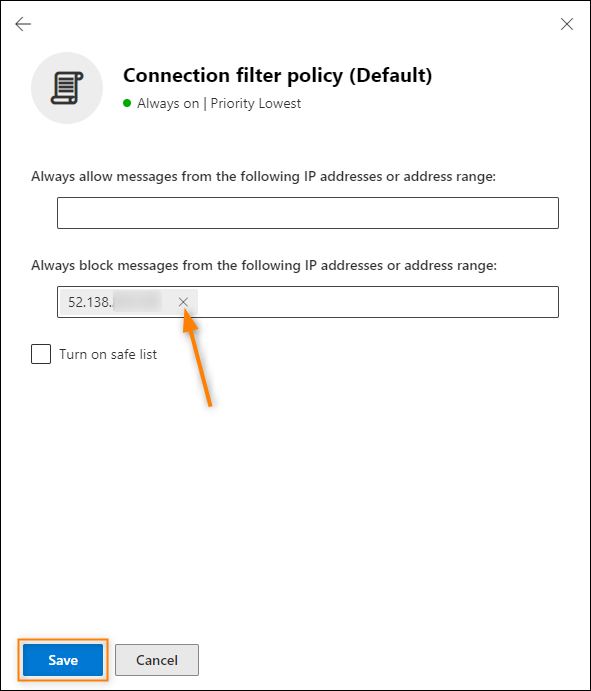
Fig. 2. Removing a blocked IP from the Connection filter policy settings.
Now, emails stamped with signatures should be delivered normally. If the issue persists, the IP address might be blocked by another connection filter policy or a smart host.
See also:
| Related products: | CodeTwo Email Signatures for Office 365 |
| Categories: | Troubleshooting |
| Last modified: | January 29, 2024 |
| Created: | January 2, 2020 |
| ID: | 834 |