Microsoft security policies prevent creating app passwords in Microsoft 365
Problem:
After enabling multi-factor authentication (MFA) for the entire organization (or for admins only) by applying Security defaults or using Conditional Access Policies, app passwords may no longer be available for the affected users. This prevents you from using app passwords in your CodeTwo software to connect to your Microsoft 365 (Office 365) organization (e.g. when using CodeTwo Backup).
Solution:
Normally, app passwords can be created on the Security info page in Microsoft 365 by clicking Add sign-in method and choosing App password from the list. However, when MFA is forced by other means than using the legacy MFA portal, the list might be missing the relevant option (as shown in Fig. 1.).
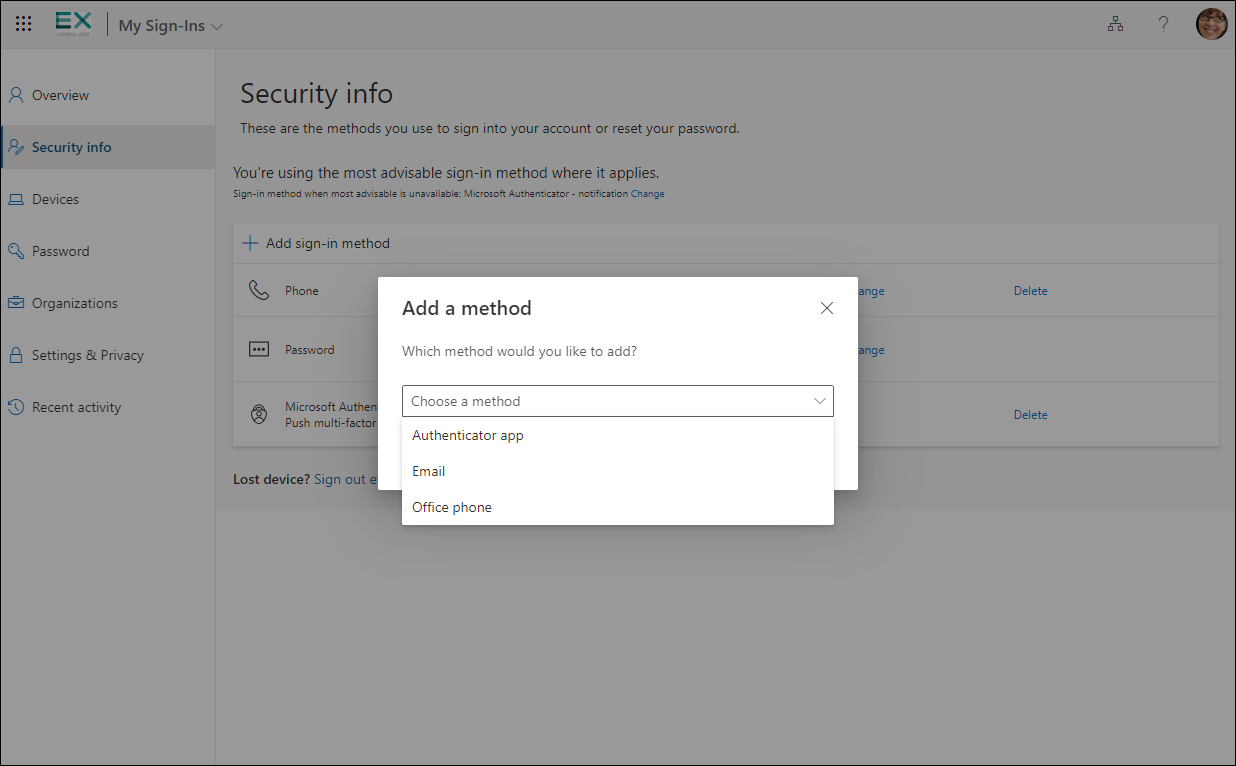
Fig. 1. The list with available sign-in options is missing the App password method.
This is because the MFA status might still appear as Disabled (Fig. 2.) in the legacy MFA portal.
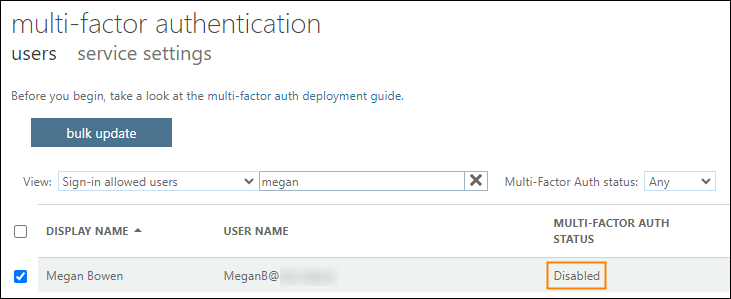
Fig. 2. The MFA portal showing that multi-factor authentication is disabled for the selected user.
To enable the App password authentication method on the list, follow the steps below.
Important
You can apply the same steps even if the MFA status is shown as Enabled but you still don't see the App password option on the list. In such a case, you will need to additionally enforce MFA for the affected user, as shown in step 6.
- Sign in to the Microsoft 365 admin center.
- Go to Users > Active users.
- Without selecting any user, click Multi-factor authentication (Fig. 3.).
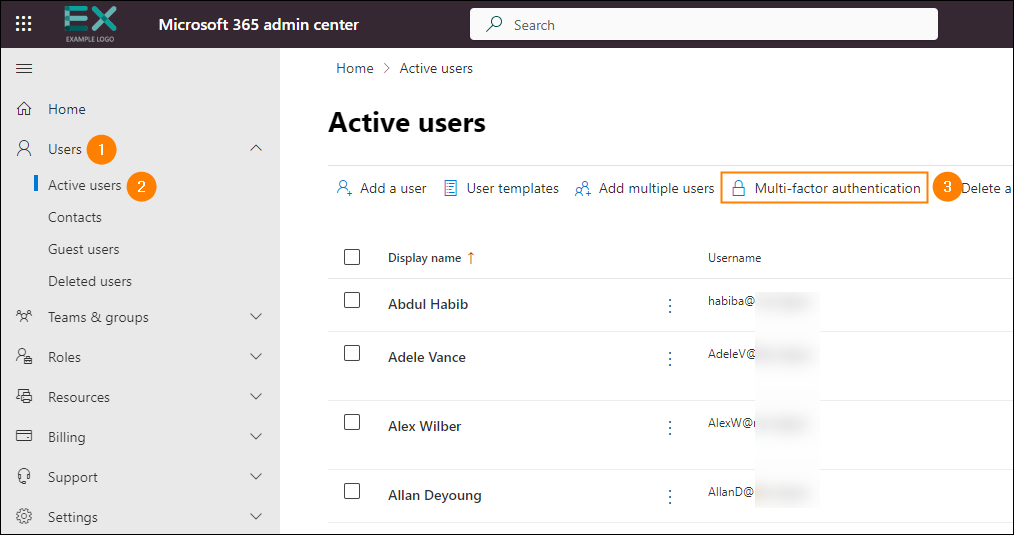
Fig. 3. Accessing the legacy MFA settings.
- (Optional) If you see the following screen, click Legacy per-user MFA (Fig. 4.) to proceed.
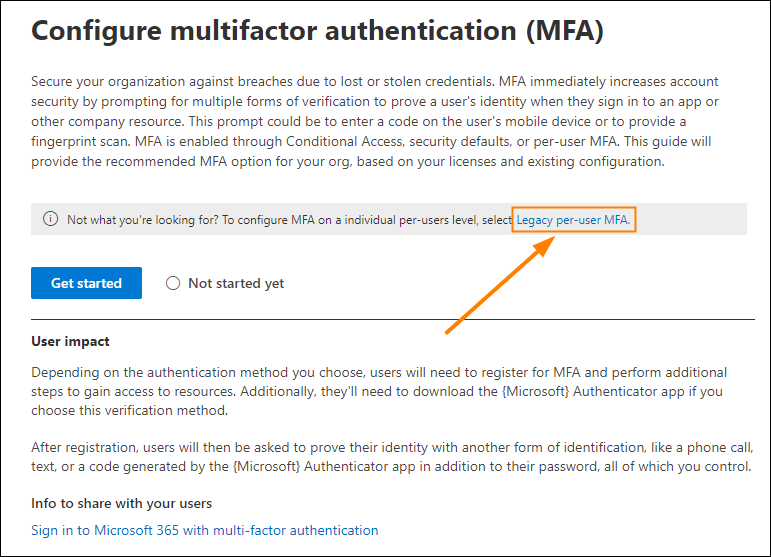
Fig. 4. Accessing the legacy MFA settings from the MFA configuration wizard.
- On the users tab, find the admin account that you use in your CodeTwo software, select it and click Enable (Fig. 5.). Next, in the popup that opens, confirm your choice by clicking enable multi-factor auth.
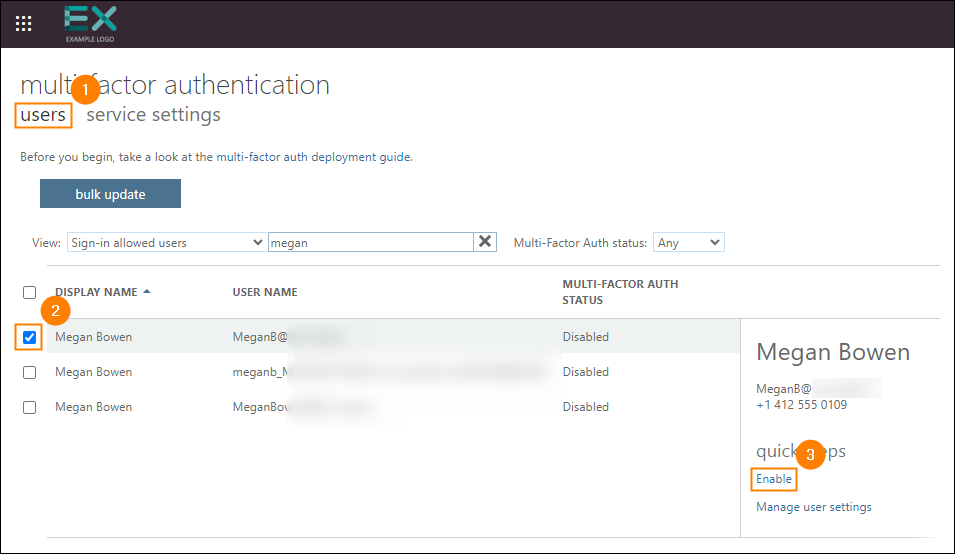
Fig. 5. Enabling multi-factor authentication for an admin account used in your CodeTwo software.
- Select the same account again and this time click Enforce (Fig. 6.). In the popup that opens, click enforce multi-factor auth and close.
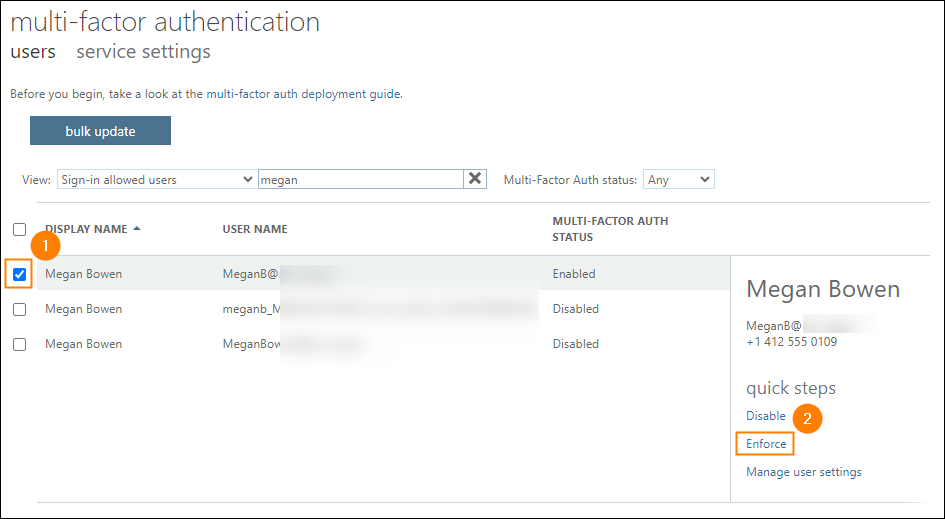
Fig. 6. Enforcing MFA for the affected admin account.
- Go back to the Microsoft 365 admin center. On the Active users page, select the admin account whose MFA settings you’ve just modified and click Sign out of all sessions (Fig. 7.).
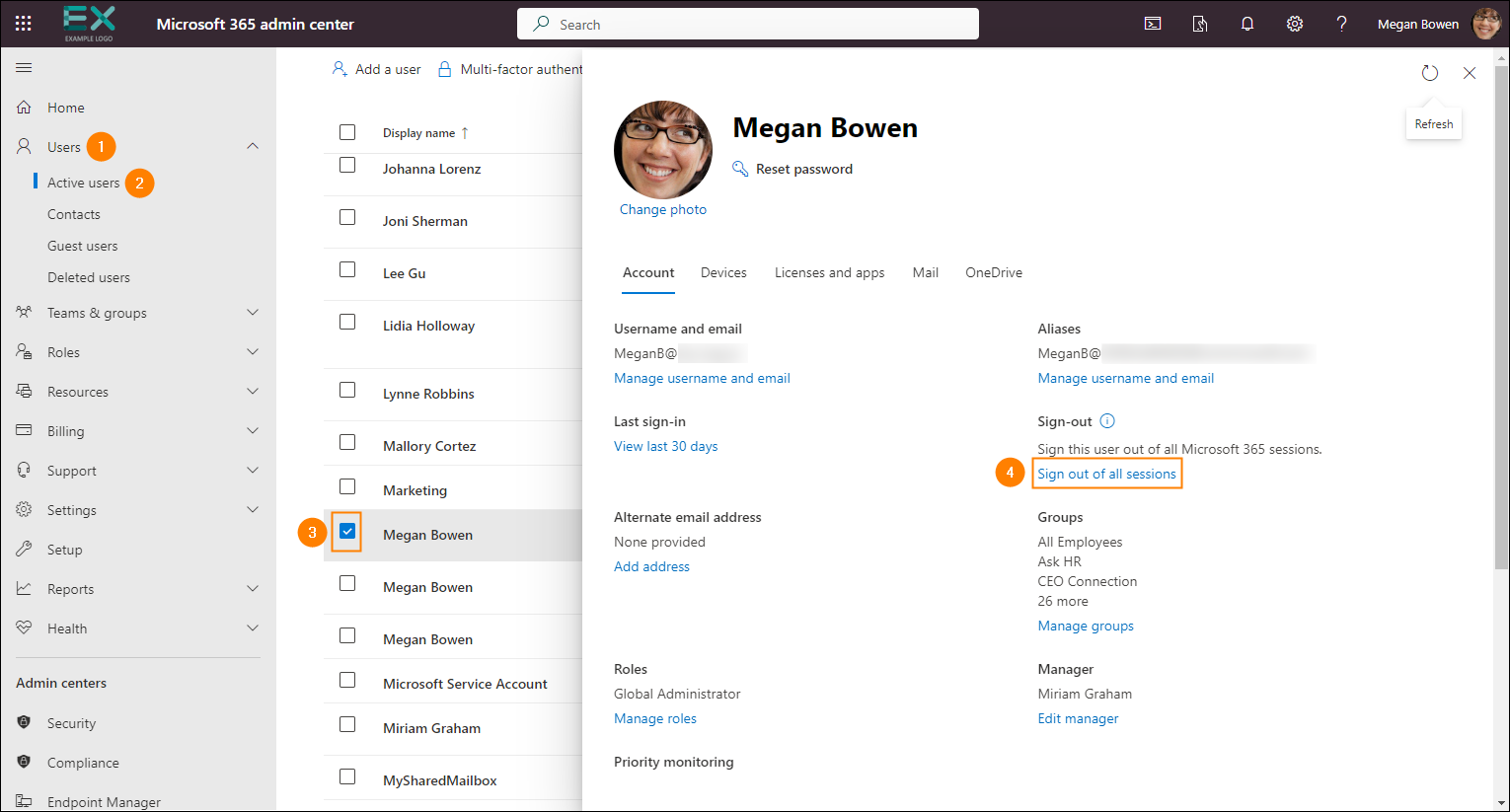
Fig. 7. Signing out the user from all sessions to facilitate the changes.
- Wait some time for the changes to propagate. Then, sign in to Microsoft 365 with the admin account. Click Add sign-in method – now the App password item should be available on the list (Fig. 8.).
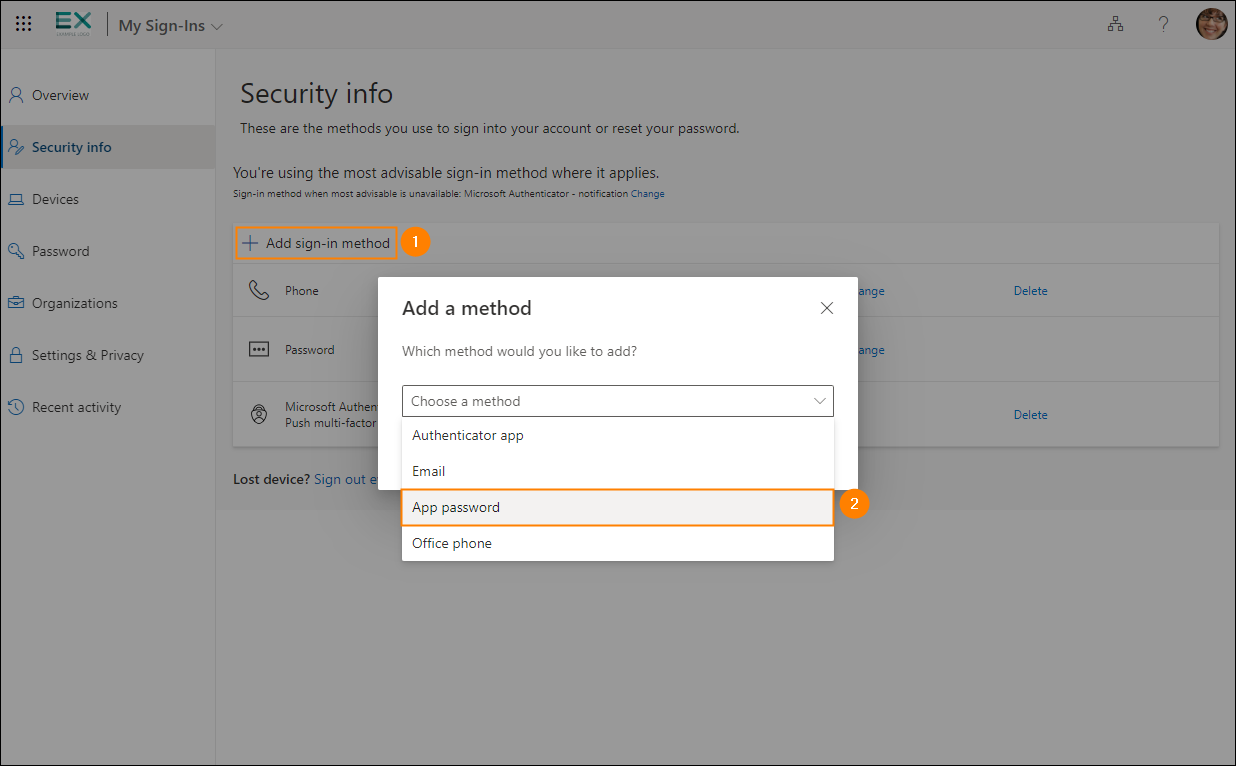
Fig. 8. You can now choose App password from the list.
Once you have access to app passwords, follow these steps to learn how to generate them and use with your CodeTwo software.
| Related products: | CodeTwo Backup for Exchange, CodeTwo Backup for Office 365, CodeTwo Email Signatures for Office 365 |
| Categories: | Troubleshooting |
| Last modified: | August 5, 2024 |
| Created: | August 26, 2019 |
| ID: | 821 |





