Saving signature template as a file in CodeTwo Email Signatures 365
Problem:
You want to save a signature template in CodeTwo Email Signatures 365 as a file.
Solution:
To save a signature template as a file, you need to follow the steps below. Note that the output files will be different for cloud (server-side) and Outlook (client-side) signature templates.
To save a signature template as a file:
- Open the signature management app (app.codetwo.com).
- Select a cloud (server-side) or an Outlook (client-side) signature you want to work with.
- Go to the Design step and click the Edit signature button.
- When the signature template editor opens, click Templates > Save as file (Fig. 1.) on the ribbon.
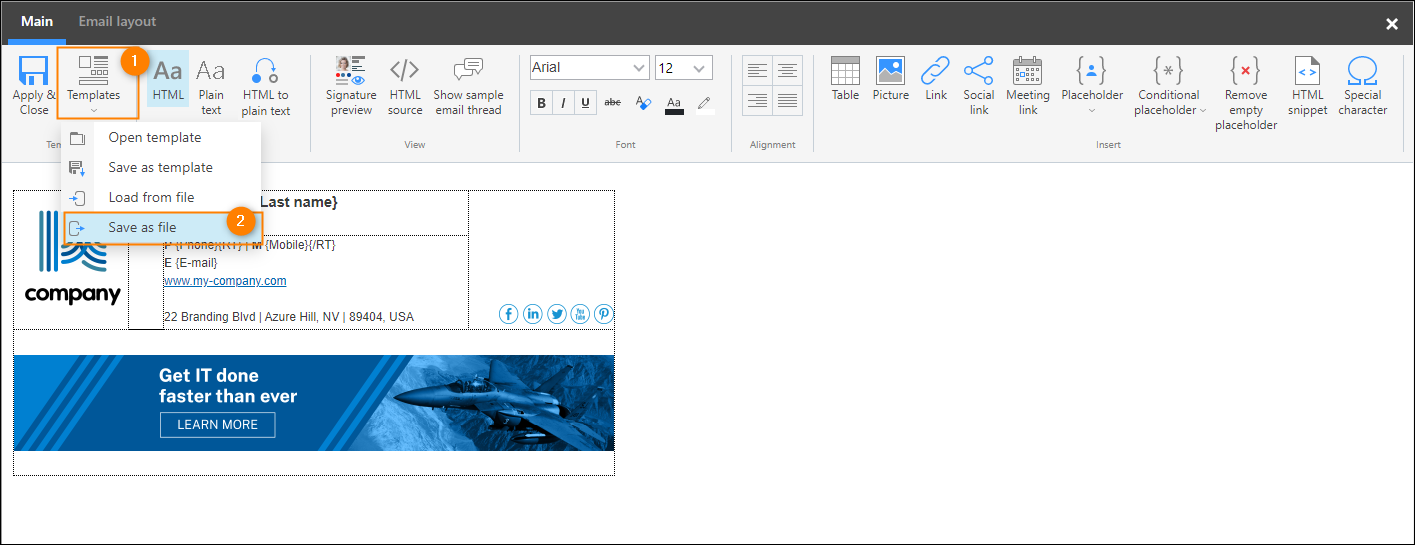
Fig. 1. Saving the signature template as a file in the signature template editor.
- Navigate to the folder of your choice and click Save.
Info
CodeTwo uses proprietary file formats to save signature templates. In the case of cloud (server-side) signature templates, the format is .c2cf, while in the case of Outlook (client-side) signature templates, the format is .c2tf.
To load a signature template from a file into CodeTwo Email Signatures 365, open the signature template editor, click Templates > Load from file (Fig. 2.) and select the .c2cf or .c2tf file you want to open.
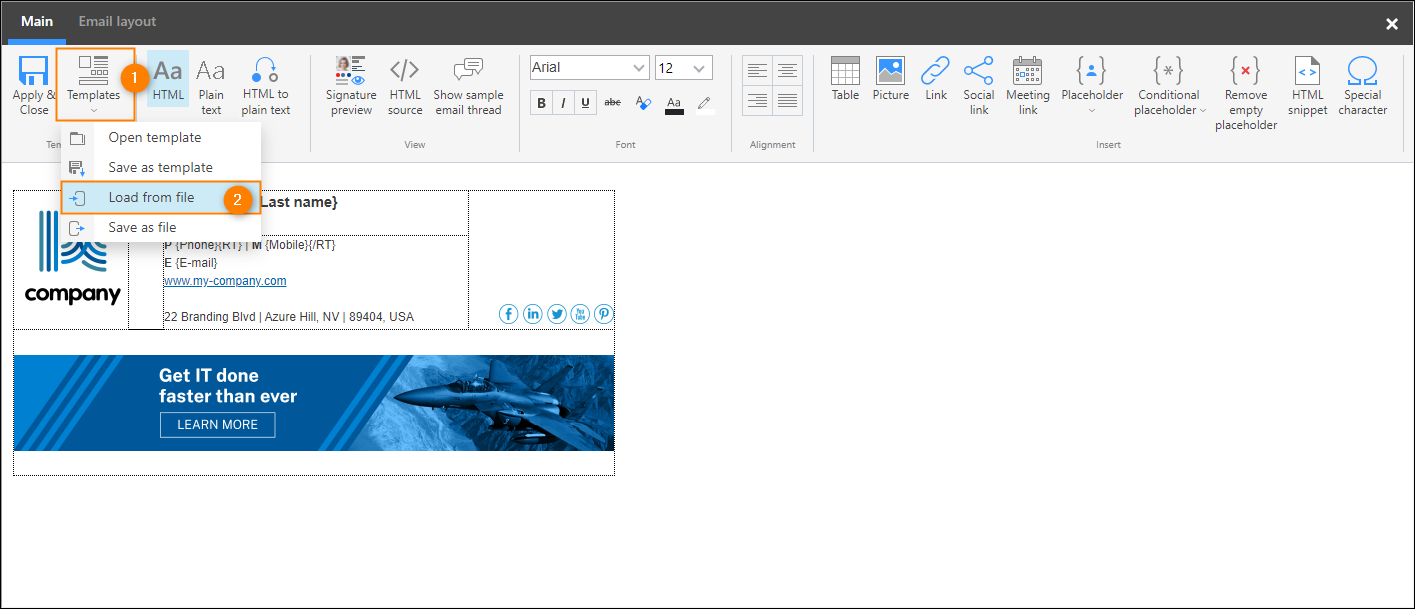
Fig. 2. Loading the signature template from a file in the signature template editor.
See also:
CodeTwo Exchange Rules Converter – an easy-to-use tool that allows you to transfer rules and templates from CodeTwo Exchange Rules to CodeTwo Email Signatures 365
| Related products: | CodeTwo Email Signatures for Office 365 |
| Categories: | How-To |
| Last modified: | June 22, 2023 |
| Created: | March 11, 2020 |
| ID: | 849 |