Refreshing CodeTwo Public Folders database
This article is meant for users of CodeTwo Public Folders. This software has been discontinued. You can check the list of currently available CodeTwo products here.
Problem:
How to refresh CodeTwo Public Folders database.
Solution:
Warning!
Steps from this manual should be applied only in some very specific cases. If the problem you encountered is not related to the database corruption or you follow the steps below improperly you may lose your data! Do not follow the instructions below unless you were instructed by CodeTwo support team to do so.
- Go to a computer which has MS Outlook and CodeTwo Public Folders client application installed.
- It is very important that this particular client app has access to all your data shared with CodeTwo Public Folders. You may want to review the shared folders permissions in the Administration Panel of the Syncing Master to make sure you do not lose any data because you did not have access to some of them.
- Create a new, empty PST file in MS Outlook.
- Make sure you are browsing Outlook folders in the folder list view. If you do not switch to folder list view you can accidentally omit some of your data and lose it.
- Manually copy all folders from your C2PublicFolders tree, except for "Other users' folders" to the newly created PST file. You can do this by dragging folders from the C2PublicFolders tree and dropping them in the new PST file tree.
- Delete those folders from the C2PublicFolders tree.
- Now go to your Syncing Master computer.
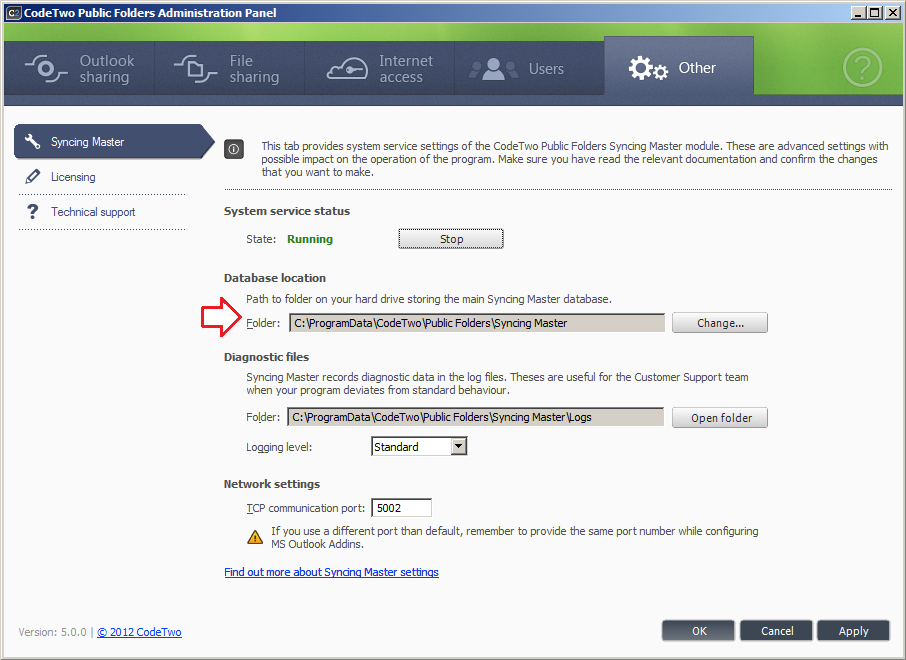
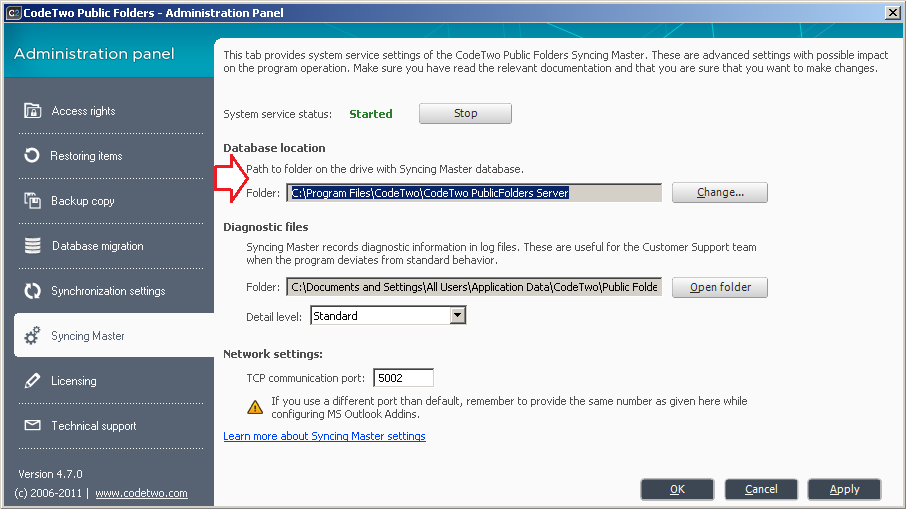
- Go to the Administration Panel of the Syncing Master module to find the location of your database.
- Version 5.x go to the Other tab and Syncing Master Section.
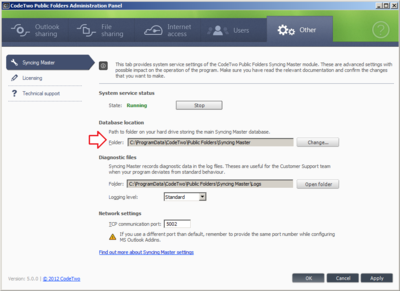
Fig. 1. Database path in version 5.x. - Version 4.x go to the Syncing Master section.
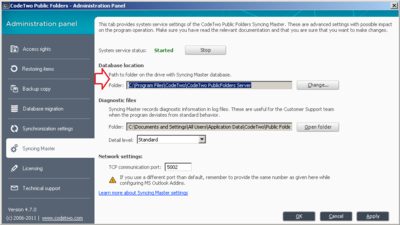
Fig. 2. Database path in versions 4.5.x - 4.9.x.
- Version 5.x go to the Other tab and Syncing Master Section.
- Go to Start, run or search programs and files, services.msc
- Stop C2PublicFolders service.
- Go to the database location.
- Delete all files and folders from the Data folder.
- Start the C2PublicFolders service.
- Go back to a client machine where you created a copy of the shared folders in a new PST file.
- Copy all folders from the new PST file back to C2PublicFolders tree.
Be aware that some data may be lost while performing the above operations. You will lose data that you do not have proper permissions to access. You will also lose any data kept in corrupted files. However, the database corruption is probably why you are following this article in a first place.
| Related products: | CodeTwo Public Folders 4.5, 5.x |
| Categories: | How-To |
| Last modified: | March 20, 2019 |
| Created: | October 16, 2013 |
| ID: | 295 |





