How to fix login problems with CodeTwo Admin Panel and Signatures app
Problem:
You are unable to sign in to your CodeTwo Admin Panel account or the Signatures app.
Solution:
There might be several reasons why you cannot sign in. The most common causes and recommended solutions are described below.
- Incorrect configuration of CodeTwo Email Signatures 365 apps in Microsoft Entra ID (Azure Active Directory)
- No admin consent granted to the CodeTwo Admin Panel app in Microsoft Entra ID
- You signed in with your Microsoft account instead of your CodeTwo account
- Admin Panel service IP address is blocked by the firewall
- Endpoints used by the Signatures app are blocked by the firewall
Incorrect configuration of CodeTwo Email Signatures 365 apps in Microsoft Entra ID
If you experience issues such as a redirect loop, an automatic redirect back to the sign-in page, or simply no response when you try to sign in to CodeTwo Admin Panel or the Signatures app, perform the steps described below to ensure that the CodeTwo apps are configured properly in your Entra ID.
- Sign in to the Microsoft Entra admin center.
- Go to Azure Active Directory (or Identity) > Applications > Enterprise applications in the left menu.
- In the search bar just above the app list, search for
codetwo email signatures
The list will be populated with apps that match the searched phrase (Fig. 1.).
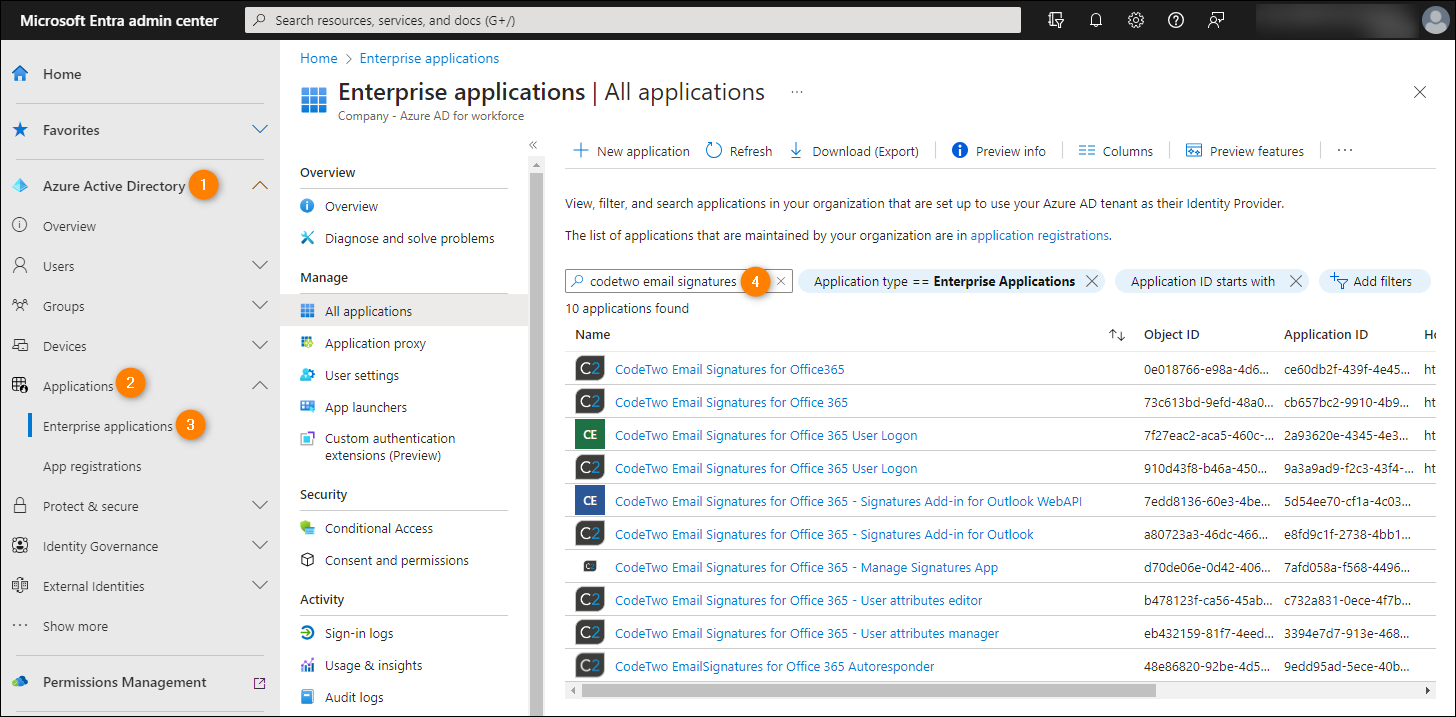
Fig. 1. The Microsoft Entra ID app list populated with CodeTwo apps matching the searched phrase.
- For each listed CodeTwo app, perform the following steps:
- Click an app to go to its settings page.
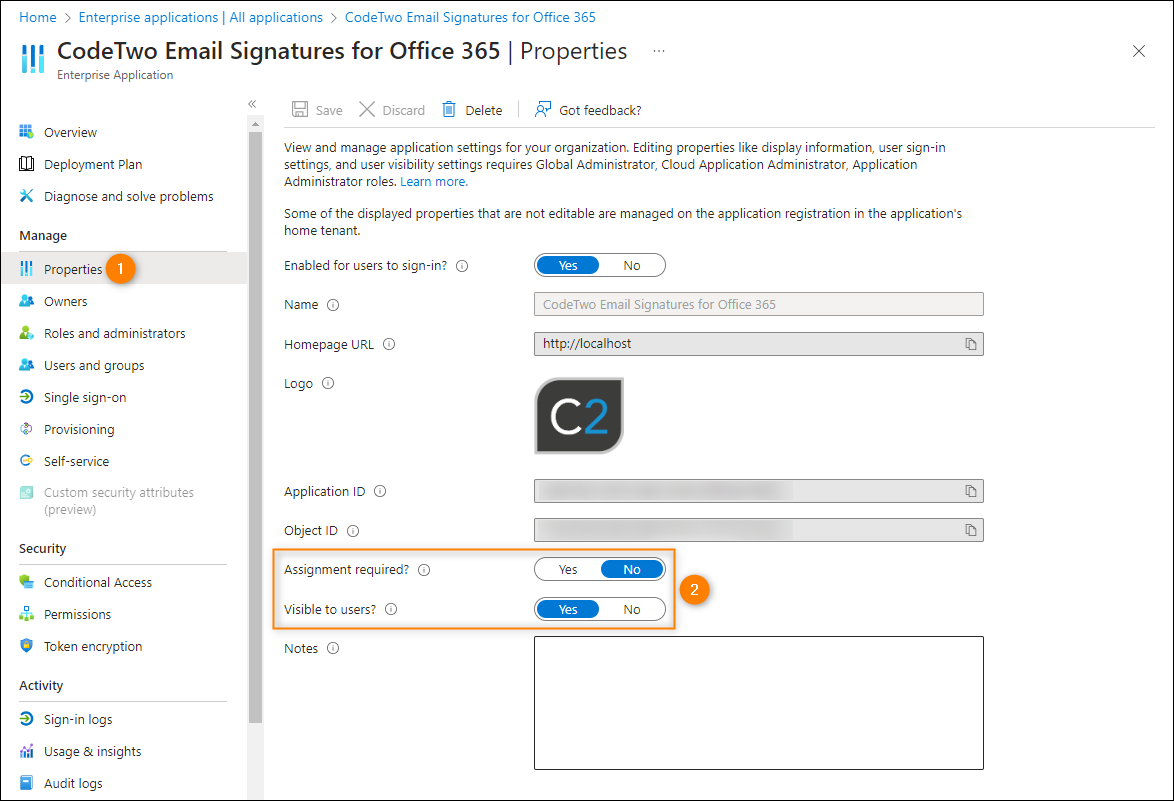
- Go to Properties and make sure the settings are the same as presented in Fig. 2. If not, please update them accordingly:
- Assignment required? = No
- Visible to users? = Yes
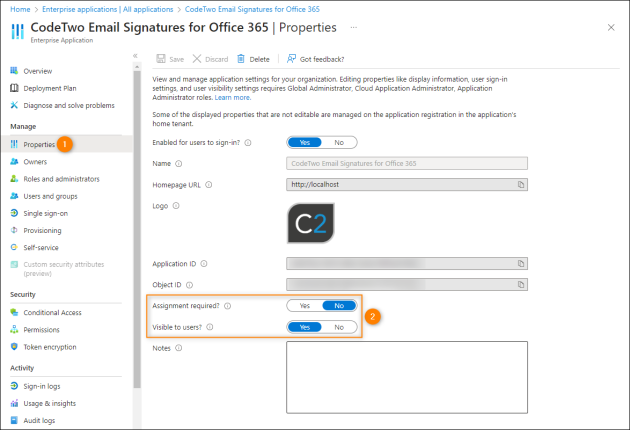
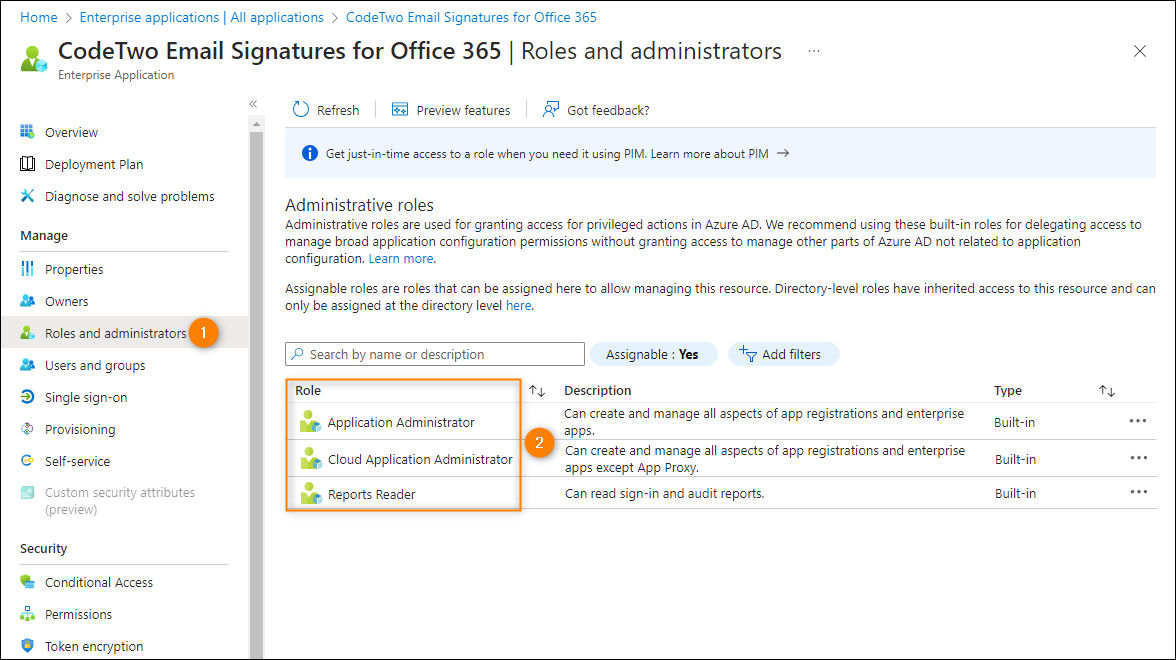
Fig. 2. Correct settings for the CodeTwo apps.- Next, go to Roles and administrators in the navigation menu. The following three entries should be present (Application Administrator, Cloud Application Administrator, Reports Reader), as shown in Fig. 3. If not, add them back.
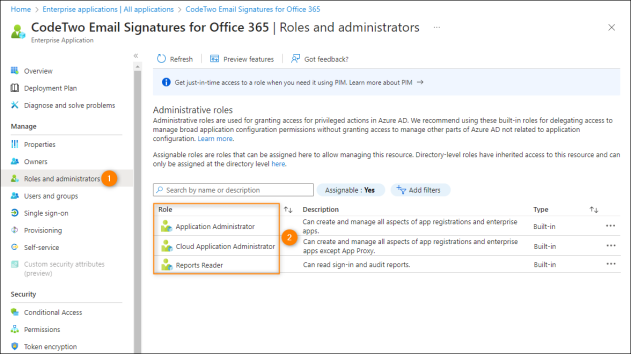
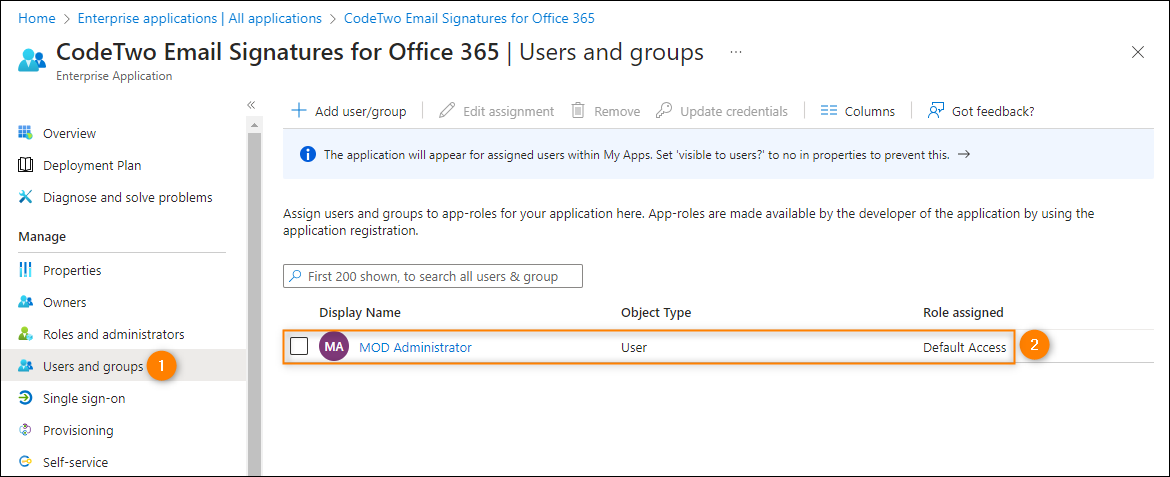
Fig. 3. The three mandatory roles listed on the Roles and administrators page for all CodeTwo apps.- Finally, go to Users and groups and check if you can see the entry for the global admin user with the Default Access role assigned (Fig. 4.). If there is no such entry, add a global admin account, preferably the one used to register your tenant with CodeTwo.
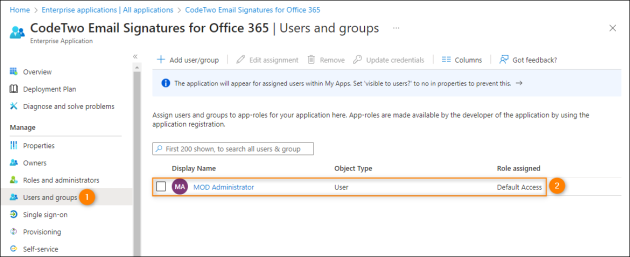
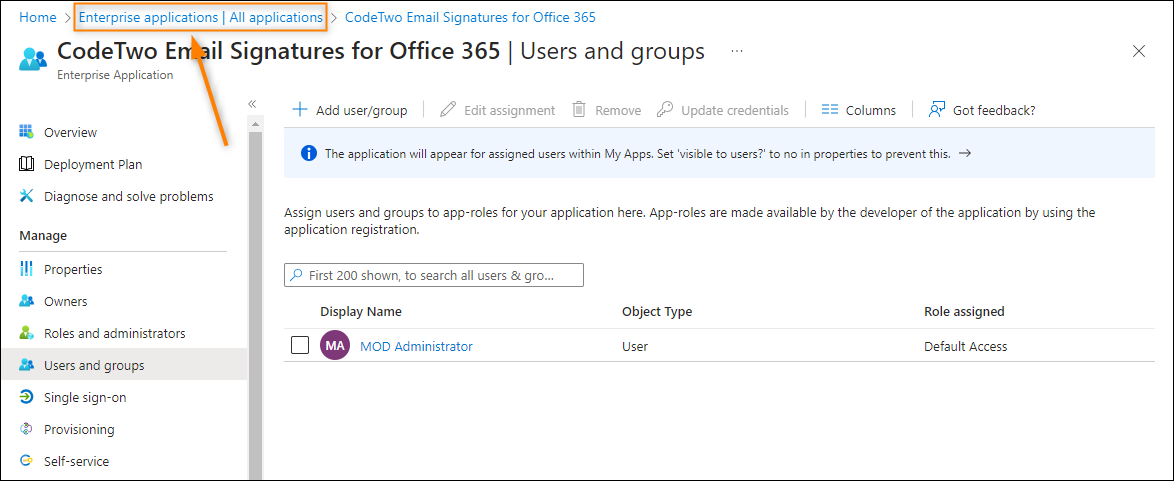
Fig. 4. The global admin user with the Default Access role.- Go back to the list of found CodeTwo apps by clicking the Enterprise applications | All applications link at the top of the window (Fig. 5.).
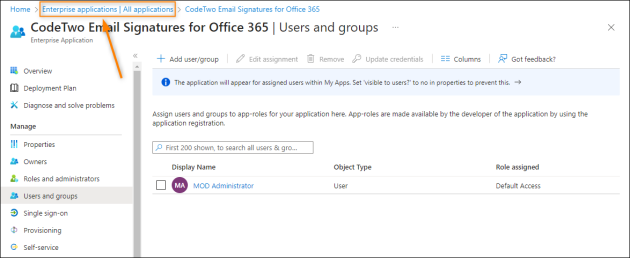
Fig. 5. Conveniently go back to the list by clicking the link.
- Remember to repeat the procedure from step 4 for all the apps that you have found using the codetwo email signatures phrase.
Once you have properly configured all the CodeTwo apps in Microsoft Entra ID as described above, you should no longer experience sign-in problems.
No admin consent granted to the CodeTwo Admin Panel app in Microsoft Entra ID
When you try to sign in to CodeTwo Admin Panel, you get the following error message:
Sorry, but we're having trouble signing you in.

AADSTS700016: Application with identifier 'AdminPanelv2' was not found in the directory '<Tenant ID>'. This can happen if the application has not been installed by the administrator of the tenant or consented to by any user in the tenant. You may have sent your authentication request to the wrong tenant.
Typically, this error indicates that the Owner of your organization’s CodeTwo Admin Panel account hasn’t granted tenant-wide consent to the CodeTwo Admin Panel app in Entra ID when creating the account. Because of that, non-admin users cannot grant the consent themselves and thus sign in to CodeTwo Admin Panel.
To solve the problem, a global admin or a user with appropriate administrative privileges from your Microsoft 365 tenant needs to grant the permissions requested by the app on behalf of the entire organization in the Microsoft Entra admin center, as shown below.
- Sign in to the Microsoft Entra admin center.
- In the menu on the left, go to Azure Active Directory (or Identity) > Applications > Enterprise applications (Fig. 6.).
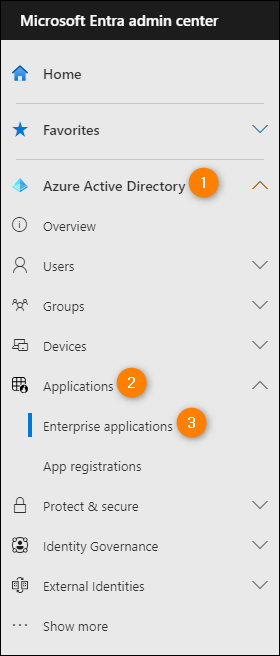
Fig. 6. Accessing the enterprise applications list in the Microsoft Entra admin center.
- Type codetwo in the search box above the list of all applications (Fig. 7., item 1) and locate the CodeTwo Email Signatures for Office365 app (note that its Application ID starts with ce60db2f, as shown in Fig. 7., item 2). Click the app to access its settings.
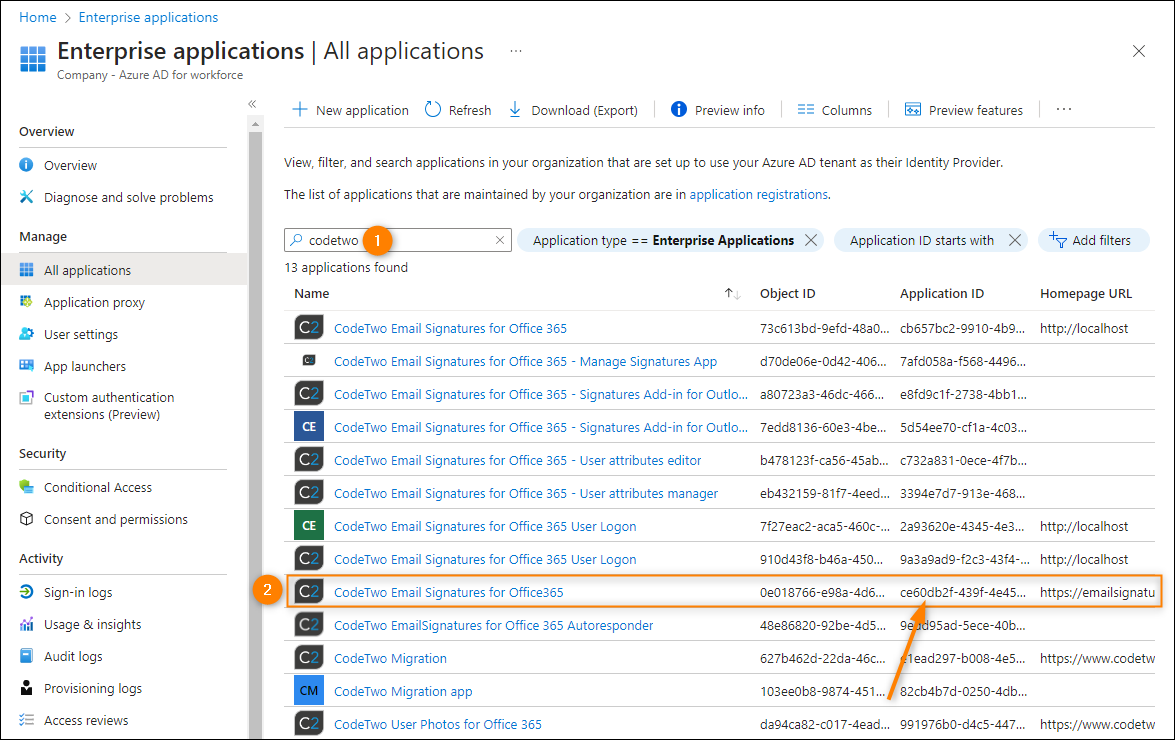
Fig. 7. Finding the CodeTwo Admin Panel app to access its settings.
- Click Permissions from the menu on the left and then click the Grant admin consent for <your tenant name> button (Fig. 8.).
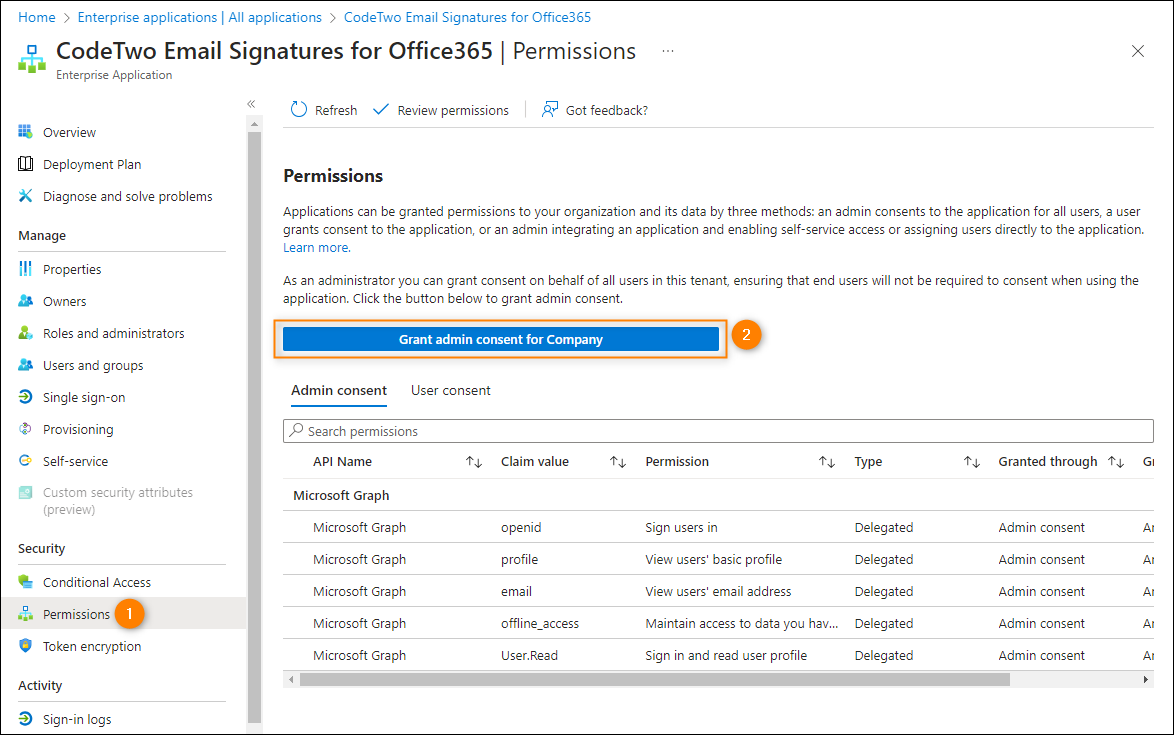
Fig. 8. Launching the pop-up where you can grant the requested permissions on behalf of your organization.
- The pop-up to grant permissions will open. Choose your admin account and accept the permissions requested by the app (Fig. 9.).
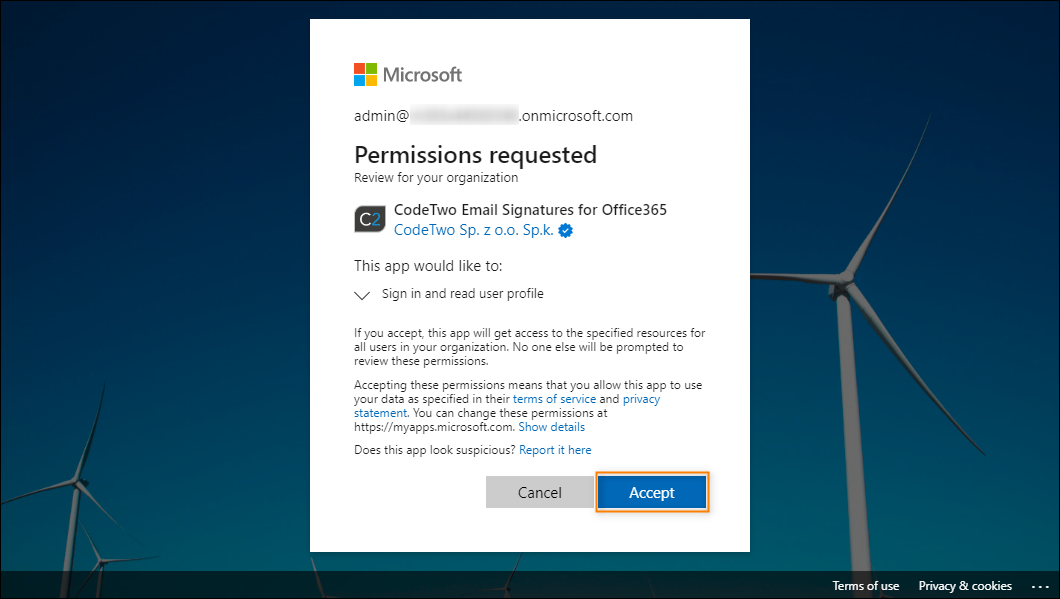
Fig. 9. Granting the permissions on behalf of all users in your Microsoft 365 tenant.
You should now be able to access CodeTwo Admin Panel with no issues (assuming that you’ve been invited to join your organization’s Admin Panel account as an admin). If the problem persists, wait some time for the changes to propagate in your Microsoft 365 tenant.
Tips
Alternatively, you can change the Entra ID settings controlling who can grant consent to applications, as described in this section of another article, thereby allowing the affected user to grant consent on their own.
And if you don’t want to grant tenant-wide consent but only grant it on behalf of the user who can’t sign in to CodeTwo Admin Panel, you can use PowerShell scripting, as highlighted here.
You signed in with your Microsoft account instead of your CodeTwo account
If you use the same email address for your CodeTwo Admin Panel account and your Microsoft account, and you are not able to sign in to Admin Panel or reset your password, you might have changed the default sign-in method.
The program allows you to sign in using a dedicated CodeTwo Admin Panel account or your Microsoft account (Fig. 10.).
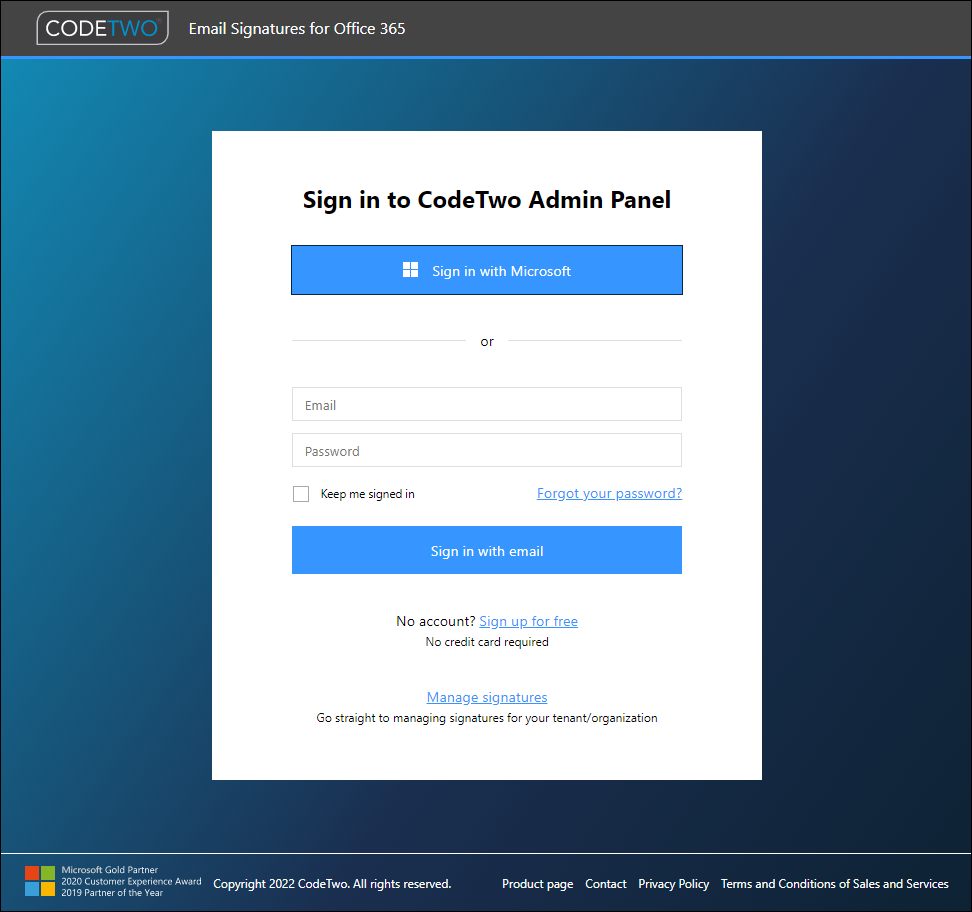
Fig. 10. The available sign-in options.
If you created a dedicated CodeTwo Admin Panel account and registered the same email address that you use with your Microsoft account, you should be careful when choosing your sign-in method. Because you created a dedicated account, we recommend that you use the Sign in with email option (see Fig. 10.) to sign in to CodeTwo Admin Panel. However, if you choose to sign in with your Microsoft account and provide your Microsoft account credentials, you will also be able to access your Admin Panel.
Warning
In the above scenario, signing in with Microsoft merges your Microsoft account with your CodeTwo Admin Panel account. As a result, your default sign-in method is changed – from now on, you are only able to sign in to Admin Panel with your Microsoft account credentials. Also, the password reset option for the CodeTwo Admin Panel account will no longer work.
Admin Panel service IP address is blocked by the firewall
You may also be unable to sign in to CodeTwo Admin Panel if your organization’s firewall blocks our service’s IP address.
This issue typically manifests as the following error message:
Unexpected error occurred. Refresh the page.
To resolve the issue, make sure that the Admin Panel IP address – 20.86.94.193 – is not blocked by the firewall. If necessary, add it to your firewall whitelist.
Endpoints used by the Signatures app are blocked by the firewall
If you can’t access the Signatures app (app.codetwo.com), your organization firewall might block the app’s endpoints listed below.
Although these endpoints are located in different regions, we recommend whitelisting all of them, especially if your organization has users in different regions of the world.
US endpoint
esig365us0console.service.signalr.net
EU endpoints
esig365westeu0console.service.signalr.net
AU endpoint
esig365au0console.service.signalr.net
See also:
| Related products: | CodeTwo Email Signatures for Office 365 |
| Categories: | How-To, Troubleshooting |
| Last modified: | August 12, 2026 |
| Created: | April 7, 2017 |
| ID: | 628 |






