How to change a user name in CodeTwo Public Folders
This article is meant for users of CodeTwo Public Folders. This software has been discontinued. You can check the list of currently available CodeTwo products here.
Problem:
How to change a user name in CodeTwo Public Folders?
Solution:
Since version 4.5 of the CodeTwo Public Folders you are able to change a user name. In the previous versions the name was assigned permanently during creating the PST file and was retrieved from the name of the user account currently logged in to Windows. If the account name has been changed afterwards, in CodeTwo Public Folders the previous name are remained.
In the current version of the program you can easily move the changed name of the Windows account to CodeTwo Public Folders. After changing the account name, follow the steps below:
- Run the Outlook and choose the CodeTwo Public Folders tab from the top menu.
- Then click the Options icon.
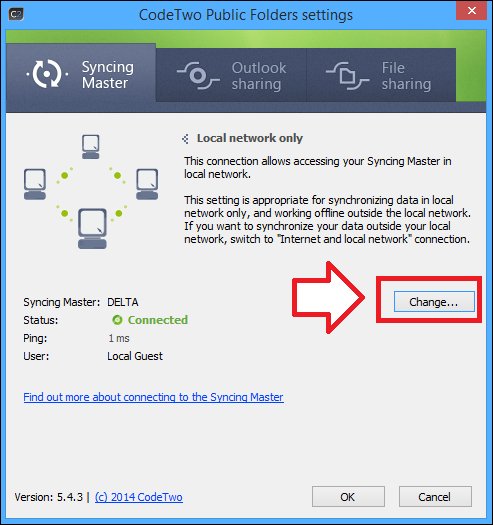
- The CodeTwo Public Folders settings window should appear. In the Syncing Master tab click the Change button (Fig. 1.).
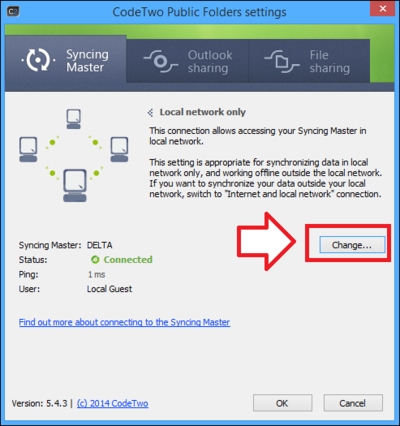
Fig. 1. CodeTwo Public Folders settings. - In a newly opened window, you need to choose the connection type. Please choose the preferred one by clicking the appropriate icon.
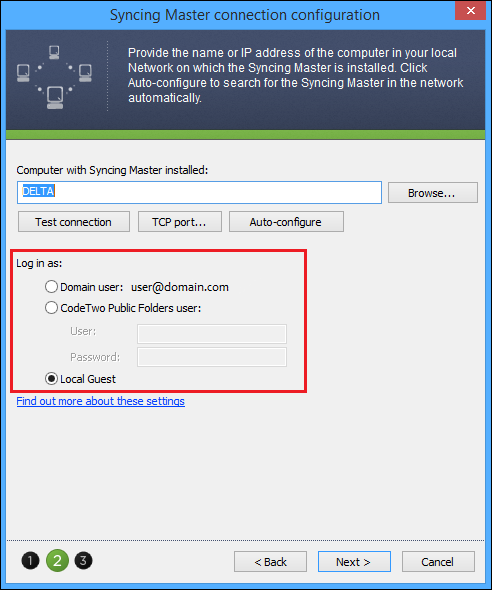
- In the next step you will be able to change the user name (Fig. 2.). Please be aware that the user is required to be listed in the Administration panel of the CodeTwo Public Folders (the Users tab).
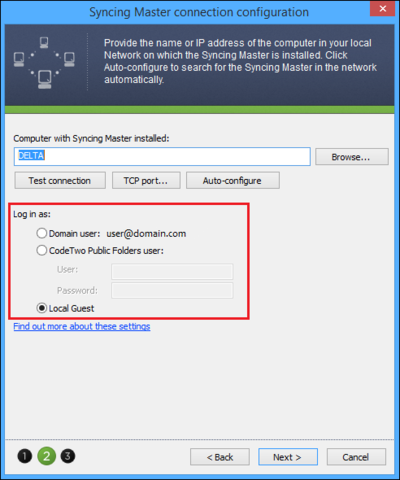
Fig. 2. User name change. - Finish the configuration by clicking the Next button and then the Close one.
- After you finish, restart your Outlook.
If you change the display name of Windows account (by editing the account in Control Panel), this will not refresh the name in CodeTwo Public Folders options. You need to change the account name in Administration Tools, Computer Management to be able to retrieve it in program.
| Related products: | CodeTwo Public Folders 4.5, 5.x |
| Categories: | How-To |
| Last modified: | March 20, 2019 |
| Created: | November 26, 2009 |
| ID: | 120 |





