How to allow CodeTwo software to continue using EWS in Microsoft 365
Problem:
Microsoft began retiring Exchange Web Services (EWS) in Exchange Online (Microsoft 365) on October 1, 2026. This change might affect the following CodeTwo software:
- CodeTwo Office 365 Migration and CodeTwo Exchange Migration (versions prior to 3.3.x) – connecting to Microsoft 365 and performing migration jobs,
- CodeTwo Backup for Office 365 (versions prior to 2.6.x) – connecting to Microsoft 365 and performing backup and restore jobs.
You want to know if there is anything you need to do to continue using your CodeTwo software.
Important
In CodeTwo Email Signatures 365 and CodeTwo Email Signatures On-prem, only the Sent Items Update (SIU) feature, which updates emails in the Sent Items folder with signatures, used EWS to connect to Exchange Online.
To continue using this feature in:
- CodeTwo Email Signatures 365 – switch to the new Graph version of SIU. See how to do that
- CodeTwo Email Signatures On-prem (hybrid environments only) – install version 1.1.x or later of the program (you can download it here) and reconfigure SIU, as described in this article.
Solution:
To avoid any disruption when using CodeTwo software, we recommend explicitly enabling EWS in your tenant and configuring an App ID Allow List (EWSAllowedAppIDs) that includes the IDs of all CodeTwo apps in your Entra ID that still require EWS access.
Note that EWS access will be permanently blocked in Exchange Online on April 1, 2027.
We are already migrating our software to Microsoft Graph. We aim to make this transition as smooth as possible and plan to complete the migration ahead of the EWS end-of-service deadline – we’ll keep you updated. Until then, or if you want to continue using an EWS-dependent version of our software, be sure to complete the steps below.
How to enable EWS in your organization
The only method to view and change the current access EWS configuration is by using PowerShell. Here’s how to do this:
- Open Windows PowerShell and connect to your Exchange Online organization by following these steps.
- Use the following cmdlet to check if EWS is enabled organization-wide:
Get-OrganizationConfig | select EWSEnabled
If the result is False or you don’t get any value (Null), as shown in Fig. 1., go to the next step to enable EWS.
Important
The Null value is currently treated as True until, which means EWS is allowed. Starting October 1, 2026, Microsoft will begin changing Null to False as part of the phased EWS retirement rollout, which will block EWS access in affected tenants.

Fig. 1. The cmdlet result showing no (Null) value.
Note that EWS can be blocked, for instance, as part of Baseline Security Mode (BSM) in the Microsoft 365 admin center (by enabling the Block access to Exchange Web Services setting).
- To allow EWS for the entire organization, use the following cmdlet (you need to be your organization’s Microsoft 365 global admin or Exchange admin to be able to do this):
Set-OrganizationConfig -EwsEnabled:$true
- When you check the EWS status again, as in step 2, you should get the result shown in Fig. 2.

Fig. 2. Confirmation that EWS is enabled in your Microsoft 365 organization.
Now proceed to the next section to configure the App ID Allow List with the IDs of all CodeTwo apps in your Entra ID that you want to continue using EWS.
How to allow specific apps to use EWS
Microsoft 365 admins can use the EWSAllowedAppIDs setting to create a list of apps that can use EWS within their tenant. The list is stored in the Organization configuration and can be edited using PowerShell. The list works only if EWSEnabled is set to True (see Fig. 2.).
Important
If the EWSAllowedAppIDs list is empty, all apps can use EWS within your tenant. If the list is populated, only the apps on the list can use EWS in your organization.
However, starting October 1, 2026, Microsoft will begin blocking EWS access for apps in tenants where the list is empty.
The script below shows how to add new app IDs to the allow list without overwriting any app IDs that are already there.
$AllowedAppIDs = (Get-OrganizationConfig -RetrieveEwsOperationAccessPolicy | select EwsAllowedAppIDs) # Gets the list of currently allowed app IDs and stores it in a variable.

$AllowedAppIDs # (Optional) Returns the list retrieved in the previous step.

$NewAppID = "61f709b4-914c-43c2-a25f-bcfe4c90fa7a" # Saves the app IDs you want to add to the allow list in a variable. In this example, the IDs refer to an app used by CodeTwo Office 365 Migration for connecting to the source Microsoft 365 tenant. You can replace them with other app IDs (separate multiple IDs with commas).

if ($AllowedAppIDs) {$UpdatedList = $AllowedAppIDs.EwsAllowedAppIDs + "," + $NewAppID} else {$UpdatedList=$NewAppID} # Checks if EWSAllowedAppIDs is already populated and creates a list ($UpdatedList) that will be used to update your organization settings. Currently, using -EWSAllowedAppIDs overwrites existing values, so this step ensures that any app IDs already added to the list will not be overwritten.

$UpdatedList # (Optional) Returns the updated list of app IDs.

Set-OrganizationConfig -EwsAllowedAppIDs $UpdatedList # Updates the list of allowed app IDs.
According to Microsoft documentation, it might take up to 24 hours for the changes to propagate.
How to find a CodeTwo app ID in Entra ID
CodeTwo migration and backup software registers an app within your Entra ID when you establish a connection to your Microsoft 365 tenant. Each registered app has its own unique ID. To add an app to the EWS allow list, you first need to find its ID. There are two ways to do this:
Finding the app ID in a connection wizard
When you establish a connection to your Microsoft 365 tenant in CodeTwo software using a connection wizard, you can check the ID of the app registered within your tenant. In the last step of the connection wizard, click Details next to the Registered the application in Azure AD or Authenticated the application action to open a pop-up window with the app ID (Fig. 3.).
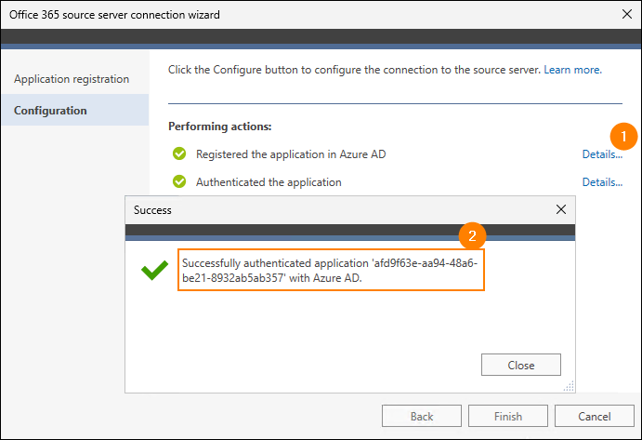
Fig. 3. CodeTwo Office 365 Migration app ID shown in the source server connection wizard.
Learn more about connection wizards in:
- CodeTwo Office 365 Migration: configuring source Exchange Online connection or target Exchange Online connection,
- CodeTwo Exchange Migration: configuring source Exchange Online connection,
- CodeTwo Backup for Office 365: configuring Exchange Online connection.
Finding the app ID in the Microsoft Entra admin center
If you have already finished creating CodeTwo apps using a connection wizard or registered CodeTwo applications manually, you can check their IDs using the Microsoft Entra admin center. To do this, go to Microsoft Entra admin center and sign in as a user with appropriate admin permissions (the least privileged role is Cloud Application Administrator or Global Reader). Next, go to App registrations. The app ID is shown next to the application name (Fig. 4.).
Tip
Type CodeTwo in the search box to show only CodeTwo apps.
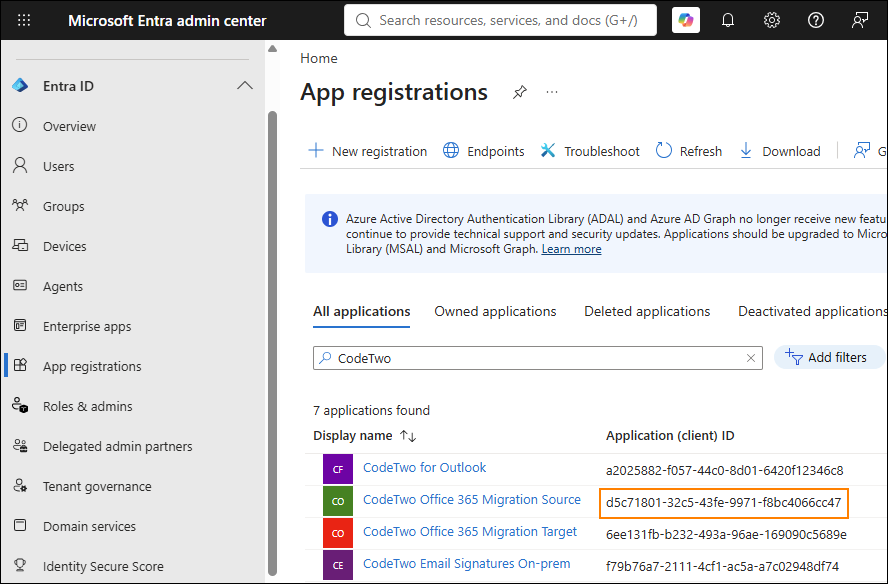
Fig. 4. CodeTwo app IDs visible in the Microsoft Entra admin center.
Other ways EWS access can be controlled in Microsoft 365
Microsoft provides several methods for controlling access to EWS. It is important to understand how they function in relation to one another and how they can affect EWS-dependent CodeTwo apps.
- Global block – EWS can be blocked completely by setting EWSEnabled to $false. Using this will prevent EWS-dependent CodeTwo apps from working correctly.
- EWSAllowedAppIDs – if this list is populated and EWSEnabled is set to $true, only apps whose IDs are added to this list can use EWS in your organization. If the list does not include the required CodeTwo app IDs, the corresponding CodeTwo apps will not be able to use EWS and work correctly after October 2026.
- EnforceAllowList – this policy can be enabled by running Set-OrganizationConfig -EwsApplicationAccessPolicy:EnforceAllowList. It blocks all applications except those you whitelist using Set-OrganizationConfig -EwsAllowList. Unlike EWSAllowedAppIDs, the EwsAllowList list identifies applications by their User-Agent strings. If the required CodeTwo User Agent strings are not included in the list, the corresponding CodeTwo apps will not be able to use EWS and work correctly, regardless of settings 1 and 2 above. Learn more about CodeTwo apps User Agent strings
- EnforceBlockList – this policy works in the opposite way to EnforceAllowList. It blocks applications based on the User-Agent strings you specify in EwsBlockList. Adding a CodeTwo User Agent string to this list will prevent the corresponding CodeTwo app from using EWS and working correctly, even if none of the settings above block it.
- Per-User Block – finally, EWS can be blocked on a per-user basis using Set-CASMailbox -EWSEnabled:$false. While this does not block CodeTwo apps themselves from using EWS, it may prevent specific tasks (e.g., data backup or migration) from being performed for the affected mailboxes.
Troubleshooting
If you get the following error:
The term 'Set-OrganizationConfig' is not recognized as a name of a cmdlet, function, script file, or executable program.
you need to install and import the Exchange Online PowerShell V3 module using the following cmdlets:
Install-Module -Name ExchangeOnlineManagement;
Import-Module -Name ExchangeOnlineManagement
If you have other problems executing these cmdlets in PowerShell, see the troubleshooting section in this article.
| Related products: | CodeTwo Email Signatures for Office 365 |
| Categories: | FAQ |
| Last modified: | October 12, 2026 |
| Created: | February 17, 2026 |
| ID: | 1150 |






