How to check your tenant ID
Problem:
You want to check your Microsoft 365 organization ID (Office 365 tenant ID), for example because you need to provide it to CodeTwo Customer Service.
Solution:
You can check your tenant ID in the Microsoft Entra admin center or by using PowerShell.
Check tenant ID in the Microsoft Entra admin center
To get the tenant ID, follow the steps below:
- Sign in to the Microsoft Entra admin center as a global admin.
- Then, go to Entra ID > Overview.
- In the Basic information section, you will find your tenant ID (see Fig. 1.).
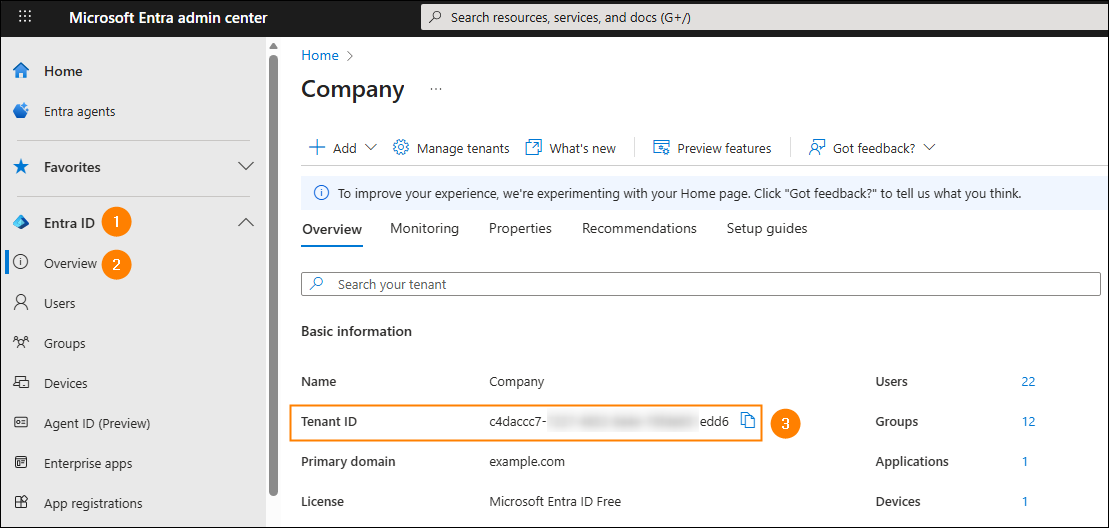
Fig. 1. Tenant ID information on the Overview tab.
Note: You should also see the tenant ID on the Properties tab (Fig. 2.)
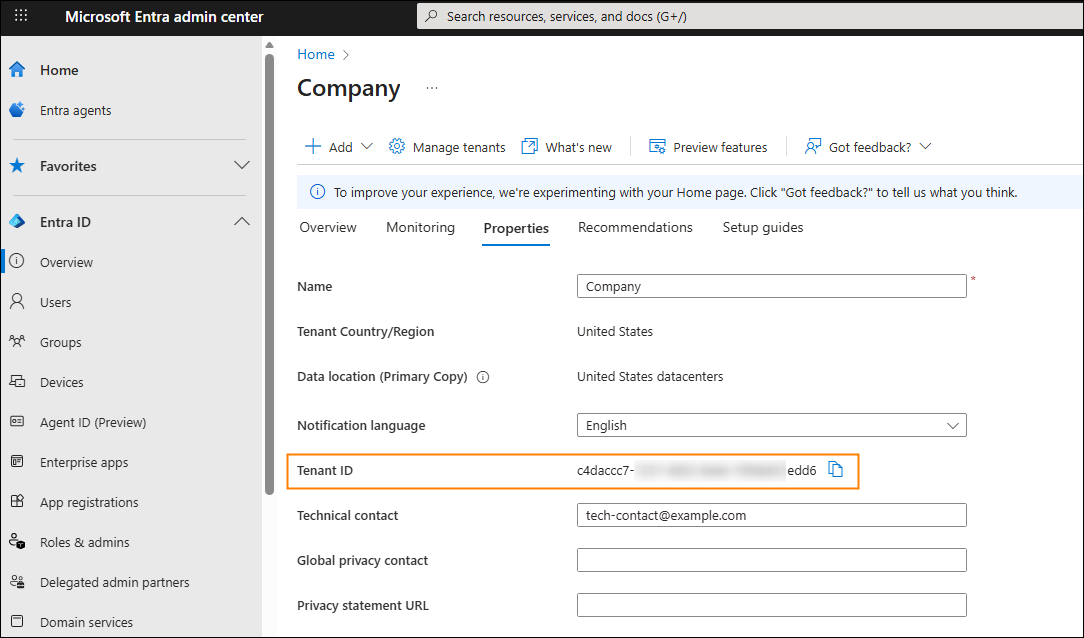
Fig. 2. Tenant ID information on the Properties tab.
Check tenant ID with PowerShell
To get the tenant ID via PowerShell, you need to:
Important
For this method to work, you need to have the Microsoft Graph PowerShell SDK module installed.
- Run Windows PowerShell.
- Connect to Microsoft Graph by running the following cmdlet:
Connect-MgGraph
- You will be prompted for credentials to connect to the tenant you want to check the ID for.
- Once the session is connected, run the following cmdlet to get details of your tenant in Entra ID. The tenant ID is displayed under the Id column (Fig. 3.).
Get-MgOrganization
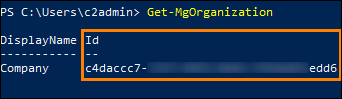
Fig. 3. Tenant ID displayed after running the Get-MgOrganization cmdlet.
- Once you get your tenant ID, disconnect the session by running:
Disconnect-MgGraph
| Related products: | CodeTwo Email Signatures for Office 365, General (Microsoft 365, Exchange & more) |
| Categories: | How-To |
| Last modified: | January 30, 2026 |
| Created: | April 10, 2020 |
| ID: | 857 |





