CodeTwo Outlook Export
Easily export Outlook data to CSV files

This tool is deprecated, which means it’s no longer available for download, and we no longer develop, maintain, test, or support it. Because of that, we can’t guarantee it will work properly in your environment. You can see our current software products here.
CodeTwo Outlook Export is a free tool for exporting data from Microsoft Outlook to CSV text files. The program allows exporting much more data than offered by the built-in export feature in Outlook, allowing the export of non-standard user-defined fields from Outlook and is quicker and easier to use. Data can be exported from folders of all types, such as Contacts, Calendar, E-mail, Post, Tasks, Journal, Notes.
Watch this video to see how to export Outlook data using CodeTwo Outlook Export:

After installing the program, the new icon will appear in the standard Outlook toolbar. Clicking it runs CodeTwo Outlook Export.


In the CodeTwo Outlook Export window a user can choose whether to export data from all items in the current folder or to export only the selected items. Then the user defines the path to the CSV file to store the exported data.
The Export fields list contains a list of Outlook data fields, which will be exported to the CSV file. The left column contains field names as they appear in Outlook. The right column shows field names as they will appear in the CSV file. By default, the names are the same in both columns. If you want to change a field name in the CSV file, click it with your left mouse button or press the F2 key. Use the Add and Delete buttons to add and delete fields from the list. The Up and Down keys are used to change the order of fields in the CSV file. In order to start exporting data to the CSV file, press the Export button.

After clicking the Add button the Field chooser dialog will be displayed. It allows you to add fields of data exported to the CSV file to the Exported fields list. The Field chooser dialog box displays a variety of fields, depending on the folder type, from which the data is currently exported.

In order to add exported fields to the Exported fields list, you need to select them in the Field Chooser dialog box and click the Insert button. You can select more than one field at a time. The Field chooser initially displays standard Outlook data fields only. To display user-defined fields, created in a folder or in the other objects, click the Refresh button. If after selecting the Refresh command, a user-defined data field does not appear in the Available fields list, the name must be entered in the Custom field name field and you need to click Add. The field will then be added to the Available fields list.
User-defined property names are case sensitive.
After selecting the data fields you can save them to file by clicking Save to file. This feature will let you create multiple export schemes with the most frequently used data fields. To use the data fields from a file simply click Load from file.
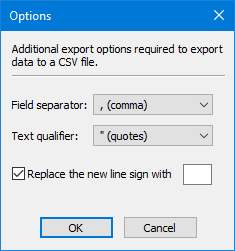
Clicking the Options button in the main dialog box lets you define the additional data export options: the field separator (with which the characters data fields will be separated), the text qualifier (the type of quotation marks the data is to be placed in), the new line sign (if the new line signs should be replaced with another character).