This manual refers to an old version of CodeTwo Exchange Sync. Go here if you use the latest version.
Rebuilding items in target folders
In one-way synchronization the target folders will always contain the same items as the source folders. While editing the items in the source folder, all changes will be replicated to the target folder. Furthermore, the program by default overwrites all changes made on items in the target folder during synchronization. It means that if a user makes any change to the target folder items and saves them, the application will initiate a synchronization in which the changed items in the target folder will be replaced with their copies from the source folder. Therefore, the same situation apllies to removing items in the target folders. On the other hand, the only item type that won't be compared with the source is a new item.
However, there are two ways to change / delete items from the target folders:
- Introduce desired changes on the source folders - in this way changes will be replicated to the target folders.
- Make use of the additional options that let you disable the rebuilding process within the target folders.
To control how the synchronized items are rebuild in the target folders, open up the One-Way Sync Target Folders Options window. It is available via the Options button located within Folders scheduled for synchronization section once any one-way synchronization task is chosen (Fig. 1.).
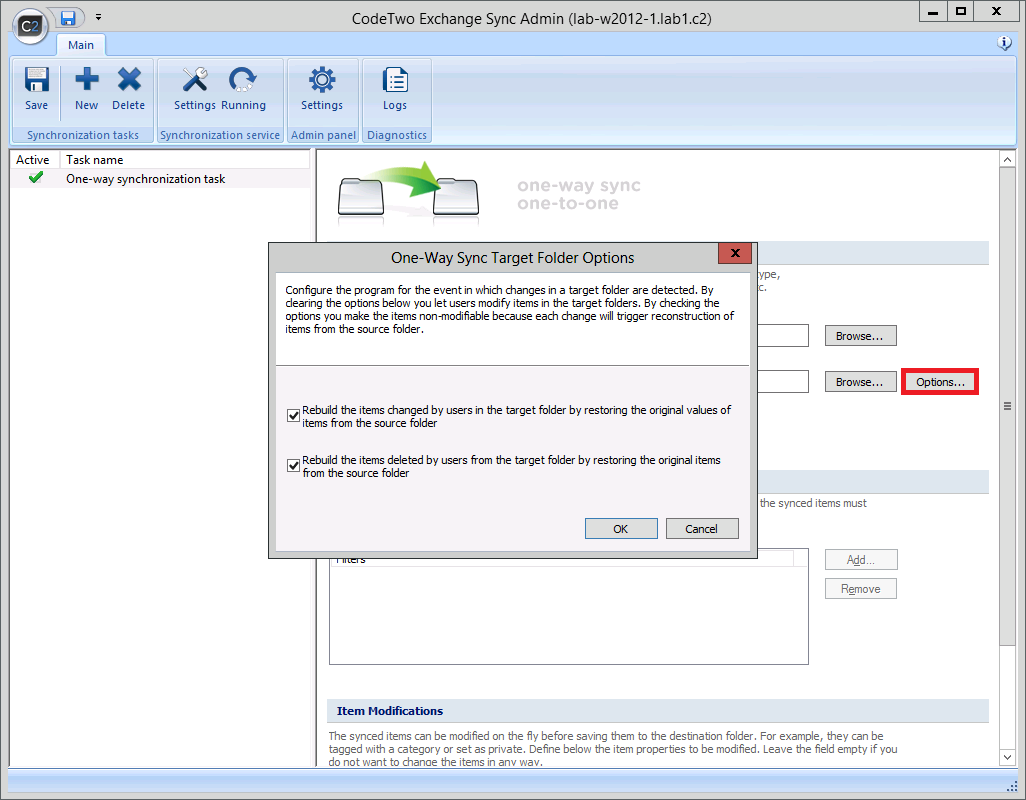 |
| Fig. 1. Entering rebuild folders' items options in one-way synchronization type. |
The folders' options window includes two features:
Please note that both features are turned on by default and will continue to replicate changed items in the target folders until deactivated.
Rebuilding edited items in the target folders
By checking this option (Fig. 2.) you ensure no change can be made to the items once replicated to the target folders. Each change will initiate an imidiate reconstruction of the items from the source folder.
Clear this option if you want to allow the user to edit items in the target folders that were once synchronized from the source folder (-s).
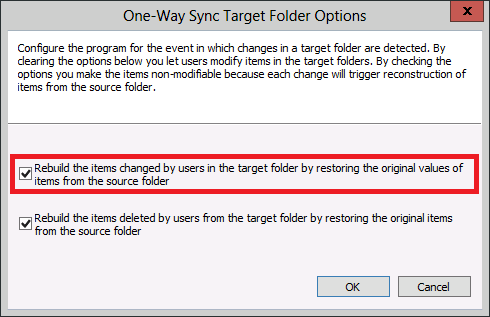 |
| Fig. 2. The option is responsible for restoring the original values of synchronized items if they have been changed in the target folder. |
Rebuilding deleted items in the target folders
By checking this option (Fig. 3.) you ensure the items replicated to the target folder cannot be deleted from it. Each deletion will initiate an immediate reconstruction of the item from its source folder.
Clear this option if you want to allow the user to delete once synchronized items from the target folder (-s).
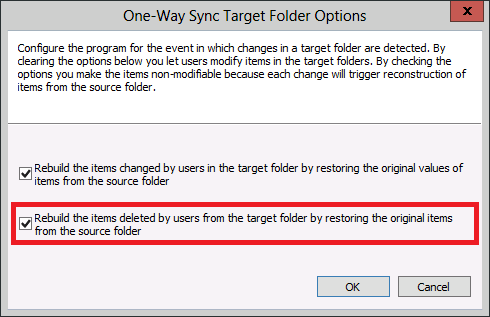 |
| Fig. 3. The option responsible for retrieving the original items if they have been deleted from the target folder. |
By clearing the above options you will let users make changes to the items in the target folders including removal and edition of items. Note however that the changes will be retained only until the original items become changed in the source folder. Then the items in the target folder will be replaced with their copies from the source folder.