This manual refers to an old version of CodeTwo Exchange Sync. Go here if you use the latest version.
Log files
The log files contain diagnostic data that can be used when the program deviates from its intended behavior.
To open the log files dialog box, click the LogFile button in ribbon of the CodeTwo Exchange Sync Admin screen (Fig.1).
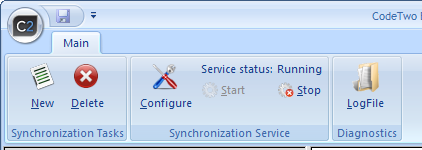 |
| Fig.1. LogFile button in the ribbon of the main screen of CodeTwo Exchange Sync Admin. |
After clicking the LogFile button, the Log Files dialog box opens (Fig.2)in which you can browse the log files that have been created so far and send them to CodeTwo Support.
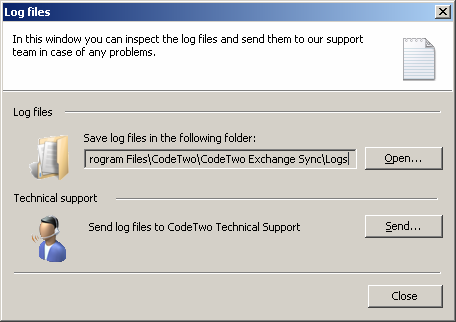 |
| Fig.2. Log Files dialog box in which you can open the log file folder and sent the log files to CodeTwo technical support. |
Log Files Location
The Log Files section shows the path to the folder containing the log files. The log files are saved by default in the installation directory in the Logs subfolder. To quickly browse to the Logs folder, click Open next to the field with the path to the Logs folder. The log files are TXT files that can be opened with a Notepad. In a single day the application can create a number of TXT log files in the following format: YYYY.MM.DD_00001, YYYY.MM.DD_00002, YYYY.MM.DD_00003 …, where Y is the year, M – the month, and D to the day on which the file was created. The maximum size of the file is 2MB.
It is not possible to change the location of the log files.
Technical Support
In the Technical support Support section, you can quickly and effortlessly send a message to the technical personnel of CodeTwo to solve the issue experienced while using CodeTwo Exchange Sync. Click Send to create the message to CodeTwo. A Contact CodeTwo Support (Fig.3). dialog box will display (Fig.3). An automatically created message will attach zipped log files and direct the message to the support team to  . In the text field you can include all additional information to help the support sort out your issue. Finally click Send to send your message.
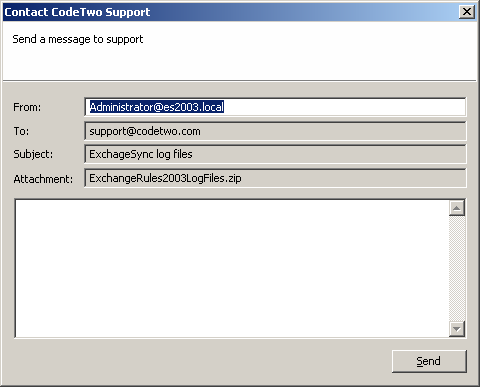 |
| Fig.3. Message dialog box to the technical support. |
In this article