Preview your template
The composition pane located below the ribbon shows how your template appears inside an email conversation. For a cleaner view, you can turn off email section names and borders via the Guidelines button (Fig. 1.).
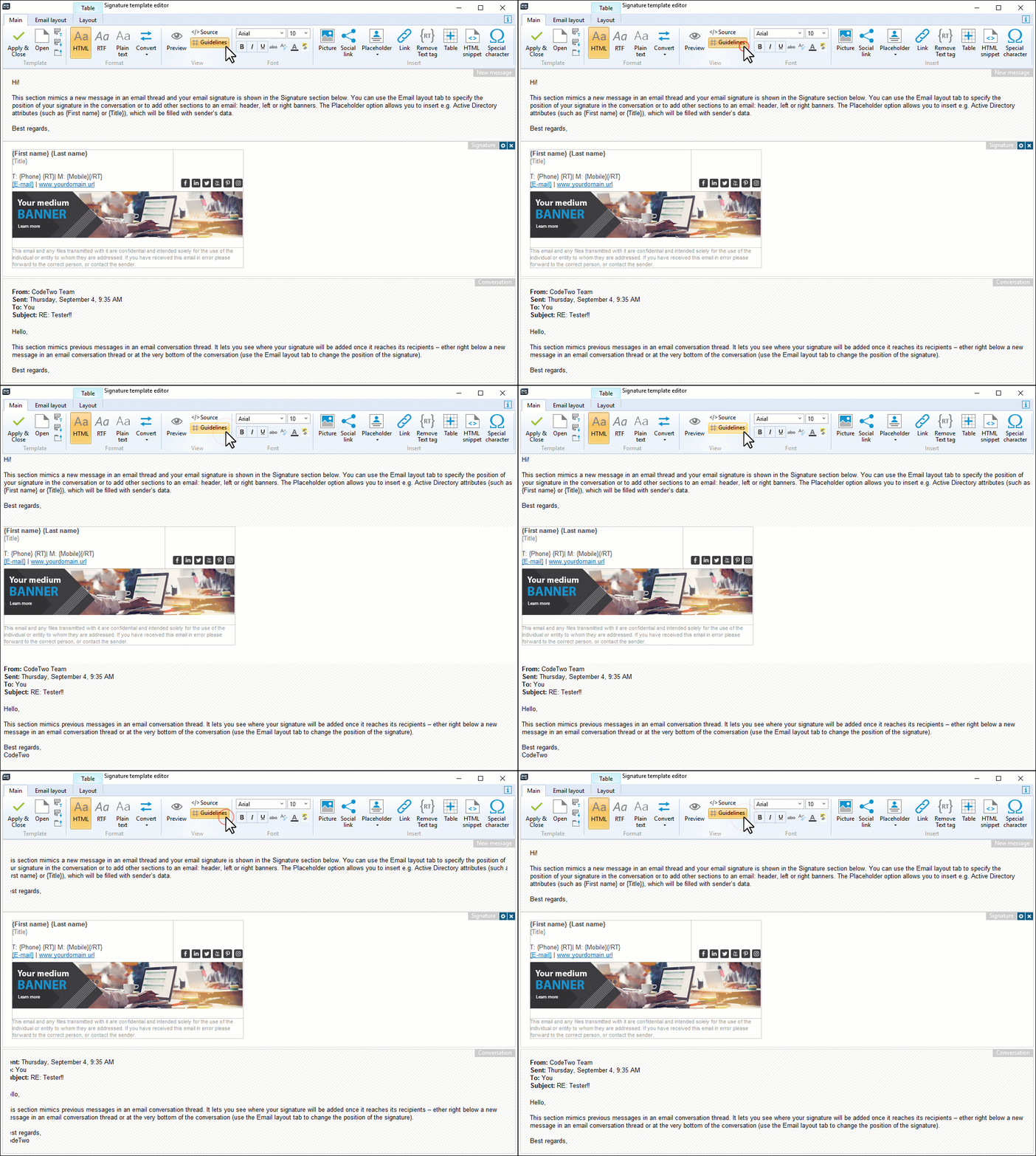
Fig. 1. Turning guidelines on/off.
The editor displays your template with placeholder names, invisible table borders and other elements to help you with the design. To preview how your signature template looks like in a real email message and with real data, use the Preview ( ) button on the ribbon. Choose a user inside your organization to see their version of the signature (Fig. 2.). Placeholders are automatically filled with user information. Switch between the tabs to preview each template format.
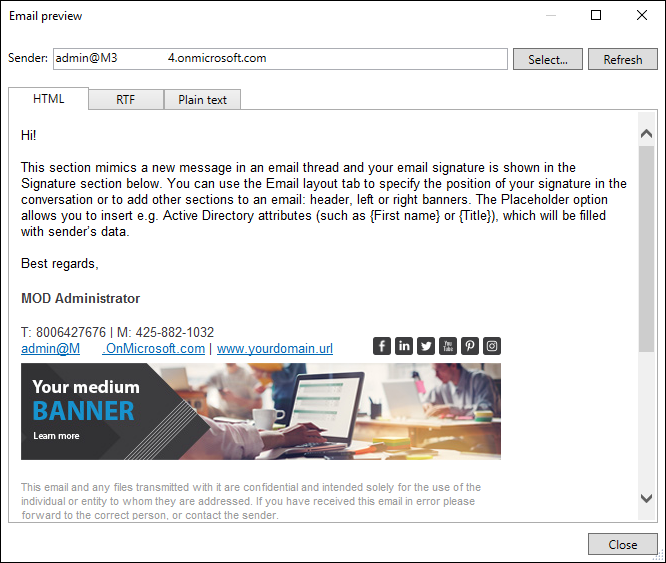
Fig. 2. You can preview a signature for a real user in your company.