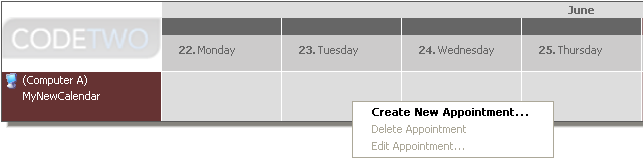
We add data to the newly created calendar. To create a new entry in the calendar, right click a calendar cell in a selected day and choose Create New Appointment from the menu (Fig.1).
|
| Fig.1. Creating a new entry in the calendar. |
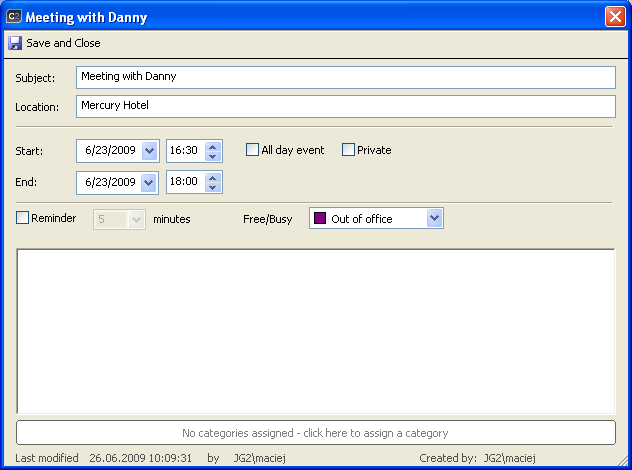
An appointment dialog box will open (Fig.2) that can be filled with data related to the appointment such as the title, location, start and end time, reminder, free/busy status, color categories, extra notes. The appointment can be marked as Private so the data included there will not be visible for other users.
|
| Fig.2. Entering data related to the appointment (click to enlarge) |
Assigning a reminder to an appointment
By assigning a reminder to an appointment you can make sure that a reminder window will display for all employees using this calendar in due time (e.g. 10 minutes before the appointment).
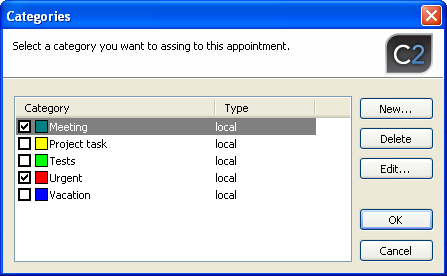
An appointment can also be tagged with color categories. To add a category to an appointment, click the No category box in the bottom part of the appointment screen. A list of all available categories will display that the appointment can be tagged with (Fig.3).
|
| Fig.3. Assigning a category to an appointment. |
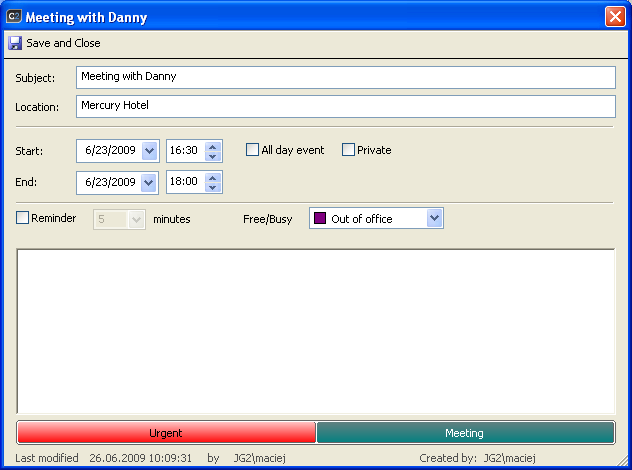
You also can create new categories and edit or delete the existing categories in this dialog box. Put a checkmark next to the categories you want to assign to an appointment and click OK. The categories will be added to the appointment and from now on it will display with a selected color both in the appointment screen (Fig.4) as well as in the calendar view in the appointment item (Fig.5).
|
| Fig.4. The appointment including data and tagged with two categories (click to enlarge). |
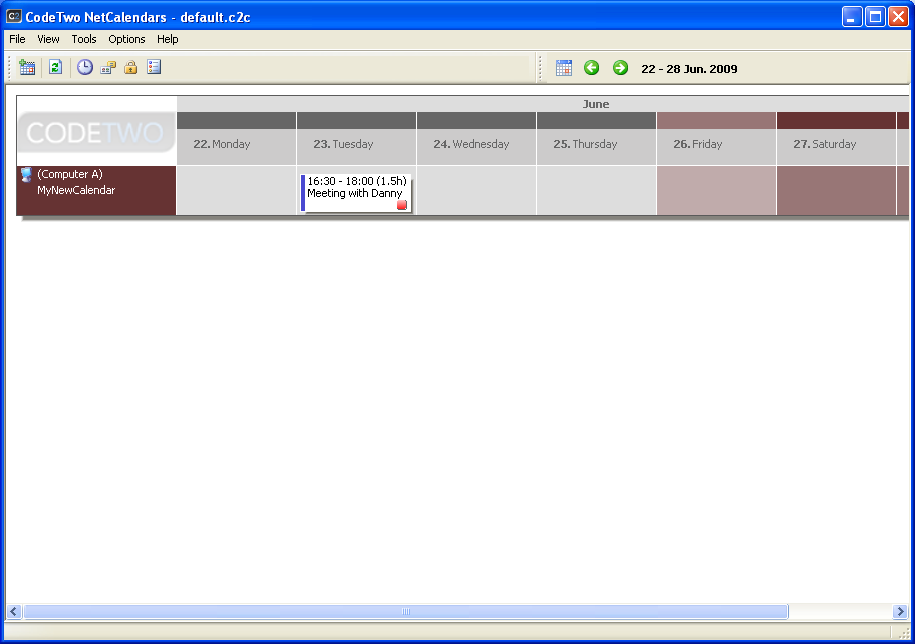
After filling out the appointment with data, click Save and Close to save the appointment. The appointment dialog box will close and the entry will be added to the calendar view in the form of a rectangular item including basic data such as start and end time, subject and category tags (Fig.5).
|
| Fig.5. The appointment entry in the calendar (click to enlarge). |
You can change the appointment data at all times. Simply double click it to display its editable screen (Fig.4). If you want to delete the item, right click it and choose Delete Appointment from the menu.
The above steps will also be taken to create a new appointment in the calendar.
 Back
Back
