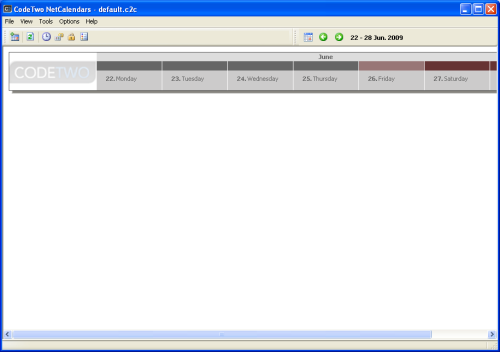
First we create a new calendar on computer A. After installing and running the application on the computer, the screen below is displayed (Fig.1.), which does not include any calendars.
|
| Fig.1. The first time you run the program the view will be empty. |
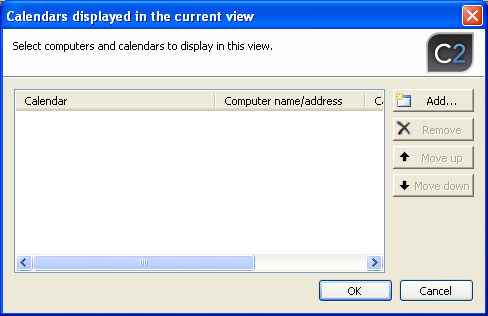
To add a new calendar, choose Add/Remove Calendar in View menu. A dialog box will display (Fig.2.). Currently, the list is empty as no calendars have been defined yet.
|
| Fig.2. Dialog box listing available calendars. |
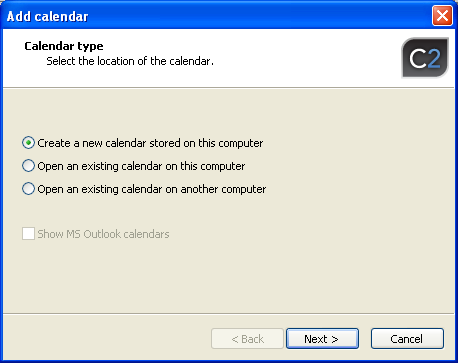
Click Add. The wizard will start with a dialog box in which the calendar type to display can be selected (Fig.3.).
|
| Fig.3. Selection of calendar type to display. |
Since you want to create a new calendar, click Create a new calendar on this computer and then click Next.
|
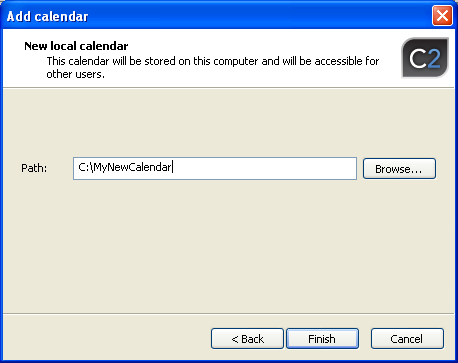
| Fig.4 Pointing to the location of the created calendar. |
In the dialog box that will appear (Fig.4) choose the path to the calendar file that will be created by the program and where the data of the calendar will be stored. Once the location is chosen, click Finish. A new calendar is created and automatically added to the current view (Fig.5).
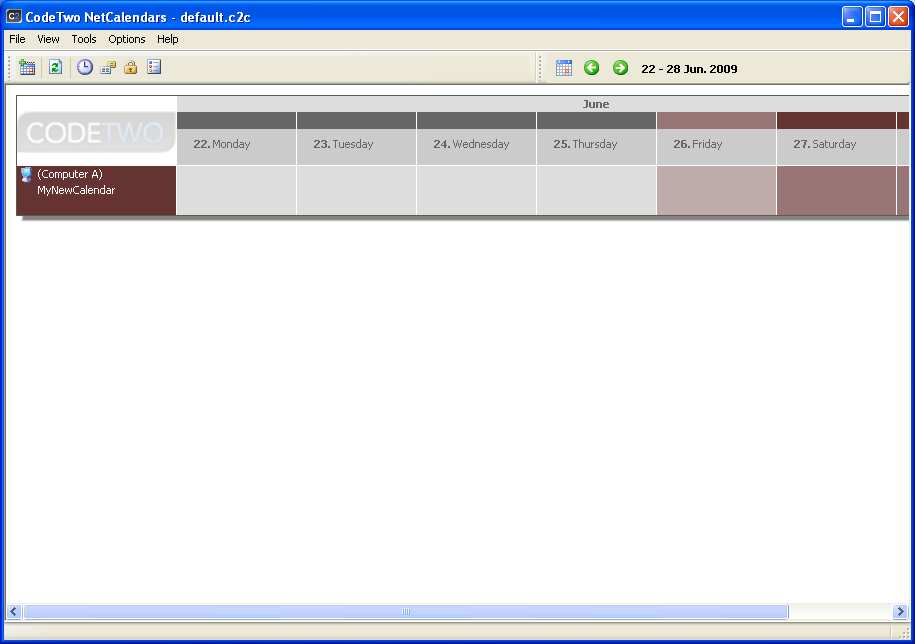
|
| Fig.5. The new calendar is added to the view (click to enlarge). |
 Back
Back
